Tag: Android

  • Google Messages Adds 9 New Features: A Complete Guide for Android Users

    Google Messages Adds 9 New Features: A Complete Guide for Android Users

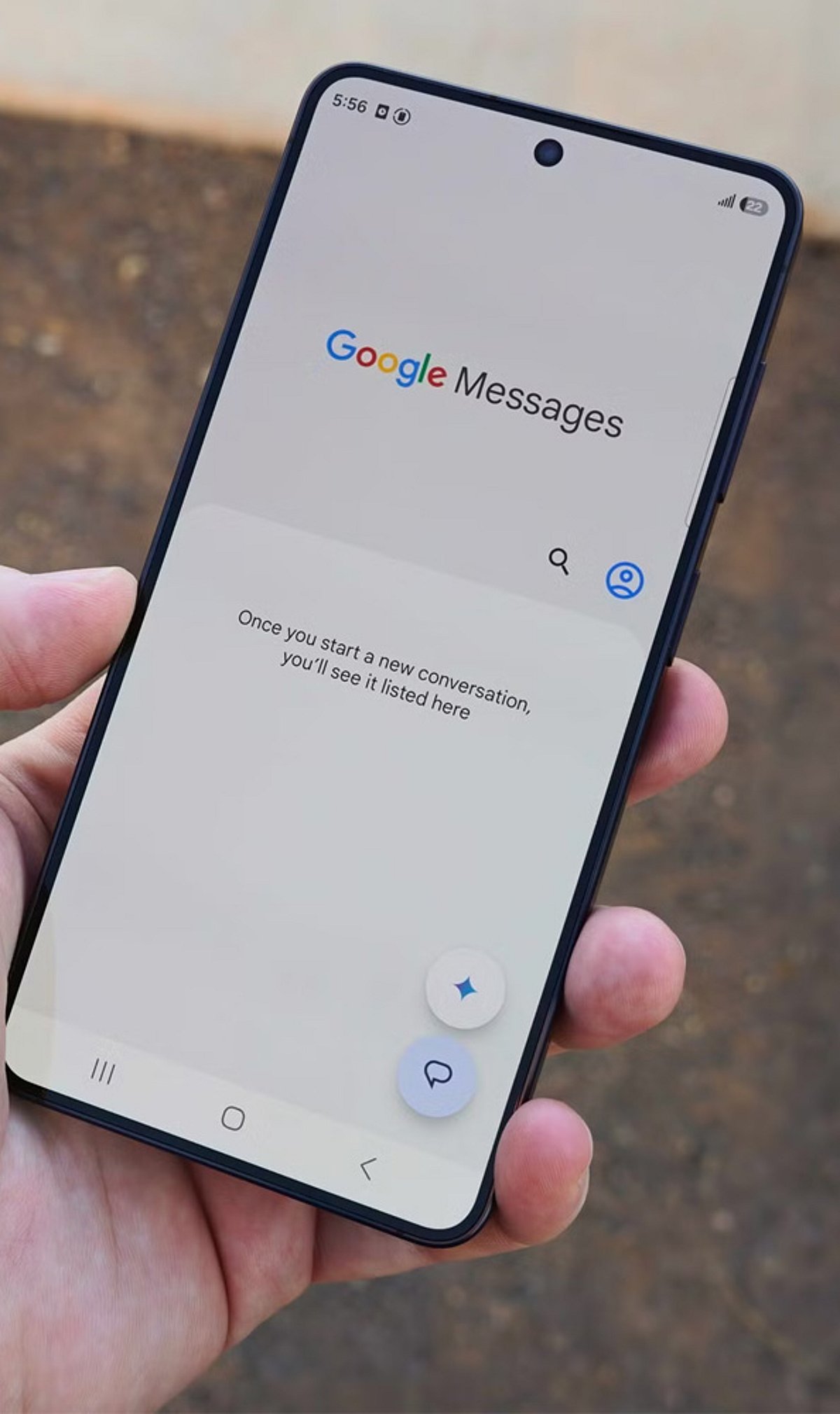
    Google Messages is getting a major update packed with quality-of-life improvements. From richer personalization options to smarter RCS controls, Android users will soon see a more flexible and connected messaging experience. Here are the nine new features rolling out to Google Messages.

    1. Personalized Chat Themes

    Users can now customize individual conversations with custom colors and wallpapers. Google Messages also supports personal photos and curated background collections, making it easy to give every chat its own look and feel.

    2. Google Keep Integration

    Google Keep notes can now be created, edited, and shared directly inside conversations. This integration helps users manage collaborative lists and planning tasks without switching between apps.

    3. Precise Copying

    The redesigned long-press menu allows users to select and copy specific portions of a message. Instead of copying an entire text, you can now grab just the part you need.

    4. Swipe for Timestamps

    Swiping left anywhere within a conversation now reveals message timestamps and RCS encryption information. The new gesture makes it quicker and more convenient to check message details.

    5. Updated Reply Gesture

    Google Messages has changed the reply interaction: a right swipe on a message bubble now opens direct replies. This replaces the previous left-swipe gesture and makes responding more intuitive.

    6. Official Feature Chat

    Google is introducing an official RCS chat where users can learn about new Google Messages features and receive in-app updates. This dedicated channel keeps users informed directly within their conversations.

    7. Android-iPhone RCS Replies

    RCS conversations between Android and iPhone users now support inline quoted replies and actual emoji reactions to photos, starting with iOS 27. Cross-platform chats will feel more expressive and responsive.

    8. Read Receipt Redesign

    Google Messages is testing a refreshed read receipt design with easier access to timestamps and encryption details. The new swipe-based conversation controls put key message information just a gesture away.

    9. Messages for Web

    Messages for web is moving toward Google Account sign-in as the primary login method. QR-code pairing is being phased out as the newer, more streamlined authentication approach rolls out to users.

    These updates reflect Google’s focus on making Messages more personal, efficient, and secure for Android users. Keep an eye on the app for these features as they become available.

  • From Code to Your Smartphone: The Complete Process of Mobile OS Updates

    From Code to Your Smartphone: The Complete Process of Mobile OS Updates

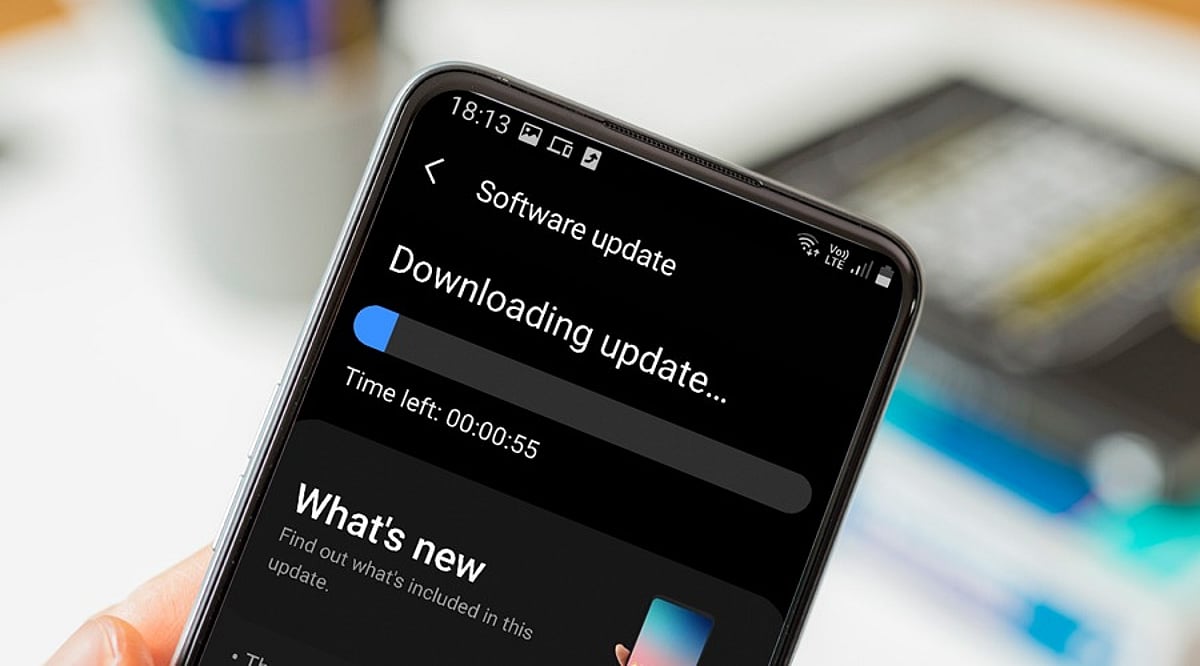
    When you tap ‘Download and Install’ on a mobile OS update, you’re triggering a process that began months earlier with software developers writing code. This article explains the entire journey of a mobile operating system update, from initial development to the moment it lands on your device.

    Development: Where Updates Begin

    Mobile OS updates start with software engineers creating new features, security patches, and system improvements. Individual components are tested before being integrated into larger builds. Major releases may introduce redesigned interfaces, new privacy controls, or updated system applications, while security updates focus on vulnerabilities and stability.

    Hardware Integration: Adapting to the Device

    An operating system cannot work without compatible hardware. Processors, cameras, modems, and displays require drivers and firmware to communicate with the OS. Chipset manufacturers play a key role, which is why Android updates often reach different models at different times. Manufacturers must adapt the OS to their specific hardware configurations, including user interface modifications and device-specific functions.

    Testing: Multiple Stages of Quality Assurance

    Before release, updates undergo extensive testing. Engineers check core functions like calling, messaging, Wi-Fi, Bluetooth, cameras, and battery management. Beta programs provide additional feedback from real users, helping developers catch issues that internal testing might miss.

    Certification and Carrier Approval

    For some devices, mobile operators test updates to ensure network compatibility. This stage can cause variations in update timing between countries and carriers.

    Distribution: OTA and Staged Rollouts

    Once testing is complete, the update is packaged for over-the-air (OTA) delivery. Companies often use staged rollouts, releasing the update to a small percentage of users first. If serious problems are found, distribution can be paused.

    Installation: What Happens on Your Phone

    Your smartphone periodically checks for updates. When available, it verifies the package’s authenticity, then replaces or updates system components. The device may restart several times. Modern recovery mechanisms help prevent bricking if the installation fails.

    Why Updates Arrive at Different Times

    Timing depends on device model, region, manufacturer, chipset, carrier requirements, and testing status. Older devices may follow different schedules. For Android, the many hardware configurations mean additional adaptation stages.

    Post-Installation

    After installation, the phone performs background tasks like app optimization and file reorganization. Users may notice new features, interface changes, or performance differences. Follow-up patches can address bugs discovered after wider deployment.

    Frequently Asked Questions

    • Why do smartphones receive OS updates at different times? Timing varies due to hardware adaptation, testing, carrier requirements, and regional distribution schedules.
    • What does OTA mean? OTA stands for Over-The-Air, allowing updates to be downloaded and installed directly without cables or service center visits.
    • How does hardware affect updates? Components like processors and cameras require compatible drivers, necessitating hardware-specific testing and adaptation.
    • Can a failed update brick my phone? Modern smartphones have recovery mechanisms to protect system integrity and recover from installation failures.
    • Why are staged rollouts used? They allow manufacturers to monitor updates on a small group and pause distribution if serious issues arise.
  • Googlebook 2026: Google’s AI-Powered Laptop Lineup, Pricing, and Features

    Googlebook 2026: Google’s AI-Powered Laptop Lineup, Pricing, and Features

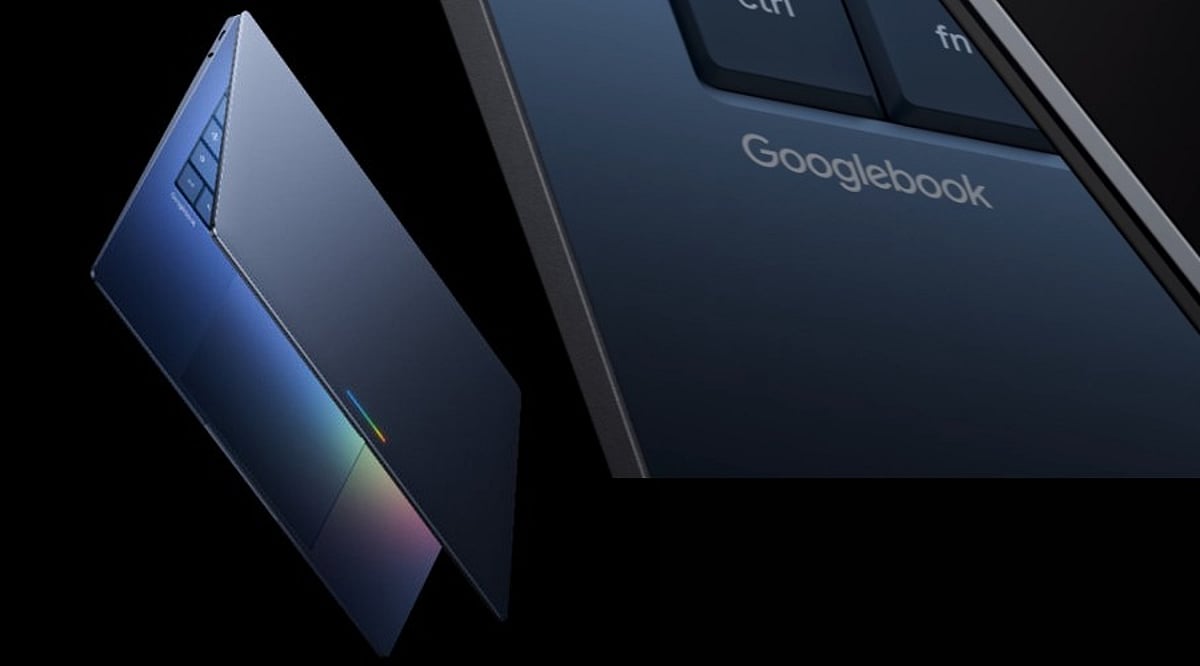
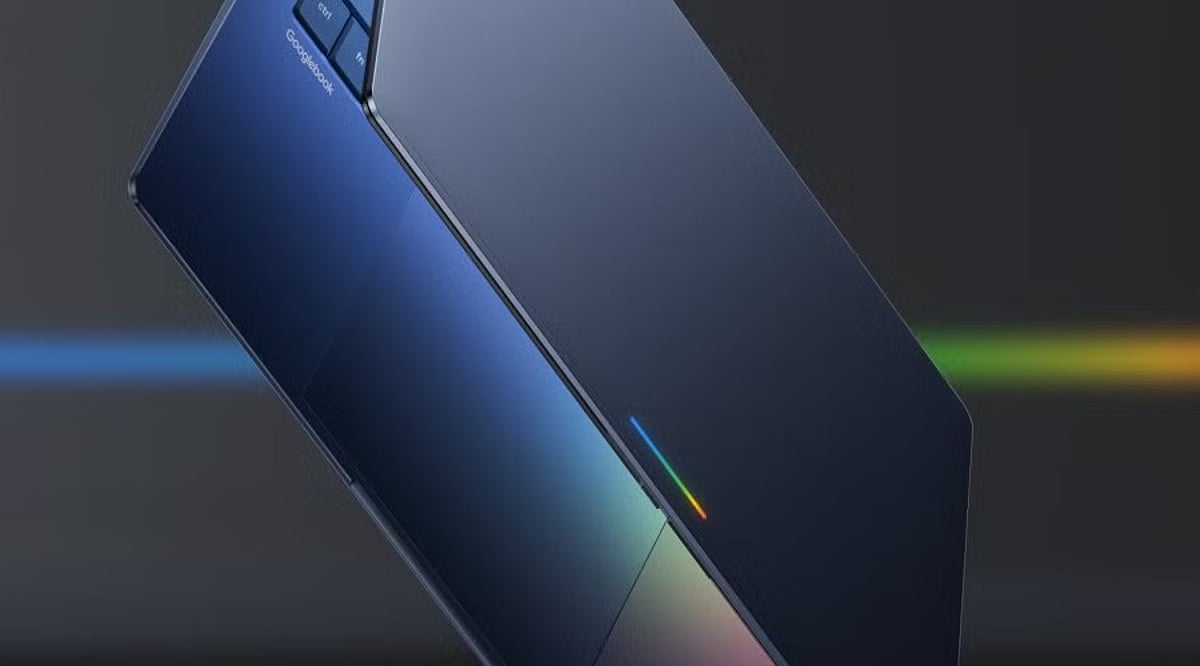
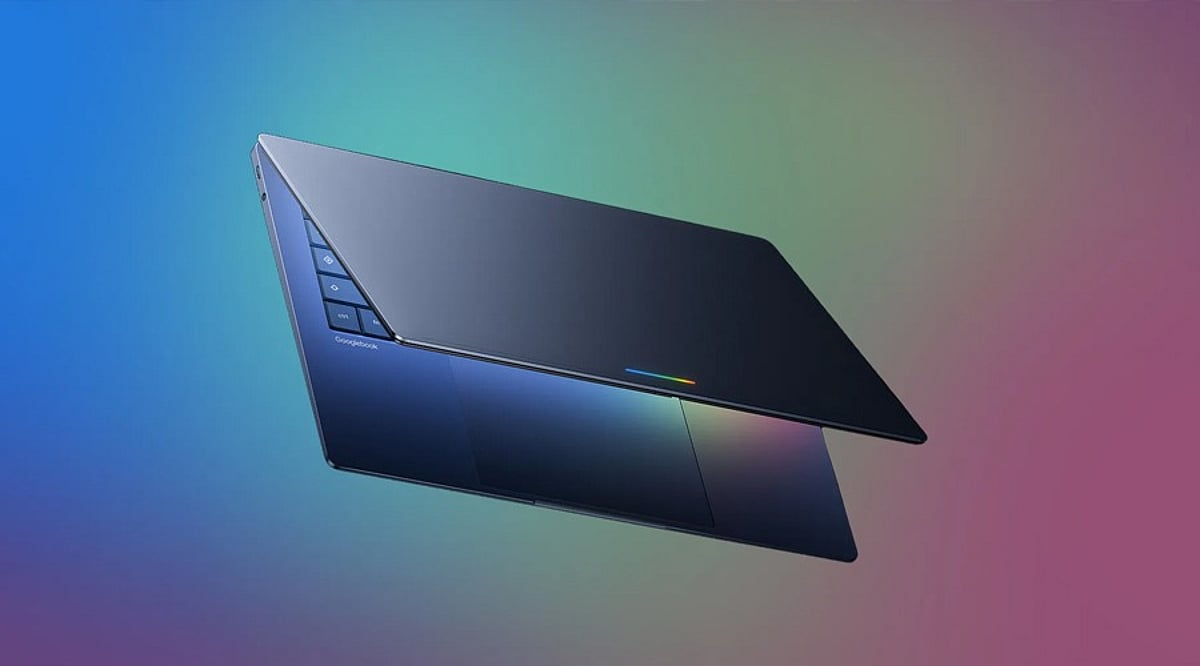
    Google is taking a significant step into the premium laptop market with the introduction of Googlebook, a new device category designed to put AI at the center of everyday computing. The first generation of Googlebook laptops combines conventional laptop hardware with Google’s software ecosystem, including ChromeOS, Android app support, and deep integration with the company’s Gemini AI assistant.

    The lineup includes five models from Acer, ASUS, Dell, HP, and Lenovo, with prices starting at USD 899. Each device offers a distinct design and feature set, giving buyers a range of choices across portability, screen size, and security.

    Five Googlebook Models, Five Different Approaches

    Unlike a single flagship design, Google is letting its partners take different approaches to the first Googlebook lineup:

    • Acer Googlebook 14 – The only convertible model, featuring a display that folds into tablet mode for flexible work.
    • ASUS Googlebook 14 – A lightweight, portable option weighing just 2.2 pounds, with HDMI and multiple ports.
    • Dell Googlebook 14 – Borrows Dell’s popular XPS design language, adding a fingerprint reader and a slim profile.
    • HP Googlebook 14 – Supports both facial recognition and fingerprint authentication, with storage options up to 1TB.
    • Lenovo Googlebook – Offers a larger 15.3-inch display, aimed at users who need more screen real estate.

    Premium Hardware and Everyday Practicality

    Googlebooks are built with a mix of aluminum, magnesium alloy, and carbon fiber. The displays are touchscreens with resolutions up to 2.8K, and Google highlights features like haptic glass trackpads and backlit keyboards.

    Audio is a strong focus across the lineup. Some models include up to six speakers with Dolby Atmos support, and noise-canceling microphones are designed to make voice calls and recordings clearer. Battery life varies by configuration, but Google promises up to 14 hours of video playback and up to 16 hours of web browsing on supported models.

    Gemini Is the Core of the Experience

    The biggest differentiator for Googlebook is how deeply Gemini is integrated into the system. One feature, Magic Pointer, brings Gemini contextually to whatever appears on screen. Users can highlight content and ask the AI to organize information, translate text, or analyze suspicious messages.

    Another tool, Rambler, is built around voice-based writing. You can speak naturally while Rambler turns your thoughts into structured notes. There is also Create My Widget, which lets users describe a widget in plain language and have it generated without writing code.

    Closer Android Phone Integration

    Googlebook is designed to work seamlessly with Android smartphones. Files can be accessed directly from the computer, and tasks can be moved between devices without constant file transfers. The Files feature can display photos and documents stored on a connected phone, while Cast My Apps can bring selected phone applications onto the Googlebook screen.

    This tight Android connection makes the laptop feel like an extension of your phone rather than a separate device, a strategy that could appeal to people already in the Google ecosystem.

    Software, Apps, and Developer Tools

    The software experience combines a desktop version of Chrome with Android applications. Users can run a range of tools, including Adobe Photoshop, Lightroom, and CapCut. Streaming apps and Android games are also supported, and every purchase includes a complimentary year of GeForce NOW.

    Developers get access to Google Antigravity and a full terminal environment, allowing them to use development tools and AI coding agents directly on the device. Security features include Titan hardware security, on-device malware detection, and an isolated Linux environment powered by pKVM technology.

    Pricing, Availability, and What to Expect

    The Googlebook lineup starts at USD 899, with higher-end configurations going up to USD 1,299. Every device includes 12 months of Google AI Pro and 5TB of cloud storage. Buyers also receive promotional access to YouTube Premium and select creative software. Google says the devices will receive updates for up to 10 years.

    The first Googlebooks will be available in the United States starting October 4, followed by the UK, Canada, Australia, France, Germany, and Ireland.

    By bringing Gemini, Android integration, and premium hardware together, Google is positioning Googlebook as a serious entry into the AI laptop space. The variety across the five models also gives users the flexibility to choose a laptop that fits their particular workflow.

  • Master Your Android: A Complete Guide to Changing Default Apps for Browser, Messaging, Camera & More

    Master Your Android: A Complete Guide to Changing Default Apps for Browser, Messaging, Camera & More

    Android phones ship with a set of default apps for browsing, messaging, calling, and more. Most people never bother changing them, but customizing these defaults can make your phone feel truly personal. Whether you prefer a different browser, a dedicated gallery app, or a specific messaging service, switching defaults takes only a few taps. This guide explains where to find these settings, how to change them, and why it matters more than most users realize.

    What Default Apps Actually Are

    Every Android phone assigns a default app to handle common actions—opening a web link, sending a text, viewing a photo. When you tap a link in an email, the phone needs to know which browser should open it. That decision comes from the default app setting. Without a default set, Android sometimes asks you to pick an app every single time, which gets tiring fast. Setting a clear default removes that repeated prompt and speeds up everyday tasks like opening links, dialing numbers, or viewing images.

    Where to Find Default App Settings

    The exact path varies slightly by phone brand, but the core steps are the same across most Android devices. Open the Settings app, scroll down, and tap Apps. Inside this menu, look for Default apps—on Samsung and Xiaomi it may be under a submenu called Advanced or App Management. Tapping this opens a full list of categories: browser, phone, SMS, gallery, and digital assistant. Here you can see exactly which app currently handles each task.

    Changing a Default Browser, Messaging, or Camera App

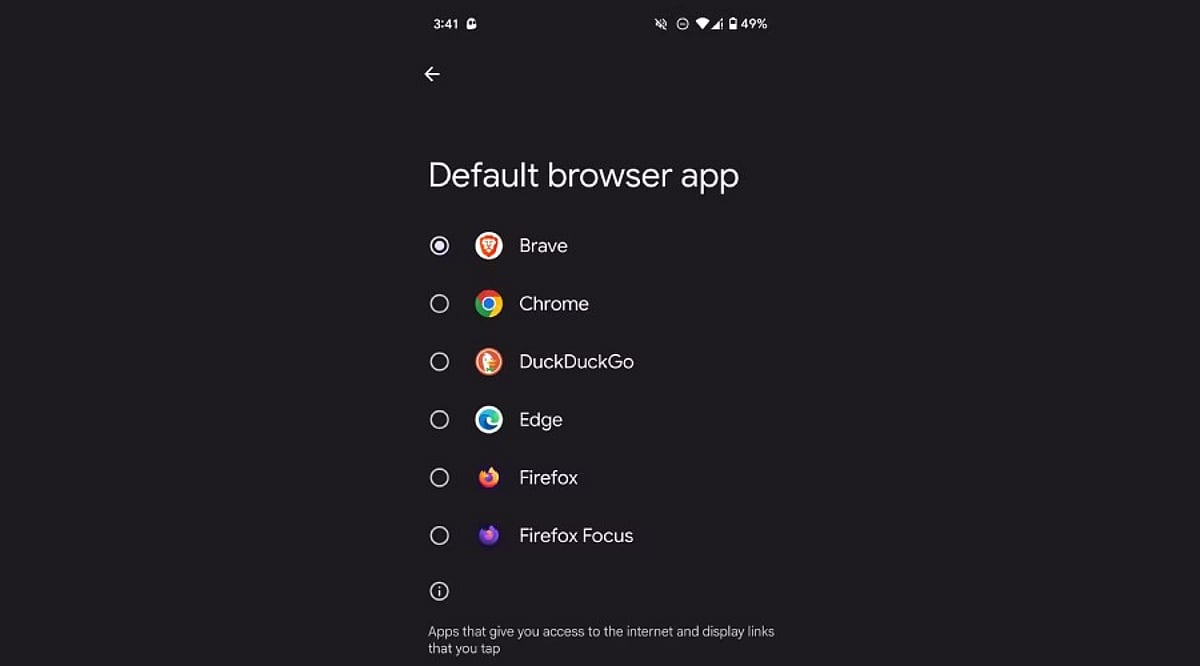
    Switching a default app takes just a few taps. Select the category you want to change, such as Browser app, and a list of every compatible installed app appears. Tap the desired app—like Chrome, Firefox, or Brave—to set it as the new default immediately. The same process works for messaging apps (WhatsApp, Google Messages) and camera or gallery apps. Android applies the change instantly, so the very next link, text, or photo opens through the newly chosen app without needing a restart.

    Handling Default Apps for Specific File Types and Links

    Beyond the main categories, Android lets you control which app opens specific file types or web links—known as “Opening links” settings. This sits inside each app’s settings page rather than the general Default apps menu. For instance, you can choose whether Instagram links always open in the Instagram app or default to a browser instead. This level of control matters if you juggle multiple similar apps, like two PDF readers or note-taking tools, since it avoids constant pop-ups asking which to use.

    Why Setting the Right Defaults Matters

    Choosing the right default apps affects daily convenience far more than people expect. A slow default browser adds unnecessary loading time to every link you tap. A messaging app that isn’t the default might cause missed notifications if messages route through another service. Privacy also plays a role—some apps collect more data than others, and picking a privacy-focused default browser or keyboard reduces exposure. For professionals relying on specific tools for calls, calendars, or file management, correct defaults keep workflows smooth without repeated interruptions.

    A Quick Recap for Everyday Use

    Changing default apps on Android takes only a minute but improves the overall experience noticeably. Open Settings, head to Apps, then Default apps, and pick your preferred option for each category. Beyond the basics, checking individual app link settings adds another layer of control for anyone using multiple apps that serve similar purposes. This small adjustment—across browsers, messaging, camera, and file handling—adds up to a phone that behaves exactly the way you want, cutting down on unnecessary taps and confusing pop-ups. Taking a few minutes to set these preferences correctly makes a real difference in how smooth and personal your Android phone feels every day.

    Frequently Asked Questions

    Where exactly are default app settings located on Android?

    Default app settings live inside the main Settings app. Open Settings, scroll down to Apps, and look for an option called Default apps. On some brands like Samsung or Xiaomi, this option sits inside a submenu named Advanced or App Management. Once inside, a full list shows categories like browser, phone, SMS, gallery, and digital assistant, each showing the app currently handling that task.

    Can users change the default browser without uninstalling the old one?

    Yes. Switching the default browser does not require removing any other browser. Inside the Default apps menu, selecting the Browser app category shows every compatible browser installed. Tapping a different option—such as Firefox or Brave—instantly sets it as the new default, while the old browser stays installed and available whenever needed.

    Why does Android keep asking which app to open a link with?

    This repeated prompt usually appears when no default app has been set for that category, or when multiple apps handle the same file type without a clear preference. Setting a proper default through the Default apps menu removes this pop-up for general categories. For specific links (like Instagram or YouTube URLs), you may also need to check that app’s individual “Opening links” setting to stop the recurring prompt.

    Does changing default apps affect phone performance or battery life?

    Changing default apps mainly affects convenience rather than overall performance or battery life. A faster default browser or messaging app can make everyday tasks feel quicker due to less friction from selection prompts, but the difference in actual battery usage or system performance is minimal. The bigger benefit shows up in daily experience—links, texts, and photos open through your preferred app right away without extra taps or delays.

    Is it possible to reset all default apps back to original settings?

    Most Android phones allow you to reset app preferences through a single option, usually found at the bottom of the Default apps or App Management screen, sometimes labeled “Reset app preferences.” Tapping this clears every custom default you’ve set, and the phone goes back to prompting for a choice the next time an action like opening a link or file happens. This works well for troubleshooting a default app that stopped working correctly or for starting fresh.

  • Gmail’s New ‘Copy Code’ Button Speeds Up Two-Factor Authentication on Mobile

    Gmail’s New ‘Copy Code’ Button Speeds Up Two-Factor Authentication on Mobile

    Google is making two-factor authentication (2FA) codes easier to handle in Gmail. The mobile versions of the Gmail app on Android and iOS are rolling out a new feature called Copy Code. This button appears in the email preview, allowing users to tap and copy verification codes directly to their clipboard without opening the full message.

    The Copy Code option is designed specifically for 2FA emails. It appears below the subject line and next to the preview snippet. Once tapped, the code is copied, and users can return to the website or app they are signing into and paste the code. This eliminates the need to open every verification email individually.

    The feature is currently available on Gmail for Android version 2026.09.07.x and iOS version 6.0.260907. It is not yet available on the web version of Gmail.

    Getting a 2FA code from email has traditionally required opening Gmail, locating the right message, copying the numbers, and then switching back. The new shortcut removes several steps, making the login process faster. Google Messages already offers a similar convenience for SMS-based verification codes.

    While the change is small, it has a noticeable impact on daily user experience. The security of two-factor authentication remains unchanged; only the copying process is streamlined. As more services rely on email for verification codes, features like this reduce friction without compromising security.

  • Googlebook Laptops Hit Pre-Order Stage: $899 Starting Price, Gemini AI Integration, and Global Rollout Details

    Googlebook Laptops Hit Pre-Order Stage: $899 Starting Price, Gemini AI Integration, and Global Rollout Details

    Google has officially opened pre-orders for its new Googlebook laptops, marking a significant return to the premium laptop segment. Starting at USD 899 in the US, the lineup combines advanced Android integration with powerful Gemini AI features, all built on a foundation of premium hardware from Intel and Qualcomm processors.

    The initial batch of devices is supplied by Acer, ASUS, Dell, HP, and Lenovo. According to Google, the laptops will hit US shelves on October 4, followed by Canada, the UK, Ireland, France, Germany, and Australia on October 5.

    A New Take on Android and Laptop Computing

    Googlebook is built on Android technology with desktop foundations derived from ChromeOS. Google positions the platform as a premium alternative to traditional Chromebooks, emphasizing seamless integration with Android smartphones. Users can continue tasks across devices, access phone files directly, cast Android apps to the laptop, and transfer settings, passwords, Wi-Fi networks, and messages with end-to-end encryption during setup.

    Gemini AI-Powered Features

    Several Gemini-powered features are built directly into Googlebook:

    • Magic Pointer – Invokes Gemini to help with tasks involving on-screen content.
    • Rambler – Converts spoken thoughts into organized notes, checklists, and formatted content.
    • Create My Widget – Lets users describe a requirement to generate a customized desktop widget.

    Pricing and Availability

    The Googlebook range starts at USD 899. Individual models from the five manufacturers carry different price points. Each purchase includes 12 months of Google AI Pro, 5TB of cloud storage, and Gemini Advanced tools. Google also promises software updates for up to 10 years. Pre-orders are available through the Google Store, Best Buy, and select retailers.

    With its AI-first approach and deep Android ecosystem integration, the Googlebook line is poised to redefine the premium laptop experience.

  • 10 Hidden Smartphone Features That Will Transform Your Daily Use

    10 Hidden Smartphone Features That Will Transform Your Daily Use

    Your smartphone is capable of far more than making calls and running apps. Many powerful tools remain hidden in menus and settings, waiting to be discovered. Both Apple and Google have added practical features that can boost productivity, enhance privacy, extend battery life, and simplify everyday tasks. The best part? You may already own a phone with these features—you just need to know where to find them. Here are several hidden smartphone features worth trying.

    Circle to Search: Find Anything on Your Screen

    Android users can search for items directly from their screen using Google’s Circle to Search. Simply press and hold the navigation handle or Home button, then circle, highlight, or tap something displayed on your screen. Google will search the selected text, image, or object, and you can even translate content without leaving the current app. This is especially useful while shopping or browsing social media—identify products without manually typing their names. The feature is available on selected Android devices, including Pixel 6 models.

    Lock or Hide Private Apps

    Your phone may contain apps you’d rather keep private. iPhones offer built-in options to lock or hide supported apps. Press and hold an app icon on the Home Screen, then choose the option requiring Face ID, Touch ID, or your passcode. You can also hide eligible downloaded apps completely; they move into a dedicated Hidden folder within the App Library. This helps protect banking, messaging, or personal applications, even when someone temporarily uses your unlocked phone. Android phones also offer similar privacy tools—check your device’s security settings for available options.

    Turn Search into a Quick Action Tool

    Many people use smartphone search only for finding apps, but on iPhone, Spotlight can do much more. Swipe down from the middle of the Home Screen, then type the information or action you need. Search can find contacts, messages, emails, photos, settings, and applications. On supported software, it can also trigger certain actions directly—for example, search for a setting and change it, or search for a contact and quickly start a communication. This can save several taps throughout the day.

    Use Focus Modes for Different Parts of Life

    Notifications can quickly become a distraction. Modern smartphones provide more control than simply switching on silent mode. iPhone Focus lets you create profiles for different situations—work, sleep, driving, or personal time. Each Focus can control which people and apps can notify you, and you can automate Focus modes around specific schedules or locations. Android phones offer comparable tools through notification and digital wellbeing settings. A customized Focus setup can reduce unnecessary interruptions while keeping important notifications from getting lost.

    Turn Your Phone into a Smart Display

    An iPhone can become a useful bedside display while charging with Apple’s StandBy feature. When the phone is positioned horizontally, it can show clocks, widgets, photos, and other information. Widgets provide quick access to calendars and reminders, and you can customize the information shown according to your routine. This feature is especially handy beside a bed or workspace, giving an older charging habit a more useful purpose.

    Check Battery Insights Before Blaming the Battery

    Battery problems aren’t always caused by an aging battery—background activity can sometimes explain unusually high power consumption. Recent iPhones provide battery usage charts and activity information, showing which apps and system processes consume the most power. Apple also provides battery suggestions and Insights that can flag settings affecting battery life. Some newer iPhones support Adaptive Power, which adjusts settings when daily usage becomes unusually high. Android devices offer similar battery dashboards and adaptive battery features. Checking these reports can quickly reveal power-hungry apps.

    AI Features Are Becoming Smartphone Shortcuts

    AI is changing how people use smartphones. Newer devices can handle tasks that once required separate applications. On supported iPhones, Apple Intelligence works across several system experiences, including writing assistance, image editing, visual intelligence, and Siri AI. Android manufacturers are adding comparable AI tools to newer devices. Availability depends on the phone, software version, language, and region. Many smartphone features are already available without downloading another app. Spend a few minutes exploring your settings this month—you may discover tools that make your phone far more useful.

  • How to Locate Your Saved Reddit Posts on Web, iOS, and Android

    How to Locate Your Saved Reddit Posts on Web, iOS, and Android

    Reddit’s saved posts and comments pile up quickly, making older entries hard to find. This guide walks you through locating your saved content across desktop, iPhone, and Android devices, explains why the native Saved section lacks search tools, and offers practical habits and third-party solutions to keep your list manageable.

    Where Are Saved Posts on Reddit?

    Reddit stores all saved posts and comments in a single Saved section within your profile. The exact navigation path varies slightly by platform and app version, but the destination remains the same.

    On the Website (Desktop)

    1. Click your profile icon at the top right corner.
    2. Select your profile name from the dropdown menu.
    3. On the profile page, look for the Saved tab in the navigation bar. If it’s not visible, click the three horizontal lines (hamburger menu) to reveal additional options.
    4. Click Saved to view your full list.

    On iOS and Android

    1. Tap your profile icon at the bottom of the screen.
    2. Tap the hamburger menu (three lines) near the top right of the profile page.
    3. Select Saved from the menu. Depending on the app version, posts and comments may appear together or in separate tabs.

    Saving a Post or Comment

    The Save feature works identically across platforms:

    • Desktop: Click the three-dot overflow menu on any post or comment and choose Save.
    • Mobile: Tap the three-dot icon at the top right of a post or comment and select Save. To unsave, tap the same menu and choose Unsave.

    Why Older Saves Are Hard to Track

    Reddit’s Saved section behaves like a static archive rather than a searchable database. It currently lacks native search or filtering options. As your list grows into the hundreds, scrolling through an unsorted timeline becomes the only way to find an older item — unless you adopt better habits or use third-party tools.

    Managing a Growing Saved List

    Keep your saved content organized with these strategies:

    • Regular cleanup: Periodically review and unsave items you no longer need.
    • Third-party browser extensions: Some extensions connect to Reddit’s API to add keyword search across saved content. Before using any, verify what data it accesses and whether it is actively maintained.
    • Bookmark external tools: If you frequently save reference material, consider using a dedicated bookmarking service alongside Reddit’s native feature.

    Quick Recap by Platform

    • Desktop: Profile icon → Profile page → Saved
    • Mobile: Profile icon → Hamburger menu → Saved

    Final Thought

    The Saved section works well for occasional savers. Frequent users get more value by pairing it with regular cleanup or a reputable third-party tool that handles data responsibly.

    FAQs

    1. Where can I find my saved posts on Reddit?
    Through your Reddit profile. On desktop, open your profile and select Saved. On mobile, open your profile menu and select Saved.

    2. Can I save Reddit comments as well as posts?
    Yes. Both posts and comments can be saved. Saved comments appear in the Saved section, depending on the interface version.

    3. How do I save a post on Reddit?
    Open the three-dot menu and select Save. To remove it later, open the same menu and select Unsave.

    4. Can I search my saved posts on Reddit?
    Reddit’s native Saved section does not currently offer search or filtering. To find older items, you may need to scroll or use third-party tools.

    5. Why can’t I find a Reddit post I saved?
    Ensure you are signed into the correct account. Check whether you saved the comment instead of the post. If the content was deleted or removed, it may no longer be accessible.

  • Googlebook Pre-Orders Launch September 21: Gemini AI, Android Integration, and What to Know

    Googlebook Pre-Orders Launch September 21: Gemini AI, Android Integration, and What to Know

    Google has confirmed that Googlebook pre-orders will open on September 21 at 9 a.m. ET (6:30 p.m. IST), officially launching its new laptop category. The first wave of devices will be produced by Acer, ASUS, Dell, HP, and Lenovo, with Google positioning the lineup as a premium computing experience.

    What we know so far

    • Pre-order start: September 21, 2026, at 9 a.m. ET through Google’s official Googlebook website.
    • Hardware partners: Acer, ASUS, Dell, HP, and Lenovo will supply the initial devices.
    • Unconfirmed details: Pricing, final configurations, shipping dates, and India availability have not been announced.

    Shift from Chromebook to Android

    Googlebook marks a departure from the traditional Chromebook model. Instead of ChromeOS, the new category runs on an Android-based technology stack. The goal is to connect everyday laptop work, AI assistance, and Android phone interactions in a single, seamless experience.

    Magic Pointer brings Gemini to anything on screen

    One of the standout software features is Magic Pointer, which lets users point at on-screen content and ask Gemini for analysis, comparisons, or content creation without switching apps. The feature is designed to make AI assistance feel more natural during routine tasks.

    Create My Widget

    Googlebook also introduces Create My Widget, which builds custom desktop widgets from natural language requests. In a demo, Google showed a travel tracker that combined flight, accommodation, and restaurant details in a single interface, giving Gemini a practical role beyond chatbot-style conversations.

    Android phone integration

    The Android connection goes further with Cast My Apps, which brings Android phone apps to the laptop, and Quick Access, which provides direct access to phone files. Google notes that these capabilities require Android 17 or newer on the connected phone.

    Hardware and design

    While exact launch configurations are unconfirmed, reports point to premium displays and powerful processors across the initial Googlebook lineup. Google is also bringing back the Glowbar, a multicolor light strip above the keyboard first seen on the Chromebook Pixel, now serving as a visual marker for Googlebooks.

    The September 21 opening may reveal more than just availability. Pricing and hardware choices will show whether Google’s Gemini-first strategy can challenge established Windows laptops and premium MacBooks.

  • Master Android App Permissions: What to Allow and What to Deny for Better Privacy

    Master Android App Permissions: What to Allow and What to Deny for Better Privacy

    Every time you install a new app on your Android phone, it asks for permission to access your camera, contacts, location, microphone, or other sensitive data. Most people tap ‘Allow’ without thinking, but that small habit can quietly expose your personal life. Android permissions exist to give you control, and learning how to use them wisely makes a real difference to your daily privacy and security.

    This guide explains what each permission does, which ones are safe to grant, which deserve caution, and how to manage them on any Android device.

    Why Permissions Matter

    Smartphones today hold more personal information than most people realize: photos, messages, banking apps, health data, and location history. Every permission an app receives opens a small door into that information. A weather app asking for location makes sense; a flashlight app asking for contacts does not.

    Google explains that an app sends a notification asking for permission before it can use a feature such as the camera or contacts list, and you get to allow or deny each request. This system puts control back in your hands instead of leaving it entirely to the app developer. Understanding this mechanism helps you make smarter choices instead of clicking through prompts out of habit.

    Types of Permissions on Android

    Android sorts permissions into two main categories that matter most for everyday users:

    • Normal permissions: Cover simple actions such as connecting to the internet or using Bluetooth. The system grants these automatically without asking.
    • Dangerous permissions: Touch personal data directly, so the phone always asks for confirmation first. These include access to the camera, microphone, contacts, location, SMS, calendar, phone log, and storage.

    Once you grant one permission inside a group, the app often receives every related permission in that group without a fresh prompt. This detail matters — a single ‘Allow’ tap can open more access than you expect.

    Permissions That Are Usually Safe to Allow

    Some permissions carry low risk and support the core purpose of an app:

    • Location: For navigation apps
    • Camera and microphone: For video calling apps
    • Contacts: For messaging apps to help find friends
    • Notification access: For apps that need to send alerts
    • Storage access: For photo editors
    • Calendar access: For scheduling tools

    In these cases, the permission matches the job the app is meant to do, so granting it rarely causes harm — as long as the app comes from a trusted developer and a genuine app store listing.

    Permissions That Deserve a Careful Look

    Trouble usually starts when a permission request does not match the app’s purpose. A simple game asking for microphone access, a flashlight app requesting contacts, or a photo editor wanting to read SMS messages should raise immediate questions. These mismatches often point toward data harvesting or, in worse cases, malware designed to read passwords sent through text messages.

    The table below sums up common permissions and how to treat them:

    Permission Safe to Allow? When to Be Cautious
    Location Yes for navigation, maps, weather If a game, calculator, or wallpaper app requests it
    Camera Yes for photo/video apps, video calls If a music player or document reader requests it
    Microphone Yes for voice recorders, calling apps If a simple game or flashlight app requests it
    Contacts Yes for messaging, social media If a game or utility app requests it
    SMS Only for messaging apps that send texts If any app that does not handle SMS requests it
    Calendar Yes for scheduling, productivity apps If a game or entertainment app requests it
    Storage Yes for file managers, photo editors If a simple game or wallpaper app requests it

    The Cybersecurity and Infrastructure Security Agency advises users to review app permissions regularly and remove access that is not supported. Old permissions often sit unused and forgotten on a phone for years.

    How to Check and Change Permissions

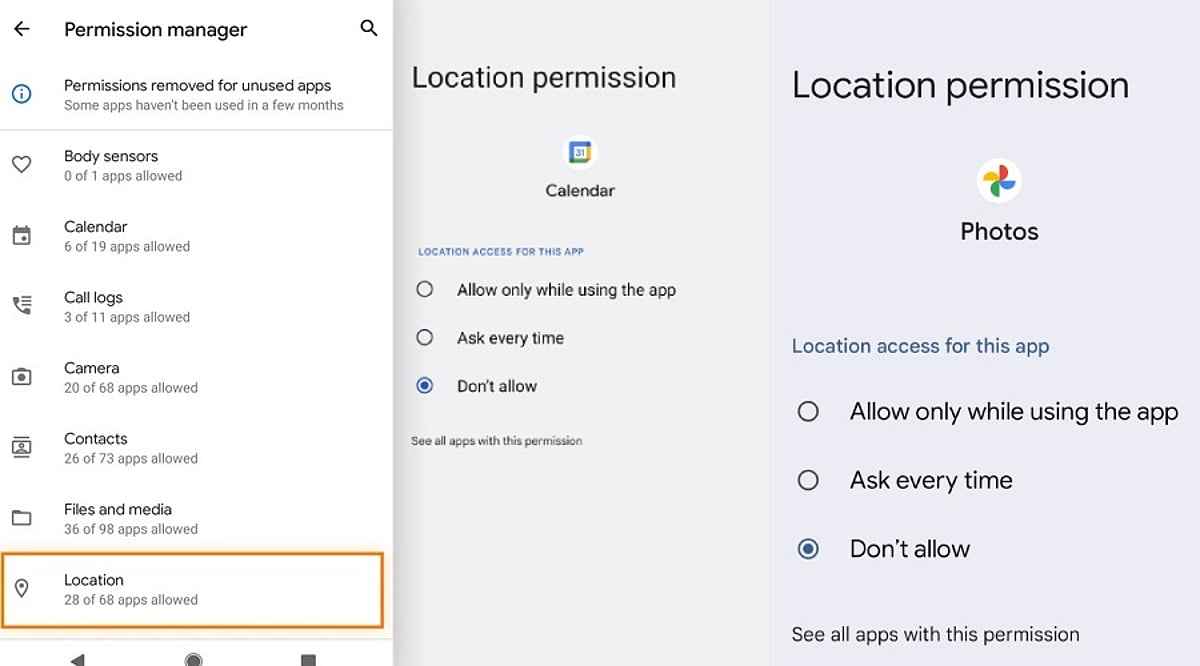
    Android gives you a straightforward path to review and adjust these settings whenever you choose. The steps stay almost the same across most modern Android phones:

    1. Open Settings and tap Apps.
    2. Select the app in question, then tap Permissions.
    3. Choose Allow, Allow only while using the app, Ask every time, or Don’t allow, depending on what options the permission offers.
    4. Visit Settings > Security & Privacy > Permission Manager to see every app that holds a specific permission, such as location or camera.
    5. Turn on Pause app activity if unused for apps that sit idle for long stretches, so their permissions get removed automatically.

    This last feature works quietly in the background and trims away access from apps you may have forgotten about, closing gaps before they turn into a problem.

    Signs an App Is Asking for Too Much

    A few warning signs can help you spot a risky request before tapping Allow:

    • A brand-new app with very few reviews asking for administrator-level access
    • An app that repeatedly shows the same permission pop-up after you have denied it (a known trick used by malicious software)
    • A basic mismatch: compare what the app does against what it asks for

    Reading reviews, checking the developer name, and searching the app name alongside the word ‘permissions’ often reveals whether other users have flagged similar concerns.

    Final Thoughts

    Android permissions work as a simple gate between your personal data and outside access. Every tap on Allow or Deny decides how much of that gate stays open. A little patience during setup, a quick permission audit every few months, and a habit of questioning mismatched requests go a long way toward protecting your personal information. Technology moves fast, and apps will keep asking for more access as new features arrive. Staying alert, reading each prompt carefully, and denying anything that does not fit an app’s purpose keeps your phone safer without demanding much extra effort.

    FAQ

    Which Android app permissions should you normally allow?

    Allow permissions that directly support an app’s main function, such as location for navigation, camera and microphone for video calls, or contacts for messaging. Review each request individually rather than granting access automatically during installation.

    Which Android permissions should users be most careful about?

    Location, contacts, SMS, microphone, camera, and accessibility access deserve closer attention since they can expose sensitive information or device capabilities. Check whether the requested permission is genuinely necessary for the application’s stated purpose.

    How can you check app permissions on Android?

    Open Settings, select Apps, choose the relevant application and tap Permissions. Modern Android devices also provide Permission Manager under Security & Privacy, allowing you to review which applications can access specific categories.

    Can Android automatically remove permissions from unused apps?

    Yes. Android includes an option that can pause activity for unused applications and remove permissions they previously received. This feature is useful for limiting forgotten access from apps that have not been opened for extended periods.

    What should you do when an app repeatedly requests denied permissions?

    If an app keeps requesting access after you have denied it, first consider whether that permission is essential. Check the developer, reviews, and app purpose, then keep the permission denied if the request appears unnecessary or suspicious.