Tag: Android

  • Troubleshooting Google Maps: What to Do When the Start Button Is Missing

    Troubleshooting Google Maps: What to Do When the Start Button Is Missing

    If you’ve ever opened Google Maps ready for turn-by-turn directions only to find the Start button missing, you’re not alone. This common glitch can stem from outdated apps, location permission issues, or misconfigured navigation settings. Fortunately, most causes are easy to fix. Follow these steps to get back on track.

    Update Your Apps and Operating System

    First, ensure both the Google Maps app and your phone’s operating system are up to date. Outdated software can cause compatibility issues that hide the Start button. Check your device’s app store for updates and install any pending system updates.

    Enable Precise Location and GPS

    Google Maps relies on accurate location data. Go to your device settings and confirm that location services are turned on, GPS is active, and Google Maps has permission to access your precise location. Weak or denied location signals can prevent navigation from starting.

    Select a Valid Destination and Travel Mode

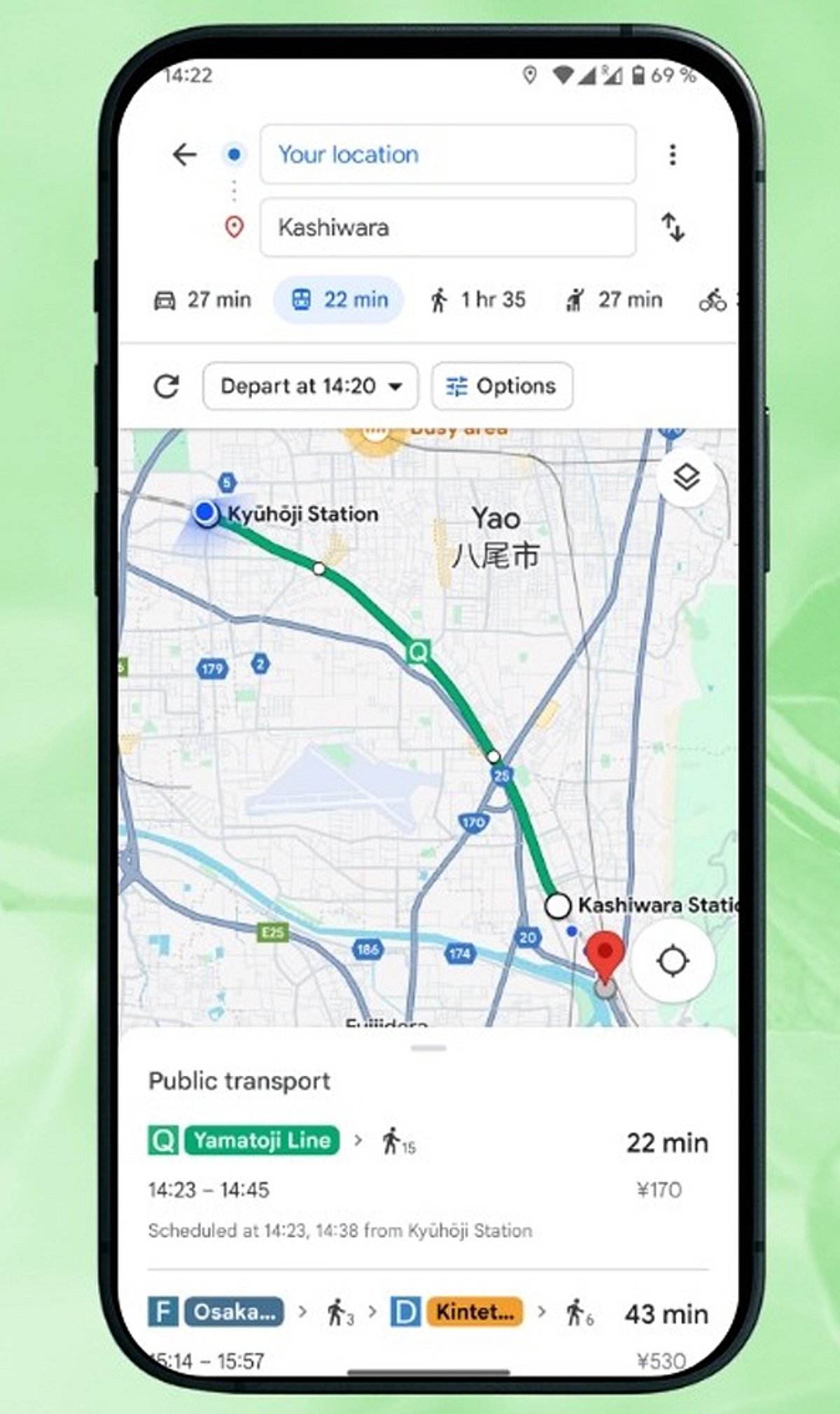
    Before the Start button appears, you must choose a valid destination and a travel mode—Driving, Walking, Cycling, or Transit. Double-check that your destination is correctly entered and that a route exists.

    Disconnect and Reconnect Android Auto or Apple CarPlay

    If you’re using Android Auto or Apple CarPlay, the Start button may be missing due to a connection hiccup. Disconnect your phone from the vehicle system, reconnect it, and then reopen Google Maps. This often refreshes the navigation interface.

    Clear Cache or Reinstall the App

    For Android users, clearing the Google Maps cache can resolve temporary data corruption. On an iPhone, reinstalling the app may be more effective. Always restart your device after these steps to ensure changes take effect.

    Disable Battery Optimization for Google Maps

    Aggressive power-saving settings can interfere with navigation features. Check your phone’s battery optimization or background restrictions and set Google Maps to ‘Unrestricted’ or ‘Not optimized.’ This allows the app to run smoothly even when in the background.

    Check Your Internet Connection

    While offline maps work for basic routing, live navigation features like real-time traffic and turn-by-turn directions require a stable internet connection. Switch to Wi-Fi or ensure your mobile data is strong.

    Report the Issue to Google

    If none of the above steps work, submit feedback through the Google Maps Help section. Temporary bugs are often addressed in future updates, and your report helps developers prioritize fixes.

    By systematically checking these common culprits, you can usually restore the Start button and get back to navigating with confidence.

  • Android Java to Kotlin Migration: Proven Best Practices for 2026

    Android Java to Kotlin Migration: Proven Best Practices for 2026

    Migrating Android applications from Java to Kotlin has become a strategic priority for organizations looking to modernize their codebases. This guide outlines the best practices for a successful migration, covering project assessment, phased conversion, Kotlin-first development, architectural modernization, and performance testing to help teams build scalable and maintainable Android apps in 2026.

    Kotlin has been regarded as the best language for Android development since Google made it available in 2017. The modern approach to Android development is currently based on Kotlin, Jetpack Compose, coroutines, Kotlin Multiplatform, and the Android Jetpack library. Even though many companies have their applications written in Java, the switch to Kotlin is widely regarded as a reliable strategy that ensures high-quality code, increased productivity, and improved codebase maintainability.

    However, there is no need to rebuild your application if you want to shift from Java to Kotlin, as both languages are fully compatible. The following recommendations will assist with the transition from Android Java to Kotlin.

    Evaluate Your Existing Codebase Before Migration

    To ensure the migration process is efficient, it is necessary to analyze the application’s architecture. It is important to analyze all project modules before migration to consider dependencies, third-party libraries, Gradle configuration, and Java version compatibility. Additionally, it is recommended that you identify all outdated APIs, Android components, and other legacy code that needs to be updated.

    Follow a Gradual Migration Strategy

    Migrating the whole Android app in one shot is not often suggested. The compatibility of Kotlin with Java means that both languages can be used in the same project, enabling feature-by-feature migration. A practical migration strategy may look like this: configure Kotlin support, migrate utility classes, gradually convert business logic, update Activities and Fragments, and finally refactor legacy Java code while continuously testing each migration stage. This phased approach reduces deployment risks while allowing continuous testing throughout the migration process.

    Take Advantage of Modern Kotlin Features

    Merely converting syntax from Java to Kotlin is not sufficient. Many development teams simply do not understand how much easier it would be for them to develop the applications if they coded in Kotlin using the syntax of Java. To simplify the code and make it more readable, programmers need to use Kotlin features such as nullability, data classes, extensions, sealed classes, higher-order functions, smart casting, and many other capabilities. Moreover, the use of coroutines is preferable to old-school async techniques such as AsyncTask, callbacks, and threads. It has to be applied together with Flow.

    Modernize the Architecture Alongside Migration

    Migration offers a wonderful opportunity to upgrade the application architecture rather than simply translating the code. Actually, it can be reasonable to use the MVVM architecture, which is recommended by Android developers and includes Jetpack libraries such as ViewModel, LiveData, or StateFlow, Room, Navigation, and Hilt as a dependency injector. Jetpack Compose will be a great choice to develop the user interface for Android 2026 applications. Even though XML layouts are available, Jetpack Compose enables more declarative development for Android, which fits well with Kotlin. The described approach works well because refactoring the old code during migration will help avoid future issues.

    Prioritize Testing and Performance Validation

    Code conversion should always be tested. Unit, UI, integration, and regression tests should be done after each migration step to confirm that the two versions of the program have the same functionality. Performance profiling is very critical. There should be measurements of the app’s startup time, memory usage, CPU usage, and APK size before and after the migration. Using static analyzers like Android Lint, Detekt, and Ktlint will enable developers to write code in line with Kotlin coding standards without compromising performance or style. Another method that promotes consistency in Kotlin code is code review.

    Build for the Future with Kotlin-First Development

    The Android development landscape continues to evolve toward a Kotlin-oriented approach. The emergence of Jetpack libraries, Compose, artificial intelligence (AI)-powered tools for developers, and optimizations of Android Studio have led to Kotlin being more widely used than Java. Thus, businesses updating their Android software today can easily benefit from future advances in the platform. Moving from Java to Kotlin involves more than just selecting another programming language because you will have the opportunity to enhance the quality of your code, maintain it, and implement new approaches to develop an Android application. This can be done through gradual migration, idiomatic Kotlin coding, refactoring your application, and performance measurement.

    Why This Matters

    Google continues to position Kotlin at the center of modern Android development, with new Jetpack libraries, Jetpack Compose, Kotlin Multiplatform, and Android Studio enhancements being designed primarily for Kotlin. As a result, organizations that continue maintaining Java-only Android applications may find it increasingly difficult to adopt the latest Android features and development tools.

    Frequently Asked Questions

    Why should developers migrate Android projects from Java to Kotlin?

    Kotlin offers several advantages over Java, including concise syntax, built-in null safety, coroutines for asynchronous programming, extension functions, improved readability, and full interoperability with Java. These features help developers build more maintainable, secure, and modern Android applications while aligning with Google’s recommended development practices.

    Can Java and Kotlin coexist in the same Android project?

    Yes. Kotlin is fully interoperable with Java, allowing both languages to coexist within the same Android project. This compatibility enables teams to migrate applications gradually instead of rewriting the entire codebase, reducing project risks and simplifying long-term modernization.

    What is the best strategy for migrating a Java Android application to Kotlin?

    A phased migration strategy is generally the most effective approach. Developers should first configure Kotlin support, migrate utility classes, gradually convert business logic, update Activities and Fragments, and finally refactor legacy Java code while continuously testing each migration stage.

    Should developers use automated Java-to-Kotlin conversion tools?

    Android Studio provides an excellent Java-to-Kotlin converter that accelerates migration. However, automatically converted code often requires manual refactoring to follow Kotlin best practices, improve readability, eliminate unnecessary boilerplate, and fully utilize Kotlin-specific language features.

    Should Android architecture be updated during migration?

    Yes. Migration provides an excellent opportunity to modernize application architecture by adopting MVVM, Jetpack ViewModel, StateFlow or LiveData, Room, Hilt for dependency injection, and Navigation components. This helps improve scalability, testing, and long-term maintainability.

  • Android Productivity Boost: Essential Apps and Hidden Feature Guide

    Android Productivity Boost: Essential Apps and Hidden Feature Guide

    Introduction

    Hidden apps on Android are not always malicious. Many users hide apps for privacy, while manufacturers offer features like Secure Folder or Private Space. However, hidden apps can also indicate unwanted software. Knowing how to locate them helps improve device security, manage storage, and ensure you have complete control over everything installed on your smartphone.

    Search the App Drawer

    Start by opening your phone’s app drawer. Use the search bar to look for the app by name. Then check the menu or Home Screen Settings for options like “Hidden Apps” or “Hide Apps.” Many Android launchers, including Samsung, OnePlus, and Xiaomi, provide built-in tools to hide or reveal applications.

    Check Installed Apps

    Visit Settings > Apps > See All Apps to view every installed application. This list usually includes apps hidden from the launcher. Review unfamiliar apps, recently installed software, and disabled applications. Sorting by installation date or usage can help identify suspicious or forgotten apps occupying storage and system resources.

    Explore Private Spaces

    Modern Android devices offer secure storage for apps. Samsung includes Secure Folder, Google Pixel offers Private Space, while brands like OnePlus and Xiaomi provide Hidden Space or Second Space. These features require authentication, allowing users to keep sensitive apps separate from the main app drawer for enhanced privacy.

    Use Google Play Store

    Open the Google Play Store, tap your profile, and select Manage Apps & Device. Under the Installed section, you’ll find all apps currently linked to your device. This method helps verify whether an app is installed even if it doesn’t appear on the home screen or app drawer.

    Look for Suspicious Apps

    Watch for apps with generic names, blank icons, excessive permissions, or unusually high battery and data usage. Also, review Device Administrator apps in your security settings. These indicators may reveal hidden spyware or unwanted software that deserves further investigation or removal to protect your privacy.

    Final Tips

    Regularly review installed apps, update Android, and uninstall software you no longer need. If you suspect malware, restart in Safe Mode or scan your device with a trusted security app. By routinely checking hidden and installed apps, you can maintain better security, performance, and privacy on your Android smartphone.

  • Google Opens Android to Rival App Stores Starting July 22 in Landmark Policy Change

    Google Opens Android to Rival App Stores Starting July 22 in Landmark Policy Change

    Google is set to allow third-party app stores on Android in the United States beginning July 22, marking one of the most significant changes to the Play Store since its launch. The move follows the company’s decision to abandon its proposed settlement with Epic Games and comply with a federal court injunction, aiming to increase competition in Android app distribution.

    Google Play Store Opens to Competitors

    The change introduces Google’s new Play Catalog Access Program, which allows eligible third-party app stores to access the Play Store’s app catalog. Developers’ apps and games will automatically appear on participating third-party marketplaces unless they choose to opt out.

    This development stems from the ongoing court case between Google and Epic Games. In 2024, a U.S. federal court found that Google had unlawfully maintained monopoly power in Android app distribution and billing services. The ruling required Google to open its platform to competing app stores and distribution systems.

    Google had initially negotiated a settlement with Epic Games that would have allowed smaller registered app store systems instead of permitting competing app stores within the Google Play Store. However, both parties abandoned the proposed settlement after concluding that court approval was unlikely.

    What Changes for Developers and Users

    Under the new program, eligible app store providers can join Google’s Play Catalog Access Program. Google will audit participating stores’ adherence to policies and security standards, levying an annual fee of $5,000 to conduct these audits.

    For developers, the transition will be largely automated. Their listings on the Play Store will automatically be made accessible to third-party stores unless they opt out.

    The changes currently apply only to the United States, where the court injunction is in force. Google will continue using its existing Play Store model in other markets unless local regulations require similar reforms.

  • Chrome 150 for Android Adds Long-Awaited Dedicated Back Button to Overflow Menu

    Chrome 150 for Android Adds Long-Awaited Dedicated Back Button to Overflow Menu

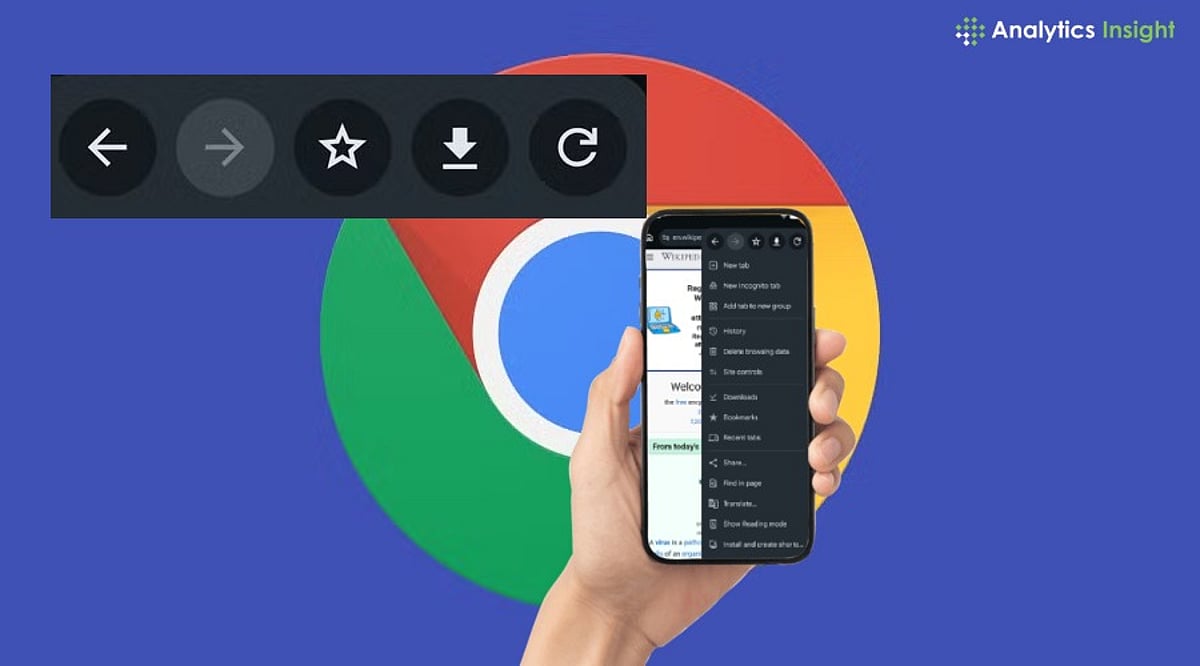
    Google has finally answered one of the most persistent user requests for Chrome on Android. With the release of Chrome 150, the browser now includes a dedicated Back button in its three-dot overflow menu, giving users an alternative to relying solely on Android’s system back gesture or navigation bar.

    Until now, Android users could only navigate backward using the device’s built-in controls, while the Forward button was already present in Chrome’s menu. This asymmetry has been a common complaint for years. Chrome 150 corrects this by placing a Back button directly next to the Forward button, aligning the Android experience with the version already available on iOS.

    The new Back button is part of a broader overhaul of Chrome’s overflow menu. Google has removed the traditional Info button and replaced it with a Site controls option that provides quick access to website permissions and settings. Additionally, the ‘Add to Home screen’ option has been renamed to ‘Install’ and ‘Create Shortcut,’ reflecting its dual function: installing supported web apps or creating simple website shortcuts.

    While the redesigned menu may take some getting used to, Google says the changes are intended to make frequently used features easier to find. The update is rolling out gradually via the Google Play Store for Android phones and tablets, so users can expect to see the new interface over the coming days.

    Although Chrome 150 doesn’t introduce major new features, the improvements focus on usability. The dedicated Back button is designed to simplify one-handed navigation, reducing dependence on Android’s system-level controls.

  • Genshin Impact 7.0 Ends Support for Older Android Devices: Check If Yours Is Affected

    Genshin Impact 7.0 Ends Support for Older Android Devices: Check If Yours Is Affected

    HoYoverse has announced a major update for Genshin Impact. The game is preparing for the upcoming Version 7.0 with a twist for Android gamers. The changes are designed to support future content, but some players will face downsides, especially those who have been using older devices.

    Genshin Impact has reached new heights of success since its launch. With every update, players have received new regions, characters, and events. As the world expands, developers are upgrading the technology that powers it. This is good news for some players, but not for everyone.

    Genshin Impact 7.0 Raises the Hardware Requirements

    Genshin Impact Version 7.0 will introduce updated character models, enhanced environment textures, and improved visual effects, which will automatically increase the hardware requirements to run the game. Fortunately, the specifications for PC, iOS, PlayStation, and Xbox will remain the same. Only players who have been using older Android devices to play the RPG will have to switch to a newer version.

    Simply put, if you have an Android phone with Mali-G52 MP2, Mali-G57 MP, Imagination BXM, or older PowerVR GPUs, the game will crash, freeze, show black screens, and experience other technical difficulties once the update goes live.

    According to official reports, the minimum requirement to run Version 7.0 smoothly is Android 10. The developers have recommended Android Version 12 for the best experience. Since Genshin Impact has millions of players worldwide, even a small group of affected users would still be a very large number.

    Is HoYoverse Preparing for the Next Generation?

    The update may be about more than graphics. HoYoverse supports the game on mobile, PC, and console, and keeping all those versions working together is not easy.

    With the new engine upgrades, the team can create larger regions, bigger events, and more detailed environments. They could also help the game take advantage of future hardware that is more powerful than today’s devices.

    Other big games have done the same thing. As technology advances, developers generally update their engines to keep their games evolving for many years.

    Genshin Impact 7.0: Upgrade or Optimize?

    Some players believe better optimization could have kept older devices running the game for longer. Others feel that a game this large eventually needs stronger hardware. Both sides have a point. Good optimization can improve performance, but it cannot remove every limit. HoYoverse has to balance better graphics, new content, and support for players across many different devices.

    With Version 7.0, the company seems to be choosing growth. The world of Genshin Impact is getting bigger and better looking, even if some older devices may not be able to keep up.

  • EU Court Rejects Google’s Final Appeal, Upholds $4.4 Billion Android Antitrust Fine

    EU Court Rejects Google’s Final Appeal, Upholds $4.4 Billion Android Antitrust Fine

    The Court of Justice of the European Union, Europe’s highest court, has dismissed Google’s final appeal against a €4.1 billion ($4.4 billion) antitrust fine, bringing an eight-year legal battle to a definitive close. The ruling confirms that Google abused its dominant market position through agreements tied to its Android mobile operating system.

    The European Commission originally imposed a €4.34 billion penalty in 2018 after finding that Google required smartphone manufacturers to pre-install Google Search, Chrome, and the Google Play Store on Android devices. Regulators also said Google restricted manufacturers from using alternative versions of Android, limiting competition from other mobile platforms.

    In its ruling, the court stated, “The appeal brought by Google and its parent company Alphabet against the judgment of the General Court is dismissed, thereby confirming the penalty imposed for Google Search’s abuse of a dominant position in the context of the Android operating system.” A lower court had reduced the fine to €4.1 billion in 2022, and today’s decision makes that penalty final.

    Following the ruling, a Google spokesperson defended the company’s Android business model, saying, “This judgment fails to take into account our investment to ensure Android remains open, interoperable and free.” The spokesperson added, “In any event, we adapted our agreements to comply with the initial decision back in 2018 and we remain focused on continued innovation and openness for our users, partners and developers.”

    Over the past several years, Google has already implemented changes for Android users in Europe, including allowing device owners to choose different search engines and web browsers during device setup instead of automatically using Google’s services.

    This case is part of a broader series of antitrust investigations. Over the past decade, Google has faced nearly €11 billion in EU competition fines across multiple cases involving search, shopping, Android, and digital advertising. The European Commission has now expanded its focus beyond traditional competition law, enforcing the Digital Markets Act and Digital Services Act, which introduce new obligations for major tech companies.

    Google remains under investigation over alleged preferential treatment of its own products in search results and practices involving its app store. Other large technology companies, including Apple and Meta, are also facing scrutiny under the EU’s updated digital regulations. Alphabet shares traded modestly lower in premarket trading following the ruling.

  • How to Free Up Gigabytes of Storage on Android: 7 Simple Hacks I Tried

    How to Free Up Gigabytes of Storage on Android: 7 Simple Hacks I Tried

    Running out of storage is one of the most frustrating Android problems. Before deleting your favorite photos, videos, or apps, try these simple tricks. I tested them on my phone and managed to free up several gigabytes without sacrificing anything important. The best part? Most of these fixes take only a few minutes and require no special apps or technical knowledge.

    1. Clear Cached Data

    Apps silently accumulate cache files over weeks and months, eating up valuable storage. A quick visit to Settings > Storage let me clear unnecessary cache, instantly freeing space while keeping my apps, logins, and personal files completely safe. It’s one of the easiest storage wins.

    2. Delete Duplicate Photos

    My gallery was overflowing with duplicate screenshots, WhatsApp images, and repeated photos. Using a duplicate finder, I removed hundreds of unnecessary copies and recovered a surprising amount of storage. My photo library also became much cleaner and easier to navigate.

    3. Uninstall Unused Apps

    I discovered several games and utility apps that I hadn’t opened in months. Removing these forgotten apps instantly freed up storage while reducing background activity. The phone not only gained extra space but also felt smoother and more responsive during daily use.

    4. Move Photos and Videos to Cloud Storage

    Uploading older photos and videos to Google Photos allowed me to safely delete local copies without losing my memories. Everything remained accessible whenever I needed it, while several gigabytes of internal storage became available for newer files and apps.

    5. Clean the Downloads Folder

    My Downloads folder had turned into a digital junk drawer filled with old PDFs, APKs, ZIP files, memes, and installers. Deleting these forgotten files recovered more space than I expected. It’s worth checking this folder every few weeks.

    6. Remove Offline Downloads

    Offline Netflix episodes, Spotify playlists, YouTube videos, and maps were quietly consuming huge amounts of storage. Removing content I no longer needed instantly created more breathing room. The best part is that I can always download them again whenever required.

    7. Use Android’s Built-in Storage Manager

    Android’s Storage Manager highlighted large files, duplicate items, and apps I rarely used. With just a few taps, I reclaimed even more space without manually digging through folders. It’s a powerful built-in tool that many Android users completely overlook.

  • Top Tablet Stylus Pens of 2026: Best Picks for iPad, Android, and Windows Devices

    Top Tablet Stylus Pens of 2026: Best Picks for iPad, Android, and Windows Devices

    Overview

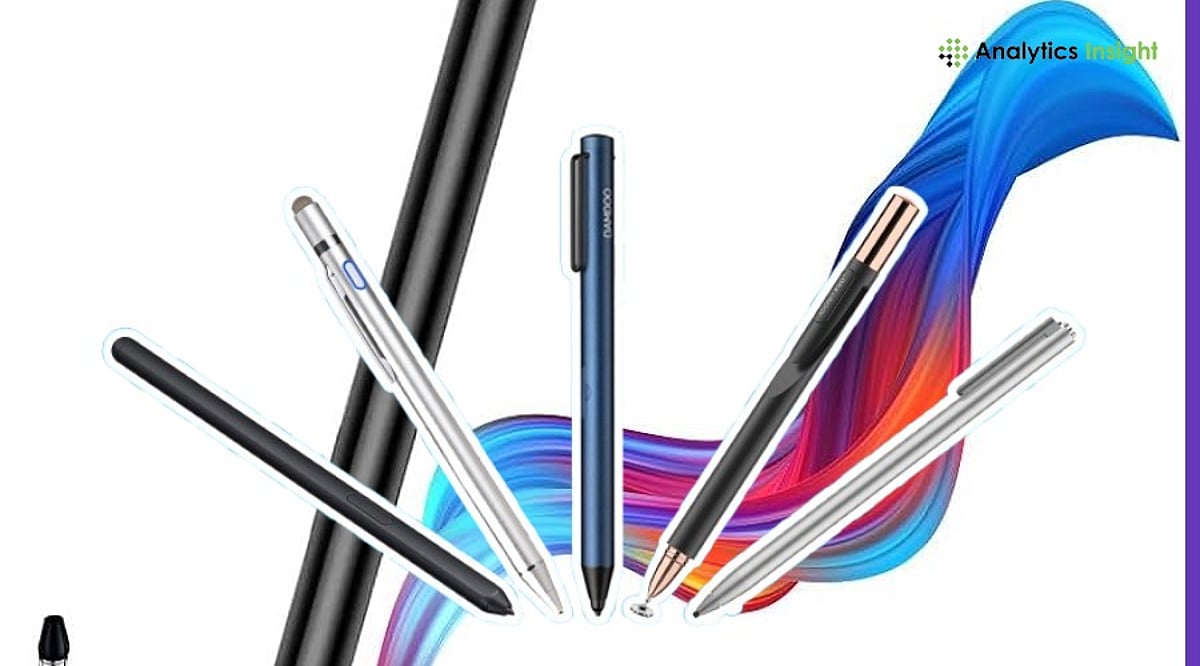
    Discover top tablet pens compatible with iPad, Android, and Windows devices for every budget and workflow. Compare essential stylus features including pressure sensitivity, charging methods, compatibility, and productivity-focused capabilities before purchasing. Find the ideal tablet pen for note-taking, sketching, studying, creative work, and professional productivity tasks.

    Global demand for tablets continues to rise, and so does the need for capable stylus pens. Worldwide tablet shipments reached 151.9 million units in 2025, marking a 5% year-on-year increase, according to IDC. The global stylus pen market was valued at $19.45 billion and is projected to exceed $40 billion by 2034.

    Top Stylus Pens for iPad, Android, and Windows Tablets

    With more users embracing digital note-taking, sketching, and hybrid working, selecting a compatible stylus has become as crucial as selecting the tablet itself.

    Apple Pencil Pro

    Apple Pencil Pro is the highest-performing stylus designed specifically for creators and professionals. This stylus features pressure and tilt sensing, haptics, squeezing, barrel rotation, and Find My capabilities. Apple Pencil Pro can be magnetically docked and charged to compatible iPads.

    Buy Now!

    Apple Pencil (USB-C)

    Apple Pencil (USB-C) makes for an excellent iPad stylus that does not cost a great deal if you want quality and reliability. This stylus offers pixel-level accuracy, tilt functionality, magnetic attachment, and USB-C charging. Pressure sensitivity may be missing from the list, but it works well for annotation.

    Buy Now!

    Samsung S Pen

    Samsung’s S Pen is included with many Samsung Galaxy Tab models and is among the most affordable styluses on the market. This stylus includes 4,096 pressure levels, low latency, palm rejection technology, and tilt functionality. It does not require charging to function properly.

    Buy Now!

    Xiaomi Focus Pen

    Xiaomi Focus Pen is specifically designed for Xiaomi Pad series tablets. The pen features 8,192 levels of pressure sensitivity, shortcut buttons, and USB-C charging. It gives you an accurate writing and drawing tool at an affordable price.

    Buy Now!

    Microsoft Surface Slim Pen 2

    Surface Slim Pen 2 is designed to work flawlessly with any Microsoft Surface device. The pen has 4,096 pressure levels, supports tilt, provides haptic feedback, and supports wireless charging. It has a comfortable grip and is ideal for note-taking and sketching with Windows Ink.

    Buy Now!

    Lenovo Digital Pen 2

    Lenovo Digital Pen 2 is a good choice for all compatible Lenovo tablets and Windows computers. It offers pressure sensitivity of up to 4,096 levels, tilt recognition, custom buttons, and long battery life. This ergonomic pen will suit both students and professionals.

    Buy Now!

    Tablet Pen Features Compared Side-By-Side

    When comparing these styluses, key factors include pressure sensitivity levels, tilt support, charging method, and ecosystem compatibility. The Apple Pencil Pro leads with haptic feedback and barrel rotation, while the Xiaomi Focus Pen offers the highest pressure sensitivity at 8,192 levels. The Samsung S Pen stands out for not requiring a battery for basic functions, and the Microsoft Surface Slim Pen 2 integrates haptic feedback for a more natural writing experience.

    Final Take

    The right tablet pen depends on the device you use and how you plan to use it. The use of advanced styluses with features such as pressure sensitivity and tilt may benefit artists. In contrast, affordable mid-range styluses may be more advantageous for students and professionals in terms of cost savings. One must consider the stylus’s compatibility with their tablets before purchasing.

    Frequently Asked Questions

    Which tablet pen is best for iPads in 2026?

    Apple Pencil Pro is the best choice for compatible iPads, offering pressure sensitivity, tilt support, haptic feedback, and wireless charging. Apple Pencil (USB-C) is a more affordable alternative for everyday note-taking, document annotation, and casual creative work.

    Can I use the same stylus on iPad, Android, and Windows tablets?

    Most active styluses are built for specific tablet ecosystems and may not work across different brands. Universal capacitive styluses offer broader compatibility but usually lack premium features such as pressure sensitivity, palm rejection, and tilt support.

    Is pressure sensitivity important in a tablet pen?

    Pressure sensitivity is especially valuable for artists, designers, and illustrators because it allows natural line variation while drawing. For students and professionals focused on writing or annotating documents, it is less important.

    Does the Samsung S Pen require charging?

    The Samsung S Pen does not need charging for regular writing, drawing, or navigation. However, Bluetooth-enabled Air Actions available on select Galaxy Tab models may require the stylus to be charged periodically.

    What should I consider before buying a tablet pen?

    Before purchasing, check whether the stylus is compatible with your tablet model. Also compare features such as pressure sensitivity, tilt support, palm rejection, charging method, battery life, and overall comfort for your intended use.

  • The Quiet Revolution: How AI Is Reshaping Mobile App Development in 2026

    The Quiet Revolution: How AI Is Reshaping Mobile App Development in 2026

    A year ago, adding AI to a mobile app meant bolting on a chat widget and calling it a feature. That era is over. In 2026, AI has moved from a visible add-on to an infrastructure decision, fundamentally changing what “building an app” means for development teams.

    The shift is evident in usage data. According to Sensor Tower’s year-end report, the total U.S. audience for AI assistants surpassed 200 million by the end of 2025, with more than half accessing those assistants exclusively on mobile devices—up from roughly 13 million mobile-only users the year before. This is no longer a niche behavior; it’s the default way most people interact with AI. The app is no longer a wrapper around the model—the app is the product.

    From Cloud Round-Trips to On-Device Inference

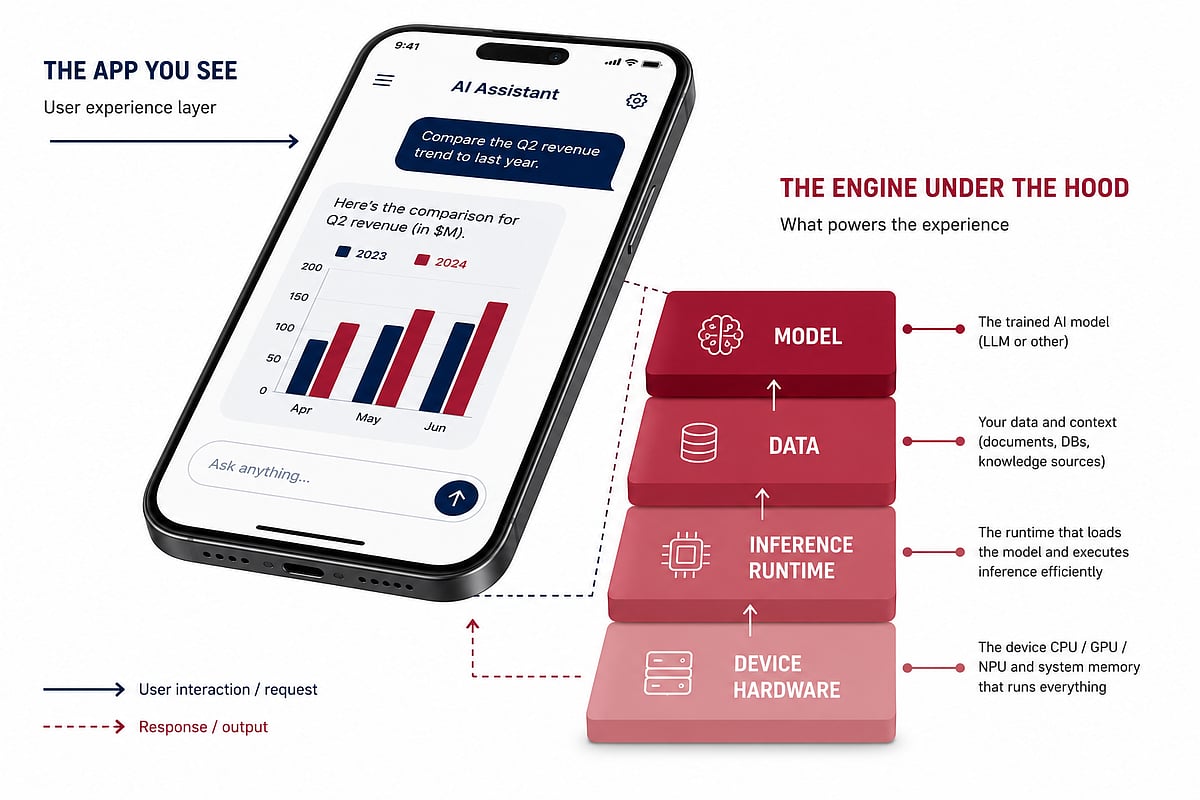
    For years, AI features followed a predictable pattern: capture input, send it to a server, wait for a model response, and render the result. That pattern is breaking down—not because cloud models got worse, but because users now expect AI features to behave like native app features: instant, available offline, and private by default.

    Apple’s Neural Engine, Google’s Tensor chips, and Qualcomm’s on-device AI silicon have matured to the point where running a capable model locally is a realistic option for consumer apps. This changes the engineering conversation from “which API do we call” to “which parts of this feature can run on the device, and which parts genuinely need the cloud.” Getting that split wrong is expensive in ways that don’t surface until the app is already in users’ hands.

    The Unglamorous Engineering Problem Nobody Mentions

    On-device AI is a battery, memory, and fallback-path problem before it’s a model problem. A locally running model that drains a phone’s battery in an afternoon or locks up the UI thread during inference will get uninstalled regardless of output quality. The model is the easy part. The packaging, memory management, graceful fallback for devices without the necessary hardware, and testing across dozens of device and OS combinations are where most AI feature timelines go sideways.

    This pushes product teams toward dedicated mobile app development partners rather than retrofitting AI onto an existing roadmap. Teams that get this right treat AI features as an architecture decision made early, not a plugin added late. Retrofitting almost always costs more because the data flow, caching layer, and offline state all have to be rethought rather than extended.

    Why iOS Has Become Its Own Specialized Lane

    The platform split has also sharpened. Apple’s approach to on-device intelligence—from Apple Intelligence’s privacy-first design to the App Intents framework—is deliberately different from Android’s. A model and pipeline built for one platform’s AI stack rarely transfers cleanly without real rework.

    This has pushed specialized iOS development expertise higher on the priority list for any team shipping AI features on Apple’s platform. Knowing how to call a model API is no longer enough. Teams need to understand Apple’s specific constraints around on-device processing, App Store disclosure requirements for AI-generated content, and the Neural Engine’s actual performance ceiling on the device generations their user base is running. Get that platform-specific layer wrong, and a feature that demoed perfectly in a controlled environment becomes sluggish or inconsistent in the real world.

    What This Means for Decision-Makers

    For product and engineering leaders deciding how to staff an AI-feature build, a few questions separate a smooth rollout from a six-month detour:

    • Does the team have hands-on experience with on-device inference, not just API integration?
    • Is there a clear, tested fallback path for devices that can’t run the model locally?
    • Has the architecture been designed for AI from the outset, rather than adapted after the fact?
    • Does the team understand the platform-specific rules, especially on iOS, where Apple’s review process and hardware constraints are unusually strict?

    A development partner without direct experience answering these questions will end up learning the hard parts on the client’s budget and timeline—an expensive lesson that is avoidable with the right questions asked before a single line of code is written.

    The Bigger Shift

    What’s happening in mobile development right now isn’t really about AI getting smarter. It’s about AI becoming infrastructure—the same way push notifications, offline sync, and biometric auth became infrastructure a decade ago. Once something becomes infrastructure, the teams that win aren’t the ones with the flashiest demo. They’re the ones who treated it as a core architectural decision from day one.

    That’s the quieter story behind every AI feature that feels instant, private, and reliable on a phone in 2026. The visible part is the interface. The real work happened underneath it.