Tag: Productivity

  • Convert WhatsApp Conversations into Clear Notes with ChatGPT

    Convert WhatsApp Conversations into Clear Notes with ChatGPT

    Introduction

    WhatsApp chats can quickly become overwhelming, burying important details in a sea of messages. A simple solution exists: export the chat and let ChatGPT turn it into clean, organized notes. This guide walks you through the process, from exporting your WhatsApp conversation to using ChatGPT for summarization, while highlighting key privacy considerations.

    Exporting Your WhatsApp Chat

    The first step is to export the chat from WhatsApp. The process differs slightly between Android and iPhone.

    On Android

    Open the chat, tap the three-dot menu, then select More, and finally Export chat.

    On iPhone

    Open the chat, tap the contact or group name at the top, and choose Export chat.

    WhatsApp will ask whether to include media. For note-taking purposes, it is best to skip media to keep the file text-only and manageable. The exported file retains dates, times, sender names, and all messages.

    Turning the Chat into Notes with ChatGPT

    Once you have the exported chat file, upload it to ChatGPT and provide a clear instruction. A simple prompt like “Summarize this chat into notes, highlighting decisions, tasks, deadlines, and follow-ups” works effectively.

    ChatGPT can also organize the chat into a timeline, extract pending tasks, identify commitments, and separate useful information from casual conversation. For shorter chats, you can copy and paste messages directly into ChatGPT without exporting.

    Before relying on the generated notes, always verify them against the original chat, especially for deadlines and commitments. Note that exports do not include content from voice notes or media files, so some details may be missing.

    Privacy Considerations

    A WhatsApp export may contain personal information about multiple people, not just the person exporting it. Before uploading any chat to an AI tool, consider what is being shared and who it involves. Use this feature responsibly and avoid sharing sensitive conversations.

    Conclusion

    Using ChatGPT to turn WhatsApp chats into notes saves time and cuts through message clutter. However, the process works best when paired with a quick manual review, as AI summaries can miss context or omit non-text content. Used carefully, this technique transforms a messy thread into something genuinely useful.

  • 10 Essential AI Tools for Excel Data Analysis in 2025

    10 Essential AI Tools for Excel Data Analysis in 2025

    Introduction

    In 2025, Excel has evolved far beyond rows, columns, and confusing formulas. AI tools now handle the heavy lifting—generating charts, writing formulas, cleaning messy data, and even forecasting future numbers. These tools make Excel feel less like a math chore and more like having a smart assistant built right in. Here are ten AI tools that simplify spreadsheet work for everyone, from students to office professionals.

    Top AI Tools for Excel

    1. Microsoft 365 Copilot

    Built directly into Excel, Copilot handles nearly every data task: creating formulas, cleaning data, generating charts, and explaining what the numbers mean. Just type a request like “show sales from March to June,” and it delivers the answer. Ideal for users who want to finish tasks quickly without searching for formulas online.

    2. ExcelMatic

    This tool works like a chat box inside Excel. Type a sentence such as “sort products by price,” and it executes the command. No need to click through menus or remember button locations—simple and fast when time is short.

    3. Formula Bot

    Struggling with formulas? Describe what you need, and Formula Bot provides the correct Excel formula along with an explanation. It also works with Google Sheets, making it a great learning aid.

    4. DataRobot

    DataRobot finds patterns and makes predictions. For example, it can analyze past sales data to forecast next month’s performance. No coding required, and widely used by companies seeking data-driven insights.

    5. Arcwise AI

    Arcwise brings numbers to life with charts and graphs. Ask questions like “which product returned the most?” and it displays the answer visually. Perfect for school projects or business presentations.

    6. Power Query & Power Pivot

    These built-in Excel tools clean messy data (remove duplicates, split columns) and connect multiple tables. Power Query handles data cleaning; Power Pivot links different sheets—saving time and keeping everything organized.

    7. Datarails

    Primarily used by finance teams, Datarails gathers data from multiple files, consolidates it in one place, and assists with reports and budgets. Designed for professionals who work with numbers daily.

    8. MonkeyLearn

    MonkeyLearn focuses on text analysis. If you have hundreds of reviews or comments, it can classify them as positive, negative, or neutral. Useful for businesses wanting to understand customer sentiment.

    9. Polymer

    Polymer transforms Excel sheets into interactive dashboards. Upload a sheet, and it quickly creates graphs and summaries—no design skills needed. Great for meetings or quick reviews.

    10. KNIME

    KNIME is for advanced users. It integrates with Excel to create step-by-step workflows for cleaning, sorting, and analyzing large datasets—all without coding.

    Bonus: Grok

    Grok helps Excel users reason through data questions, explain findings in plain language, and summarize analysis. Its chat and search capabilities make it useful for research, though it’s not built directly into Excel.

    Who Should Use These Tools

    • Students: Formula Bot and ExcelMatic speed up assignments and make learning Excel easier.
    • Office workers: Microsoft Copilot, Power Query, and Datarails reduce repetitive tasks and accelerate reporting.
    • Small business owners: Polymer, Arcwise, and MonkeyLearn help make smarter decisions using customer and sales data.

    Conclusion

    These AI tools eliminate much of the tedious and confusing aspects of Excel. They save time, reduce errors, and make it simpler to interpret what the numbers are telling you. Whether you’re learning or working, these tools make Excel smarter and more accessible.

  • How to Use Your iPad as a Second Monitor: A Step-by-Step Guide

    How to Use Your iPad as a Second Monitor: A Step-by-Step Guide

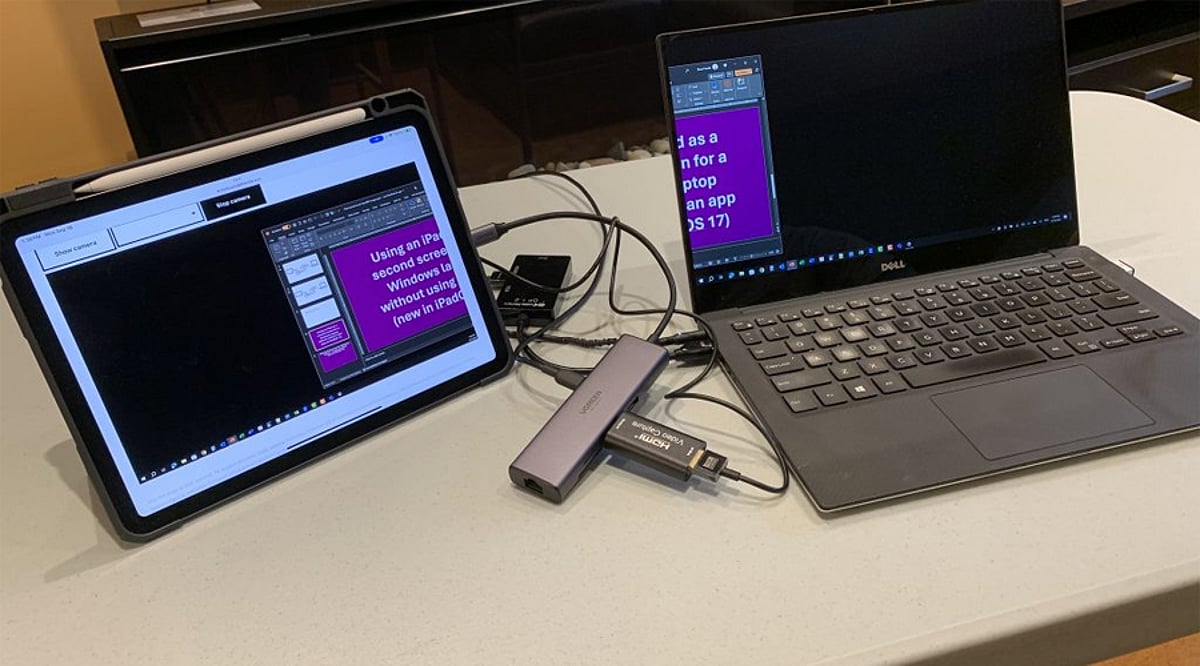
    Your iPad can do much more than serve as a standalone tablet. When paired with a compatible Mac, Apple’s Sidecar feature transforms your iPad into a second screen, expanding your workspace for documents, creative applications, research, and multitasking. This guide walks you through the entire process, from compatibility checks to advanced tips.

    Check Compatibility First

    Before diving in, ensure your Mac and iPad support Sidecar and are signed in to the same Apple Account. Both devices must run compatible operating systems, and you’ll need to have two-factor authentication enabled for that account. This requirement ensures a secure and seamless connection.

    Connect Your Devices

    Sidecar works both wirelessly and over a wired USB connection. For wireless setup, turn on Wi-Fi, Bluetooth, and Handoff on both devices, and keep them near each other. A USB connection is ideal for long sessions, as it keeps your iPad charged while working.

    Enable Sidecar

    On your Mac, open Control Center and select Screen Mirroring, then choose your iPad from the list. Alternatively, go to System Settings, click Displays, and add the iPad from there. Once connected, your iPad will act as an extension of your Mac desktop.

    Extend or Mirror the Screen

    Sidecar offers two primary modes: Extend and Mirror. In Extend mode, you can place different windows on each screen, effectively doubling your workspace. In Mirror mode, both displays show the same content—ideal for presentations or teaching. You can also rearrange display positions so moving the cursor between screens feels natural.

    Use Apple Pencil Too

    For creative professionals, Sidecar becomes even more powerful with an Apple Pencil. You can draw, edit photos, annotate documents, and interact with supported Mac applications directly on your iPad. The iPad’s sidebar gives quick access to common modifiers like Command, Option, and Shift, making it a natural extension of your workflow.

    Build a Bigger Workspace

    Once Sidecar is running, drag research materials, reference pages, or tool palettes onto the iPad while keeping your main project on the Mac. This setup eliminates cramped multitasking and boosts productivity. When you’re done, simply disconnect your iPad via the Screen Mirroring menu or Sidecar controls to return to normal operation.

    Join our WhatsApp Channel for the latest news, exclusives, and videos on technology.

  • Why Unstable PDF Tools Are Draining Enterprise Productivity and Budgets

    Why Unstable PDF Tools Are Draining Enterprise Productivity and Budgets

    For any enterprise aiming to stay productive, a seamless document ecosystem is non-negotiable. Contracts, invoices, compliance reports, and board packs still dominate daily workflows—and most of these documents remain PDF-based. Yet few organizations quantify the true cost of the PDF tools they rely on. Frequent crashes, background process conflicts, and startup errors disrupt knowledge workers an average of 30 to 40 times per week.

    One common error message reads, “A running instance of Acrobat caused an error.” While it might seem like a minor glitch, it signals a deeper problem: fragile desktop software that undermines enterprise efficiency.

    The Hidden Cost of PDF Failures

    Consider a legal team preparing for a merger. A senior associate encounters a stuck background process in Acrobat, unable to open a 300‑page PDF. After 15 minutes of restarting the application, the delay multiplies across hundreds of employees and millions of documents annually.

    In typical organizations, knowledge workers lose 20–30% of their week to document-related hassles. While not all of that stems from PDF failures, startup issues and process collisions are among the biggest culprits. IT help desks consistently rank PDF reader and editor problems as some of the most frequent support tickets.

    Why Background Process Conflicts Happen

    Modern PDF suites run multiple background tasks—syncing, auto-updating, OCR, and collaboration features. When one task fails to complete properly, subsequent tasks collide with the lingering instance, triggering the notorious “running instance” error. Enterprise environments worsen the issue with group policies, security agents, and multiple software versions.

    At the root is architecture. Most heavy PDF suites were designed as standalone applications with deep feature sets, not as service-oriented frameworks capable of handling continuous, mission-critical document throughput.

    A Strategic Response: Lightweight, Predictable PDF Tools

    Forward‑thinking IT leaders are reassessing their PDF technology stacks. Instead of standardizing on a cumbersome suite, they are adopting multi-platform editors that launch quickly, run lightweight processes, and integrate directly with cloud storage. The goal: improve document access on demand without IT intervention.

    UPDF—positioned as a strong alternative to Adobe Acrobat—exemplifies this new generation. It handles editing, annotations, AI assistance, PDF conversion, and OCR without the multi-process architecture that causes most startup errors. For organizations still plagued by PDF failures, such tools serve as either a useful secondary option or a full replacement for users who do not require advanced print production capabilities. IT teams may also reference guides on fixing the “a running instance of Acrobat” error for front-line support.

    Measuring ROI

    The business case for PDF tool stability is straightforward:

    • Fewer help desk tickets related to PDF startup and crash issues
    • Faster document turnaround for legal, finance, and operations teams
    • Lower software licensing costs when lighter tools replace premium suites
    • Improved employee experience and reduced frustration

    Final Thoughts

    PDF tool stability is not a niche IT concern. Document processing time directly affects customer responsiveness and decision speed. When businesses treat PDF software as critical infrastructure, they choose reliability and speed over error-prone suites—ultimately spending less time fixing problems and more time acting on the content within their documents.

  • Master Gmail Bulk Editing: Clean Up Your Inbox in Minutes

    Master Gmail Bulk Editing: Clean Up Your Inbox in Minutes

    Gmail’s bulk tools go beyond simple deletion. Selection, archiving, and labeling each serve different needs. Search operators and filters narrow the scope before action. Reviewing results first turns routine cleanup into a controlled, repeatable system rather than a one-time fix.

    Overview

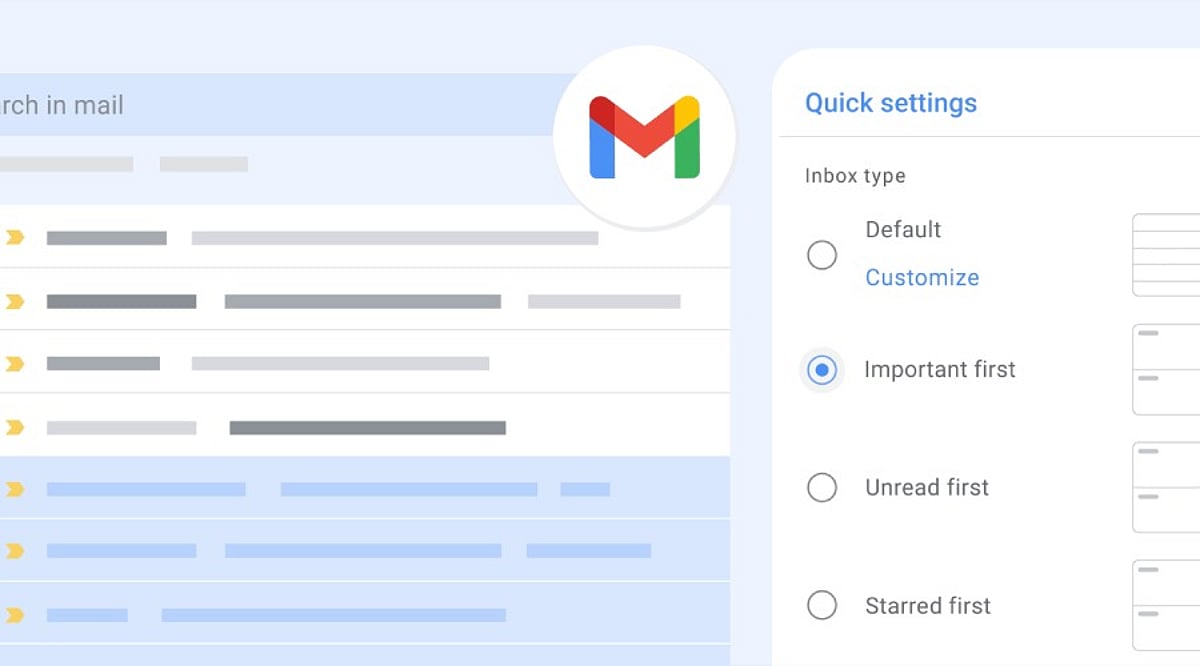
    Gmail’s checkbox and “select all conversations” option can act on messages far beyond what fits on one screen. Archiving, deleting, labeling, and marking messages as read or unread each solve a different inbox problem. Search operators and filters turn a one-time cleanup into a system that runs on its own.

    A full inbox rarely gets fixed one message at a time. Most people open Gmail, sigh at the unread count, and close the tab again. Yet Gmail already has the tools to clear that backlog in minutes, not hours. The gap is not features—it is awareness.

    Selecting Multiple Emails

    Click the checkbox beside a single conversation to select it. For a larger batch, use the master checkbox at the top of the message list. This selects the conversations shown on the current page, usually up to 50, though account settings can change that number.

    Selecting Every Matching Conversation

    A page of messages is rarely the whole problem. Once the master checkbox is clicked, Gmail often shows a banner offering to select every conversation matching the current view or search, not only the ones on screen. That single click turns a partial cleanup into a complete one. It applies equally to an entire inbox or a narrow search result.

    Archiving Emails

    Archiving pulls messages out of the inbox without deleting them. They stay searchable under All Mail, ready to surface again if needed. This suits anyone who wants a clear inbox while keeping every message on record.

    Deleting Emails

    Deleting moves selected messages to Trash, where Gmail removes them permanently after 30 days unless they are cleared sooner. This works well for old notifications, expired promotions, and clutter that serves no future purpose. Storage concerns need a different approach, though. A search like larger:10M finds the large attachments actually consuming space, which clears more room than deleting ordinary messages ever could.

    Labeling and Marking Read or Unread

    Use the Labels button to tag selected messages, grouping related conversations such as receipts or subscriptions. Move to shift messages out of the current view entirely, a distinct action from labeling. The envelope icon marks a batch as read or unread in one step, clearing notification counts without opening a single message.

    Search Operators Before Bulk Editing

    Narrowing a search before acting reduces the odds of a mistake. Gmail operators such as from:, subject:, has:attachment, older_than:, and is:read make it easier to isolate specific messages. Combining operators refines results even further. For example, from:newsletter@example.com older_than:1y finds older emails from a specific sender, while older_than:1y is:read surfaces read messages more than a year old, ready to review, archive, or delete in bulk.

    Filters for Ongoing Management

    Manual cleanup fixes today’s mess, not next month’s. A filter built from the search bar can archive, label, or delete future messages that match set criteria, such as a sender or subject line. It affects only new mail arriving after it is created, unless the option to apply it retroactively is selected during setup. That single distinction saves people from wondering why their inbox history stayed untouched.

    Managing Gmail on Mobile

    The mobile app skips the desktop-style workflow for selecting every conversation across a mailbox or search. Long-pressing a message allows several to be handled together, but sweeping cleanup still belongs on the web version.

    Review Before Acting

    Bulk actions are hard to undo once applied widely. Scan a few results from the search query before deleting or moving a large batch, just to confirm nothing important slipped in. When in doubt, archiving instead of deleting keeps a message available for later reference. Any filter that includes automatic deletion deserves a second look before it gets saved.

    Final Thought

    Fast inbox cleanup has little to do with selecting more messages. It comes down to narrowing the right group first, picking the right action, and letting filters carry the weight of future maintenance. That shift, from reacting to managing, is what separates a cluttered inbox from a controlled one.

    Frequently Asked Questions

    Can I edit multiple emails at once in Gmail?

    Yes. Select multiple conversations using the checkboxes, then archive, delete, label, move, or mark them as read or unread in one action.

    How do I select all emails in my Gmail inbox?

    Click the checkbox at the top of the inbox. If Gmail shows an option to select all conversations matching the current view, click it to expand the selection.

    Can I bulk delete old emails in Gmail?

    Yes. Use search operators such as older_than:1y to find older messages, review the results, select the conversations, and click Delete.

    Can I bulk organize Gmail emails with filters?

    Yes. Gmail filters can automatically label, archive, or delete future messages that match criteria such as a sender, subject, or keyword.

    Can I bulk edit Gmail emails from my phone?

    The Gmail mobile app supports selecting multiple messages, but large-scale inbox cleanup is generally easier through Gmail on the web.

  • Google Gemini: A Complete Guide to Features, AI Models, and Everyday Uses

    Google Gemini: A Complete Guide to Features, AI Models, and Everyday Uses

    Google Gemini has evolved into one of the most advanced artificial intelligence platforms globally. Developed by Google DeepMind, Gemini is now deeply integrated across Google’s ecosystem, enabling it to understand and process text, images, audio, video, and code within a single system. Beyond simple Q&A, Gemini powers smart search, voice conversations, writing assistance, coding help, image creation, document analysis, and real-time support across Google apps. The latest models also handle complex, multi-step tasks that require planning, reasoning, and tool use, making Gemini a comprehensive AI assistant for work, study, creativity, and daily life.

    How Google Gemini Works

    Gemini relies on multimodal artificial intelligence, allowing one model to simultaneously understand different types of information. It can read text, recognize images, interpret spoken words, analyze videos, and write code without needing separate tools. For example, users can upload a photo, ask a question about it, and receive a detailed answer. Gemini also handles voice requests, maintains context in conversations, and responds naturally. Google designed Gemini for agentic tasks—completing multi-step jobs rather than handling just one simple request. It can organize information, create plans, review documents, write content, and continue tasks across several steps.

    Latest Google Gemini AI Models

    Google offers several Gemini models tailored for different tasks, balancing speed, reasoning, creativity, and real-time interactions:

    • Gemini 3.8 Flash – Google’s flagship model for fast and complex AI tasks, handling writing, coding, reasoning, and large workloads with improved speed and lower computing cost.
    • Gemini 3.1 Pro – Focuses on advanced reasoning and creative work, supporting detailed research, long documents, software development, and difficult problem-solving.
    • Gemini 3.1 Deep Think – Built for science, engineering, and research, this model excels at complex calculations, technical analysis, and higher-level reasoning.
    • Gemini 3.8 Live – Enables natural voice conversations in the Gemini app, understanding spoken language, visual context, and real-time interactions.
    • Gemini 3.8 Live Extended Thinking – Adds deeper reasoning during voice conversations, working through harder questions while the conversation continues.
    • Gemini 3.5 Flash-Lite – A lightweight option for high-volume tasks requiring quick answers and efficient performance.

    Google also offers dedicated audio and image models for speech recognition, translation, image creation, editing, and visual understanding.

    Top Features of Google Gemini

    Gemini combines several AI features into one platform. It can write emails, blog posts, summaries, reports, social media captions, and creative content in simple or professional tones. It understands documents such as PDFs, spreadsheets, presentations, and text files, extracting important information, summarizing long reports, and explaining complex topics. The image feature describes photos, identifies objects, explains charts, solves visual questions, and edits or generates images with text prompts. Voice conversations with Gemini Live feel natural—the assistant responds in real time, remembers context, and answers follow-up questions without repeating earlier details. Gemini also supports coding across many programming languages, explaining code, fixing errors, writing functions, and helping developers complete larger projects.

    Everyday Uses of Google Gemini

    Gemini can be applied in practical ways beyond simple chatbot assistance:

    • Students can use Gemini for homework help, pop quizzes, study organization, math assistance, scientific explanations, language learning, and research summaries.
    • Business professionals can rely on Gemini for meeting notes, email drafts, presentations, reports, project plans, brainstorming, and document review.
    • Writers and artists can use Gemini for article outlines, content ideas, script creation, marketing copy, product descriptions, and creative storytelling, along with grammar checking.
    • Travelers can get suggestions for itineraries, activities, restaurants, and destination comparisons.
    • Everyday tasks include cooking recipes, fitness plans, shopping and budgeting ideas, event planning, and organization.

    Gemini Across Google Apps

    Google has integrated Gemini with many popular services, reducing the need to switch between apps. In Gmail, Gemini drafts emails, summarizes long conversations, and suggests replies. In Google Docs, it writes and edits content, changes tone, and creates summaries. In Google Sheets, it explains formulas, analyzes data, creates tables, and answers questions. In Google Slides, it creates presentations, writes speaker notes, and generates slide content. Google Search also uses Gemini for AI-powered answers that combine information from multiple sources into organized responses.

    Gemini Live: Voice AI That Feels Natural

    Gemini Live is one of Google’s biggest AI updates, supporting continuous voice conversations rather than short Q&A sessions. Users can talk naturally, interrupt, ask follow-up questions, and even show objects through the phone camera. Gemini understands both speech and visual context during the same conversation. The latest Gemini 3.8 Live models also support deeper reasoning for difficult questions and more advanced conversations across diverse topics.

    Image, Audio, and Video Intelligence

    Gemini goes beyond text with powerful multimedia abilities. The image system creates original artwork, edits existing pictures, removes objects, changes backgrounds, and generates illustrations from text prompts. Audio models support speech recognition, transcription, translation, and voice understanding across multiple languages. Gemini also analyzes videos—identifying important moments, understanding scenes, answering questions about content, and finding specific events in long recordings. Google states that its latest video system uses fewer computing tokens while improving accuracy for many analysis tasks.

    Gemini for Coding and Developers

    Google has expanded Gemini for software developers with advanced coding tools. Gemini writes code in languages such as Python, JavaScript, Java, C++, Go, and SQL. It explains programming concepts, reviews code quality, fixes bugs, and suggests improvements. The latest models also support agentic coding tasks, handling larger development workflows instead of isolated code snippets. Developers can ask Gemini to build features, organize files, explain repositories, and solve technical issues across multiple steps.

    Google Gemini on Mobile and Desktop

    Gemini works across Android phones, iPhones, tablets, web browsers, and desktop computers. On Android, Gemini serves as a smart assistant for voice commands, searches, navigation, reminders, and app support. Google has also launched a dedicated Gemini app for Windows, offering quick access through keyboard shortcuts and supporting voice conversations, writing help, research, and productivity tools.

    What Makes Google Gemini Different

    Google Gemini stands out by combining text, images, audio, video, code, and reasoning into one AI platform instead of separate systems for each task. The latest family focuses on long conversations, complex planning, advanced coding, document understanding, visual analysis, and deeper reasoning across many tasks. Strong integration with Google Search, Gmail, Docs, Sheets, Slides, Android, and Windows expands Gemini beyond a standalone chatbot. It now serves as a complete AI ecosystem supporting learning, work, creativity, communication, and everyday productivity through one connected platform.


  • 7 Everyday Laptop Battery-Saving Tips for Longer Usage

    7 Everyday Laptop Battery-Saving Tips for Longer Usage

    Running out of battery in the middle of work can be frustrating, especially when you don’t have access to a charger. While modern laptops offer better battery life, your daily habits still play a significant role in how long a charge lasts. By making a few simple adjustments, you can reduce unnecessary power consumption and get more usable hours from your laptop between charges.

    7 Simple Tips to Save Laptop Battery

    1. Lower Screen Brightness

    The display is one of the biggest power consumers. When working indoors, reduce the brightness to a comfortable level. You don’t need maximum brightness all the time, and even a small reduction can help stretch your remaining battery.

    2. Enable Battery Saver Mode

    When your battery gets low, turn on your laptop’s built-in power-saving mode. Windows offers Energy Saver, while MacBooks have Low Power Mode. These settings automatically reduce background activities and other power-hungry processes to keep your laptop running longer.

    3. Close Unused Apps

    Leaving multiple programs open, including browsers with many tabs, editing software, and cloud apps, consumes system resources in the background. Close anything you’re not currently using to reduce battery drain and improve responsiveness.

    4. Reduce Background Activity

    Some apps continue to sync files, check for updates, or perform tasks even when not visible. Check which apps are allowed to run in the background and disable permissions for those you rarely use.

    5. Set Your Laptop to Sleep Sooner

    If you often step away from your laptop, reduce the inactivity time before the display turns off and the laptop enters sleep mode. This prevents battery waste when you’re not using the computer.

    6. Unplug Unnecessary Accessories

    External drives, USB devices, and wireless accessories draw power even when not in use. Disconnect peripherals you don’t need, especially when battery is low.

    7. Use Battery Health Features

    Modern laptops include battery care options like Smart Charging on Windows or Optimized Battery Charging on MacBooks. Enable these features to support long-term battery health and extend overall lifespan.

    Final Thoughts

    You don’t need to obsess over battery usage. Simple changes like lowering brightness, closing apps, and enabling power-saving mode can make a big difference. Also, remember to disconnect extra devices and let your laptop sleep faster. For long-term care, use your laptop’s battery health tools.

    By incorporating these habits, you can enjoy longer battery life and a more efficient laptop experience.

  • 8 Practical Tips for Discovering Valuable Telegram Channels Without the Clutter

    8 Practical Tips for Discovering Valuable Telegram Channels Without the Clutter

    Telegram can deliver a wealth of useful information, but an unchecked channel list quickly becomes noise. By combining focused search, careful selection, and simple management tools, you can keep your feed relevant and organized. Here are eight actionable strategies.

    1. Search with Specific Topics

    Telegram’s search works best with precise terms. Instead of broad keywords like “technology” or “news,” use phrases such as “Android security,” “football transfers,” or “stock market news.” This narrows results to public channels and posts that match your exact interest, and it can surface sources that a generic search would miss.

    2. Use the Posts Tab for Discovery

    Telegram’s global search now includes a dedicated Posts tab. This lets you search across posts from all public channels—even those you haven’t joined. When you find a useful post, visit the channel’s profile to learn more. This approach helps you discover high-quality sources without subscribing to every channel that appears in general results.

    3. Check Similar Channels Before Subscribing

    On any channel profile, look for the Similar Channels section. Telegram suggests channels with overlapping audiences and topics. You can also find these suggestions in the Channels section of global search. For example, a reliable tech channel may lead you to others focused on software, cybersecurity, or AI—broadening your coverage with a small, curated set of sources.

    4. Test a Channel Before Committing

    Don’t subscribe to every promising channel immediately. Give it a short trial period. Evaluate posting frequency, content quality, originality, repetition, and promotional material. A channel that posts one or two valuable updates daily is often more useful than one that floods your feed with dozens of low-value messages.

    5. Create Folders for Different Topics

    Telegram’s chat folders let you group channels by category—News, Tech, Work, Learning, Entertainment, and more. You can define rules to include or exclude specific chats, groups, channels, bots, or muted chats. This keeps unrelated content separate and gives your main chat list a cleaner, more manageable layout.

    6. Mute Channels that Don’t Need Alerts

    Useful channels don’t always require instant notifications. Telegram’s mute controls let you keep valuable sources accessible without constant interruptions. For instance, mute high-volume news channels while leaving learning channels unmuted. This way, you stay informed on your own schedule.

    7. Use AI Summaries for Long Posts

    Telegram introduced AI summaries for long channel posts in January 2026. This feature provides a concise overview of lengthy content, helping you decide quickly whether to read the full post. It’s especially useful for channels that publish detailed reports, news updates, or extended announcements.

    8. Review Your Channel List Regularly

    Just as important as discovery is cleanup. A channel that once delivered value may later become repetitive or overly promotional. Set aside time periodically to review your subscriptions and remove any that no longer serve your interests. A smaller, well-curated list is far more effective than a large, cluttered one.

    By combining these techniques—focused search, channel checks, folders, mute controls, AI summaries, and regular reviews—you can transform Telegram into a streamlined information hub where every channel has a clear purpose.

  • Microsoft Teams Review: Key Features, Benefits, and Challenges for Modern Workplaces

    Microsoft Teams Review: Key Features, Benefits, and Challenges for Modern Workplaces

    Overview

    Microsoft Teams is collaboration software by Microsoft that combines chat, meetings, calls, file storage, calendar, tasks, and document collaboration in one online workspace. Highly integrated with Microsoft 365, Teams enables teams to use tools like Word, Excel, PowerPoint, OneDrive, and SharePoint. Features of Microsoft Teams allow users to communicate, hold virtual meetings, share documents, coordinate projects, and enhance productivity using AI. Benefits include communication centralization, cross-device capability, and teamwork simplification. Despite challenges such as poor performance, notification overload, and difficulty locating old files, Teams remains a leading workplace communication solution.

    General Information

    • Launched in: 2016
    • Platform Support: Android, iOS, Windows, macOS, Web
    • Download: Click Here

    Main Features of Microsoft Teams

    • Chat: Facilitates individual conversations, groups, mentions, and organized discussions for workplace communications.
    • Meetings: Provides audio and video meetings, screen sharing, recordings, live transcription, breakout sessions, and collaboration during meetings.
    • Channels: Organizes discussions according to projects, departments, and topics to make workplace discussions more organized.
    • File Sharing: Supports file and document sharing via chats and channels, integrated with OneDrive and SharePoint to facilitate file management of business documents.
    • AI Copilot: Includes Copilot to facilitate summaries of meetings, conversation assistance, and follow-ups for missing meetings.

    Benefits of Microsoft Teams

    • Integrates chat, meetings, calls, file sharing, and collaboration functionalities, eliminating the need for multiple workplace software applications.
    • Offers great integration with Microsoft 365, keeping documents and productivity applications connected to daily team communications.
    • Fosters remote and hybrid working conditions using cross-device functionality, virtual meetings, screen sharing, recording, and collaborative documents.
    • Organizes project communications using teams, channels, files, calendars, tasks, and meeting-related information.
    • Acts as a centralized digital workspace that can improve communication and collaboration in distributed teams.

    Challenges of Microsoft Teams

    • The application can be resource-hungry, especially during long meetings or when many applications and channels are used simultaneously.
    • A large number of notifications may make it hard to see important alerts among others in busy teams and channels.
    • Locating old messages and documents may require extra effort.
    • Managing multiple teams, channels, accounts, and collaboration tools can make the interface feel crowded.
    • Some users may experience problems with loading the app and accessing account information.

    Subscription Information

    Microsoft Teams is available for free for personal use; additional services are accessible through Microsoft 365 subscriptions. Premium features are available through Microsoft Teams Premium.

    Support Options

    • Help Center and Learning Resources: Microsoft provides Teams help covering meetings, chat, notifications, teams and channels, calls, files, troubleshooting, administration, Copilot, and application management.
    • Customer Support: Microsoft offers support information, technical help, troubleshooting, account help, and IT admin support.

    Conclusion

    Microsoft Teams is an extensive communications solution that integrates messaging, online meetings, calling, file sharing, document collaboration, and productivity tools into one unified system. Its strong relationship with Microsoft 365 is a key advantage, especially for enterprises already using Word, Excel, PowerPoint, OneDrive, and SharePoint. Collaboration and communication features receive high marks in reviews, but performance, search, notifications, and mobile experience still need improvements.

  • How to Locate Your Saved Reddit Posts on Web, iOS, and Android

    How to Locate Your Saved Reddit Posts on Web, iOS, and Android

    Reddit’s saved posts and comments pile up quickly, making older entries hard to find. This guide walks you through locating your saved content across desktop, iPhone, and Android devices, explains why the native Saved section lacks search tools, and offers practical habits and third-party solutions to keep your list manageable.

    Where Are Saved Posts on Reddit?

    Reddit stores all saved posts and comments in a single Saved section within your profile. The exact navigation path varies slightly by platform and app version, but the destination remains the same.

    On the Website (Desktop)

    1. Click your profile icon at the top right corner.
    2. Select your profile name from the dropdown menu.
    3. On the profile page, look for the Saved tab in the navigation bar. If it’s not visible, click the three horizontal lines (hamburger menu) to reveal additional options.
    4. Click Saved to view your full list.

    On iOS and Android

    1. Tap your profile icon at the bottom of the screen.
    2. Tap the hamburger menu (three lines) near the top right of the profile page.
    3. Select Saved from the menu. Depending on the app version, posts and comments may appear together or in separate tabs.

    Saving a Post or Comment

    The Save feature works identically across platforms:

    • Desktop: Click the three-dot overflow menu on any post or comment and choose Save.
    • Mobile: Tap the three-dot icon at the top right of a post or comment and select Save. To unsave, tap the same menu and choose Unsave.

    Why Older Saves Are Hard to Track

    Reddit’s Saved section behaves like a static archive rather than a searchable database. It currently lacks native search or filtering options. As your list grows into the hundreds, scrolling through an unsorted timeline becomes the only way to find an older item — unless you adopt better habits or use third-party tools.

    Managing a Growing Saved List

    Keep your saved content organized with these strategies:

    • Regular cleanup: Periodically review and unsave items you no longer need.
    • Third-party browser extensions: Some extensions connect to Reddit’s API to add keyword search across saved content. Before using any, verify what data it accesses and whether it is actively maintained.
    • Bookmark external tools: If you frequently save reference material, consider using a dedicated bookmarking service alongside Reddit’s native feature.

    Quick Recap by Platform

    • Desktop: Profile icon → Profile page → Saved
    • Mobile: Profile icon → Hamburger menu → Saved

    Final Thought

    The Saved section works well for occasional savers. Frequent users get more value by pairing it with regular cleanup or a reputable third-party tool that handles data responsibly.

    FAQs

    1. Where can I find my saved posts on Reddit?
    Through your Reddit profile. On desktop, open your profile and select Saved. On mobile, open your profile menu and select Saved.

    2. Can I save Reddit comments as well as posts?
    Yes. Both posts and comments can be saved. Saved comments appear in the Saved section, depending on the interface version.

    3. How do I save a post on Reddit?
    Open the three-dot menu and select Save. To remove it later, open the same menu and select Unsave.

    4. Can I search my saved posts on Reddit?
    Reddit’s native Saved section does not currently offer search or filtering. To find older items, you may need to scroll or use third-party tools.

    5. Why can’t I find a Reddit post I saved?
    Ensure you are signed into the correct account. Check whether you saved the comment instead of the post. If the content was deleted or removed, it may no longer be accessible.