Tag: Productivity

  • OpenAI’s ChatGPT Work Now Mimics Your Writing Style Automatically

    OpenAI’s ChatGPT Work Now Mimics Your Writing Style Automatically

    OpenAI has rolled out a new capability for ChatGPT Work that lets the AI learn a user’s personal writing style and apply it in future interactions. This means less time spent explaining how you want your emails or documents to sound.

    Previously, users had to provide explicit instructions about tone and style. Now, ChatGPT can analyze your past writing—including frequently used phrases, email sign-offs, and subtle habits—to generate drafts that feel more like you.

    The feature can tap into connected applications such as Gmail, Google Drive, Slack, and SharePoint to better understand your writing patterns.

    How to Set It Up

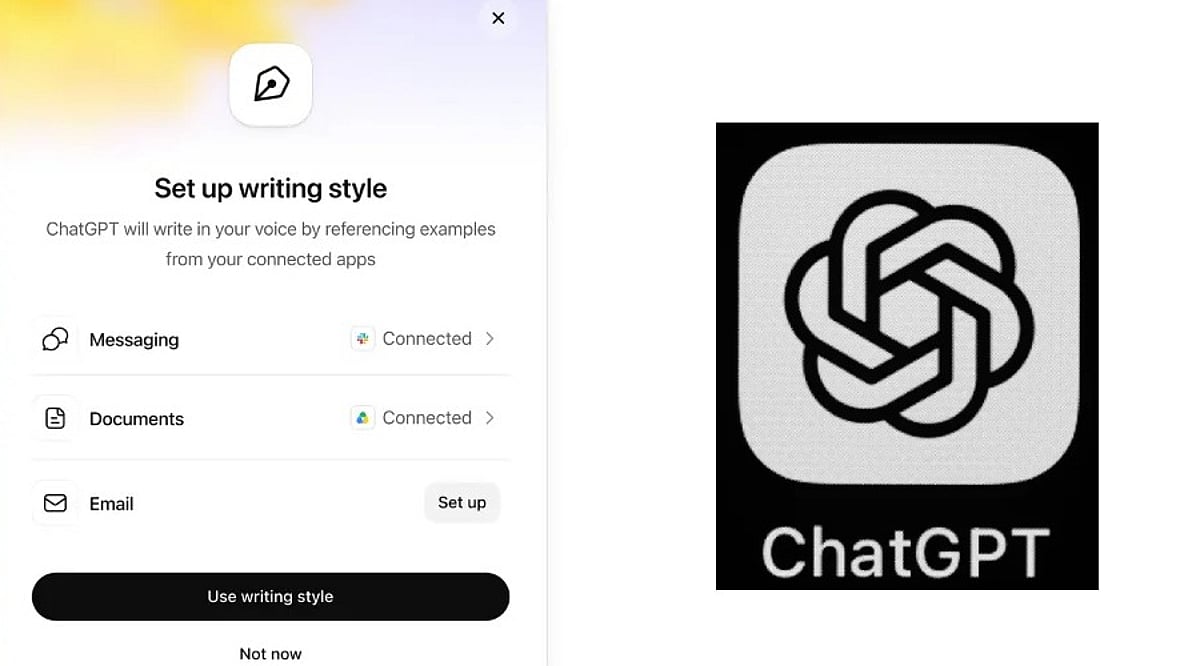
    Enabling this is straightforward. Go to Settings > Personalization > Writing style. From there, you can link your work apps and allow ChatGPT to study your old messages and documents. Once activated, it works across both the web version and mobile apps, but only for ChatGPT Work subscribers on paid plans.

    The more ChatGPT sees of your writing, the more natural its drafts will become. Over time, you might not need to provide detailed instructions at all.

    Higher Productivity Meets Corporate Data Privacy

    This update is particularly useful for professionals who draft many work emails, messages, or reports with the help of AI. However, there’s a catch: because the tool reads through emails and files, it also processes sensitive business information. Companies should weigh the benefits against potential privacy risks, especially regarding who can access or use that data.

    Overall, this change signals where AI writing tools are headed—moving from simple instruction-following to truly understanding individual users. The ultimate goal is fewer edits and drafts that already sound like you.

  • Logitech MX Keypad Debuts as a Physical AI Control Center for Developers at ₹15,999 / $99.99

    Logitech MX Keypad Debuts as a Physical AI Control Center for Developers at ₹15,999 / $99.99

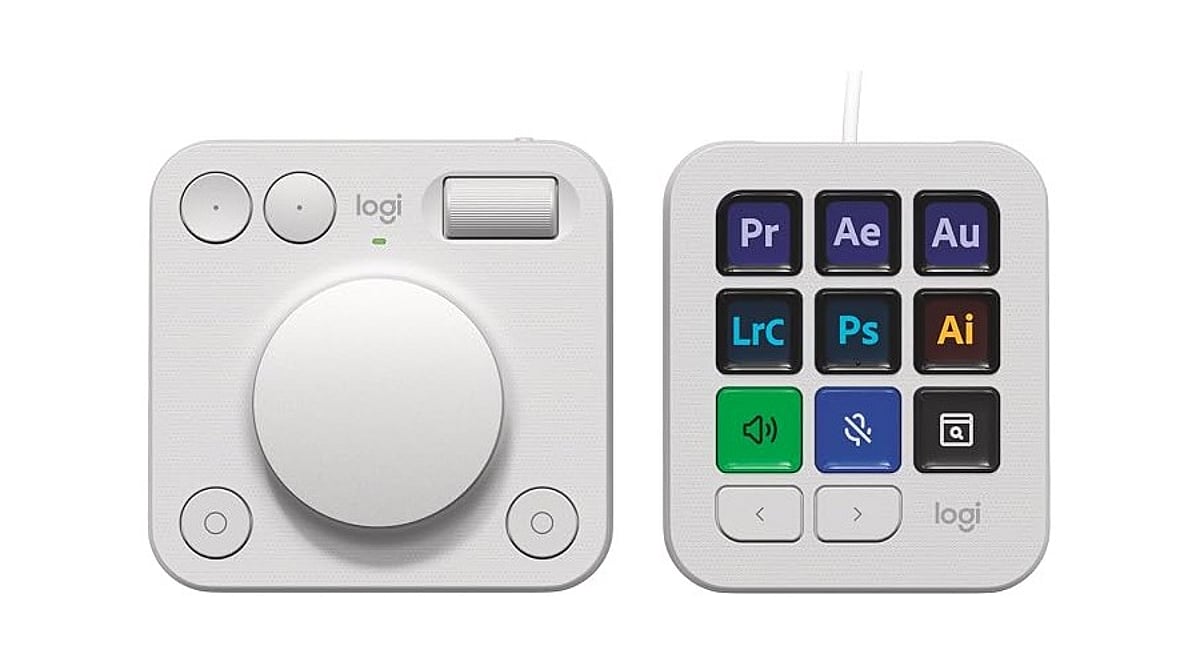
    Logitech launched the MX Keypad on September 8 as its first AI control center for developers worldwide. Priced at ₹15,999 in India and $99.99 in select global markets, the device introduces physical controls for managing AI coding tools like GitHub Copilot, Claude Code, VS Code, and IntelliJ IDEA.

    Designed for multi-app coding workflows that involve AI agents and development tools, the MX Keypad helps developers streamline tasks by offering customizable physical keys for prompts, commands, scripts, macros, and workflow actions. Native integration supports VS Code and the GitHub Copilot app at launch, with additional tools planned. Every unit also includes three free months of GitHub Copilot Pro+ through Logi Options+.

    “MX Keypad puts a physical control center at your fingertips,” said Anatoliy Polyanker, Logitech VP and GM. “It helps developers orchestrate AI workflows faster and more intuitively.” GitHub executive Martin Woodward emphasized the device’s focus on reducing tool navigation: “Great developer tools get out of your way.”

    Beyond software integration, Logitech offers the Logitech Actions SDK for developers building custom integrations. Community plugins already support Claude Code and OpenAI Codex through the Logi Marketplace. The MX Keypad also features sustainable design, with the Graphite model containing 64% post-consumer recycled plastic.

  • Maximize Productivity in 2026: Microsoft 365 AI Automation Tips for Smarter Workflows

    Maximize Productivity in 2026: Microsoft 365 AI Automation Tips for Smarter Workflows

    Artificial intelligence is transforming workplace productivity, and Microsoft 365 is at the forefront of this shift. Businesses can leverage tools like Microsoft 365 Copilot, Power Automate, and AI-driven workflows to streamline repetitive tasks, enhance collaboration, and reduce manual workloads. According to Microsoft, Copilot is already used by over 1 million organizations, and enterprise adoption continues to grow through 2026.

    Automate Email Management with AI

    Email management consumes a significant portion of the workday. With Microsoft 365 Copilot, users can now summarize lengthy email threads, draft replies, prioritize important messages, and identify action items directly within Outlook. Additionally, Teams can integrate Power Automate to sort emails automatically, schedule follow-ups, and trigger notifications—eliminating tedious administrative tasks.

    Build Workflows Using Natural Language

    One of the most significant AI innovations from Microsoft is the ability to create workflows using natural language prompts. For example, a user can say, “Save email attachments to SharePoint and notify my team,” and Copilot will generate the corresponding workflow. These AI-based workflows are embedded across Outlook, Teams, SharePoint, Planner, and Microsoft Lists.

    Automate Meetings and Collaboration

    Microsoft Teams now offers AI-generated meeting summaries, task extraction, and follow-up reminders. Copilot can automatically highlight key decisions, assign tasks, and produce meeting notes, ensuring distributed teams stay aligned while reducing documentation overhead.

    Connect Power Automate with Business Processes

    AI can be integrated with Power Automate to automate approval workflows, HR onboarding, invoice processing, leave requests, and customer support. By leveraging business rules, scheduled events, file uploads, and emails, AI-powered cloud flows eliminate repetitive manual work.

    Monitor AI Adoption and Performance

    The Microsoft 365 Copilot Usage Report provides administrators with a dashboard to track user engagement, retention, and most-used applications. This insight helps organizations understand productivity gains and optimize adoption strategies.

    Best Practices for AI Automation

    Successful automation starts with identifying repetitive, rules-based processes. Organizations should:

    • Start with high-level manual tasks.
    • Verify AI-generated content before use.
    • Implement role-based security and governance policies.
    • Regularly refine processes based on staff feedback and analytics.

    Final Thoughts

    Microsoft 365 AI automation is about more than completing tasks—it’s about building intelligent workflows. When Copilot, Power Automate, and Teams come together, businesses gain a smoother path to improved collaboration, reduced admin load, and higher efficiency. Teams can move faster with less time spent on repetitive work. Organizations that start automating now will be well-positioned for higher productivity as AI continues to evolve within Microsoft 365.

    FAQs

    1. What is Microsoft 365 AI automation?

    It combines tools like Copilot and Power Automate to automate repetitive tasks, generate content, summarize information, and streamline workflows across Outlook, Teams, Word, Excel, and other Microsoft apps.

    2. How does Microsoft 365 Copilot improve productivity?

    Copilot drafts emails, summarizes meetings, generates documents, analyzes spreadsheets, and suggests next steps, reducing manual work and letting employees focus on higher-value tasks.

    3. What business processes can Power Automate handle?

    It can automate approvals, invoice processing, HR onboarding, leave requests, document routing, notifications, and customer support workflows, integrating with hundreds of Microsoft and third-party apps.

    4. Can Microsoft 365 AI create workflows without coding?

    Yes. Copilot lets users build workflows using natural language prompts—no programming knowledge required.

    5. Is Microsoft 365 AI automation suitable for small businesses?

    Absolutely. Small businesses can automate routine tasks, improve collaboration, and boost productivity without complex IT infrastructure.

  • 10 Free AI Tools That Can Save You Hours Every Week

    10 Free AI Tools That Can Save You Hours Every Week

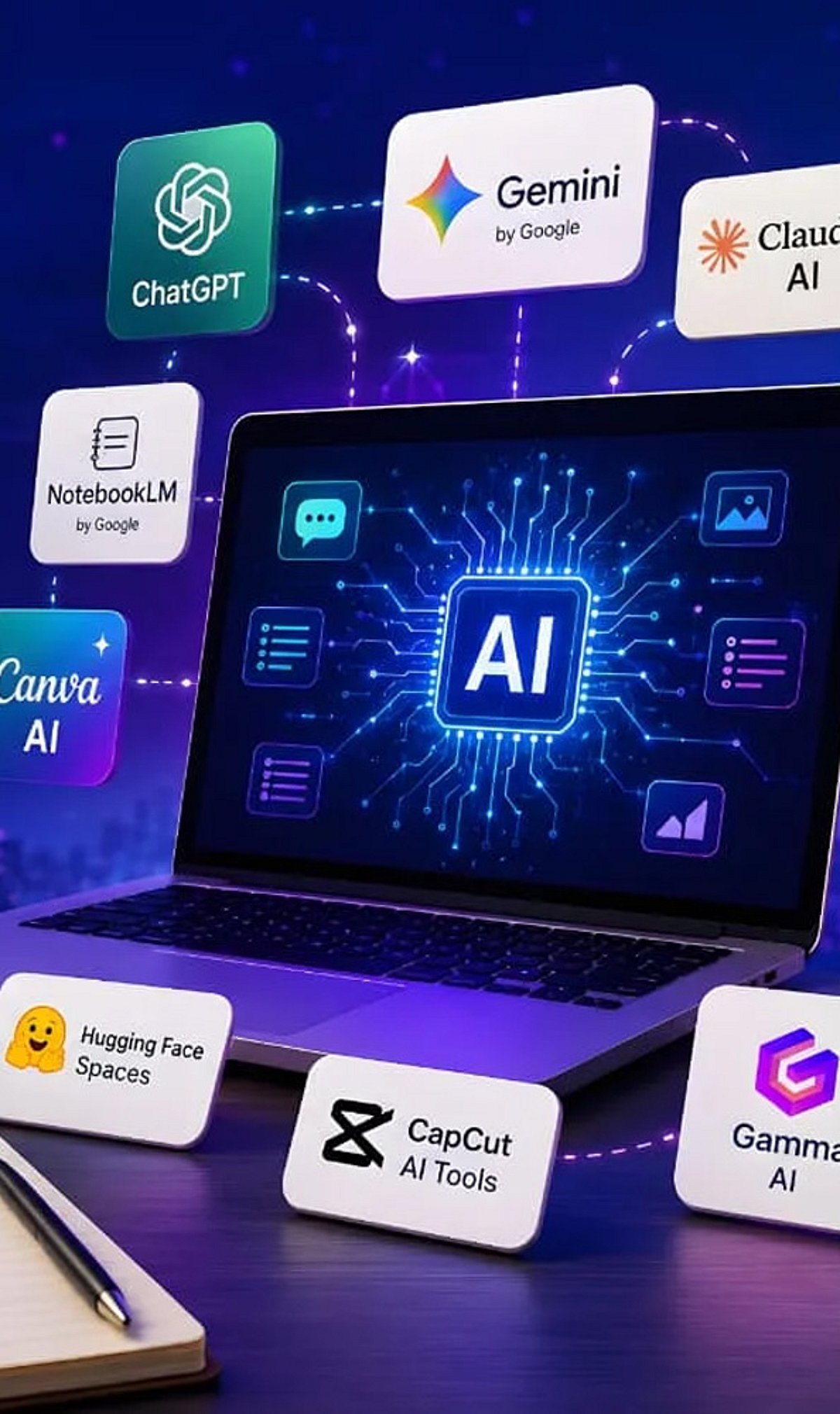
    Artificial intelligence tools have become indispensable for boosting productivity and streamlining workflows. Whether you need to generate content, research a topic, organize documents, or automate meeting notes, there is a free AI tool that can help. Here is a curated list of 10 powerful free AI tools that can save you hours every week.

    1. ChatGPT

    ChatGPT is one of the most versatile AI assistants available. Use it to generate content, brainstorm ideas, summarize documents, answer questions, and automate everyday writing tasks. Its conversational interface makes it easy to get started.

    2. Google Gemini

    Google Gemini integrates seamlessly with Google Workspace to help you research topics, summarize lengthy files, analyze images, and streamline both personal and professional workflows. It’s a great choice for anyone already using Google’s ecosystem.

    3. Microsoft Copilot

    Microsoft Copilot works directly inside Microsoft 365 applications and Windows. Draft emails, create presentations, analyze spreadsheets, and even get assistance with coding—all without leaving your workflow.

    4. Perplexity AI

    Perplexity AI provides accurate, source-backed answers instantly with real-time web search. It makes research, fact-checking, and learning significantly faster than traditional search engines.

    5. Canva AI

    Canva’s AI-powered design tools let you create social media graphics, presentations, videos, and marketing visuals without needing professional design experience. It’s a time-saver for content creators and marketers.

    6. Grammarly

    Grammarly helps improve grammar, clarity, tone, and writing quality across emails, documents, and websites. Its instant suggestions make writing more efficient and polished.

    7. NotebookLM

    NotebookLM by Google is an AI-powered research assistant that helps you organize research materials, summarize documents, generate study guides, and ask questions using your uploaded sources. It’s ideal for students and professionals.

    8. Claude

    Claude is an AI assistant capable of summarizing long reports, writing polished content, analyzing documents, and handling complex reasoning tasks. Its natural, conversational responses make it easy to work with.

    9. Otter.ai

    Otter.ai automatically records meetings, transcribes conversations, generates summaries, and captures action items. It reduces manual note-taking and improves collaboration efficiency for teams.

    10. Additional Bonus Tools

    While the list includes nine core tools, many other free AI applications can further boost your productivity. Experiment with different tools to find the ones that best fit your needs.

    Start using these free AI tools today to reclaim hours of your week and focus on what matters most.

  • Sunsama Daily Planner Review: Intelligent Time Blocking for Better Productivity Management

    Sunsama Daily Planner Review: Intelligent Time Blocking for Better Productivity Management

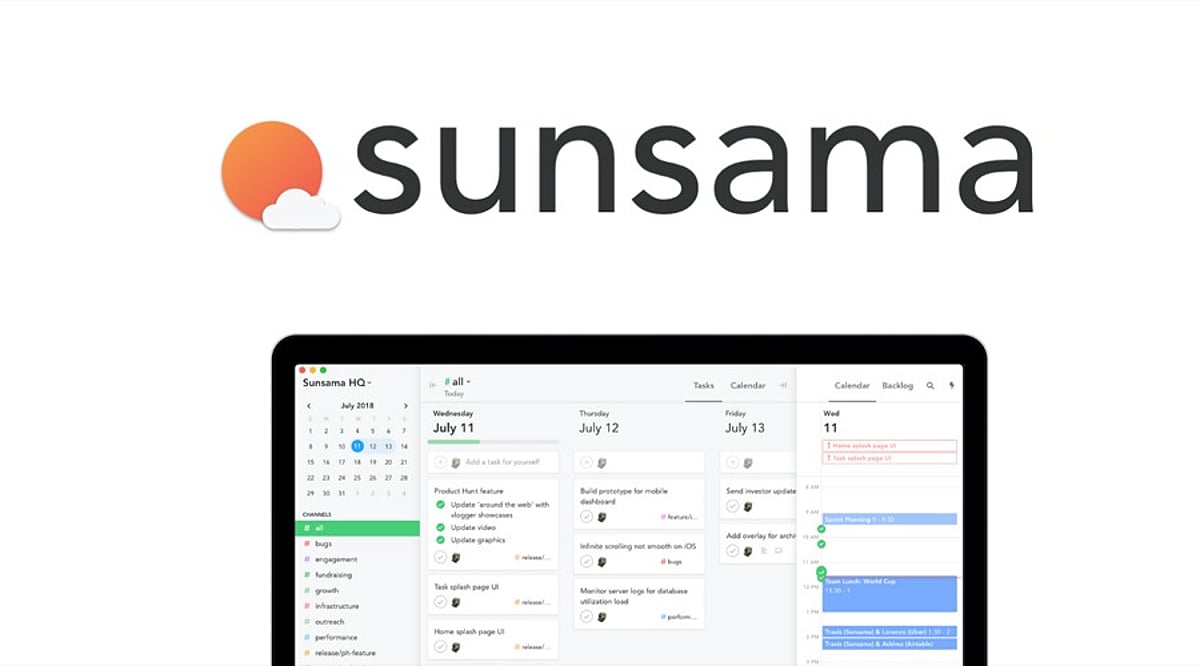
    Sunsama is a daily planner app designed to help users organize their tasks, block time for focused work, and create an intention-driven daily flow. It seamlessly integrates task management with calendar planning, allowing users to drag tasks into their calendar for a visual, structured day. The app emphasizes mindfulness in planning, daily reviews, workload balancing, and integration with popular productivity tools.

    General Information

    • Founded in: 2013
    • Platform Support: Web, Windows, macOS, Android
    • Download: Click Here

    Main Features of Sunsama

    • Organizes daily activities through time-blocking techniques based on calendars.
    • Offers daily and weekly plans, along with reviews.
    • Records scheduled and actual completion time of tasks precisely.
    • Compatible with Asana, ClickUp, Trello, and other productivity software.
    • Includes workload balancing, focus techniques, and daily wind-down.

    Benefits of Sunsama

    • Generates real-time daily plans using time-blocking techniques.
    • Incentivizes mindful planning with workload management and review.
    • Consolidates task information from different productivity apps in one place.
    • Facilitates awareness of working patterns through time tracking.
    • Intuitive design ensures planning is easy and distraction-free.

    Challenges of Sunsama

    • Requires consistent daily planning to get the most out of it.
    • Only allows planning for about two weeks ahead.
    • Does not automatically schedule tasks or priorities for each day.
    • Mobile app lacks some features of the desktop version.
    • No public API for integrations.

    Subscription Information

    Sunsama offers a 30-day free trial without requiring a credit card. The Pro plan includes unlimited planning, integrations, and productivity tools, while the Enterprise plan adds extra security and administration support.

    Support Options

    • Help Center and Learning Resources: User guides, onboarding documentation, productivity tips, planning tutorials, and setup resources.
    • Customer Support: Assistance for account management, billing questions, technical troubleshooting, and platform-related issues.

    Conclusion

    Sunsama is an excellent daily planner for individuals who prefer intentional planning and time-blocking over automated scheduling. With its clean design, thoughtful planning methodology, and useful features, it stands out as a productivity app for those wanting greater control over their daily schedule. Despite requiring manual planning and having a simpler mobile version, it delivers on its core promise effectively.

    Rating: 4.5 / 5

  • The 2026 Tablet Keyboard Buying Guide: What to Look For Before You Buy

    The 2026 Tablet Keyboard Buying Guide: What to Look For Before You Buy

    What to Look For in a Tablet Keyboard in 2026

    Tablets have become serious productivity tools for work, study, and travel. A well-chosen keyboard can turn a tablet into a laptop-like workstation, but finding the right one requires looking beyond the price tag. This guide explains the features that matter most and how to match them to your daily needs.

    Market reports estimate that the global tablet accessories market could reach about US$30.6 billion in 2026. Detachable keyboards account for nearly 36% of that accessory demand, making them the largest category in the market. The dedicated tablet keyboard segment is expected to reach around US$8.8 billion in 2026, with an annual growth rate above 12%. These numbers show that comfortable, reliable typing is now a top priority for tablet owners.

    Check Compatibility First

    Compatibility is the most important factor to consider. Not every keyboard works properly with every tablet, even when both products come from the same brand. A mismatched keyboard can cause connection problems and limit access to important features.

    Choosing a keyboard designed for your specific tablet model gives you the best performance and reliability. Many premium models use Smart Connector or pogo pin technology, which connects instantly without Bluetooth pairing. Other keyboards use USB-C or Bluetooth 5.2, both of which offer dependable wireless or wired communication.

    Typing Comfort Matters for Everyday Work

    Comfortable keys make a huge difference during long typing sessions. Small or cramped keys can slow you down and increase mistakes. A well-designed keyboard should feel natural from the first use and support extended writing or note-taking without discomfort.

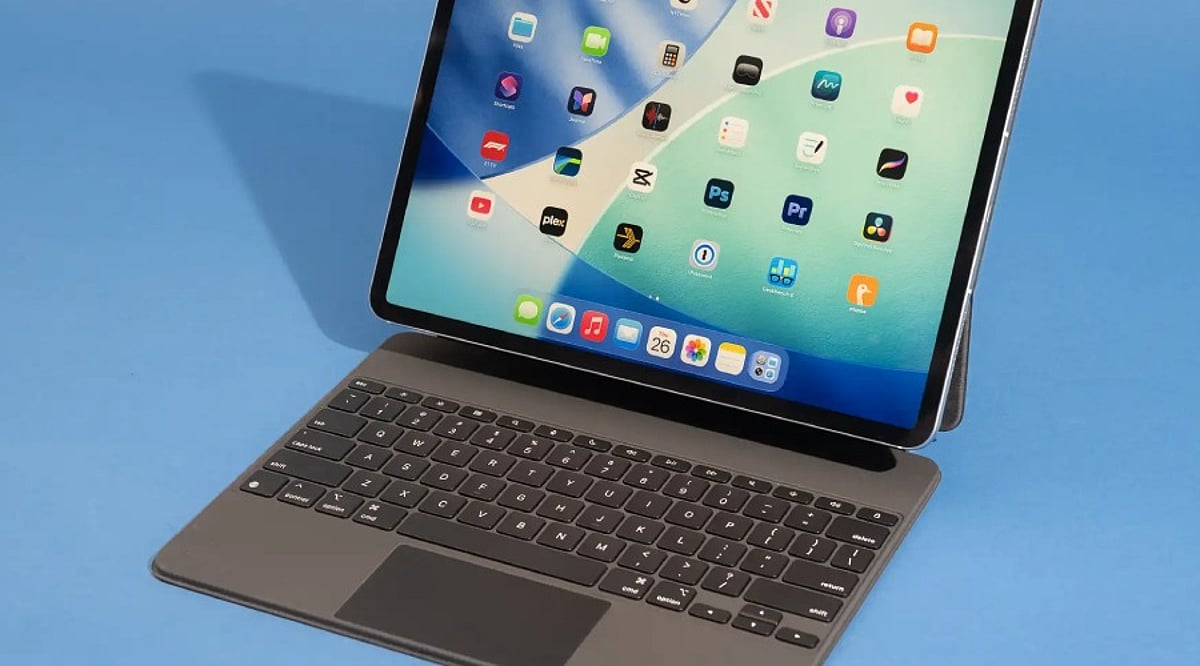
    Look for 1 to 1.5 mm of key travel, which provides a satisfying press and a laptop-like feel. Full-size layouts help you maintain normal typing speed, while scissor-switch keys offer better feedback than older flat designs. Many modern keyboards also include a function row for quick access to brightness, media controls, volume, and other settings.

    A Quality Trackpad Adds Precision

    A good trackpad helps create a true laptop experience. Basic tasks such as file management, document editing, and web browsing become easier when you have accurate cursor control.

    Premium keyboards often include larger trackpads with multi-touch gesture support and palm rejection. Windows tablets benefit from Windows Precision drivers, which provide smooth navigation. Apple continues to set a high standard with its Magic Keyboard trackpad, and many experts consider it one of the best available. Large trackpads are especially useful for creative professionals working with graphics or detailed projects.

    Battery and Connection Options

    The way a keyboard connects can affect your daily convenience. Smart Connector keyboards draw power directly from the tablet, so you never have to worry about charging them separately. USB-C keyboards also receive power from the connected device.

    Bluetooth keyboards need their own battery, but many modern models deliver excellent battery life. Most quality Bluetooth keyboards can run for two to six months on a single charge, depending on usage and backlight settings. That long battery life reduces interruptions and makes Bluetooth keyboards a practical choice for travel and office work.

    Portability Supports Life on the Move

    Many tablet owners carry their devices between home, school, and the office, so weight and thickness matter. Most travel-friendly keyboard cases weigh between 250 and 700 grams. Ultra-thin models usually measure 5 to 8 millimeters thick, while protective folio cases are often 10 to 15 millimeters thick. A light, slim design fits easily into a backpack and keeps your daily load comfortable.

    Protection Adds Long-Term Value

    A keyboard case can do more than help you type. Many designs also protect your tablet from everyday damage. Strong outer materials help reduce scratches, minor drops, and dust exposure.

    Several keyboard cases include adjustable viewing angles and multi-angle kickstands. These features make it easier to work at a desk, on a table, or on your lap. Stable support also helps during video calls, presentations, and entertainment.

    Modern Features Improve Productivity

    Tablet keyboards continue to gain new features. Many premium models now support multi-device Bluetooth pairing, making it easy to switch between a tablet, phone, and computer. USB-C passthrough charging keeps the tablet powered while another accessory stays connected.

    Some brands include shortcut customization, media controls, adjustable backlighting, and dedicated AI shortcut keys. As AI tools become more common, keyboard makers are adding buttons that provide faster access to those features.

    Choosing the Right Keyboard for Your Needs

    Different users need different keyboards. Students may prefer a lightweight keyboard case with a folio design at an affordable price. Office workers often benefit from laptop-style keys, a wide precision trackpad, quality materials, and a USB-C connection. Creative professionals usually look for good viewing angles, easy switching between typing and drawing, and strong stylus compatibility.

    The best choice depends on your daily activities and travel habits, not just the price. Compare compatibility, typing comfort, trackpad quality, battery life, portability, protection, and productivity features to find the right fit for your workflow.

    Frequently Asked Questions

    Why is compatibility the most important factor when choosing a tablet keyboard?

    A compatible keyboard ensures reliable connectivity and access to features like Smart Connector, function keys, and trackpad support.

    Is Bluetooth or Smart Connector better?

    Smart Connector offers instant connection without charging, while Bluetooth provides wider compatibility and wireless flexibility.

    What key travel is best for comfortable typing?

    A key travel of 1 to 1.5 mm with scissor-switch keys generally provides a comfortable laptop-like typing experience.

    Do all tablet keyboards include a trackpad?

    No. Premium models often include precision trackpads, while many budget keyboards are keyboard-only.

    Which users benefit most from a tablet keyboard?

    Students, remote workers, business travelers, and creative professionals all benefit from improved productivity and easier typing.

  • World Bank Report: India Faces Lower AI Job Disruption Risk Compared to Wealthier Nations

    World Bank Report: India Faces Lower AI Job Disruption Risk Compared to Wealthier Nations

    India has less to fear from artificial intelligence than richer countries, according to a new World Bank report released in 2026. The report examines how AI could affect jobs worldwide and finds that developing nations face lower automation risks while potentially reaping productivity gains.

    The World Bank estimates that only 4.5% of jobs in low- and middle-income countries are at high risk of being automated by AI. In contrast, that figure rises to 14.2% in high-income countries, indicating greater job pressure in wealthier economies. The report also notes that AI could improve productivity in 16.2% of jobs across developing economies.

    “AI has thrown developing economies a lifeline, and they should seize it,” said Indermit Gill, the World Bank’s chief economist. Gill emphasized that smaller, locally adapted AI tools could enhance healthcare, education, agriculture, and public services.

    In India, AI could help farmers with crop advice and weather information. Healthcare workers could use AI tools to support medical checks in rural areas. Schools and government offices could leverage AI for learning and public service delivery.

    However, the report warns that India still faces risks in call centers, outsourcing, and entry-level technology jobs where AI could replace routine tasks.

    The World Bank recommends that countries first deploy existing AI tools and customize them for local needs. Advanced AI development can follow once basic digital infrastructure and skills are strengthened.

    To fully benefit from AI, India needs better electricity, internet access, skilled workers, useful data, and strong institutions. Building these foundations could help AI create widespread benefits without increasing inequality.

  • Canva Pro vs Canva Free 2027: Which Plan Offers Better Value for Your Design Needs?

    Canva Pro vs Canva Free 2027: Which Plan Offers Better Value for Your Design Needs?

    Canva remains one of the most popular design platforms worldwide, used daily by students, business owners, marketers, freelancers, and content creators for presentations, social media posts, videos, posters, resumes, and more. The platform offers two main plans: Canva Free and Canva Pro. Both share the same easy-to-use editor but serve different purposes. Canva Free provides many useful tools at no cost, while Canva Pro adds advanced features that save time and improve design quality. The right choice depends on the type of work, project volume, and need for premium content.

    Canva Free vs Canva Pro Comparison

    Canva Free Offers Strong Value

    Canva Free has evolved into a complete design platform rather than a simple beginner tool. The plan includes millions of templates, a drag-and-drop editor, presentation tools, video editing, whiteboards, a website builder, and basic AI features. Every project starts with a clean workspace, and the editor keeps all tools within easy reach.

    Students often choose this plan for classroom work, presentations, and reports. Families create invitations, greeting cards, and photo collages with the same account. Small personal projects also fit well within the free plan. Many users never reach the point where a paid subscription becomes necessary.

    Canva Pro Focuses on Speed and Better Results

    Canva Pro adds features that help users finish projects in less time. The premium template library opens far more design options for every category. The plan also unlocks more than 100 million premium photos, videos, graphics, icons, and audio files. Designers no longer need to search across different websites for quality content.

    The biggest advantage comes from workflow improvements. Every tool works together inside one platform, keeping projects simple from start to finish. Professional creators often notice a clear difference after the first few days of use.

    Brand Kit Creates Consistent Designs

    Brand consistency is extremely important for companies. Canva Pro’s all-in-one brand kit provides logos, brand color palettes, typography, and templates. The system generates every new project in a manner consistent with a company’s corporate image, helping organizations achieve a uniform look across marketing communications.

    Magic Resize Saves Valuable Time

    One design rarely fits every social media platform. Canva Pro includes Magic Resize, which converts one design into several formats with a single click. A square Instagram post can quickly become a Facebook post, LinkedIn graphic, Pinterest pin, YouTube thumbnail, or Story format. This tool removes repetitive editing and keeps the overall design style unchanged.

    AI Tools Continue to Expand

    Artificial intelligence now plays a major role inside Canva. The platform offers tools such as Magic Design, Magic Write, Text-to-Image, Magic Edit, Magic Eraser, Magic Expand, AI presentation creation, AI video assistance, and Canva Code. The Free plan provides basic access to several AI tools, while Canva Pro unlocks the complete AI suite with higher usage limits.

    Premium Assets Improve Every Project

    Design quality often depends on images, graphics, and illustrations. Canva Free includes a large content library, but many premium assets remain locked. Canva Pro removes those limits and opens a collection of more than 100 million premium assets, helping businesses create polished marketing material and creators produce eye-catching thumbnails and social media posts without extra purchases.

    Recent Changes Make Canva More Powerful

    Canva has expanded far beyond graphic design. The platform now includes Visual Suite, which brings together presentations, documents, spreadsheets, websites, and whiteboards within one workspace. Canva Code also allows users to create interactive projects through simple text prompts. These updates show Canva’s move toward a complete productivity platform.

    Which Plan Delivers Better Value?

    Canva Free remains one of the strongest free design platforms available today. It covers everyday projects with ease and serves students, hobby users, and occasional designers. Many personal projects reach a professional finish without any payment.

    Canva Pro delivers far greater value for professionals, businesses, freelancers, and content creators with regular design work. Premium assets, advanced AI tools, Brand Kit, Magic Resize, Background Remover, and larger cloud storage reduce effort and improve workflow. The subscription cost often matches the amount of time saved across multiple projects.

    Final Thoughts

    Canva Free and Canva Pro both offer excellent design experiences. The free plan provides enough tools for personal work, school projects, and occasional creative tasks. Canva Pro transforms the platform into a complete professional workspace with advanced AI features, premium design resources, and productivity tools. Regular content production, client work, business branding, and marketing campaigns benefit the most from the paid plan. The final decision depends on design frequency, project size, and the need for premium features, yet both plans continue to rank among the best options available for digital design in 2027.

    FAQs

    1. Is Canva Free enough for beginners? Yes. Canva Free includes templates, basic AI tools, presentations, video editing, and many design features suitable for beginners.
    2. What makes Canva Pro better than Canva Free? Canva Pro unlocks premium templates, 100M+ assets, Brand Kit, Magic Resize, Background Remover, advanced AI tools, and 1 TB cloud storage.
    3. Does Canva Pro include AI features? Yes. Canva Pro provides access to Canva’s complete AI suite with higher usage limits than the Free plan.
    4. Who should choose Canva Pro? Freelancers, businesses, marketers, and content creators with regular design work receive the greatest value from Canva Pro.
    5. Is Canva Pro worth the subscription cost? For users who create designs frequently, the premium tools and time-saving features often justify the monthly subscription.
  • Complete Guide to Enable Gmail Dark Mode on Android, iPhone, and Desktop

    Complete Guide to Enable Gmail Dark Mode on Android, iPhone, and Desktop

    How to Enable Gmail Dark Mode on Android

    To switch Gmail to dark mode on your Android device, follow these steps:

    1. Open the Gmail app.
    2. Tap the hamburger menu (☰) in the top-left corner.
    3. Go to Settings > General settings > Theme.
    4. Choose Dark or System default.

    Selecting System default will make Gmail automatically follow your phone’s dark mode schedule, switching between light and dark based on the time of day or your system settings.

    How to Turn On Gmail Dark Mode on iPhone

    1. Open the Gmail app on your iPhone.
    2. Tap the hamburger menu (☰) and go to Settings.
    3. Select Theme and choose Dark.
    4. If the option is not available, enable Dark Mode from your iPhone’s system settings: Settings > Display & Brightness > Dark.

    How to Enable Dark Theme on Desktop

    1. Open Gmail in your web browser.
    2. Click the Settings gear icon (⚙️) in the top-right corner.
    3. Select See all settings.
    4. Go to the Themes tab.
    5. Choose a dark theme from the available options and click Save.

    Note: On the desktop version, Gmail’s interface darkens but many email message bodies may still appear white due to the sender’s original formatting. This is a known limitation.

    Why Use Gmail Dark Mode?

    Dark mode reduces eye strain in low-light environments, saves battery life on OLED displays, and provides a cleaner, more comfortable viewing experience. It also helps you focus on your emails without the harsh glare of a bright screen.

    Troubleshooting: Dark Mode Keeps Turning Off

    If Gmail reverts to light mode unexpectedly, try reapplying the dark theme on your primary device. Theme settings are often synced across your Google account, so changes on one device may affect others. Ensure you have selected the correct theme in the Gmail settings or set it to System default to follow your device’s schedule.

  • Top Notion AI Automations for Maximum Productivity in 2026

    Top Notion AI Automations for Maximum Productivity in 2026

    Notion AI has evolved from a simple note-taking tool into a full-fledged productivity platform that automates writing, meetings, task management, and knowledge organization. The most effective automations reduce repetitive work while seamlessly integrating into existing workflows. Choosing the right automation based on frequency and impact helps teams improve efficiency without adding unnecessary complexity.

    Key Notion AI Automations to Implement

    Draft Generation from Rough Notes

    Turning a scattered bullet list into a structured draft is one of the most reliable time-savers in Notion AI. A writer feeds in fragments from a call or brainstorm, and the tool returns a working draft with logical flow, ready for editing. The real gain is removing the blank-page delay that stalls most drafting work before it starts.

    Meeting-to-Decision Summaries

    A meeting produces value only if its outcomes survive past the call. Notion AI’s Meeting Notes feature converts a transcript into a short record of what was decided, the discussion outcomes, and the responsible stakeholders, without creating executable tasks. This keeps meeting output distinct from execution tracking.

    Task and Priority Generation from Requests

    Incoming requests from chat, email, or meeting records can be converted directly into prioritized tasks. The automation infers intent from the request, prioritizes based on workspace context, and places the item into an existing workflow. Unlike meeting summaries, this one moves work forward rather than capturing what was agreed.

    Recurring Workflow Templates

    Some tasks repeat on a schedule: weekly reports, monthly reviews, and recurring check-ins. Notion AI can generate these from a template automatically instead of a manual rebuild each cycle. This automation is specifically designed for predictable, repeating work.

    Database Metadata and Property Automation

    As a workspace grows, databases accumulate inconsistent tagging and empty properties. Notion AI’s Autofill feature generates metadata, applies tags, and fills properties in bulk, keeping a knowledge base searchable without manual upkeep. Catching near-duplicate entries may still require a workspace automation layered on top.

    Workspace-Wide Q&A and Search

    Notion AI’s Q&A and Enterprise Search features turn scattered pages into a queryable record, citing the source pages behind each answer. Instead of opening a dozen project pages to find a past decision, a team member can ask what was agreed with a specific client last quarter. This removes the manual archaeology that eats into project ramp-up time. Enterprise Search is available on Business and Enterprise plans.

    Cross-Tool Automation with Custom Agents

    A custom agent set to monitor a Slack channel, filtered by keyword, can turn a client issue thread into a Notion task on its own, without a prompt from anyone. That task lands in the relevant project database, and the agent can be configured to generate scheduled status updates from completed and pending items. The value sits in the chain running unattended, on a trigger, without anyone retyping information between tools. Custom Agents are available on Business and Enterprise plans and run on Notion Credits (an add-on cost).

    Final Thought

    The next shift in workspace AI is less about adding features and more about making retrieval and cross-tool memory the default rather than an add-on. As more of a team’s communication, documents, and decisions live inside a connected system, the automations that matter will be the ones quietly keeping that system coherent. Teams that treat automation as infrastructure rather than a novelty will be the ones still running the same workflows, largely unchanged, regardless of which AI platform becomes dominant.

    Frequently Asked Questions

    What are the best Notion AI automations for productivity in 2026?

    The best Notion AI automations include meeting summaries, content drafting, task generation, database tagging, recurring workflow templates, and AI-powered knowledge search. These features help reduce repetitive work and improve daily productivity.

    How does Notion AI improve productivity?

    Notion AI improves productivity by automating tasks such as writing, summarizing documents, organizing notes, extracting action items, and managing project information. This allows users to spend more time on strategic work and less on manual tasks.

    Can Notion AI automate task management?

    Yes. Notion AI can convert meeting notes into actionable tasks, help prioritize work, generate project updates, and support recurring workflows. Reviewing AI-generated outputs before assigning tasks is still recommended.

    Does Notion AI integrate with other productivity tools?

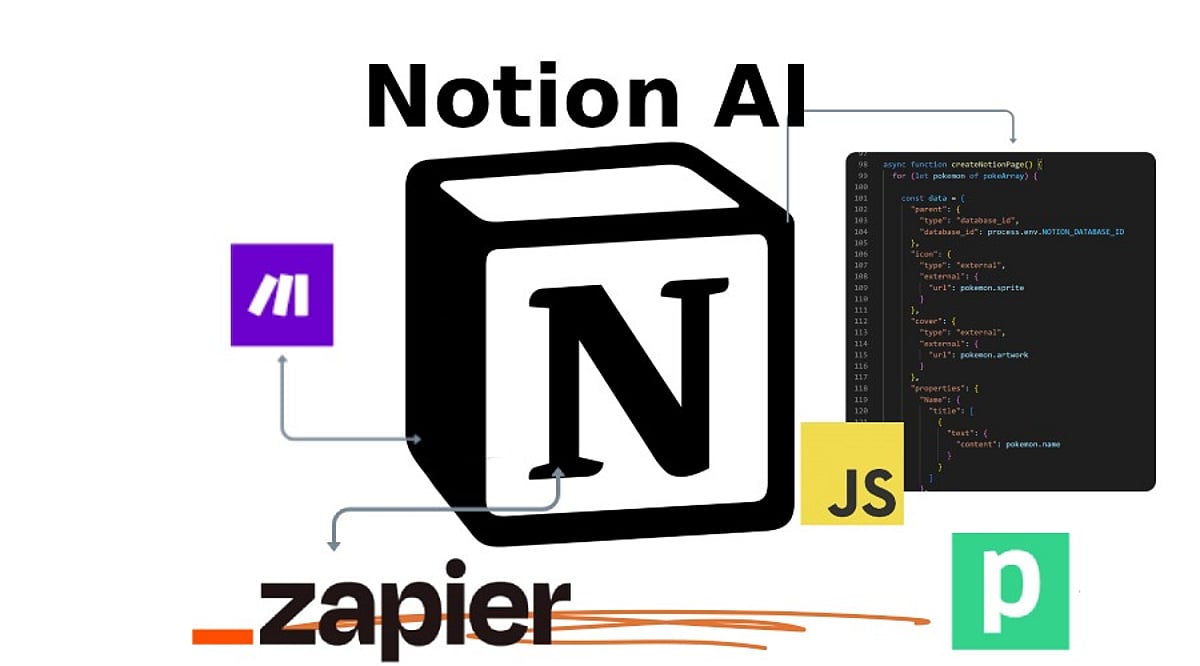
    Yes. Notion integrates with tools such as Slack, email platforms, CRM software, and automation services like Zapier and Make. These integrations create connected workflows that improve collaboration and efficiency.

    Is Notion AI suitable for teams and individual users?

    Yes. Notion AI supports both individual and team productivity by organizing knowledge, summarizing meetings, managing documentation, and keeping projects on track. It helps teams maintain consistency while reducing administrative effort.