
Open Instagram Settings
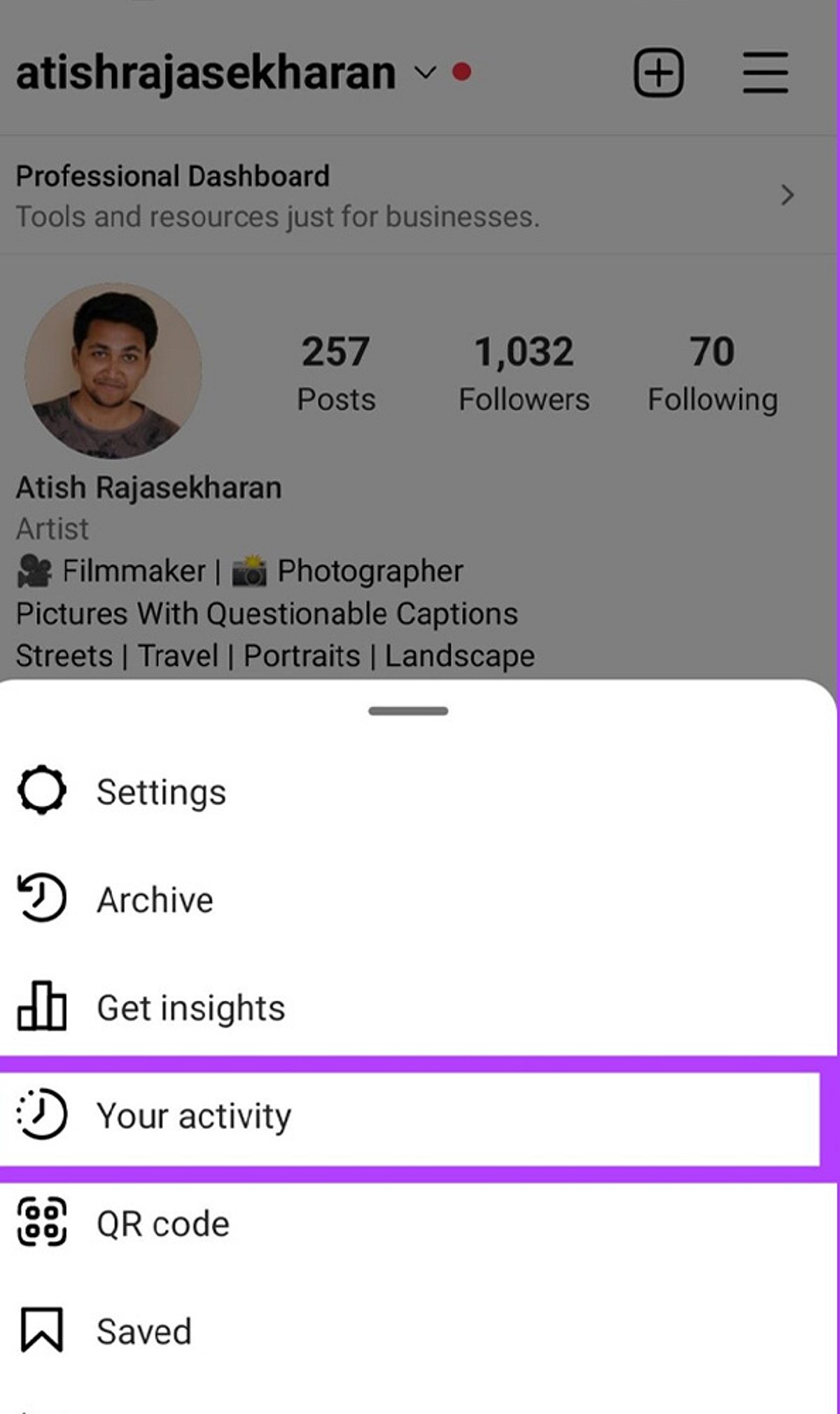
Launch the Instagram app and tap your profile icon in the bottom right. Then tap the three-line menu (hamburger icon) in the top right and select Settings to begin resetting the content recommendations shown on your Explore page.
Find Content Preferences
Within Settings, scroll down and tap Content Preferences. This section houses Instagram’s controls for managing suggested posts and recommendation settings.
Select Reset Suggested Content
Tap Reset Suggested Content to refresh recommendations across Explore, Reels, and Feed with a cleaner content profile. Instagram will remove the signals it currently uses to suggest posts.
Confirm the Reset
Review the reset information and confirm your choice. This action clears Instagram’s current recommendation signals, giving you a fresh start.
Refresh Your Explore Page
After resetting, Instagram gradually rebuilds recommendations based on the content you view and interact with. Be patient—it takes time for the algorithm to learn your new preferences.
Avoid Unwanted Content
Use the Not Interested option on posts you dislike to actively tell Instagram what content you want to see less often. This helps refine your Explore page faster.
Engage With Preferred Content
Like, save, and share posts matching your interests to help Instagram personalise your Explore recommendations. The more you interact with relevant content, the better the suggestions become.
Unfollow Irrelevant Accounts
Unfollow accounts that no longer match your interests to reduce unwanted content influencing your Explore page. A cleaner follow list leads to better recommendations.
Clear Your Search History
Clear recent searches to remove old search signals that may continue influencing Instagram’s content recommendations. Go to Settings > Privacy > Search History and tap Clear All.
Leave a Reply