Tag: privacy

  • Essential Windows Settings to Tweak on Every New PC for Better Performance and Privacy

    Essential Windows Settings to Tweak on Every New PC for Better Performance and Privacy

    A brand-new PC delivers excellent performance, but the default settings aren’t always optimized for speed, privacy, or convenience. Spending just a few minutes customizing key options can significantly improve your experience. These simple tweaks help your computer run more efficiently, stay secure, and feel personalized from the very first day.

    Remove Unnecessary Startup Apps

    Many apps automatically add themselves to the startup list, slowing down your PC every time it boots. Open the Startup Apps settings and disable programs you don’t need immediately after signing in. This reduces memory usage, speeds up startup times, and keeps your system responsive. You can always enable specific apps later if your workflow changes.

    Turn On Storage Sense

    Storage Sense is one of Windows’ most useful maintenance features, yet many users never enable it. It automatically deletes temporary files, empties the Recycle Bin, and clears unnecessary system data. This keeps your storage organized without requiring manual cleanup. It’s especially useful if you frequently download large files or install new applications.

    Adjust Privacy Permissions

    Windows gives apps access to features like your camera, microphone, location, and contacts by default in some cases. Reviewing these permissions helps you decide which apps truly need access to sensitive information. Limiting unnecessary permissions improves your privacy while reducing background activity. It’s a quick setting that can make your PC much more secure.

    Change Power and Battery Settings

    The default power mode may not suit how you actually use your computer. If you edit videos, play games, or run demanding software, switching to Best Performance can improve responsiveness. Laptop users can choose power-saving options to extend battery life while traveling. Adjusting these settings helps strike the right balance between speed and efficiency.

    Enable Automatic Backups

    Backing up your files should be one of the first things you do on a new PC. Windows Backup and cloud services can automatically save your documents, photos, and important settings. This protects your data against accidental deletion, hardware failure, or malware attacks. A reliable backup ensures you can quickly recover if something goes wrong.

    Customize Notifications

    Constant notifications can interrupt your work, gaming, or study sessions throughout the day. Open Notification settings and disable alerts from unimportant apps. Keeping only essential notifications helps you stay focused without missing critical updates. You can also schedule Do Not Disturb mode during meetings or bedtime for fewer distractions.

    Keep Windows Update Active

    Some users delay Windows updates, but doing so can leave their PCs vulnerable to security threats. Regular updates include important security patches, bug fixes, performance improvements, and compatibility enhancements. Keeping automatic updates enabled ensures your system remains protected and stable. It also helps your PC support the latest software and hardware features without issues.

  • Essential Windows Settings to Tweak on a Brand-New PC

    Essential Windows Settings to Tweak on a Brand-New PC

    A brand-new PC delivers excellent performance out of the box, but its default settings aren’t always optimized for speed, privacy, or convenience. Spending just a few minutes customizing key options can dramatically improve your experience. Below are the essential tweaks I always make to keep my computer running smoothly, securely, and personalized from day one.

    Remove Unnecessary Startup Apps

    Many apps automatically add themselves to the startup list, which slows down boot time. Open the Startup Apps settings and disable any program you don’t need immediately after signing in. This reduces memory usage, speeds up startup, and keeps your system responsive. You can always enable specific apps later if your workflow changes.

    Turn On Storage Sense

    Storage Sense is one of Windows’ most useful maintenance features, yet it’s often disabled by default. It automatically deletes temporary files, empties the Recycle Bin, and clears unnecessary system data. This keeps your storage organized without manual cleanup—especially helpful if you frequently download large files or install new applications.

    Adjust Privacy Permissions

    Windows often grants apps default access to your camera, microphone, location, and contacts. Review these permissions to decide which apps truly need sensitive information. Limiting unnecessary permissions improves privacy and reduces background activity, making your PC more secure with a quick setting change.

    Change Power and Battery Settings

    The default power mode may not suit how you actually use your computer. If you edit videos, play games, or run demanding software, switching to Best Performance can improve responsiveness. Laptop users can choose power-saving options to extend battery life while traveling. Adjusting these settings helps strike the right balance between speed and efficiency.

    Enable Automatic Backups

    Backing up your files should be one of the first things you do on a new PC. Windows Backup and cloud services can automatically save your documents, photos, and important settings. This protects your data against accidental deletion, hardware failure, or malware attacks. A reliable backup ensures you can quickly recover if something goes wrong.

    Customize Notifications

    Constant notifications can interrupt your work, gaming, or study sessions. Open Notification settings and disable alerts from unimportant apps. Keeping only essential notifications helps you stay focused without missing critical updates. You can also schedule Do Not Disturb mode during meetings or bedtime for fewer distractions.

    Keep Windows Update Active

    Some users delay Windows updates, but doing so can leave their PCs vulnerable to security threats. Regular updates include important security patches, bug fixes, performance improvements, and compatibility enhancements. Keeping automatic updates enabled ensures your system remains protected and stable, while also supporting the latest software and hardware features.

  • The Critical Role of Localization in Messaging Apps for Global Users

    The Critical Role of Localization in Messaging Apps for Global Users

    Messaging apps have become an essential part of global digital communication. People use them to manage business discussions, coordinate remote work, stay connected with communities, share documents, and communicate across borders. As digital communication becomes more international, one important factor is often overlooked: localization.

    Localization is not just about translating buttons or menus into another language. It is about helping users understand how a platform works in their own language, cultural context, and daily communication environment. For messaging apps, this can affect account setup, privacy settings, notification control, security awareness, and overall user confidence.

    As more people rely on messaging platforms for both personal and professional communication, localized experiences are becoming more important. A clear interface, understandable settings, and reliable setup guidance can help users communicate more efficiently and safely.

    The Growing Need for Localized Messaging Platforms

    Digital communication is no longer geographically constrained. A small business could be talking to suppliers in other countries. Remote team members can be based in different geographical areas. Messaging apps might be how students, freelancers, creators, and online communities stay connected across languages and time zones.

    Messaging platforms must, in this context, be inclusive of users with different language preferences. Users may miss important settings, ignore security features, or use unverified instructions from unknown sources in difficult-to-understand apps. This can create confusion during installation, account registration, device login, or privacy configuration.

    Localized messaging experiences help reduce these barriers. When users can read instructions, settings, and security options clearly, they are more likely to use the app correctly. This is especially important for users who are setting up a messaging app for the first time or switching between mobile and desktop devices.

    How Language Support Improves Digital Communication

    Language support has a direct impact on how people interact online. A messaging app can have powerful features, but if the user doesn’t know how to access or manage them, they aren’t very useful. For example, it is difficult for users unfamiliar with the interface to configure group settings, privacy controls, file-sharing options, and notification preferences.

    Good localization makes the users navigate the app more confidently. They know where to change account settings, manage contacts, change message notifications, and review connected devices. These details may seem simple, but they can make a big difference in the user experience.

    For global communication, language clarity can also reduce mistakes. In business or team environments, unclear app settings may lead to missed messages, accidental information exposure, or poor coordination. A localized interface makes communication tools more practical for daily use.

    Security Settings Should Be Easy to Understand

    Security is now one of the most important elements in messaging that users need to control. Users should know how to protect their accounts from harm, control their login sessions, understand their privacy settings, and recognize suspicious links or unofficial apps. Nevertheless, even the most efficient security features may not be of value unless they are comprehensible and usable by users.

    There is a risk that users will keep their default settings intact because they do not understand what the privacy settings represent. Users do not know how to restrict profile visibility, manage contacts or view their status in the system. Under such conditions, users may be unnecessarily exposed to dangers.

    Thus, user-friendly security instructions can simplify information processing. Understanding what the settings mean helps users realize the importance of each setting. Users can recognize dangerous activities, such as sharing codes or downloading unknown applications from dubious websites.

    Localization Improves User Confidence and Safety

    For many users, the first challenge is not advanced security. It is simply understanding how to install, open, and configure the messaging app safely. This is where localized resources can be useful. Users often look for language-specific guides to help them understand setup steps, account options, and basic safety practices.

    For Chinese-speaking users, resources such as telegram 中文版 can help users review relevant information in a more familiar language environment before they configure communication tools for daily use.

    This kind of localized guidance can improve user confidence. Instead of guessing through unfamiliar menus or relying on random third-party instructions, users can better understand what they are doing. This is especially important when managing account access, privacy settings, and device synchronization.

    Confidence also affects adoption. If users feel that a messaging app is difficult to understand, they may avoid using important features. If the experience is clear and accessible, they are more likely to use the platform effectively and responsibly.

    Cross-Border Communication and Productivity

    Messaging apps are now deeply connected to productivity. Teams use them to discuss projects, share files, confirm schedules, and coordinate decisions in real time. For cross-border teams, clear communication becomes even more important because members may work in different languages, regions, and time zones.

    Localized messaging tools can help reduce friction in these situations. Team members can manage their own settings more easily, understand notifications, and avoid missing important updates. This improves coordination and helps communication move faster.

    For businesses, localization can also support customer communication. A company that communicates with users in multiple regions may need messaging tools that are easy for both staff and customers to understand. When users feel comfortable with the communication platform, they are more likely to respond, ask questions, and stay engaged.

    Productivity is not only about speed. It is also about reducing confusion. A messaging app that supports clear setup, understandable controls, and reliable cross-device access can help users focus more on communication and less on technical barriers.

    The Role of Mobile and Desktop Access

    Modern users often move between devices throughout the day. They may start a conversation on a mobile phone, continue it on a desktop computer, and later check updates from a tablet. This cross-device behavior makes messaging apps more flexible, but it also creates new challenges.

    Users need to understand how device login works, how sessions are managed, and how to remove access from devices they no longer use. If these settings are not clear, users may leave old sessions active or fail to notice unusual account activity.

    Localized instructions can make cross-device access safer. When users understand how to connect and manage devices, they are better prepared to protect their accounts. This is especially important for people who use messaging apps in shared work environments, public computers, or multiple personal devices.

    Privacy Awareness in Global Messaging

    Privacy awareness is becoming a core digital skill. Users should know how much information they share through messaging apps, who can see their profile, how group visibility works, and what data may be exposed through public channels or shared links.

    In global communication, privacy expectations may vary by region and user group. Some users may prefer open communities, while others may need stricter account controls. A localized experience helps users understand these options more clearly and choose settings that match their needs.

    Privacy education should be simple and practical. Users do not need to become security experts, but they should understand the basics: avoid sharing verification codes, review active sessions, be careful with unknown contacts, check file sources, and update apps regularly.


  • How Websites Detect VPNs and What That Means for Your Privacy

    How Websites Detect VPNs and What That Means for Your Privacy

    VPNs protect your privacy, but many websites can still detect when you’re using one. Here’s how they do it and what it means for your browsing experience.

    IP Address Databases

    Websites compare your IP against databases of known VPN servers. If there’s a match, access may be restricted or flagged.

    Shared IP Addresses

    Many VPN users share the same IP address. High traffic from one IP often signals that it’s a VPN server.

    DNS and WebRTC Leaks

    Your browser can accidentally reveal your real location through DNS or WebRTC requests, exposing VPN usage.

    Unusual Login Patterns

    Logging in from different countries within minutes can trigger automated VPN detection systems.

    Data Center IPs

    Most VPNs use cloud servers instead of residential internet connections. Websites can easily identify these data center IPs.

    Browser Fingerprinting

    Even with a VPN, your browser settings, fonts, screen size, and extensions create a unique fingerprint.

    Behavior Analysis

    AI-powered systems monitor browsing speed, click patterns, and traffic behavior to detect suspicious activity.

    Can You Avoid Detection?

    Premium VPNs with residential IPs, obfuscated servers, and leak protection improve privacy but cannot guarantee complete invisibility.

  • Tech Roundup: OpenAI Seeks Government Stake, Sony Goes Digital, WhatsApp Usernames, Fable 5 Returns

    Tech Roundup: OpenAI Seeks Government Stake, Sony Goes Digital, WhatsApp Usernames, Fable 5 Returns

    In today’s top tech news, OpenAI has proposed a 5% stake for the U.S. government, signaling a new era of federal involvement in AI. Sony is reportedly planning a digital-only future for its PlayStation ecosystem, moving away from physical discs. Meanwhile, WhatsApp faces scrutiny over its new username feature, and the beloved Fable franchise is making a comeback with a fifth installment. Additionally, Ant Group is expanding into humanoid robotics.

    OpenAI’s proposal marks a significant shift as AI companies face growing federal oversight. The move could reshape how AI giants interact with government regulators. Sony’s digital-only PlayStation strategy aligns with industry trends toward streaming and downloadable content, but raises questions about consumer choice. WhatsApp’s username feature is under question as privacy concerns mount. Fable 5’s return has excited fans of the fantasy RPG series. Ant Group, backed by Jack Ma, is testing a major AI overhaul for its Alipay super app and venturing into humanoid robotics.

  • India’s Government Scrutinizes WhatsApp Username Feature Over Privacy and Security Concerns

    India’s Government Scrutinizes WhatsApp Username Feature Over Privacy and Security Concerns

    India’s central government is evaluating the potential risks of WhatsApp’s upcoming username feature, stating that it will not compromise national security while assessing the privacy-focused update. According to government sources, authorities are examining whether the username feature could be exploited for impersonation, fraud, and other cybercrimes before its wider rollout in the country.

    WhatsApp recently introduced optional usernames, allowing users to communicate without sharing their phone numbers. This feature is designed to enhance user privacy, particularly in group chats and when interacting with unknown individuals. Users can create a personal username in the app’s account settings, while creators and brands can set usernames matching their Instagram or Facebook handles.

    However, authorities view anonymity as a potential threat that could lead to fake profiles and internet fraud. According to sources, the government is carefully weighing the implications of this feature to avoid undermining India’s digital security framework and ongoing efforts to combat cyber fraud.

    On the other hand, WhatsApp continues to tie accounts to users’ mobile numbers. Meta maintains that usernames are simply another way to connect without revealing phone numbers, aiming to balance privacy with security.

  • India Scrutinizes WhatsApp’s New Username Feature Over Impersonation and Fraud Risks

    India Scrutinizes WhatsApp’s New Username Feature Over Impersonation and Fraud Risks

    The Indian government is closely examining WhatsApp’s upcoming username feature following concerns about fake accounts and online fraud. Sources from the Ministry of Electronics and Information Technology (MeitY) indicate that officials will thoroughly study the feature before it becomes widely available. The goal is to ensure the new capability does not introduce additional risks for users.

    WhatsApp’s username feature allows people to chat without sharing their phone numbers. Instead, users can create a unique identifier—up to 35 characters long, including letters, numbers, dots, and underscores—to communicate with new contacts, join groups, or connect with businesses. The company touts this as a privacy improvement, helping keep personal phone numbers private.

    Government Raises Safety Concerns

    While the feature enhances privacy, the government believes it could also create opportunities for abuse. For example, a malicious actor could register a username that closely resembles a real person’s name or a trusted business. Unsuspecting users might not notice the subtle difference and could end up interacting with impostors, leading to scams, fraud, or the spread of misinformation.

    Officials have stressed that user safety remains the highest priority. Every legal and security implication tied to the feature will be reviewed. If the government finds insufficient safeguards, MeitY may issue a notice to WhatsApp demanding stronger protections before the broader rollout.

    WhatsApp’s Planned Protections

    WhatsApp has already announced several measures to prevent misuse. The company will not maintain a public directory of usernames; users must know the exact username to start a conversation. Additionally, WhatsApp is introducing an optional username key—a secondary code that must be provided before a first message can be sent. This adds an extra layer of security.

    To further reduce impersonation risk, the platform plans to reserve usernames linked to government offices, public figures, celebrities, and well-known brands. WhatsApp says these steps will help keep the platform safe as the feature expands.

    Security experts caution, however, that fake accounts remain a challenge. A scammer could simply alter one letter or add a number to a legitimate username, creating a convincing impostor. Given that online fraud is already prevalent in India, robust verification mechanisms will be essential before the feature reaches millions of users.

    Why India Is Reviewing the Feature

    The government’s review is part of a broader effort to ensure that new technologies prioritize user protection. While privacy is important, strong security is equally necessary when a platform serves hundreds of millions of people daily.

    WhatsApp has already begun allowing users to reserve usernames prior to the official launch. Users can change or delete their usernames at any time. Businesses and creators can claim the same usernames they use on Instagram and Facebook.

    The Indian government has not announced a final decision yet, but the ongoing review signals that New Delhi wants stronger safeguards against online fraud, impersonation, and other digital security threats before the WhatsApp username feature goes live.

  • Top Telegram Features That Outshine WhatsApp in 2026

    Top Telegram Features That Outshine WhatsApp in 2026

    Massive Groups and Channels

    Telegram is built for large communities, supporting groups with hundreds of thousands of members and powerful admin tools. Its Channels let creators, brands, and organizations broadcast updates to unlimited subscribers without cluttered discussions. This makes Telegram especially useful for news, education, businesses, and public communities compared with WhatsApp’s more limited community features.

    True Cloud-Based Messaging

    Unlike WhatsApp, Telegram stores chats securely in the cloud, allowing users to access messages, photos, videos, and documents instantly across multiple devices. You can log in on phones, tablets, or computers without relying on your primary phone to keep everything synchronized, making device switching much more convenient.

    Powerful Bots and Mini Apps

    Telegram offers an extensive ecosystem of bots and Mini Apps that can automate tasks, provide customer support, manage communities, conduct polls, process payments in supported regions, and deliver interactive services. These built-in automation tools make Telegram a more flexible platform for businesses, developers, and productivity-focused users than traditional messaging apps.

    Superior File Sharing

    Telegram allows users to send files up to 2 GB per file, including videos, documents, ZIP archives, and high-quality images without aggressive compression. This makes it ideal for professionals, students, and content creators who frequently exchange large files, while maintaining fast downloads and cloud accessibility.

    Advanced Privacy and Customization

    Telegram provides extensive privacy controls, including hiding phone numbers, granular visibility settings, temporary QR codes for contact sharing, Secret Chats with end-to-end encryption, and highly customizable themes, chat folders, and interface options. These features give users greater control over both privacy and the overall messaging experience.

    Better Productivity Features

    Telegram includes tools like Saved Messages for personal cloud notes, chat folders for organization, message scheduling, silent messaging, pinned chats, editable sent messages, and searchable shared media. These productivity-focused features help users manage personal conversations, work communication, and important information more efficiently than many competing platforms.

    Why Telegram Continues to Stand Out

    Telegram continues introducing new features at a rapid pace, including improved business tools, enhanced video capabilities, AI-powered search and moderation features in some services, and stronger collaboration options. For users who prioritize flexibility, large communities, cloud convenience, and powerful customization, Telegram remains one of the strongest alternatives to WhatsApp in 2026.

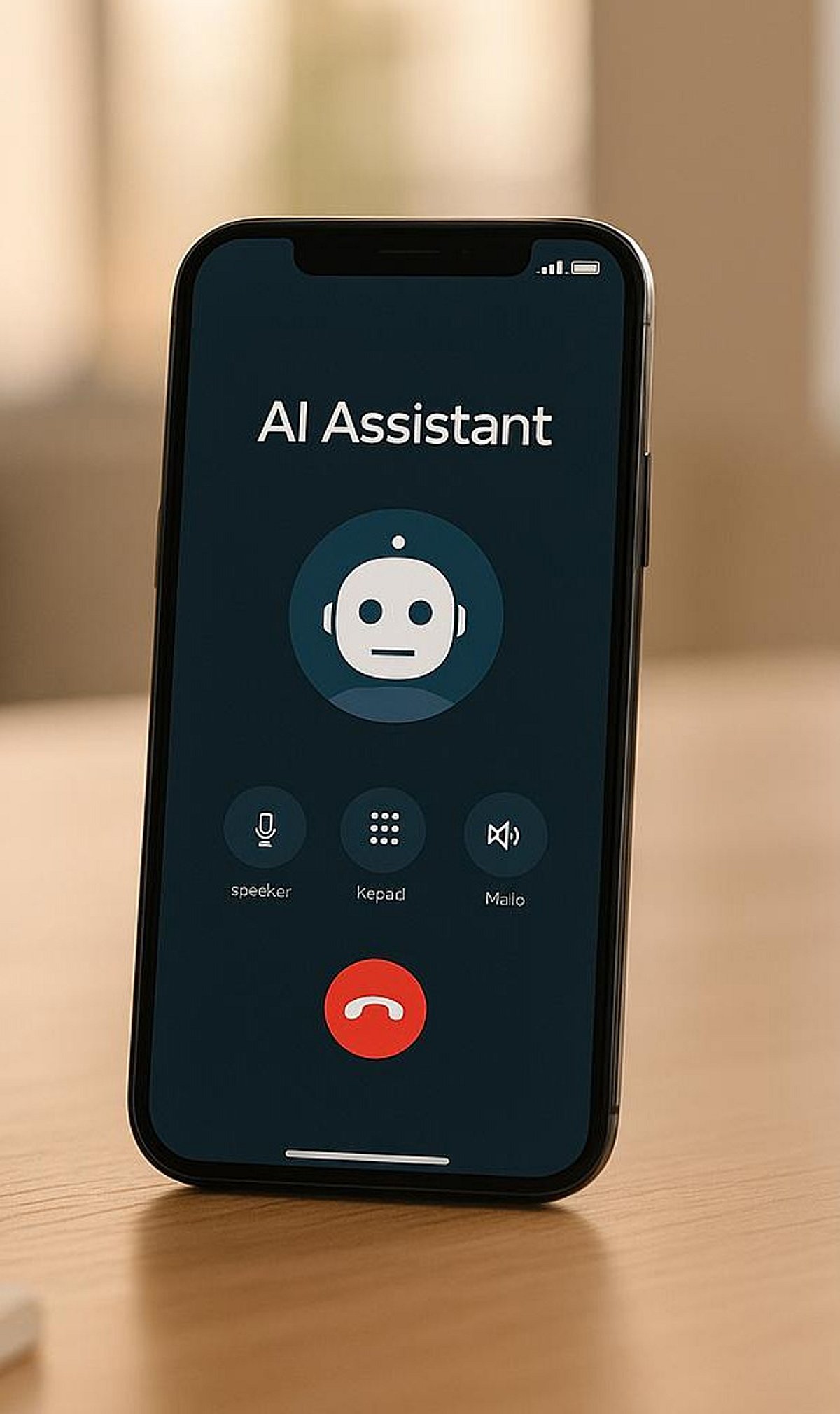
  • How AI Is Transforming Phone Calls: Real-Time Transcription, Translation, and More

    How AI Is Transforming Phone Calls: Real-Time Transcription, Translation, and More

    Artificial intelligence is rapidly changing how we communicate over the phone, bringing features that once seemed futuristic into everyday conversations. From automatic summaries to live language translation, AI-powered tools are making phone calls more efficient, accessible, and secure. Here’s a look at the key ways AI is joining your phone calls.

    AI Call Summaries

    AI automatically creates concise call summaries, highlighting key decisions, action items, and important details. This eliminates the need for manual note-taking and ensures nothing important is missed.

    Real-Time Transcription

    Live transcription converts conversations into searchable text instantly. This makes meetings, interviews, and customer calls easier to review and reference later, improving productivity and record-keeping.

    Live Language Translation

    AI translates conversations between different languages during calls, enabling seamless communication without requiring separate translation services or interpreters. This feature is invaluable for global teams and multilingual interactions.

    Spam Call Detection

    AI identifies suspicious callers by analyzing calling patterns, helping users avoid scams, robocalls, and unwanted telemarketing conversations before they even answer. This adds a layer of protection to everyday phone use.

    Voice-Based Scheduling

    AI assistants detect meeting plans during conversations and automatically suggest calendar events, reminders, and follow-up tasks. This boosts productivity by streamlining the scheduling process directly from voice interactions.

    Emotion Recognition

    AI analyzes speech patterns and vocal cues to identify emotions, helping customer service teams respond with greater empathy and personalized communication. This can improve customer satisfaction and agent training.

    Smart Noise Cancellation

    AI removes background sounds like traffic, wind, and crowd noise in real time, delivering clearer voice quality during important conversations. This ensures calls remain professional and easy to understand regardless of the environment.

    Context-Aware Assistance

    AI understands conversation topics and instantly surfaces relevant information, documents, contacts, or previous interactions while the call continues uninterrupted. This provides real-time support without disrupting the flow of discussion.

    Privacy and Security Features

    AI detects sensitive information, offers on-device processing, and provides enhanced encryption options to better protect confidential phone conversations. These measures help maintain user privacy and security in an AI-enhanced calling environment.

  • Government Surveillance of AI and Smart Devices: Key Privacy Insights

    Government Surveillance of AI and Smart Devices: Key Privacy Insights

    Smartphones, AI assistants, and smart home gadgets continuously generate and share data. Governments can access some of this information through legal channels, but users have controls to limit exposure. Here’s a breakdown of how tracking works and what you can do to protect your privacy.

    Device Location Data

    Smartphones and connected devices can share location information through GPS, cellular networks, and Wi-Fi, depending on user permissions and settings. Disabling location services for apps that don’t need them reduces tracking.

    Legal Data Requests

    Governments may request user data from technology companies through lawful processes, subject to applicable regulations, court orders, and national legislation. Companies often publish transparency reports showing the volume of such requests.

    AI Voice Assistants

    Voice assistants process spoken commands, with some requests handled in the cloud while others increasingly rely on on-device AI processing. On-device processing minimizes data sent to servers, enhancing privacy.

    Smart Home Devices

    Connected cameras, speakers, and sensors generate data that can reveal usage patterns, making security settings and account protection increasingly important. Regularly update firmware and use strong passwords to safeguard your network.

    Cloud Data Storage

    Information synchronized to cloud services may remain accessible across devices, depending on retention policies, encryption, and user account preferences. Review your cloud storage settings and enable encryption where available.

    End-to-End Encryption

    Encrypted messaging services help protect conversations during transmission, reducing unauthorized access while maintaining secure communication between users. Use apps that offer end-to-end encryption by default.

    On-Device AI Processing

    Modern AI models increasingly process data directly on smartphones, minimizing cloud transfers and improving both privacy and response speed. This local processing reduces the amount of personal data exposed to external servers.

    User Privacy Controls

    Device settings allow users to manage permissions for location, microphone, camera, contacts, and app access to limit unnecessary data collection. Audit these permissions regularly and revoke access for apps that don’t need it.

    Transparency Reports

    Many technology companies publish transparency reports showing government data requests, offering users greater insight into official information access practices. Consulting these reports helps you make informed decisions about which services to trust.

    For the latest news, exclusives, and videos, join our WhatsApp Channel.