Tag: WhatsApp

  • Convert WhatsApp Conversations into Clear Notes with ChatGPT

    Convert WhatsApp Conversations into Clear Notes with ChatGPT

    Introduction

    WhatsApp chats can quickly become overwhelming, burying important details in a sea of messages. A simple solution exists: export the chat and let ChatGPT turn it into clean, organized notes. This guide walks you through the process, from exporting your WhatsApp conversation to using ChatGPT for summarization, while highlighting key privacy considerations.

    Exporting Your WhatsApp Chat

    The first step is to export the chat from WhatsApp. The process differs slightly between Android and iPhone.

    On Android

    Open the chat, tap the three-dot menu, then select More, and finally Export chat.

    On iPhone

    Open the chat, tap the contact or group name at the top, and choose Export chat.

    WhatsApp will ask whether to include media. For note-taking purposes, it is best to skip media to keep the file text-only and manageable. The exported file retains dates, times, sender names, and all messages.

    Turning the Chat into Notes with ChatGPT

    Once you have the exported chat file, upload it to ChatGPT and provide a clear instruction. A simple prompt like “Summarize this chat into notes, highlighting decisions, tasks, deadlines, and follow-ups” works effectively.

    ChatGPT can also organize the chat into a timeline, extract pending tasks, identify commitments, and separate useful information from casual conversation. For shorter chats, you can copy and paste messages directly into ChatGPT without exporting.

    Before relying on the generated notes, always verify them against the original chat, especially for deadlines and commitments. Note that exports do not include content from voice notes or media files, so some details may be missing.

    Privacy Considerations

    A WhatsApp export may contain personal information about multiple people, not just the person exporting it. Before uploading any chat to an AI tool, consider what is being shared and who it involves. Use this feature responsibly and avoid sharing sensitive conversations.

    Conclusion

    Using ChatGPT to turn WhatsApp chats into notes saves time and cuts through message clutter. However, the process works best when paired with a quick manual review, as AI summaries can miss context or omit non-text content. Used carefully, this technique transforms a messy thread into something genuinely useful.

  • How to Book Uber or Ola from a WhatsApp Location Pin

    How to Book Uber or Ola from a WhatsApp Location Pin

    Sharing a location on WhatsApp is quick, but turning that pin into a cab booking often means retyping the address in Uber or Ola. There is a faster way: copy the location’s Plus Code from Google Maps and paste it into the ride-hailing app. It works on both Uber and Ola, and it is especially useful when the address has no clear name or when a text search returns several nearby matches.

    Why use a WhatsApp location instead of typing an address?

    A WhatsApp location pin marks the exact spot someone wants to be picked up. Copying that pin into a cab app reduces the chance of typos, vague landmarks, or confusion between similar addresses. The key is the Plus Code, a short string of letters and numbers that Google Maps assigns to a precise location.

    Step-by-step: Send a WhatsApp location to Uber

    1. Open the WhatsApp chat and tap the shared location pin.
    2. On most phones, the pin opens in Google Maps.
    3. Find the Plus Code in Maps. It is tied to that exact spot.
    4. Copy the Plus Code.
    5. Open Uber and paste the code into the “Where to?” box.
    6. Check the map pin before booking, and move it if needed.

    This trick helps most when the address has no clear name or when a text search brings up several matching results nearby.

    How to do the same in Ola

    Ola does not offer a built-in WhatsApp shortcut yet, but the same method works. Open the shared location in Google Maps, copy the Plus Code, and paste it into Ola’s search field. Before confirming, look at the map pin, especially for buildings with multiple gates, office parks, or areas that look similar from above.

    Uber’s WhatsApp booking option

    In some cities, Uber also lets riders book inside WhatsApp. A short chat with Uber’s official WhatsApp number lets a rider share pickup and drop-off points, get a fare estimate, and see the driver’s arrival time. Trip updates then continue in the same chat window.

    Tips to avoid pickup mistakes

    • Always verify the map pin before confirming the ride.
    • Use Plus Codes when the address has no official name.
    • For large complexes, move the pin to the correct gate or entrance.
    • If the app shows multiple results, compare the map preview rather than the text alone.

    The bottom line

    Copying a WhatsApp location into Uber or Ola saves time and reduces address errors. As ride apps add more chat-based features, booking a cab may soon require little more than a shared pin and a few taps.

  • WhatsApp Begins Testing Third-Party AI Agents on iPhone—With a Privacy Catch

    WhatsApp Begins Testing Third-Party AI Agents on iPhone—With a Privacy Catch

    WhatsApp expands AI agent testing to iPhone

    WhatsApp is taking another step toward integrating third-party artificial intelligence into its messaging app. The latest beta release for iOS — version 26.37.10.70 — lets select iPhone users in limited countries connect external AI agents directly inside chats. The rollout follows earlier testing on Android, with WABetaInfo reporting the update on September 22. WhatsApp also confirmed that the feature supports independent agents built by outside developers.

    How the new AI agent feature works

    Eligible users can create up to five third-party agents and interact with them through dedicated one-to-one conversations. Setting up an agent begins in the WhatsApp settings menu, where users assign a name and profile photo. WhatsApp then generates an API key that links the agent to its external hosting service, allowing the agent to respond in the chat.

    According to WABetaInfo, the API key connects WhatsApp with the external service running the agent. Users can reset the key if needed, and the key should be kept private. WhatsApp may adjust the five-agent limit in the future.

    What agents can and cannot access

    Third-party agents are deliberately isolated from most WhatsApp data. They can only see information shared directly with them in their designated conversation. Agents cannot access other chats, contacts, or media stored in WhatsApp, and group chats and communities are not included in the current setup.

    Privacy limits: No end-to-end encryption for agent chats

    The most important caveat is privacy. While regular personal chats remain protected by end-to-end encryption, WhatsApp explicitly says communications with third-party agents are not end-to-end encrypted.

    Messages sent to an agent travel through a Meta service that manages the conversation for the provider. That means the agent provider can receive, process, and store messages in unencrypted form. The provider is also responsible for its own data practices, including how it handles requests for access, deletion, correction, or data portability.

    What users should consider before trying AI agents

    This feature adds new functionality without extending WhatsApp’s standard encryption protections. Anyone thinking about connecting a third-party AI agent should review the provider’s privacy terms carefully before sharing sensitive information.

    WhatsApp has not announced a broader release date for the feature. The iOS rollout is still limited, so the final experience could change before it becomes widely available.

  • WhatsApp Tests Cross-Platform Media Access: Share Instagram and Facebook Content Directly in Chats

    WhatsApp Tests Cross-Platform Media Access: Share Instagram and Facebook Content Directly in Chats

    WhatsApp is reportedly testing a new feature that will allow users to access eligible media from their Instagram and Facebook accounts directly while composing messages or Status updates. The integration, which requires linking WhatsApp to Meta’s Accounts Center, is currently rolling out to a limited group of beta testers.

    With this update, users can select stories, posts, and Reels from their Instagram and Facebook accounts without needing to download and re-upload files. The feature is designed to simplify sharing content across Meta’s platforms and reduce the number of steps involved.

    The functionality works in both individual and group chats as well as WhatsApp Status updates. Instead of manually saving a photo or video from another app and then attaching it, users will see eligible media through the cross-platform connection.

    Accounts Center Integration

    To use the feature, users must connect their WhatsApp account to Meta’s Accounts Center. The Accounts Center already manages connected experiences across Instagram and Facebook, although linking WhatsApp remains optional. Meta has previously stated that personal messages and calls on WhatsApp remain protected by end-to-end encryption.

    Broader Cross-Platform Push

    This update is part of Meta’s wider effort to integrate its apps more closely. In recent months, WhatsApp has introduced easier chat transfers between Android and iOS, dual-account support on iPhone, and new tools for photos and stickers. The Instagram and Facebook media integration could further streamline sharing for users who frequently switch between Meta platforms.

    The feature is being rolled out gradually, so it may not appear for all users immediately. A full public release date has not been announced.

  • WhatsApp for iPhone Gains New Search Shortcut to Find Older Messages Faster

    WhatsApp for iPhone Gains New Search Shortcut to Find Older Messages Faster

    WhatsApp is introducing a dedicated search button for iPhone users that simplifies locating older messages within conversations. The Meta-owned messaging platform began rolling out this feature in September 2026, following beta testing in August.

    The new search button appears automatically when users scroll upward through older messages in individual chats, group conversations, or Channels. Tapping the button opens the existing search tool directly, eliminating the need to navigate to the chat information screen first.

    According to WABetaInfo, the feature is compatible with WhatsApp for iOS version 26.36.74 and is being deployed gradually to select users. A broader rollout is expected in the coming weeks.

    In earlier beta builds, the search shortcut was positioned near the bottom-right corner of the conversation. The final version moves it to the top of the screen, just below the navigation bar. The button only appears while scrolling upward; returning to the latest messages hides it again, keeping the interface clean.

    WABetaInfo described the change simply: “The new search button appears at the top of the screen when users scroll up.” Tapping the button activates search mode directly within the conversation, with no changes to the underlying search functionality. Users can still enter keywords and browse matched messages as before.

    Previously, iPhone users had to open a chat, tap the contact or group name, and then select Search from the chat information screen. The update brings that entry point directly into the conversation, reducing the number of steps required to find older content.

    WhatsApp Channels also benefit from the same shortcut, allowing users to search through historical posts without opening the Channel information screen. This is especially useful for Channels with frequent updates and long histories.

    Because the feature is rolling out gradually, it may not appear immediately on all iPhones. Updating the app can help, but account-level activation determines availability. Users without the shortcut can still use the traditional search method through chat information.

    Overall, the update focuses on improving accessibility rather than introducing new search capabilities. For long conversations, active groups, and busy Channels, fewer navigation steps make it easier to locate older messages.

  • WhatsApp Malware Campaign Uses Fake Invoices to Hijack Accounts

    WhatsApp Malware Campaign Uses Fake Invoices to Hijack Accounts

    Cybersecurity firm Kaspersky has issued a warning about a rapidly spreading malware campaign on WhatsApp. Attackers are hijacking legitimate WhatsApp accounts and using them to send malicious attachments disguised as everyday business documents, such as invoices, billing statements, and payment notices.

    The campaign has already impacted users in multiple countries, including India, Brazil, Mexico, Singapore, the UK, Spain, Taiwan, Australia, Russia, Vietnam, and Malaysia. Because the malicious files appear to come from known contacts, recipients are far more likely to open them without suspicion.

    How the Scam Works

    According to Kaspersky researcher Fareed Radzi, the attackers exploit trust within messaging platforms by using compromised accounts to deliver malicious attachments that appear to originate from familiar people. The files are VBScript attachments carefully named to resemble financial reports and account notices.

    Once a victim opens the file, it triggers a staged infection chain that quietly downloads and executes additional harmful components from external servers. In many cases, this ultimately installs a remote access tool, granting attackers control over the infected device without the user’s knowledge.

    Safety Recommendations

    Kaspersky advises users to treat unexpected attachments with caution, even when they come from known contacts. Specifically, avoid opening script or executable files such as VBS, EXE, BAT, and JS unless their legitimacy is confirmed.

    India’s Cyber Crime Coordination Centre has also issued a similar alert, noting that fraudsters often name these files “View Details” or “Invoice” to appear genuine. Officials recommend verifying any unexpected document with the sender directly, preferably through a phone call, before opening it. A single click can compromise an entire WhatsApp account and its contact list.

    Stay vigilant and always double-check the unexpected, even if it comes from a trusted name.

  • Meta One Subscription: AI, Customization, and Professional Tools for Instagram, Facebook, and WhatsApp

    Meta One Subscription: AI, Customization, and Professional Tools for Instagram, Facebook, and WhatsApp

    Meta One Subscription Overview

    Meta has introduced Meta One, a new subscription service that offers paid upgrades across Instagram, Facebook, WhatsApp, and Meta AI. The service is designed for users who want additional AI access, customization options, and professional tools, while the core versions of its apps remain free.

    AI Access and Creative Tools

    Meta One’s Core and Premium plans bundle existing app-specific features with increased access to Meta’s AI tools. Subscribers can generate and edit more images, create videos using Meta’s Muse models, and use AI-powered features like Restyle on Instagram. Everyday access to Meta AI remains free, but paid plans offer higher usage limits and more creative capabilities.

    App-Specific Features

    Instagram Plus includes custom fonts for Stories and DMs, Story-related notifications, and message previews. Facebook Plus adds customization options, additional Reels insights, and expanded reactions. WhatsApp Plus offers chat and media backup storage, as well as Focus Schedules to mute or hide conversations at set times. Single-app subscriptions are also available for users who prefer platform-specific features.

    Creator and Business Plans

    Meta One also includes creator and business plans with professional features such as enhanced profiles, follow buttons on Reels, automatic follow invitations, and access to Meta Business Agent. Higher tiers provide analytics, audience insights, team access, and additional business tools.

    Pricing and Availability

    Meta One Core starts at $7.99 per month, and Premium costs $19.99 per month, with regional variations. The company reports that its subscription offerings have already generated 15 million subscriptions and trials globally.

    Meta One does not make the apps paid; users can continue using the core services for free. The subscription is positioned as an optional upgrade for those wanting extra AI usage, customization, or professional capabilities.

  • How to Recover Your WhatsApp Chats from iCloud Backup

    How to Recover Your WhatsApp Chats from iCloud Backup

    Losing WhatsApp chats can be stressful, especially when old messages, photos, documents, or group conversations are important. If you have an iCloud backup, you can restore that chat history on your iPhone, but only if a valid backup exists and account details match. This guide walks you through checking backups, reinstalling WhatsApp, troubleshooting common issues, and protecting future conversations with automatic backups.

    Key Takeaways

    • Verify the latest WhatsApp iCloud backup, phone number, iCloud account, and available storage before reinstalling WhatsApp.
    • Only data included in the latest successful backup can be restored; videos require the video backup option to have been enabled.
    • If iCloud restoration is not possible and your old iPhone still works, use WhatsApp’s direct Chat Transfer feature.

    Check the iCloud Backup Before WhatsApp Restore

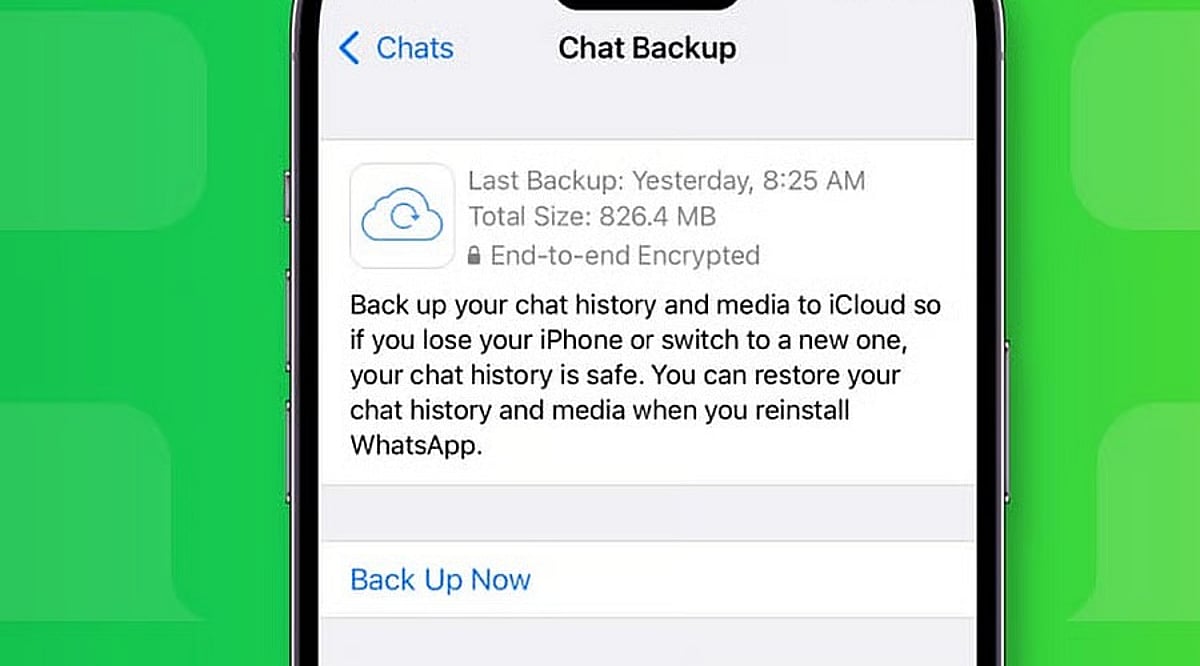
    Open WhatsApp on your iPhone and go to Settings > Chats > Chat Backup. The screen shows the date and size of the latest backup if a valid iCloud copy exists. The same phone number and iCloud account used for the original backup must match.

    Ensure enough free space is available on both iCloud and your iPhone. WhatsApp recommends having at least 2.05 times the backup size available as free storage on both. Limited storage can cause a failed or partial restore.

    If the backup is encrypted, you will need the associated password, passkey, or 64-digit encryption key. Without these recovery details, WhatsApp cannot provide access to the encrypted copy.

    Reinstall WhatsApp and Start the Chat Restore

    Once the backup details are confirmed, delete WhatsApp from your iPhone and install it again from the App Store. Open WhatsApp after the fresh install and complete account setup with the same phone number used for the backup.

    WhatsApp will then ask for the Apple ID linked to the backup. After account verification, a Restore Chat History option appears. Tap that option to start the restore. Extra identity checks may appear; a text message or call can provide a verification code if required.

    Restore time depends on backup size and chat media. A large history with many photos, documents, and videos takes longer than a small text-only history. Keep enough free space on both your iPhone and iCloud account.

    What the iCloud Backup Can Restore

    WhatsApp restores data from the latest successful backup. Any messages or media added after that backup date cannot be recovered from that backup. Videos require an extra condition: the Include Videos option must have been active before the latest backup. Without that option, chat history can return but videos will remain absent.

    Messages and media from WhatsApp communities may also be included in the backup. Channel updates can exist, but channel media returns only for accounts with an admin role. Note that WhatsApp does not keep complete chat history on company servers for manual recovery; an iCloud backup or direct chat transfer is the only route back to old conversations.

    Fix Common Restore Problems

    Failed restores often point to storage, account details, or the backup itself. Check free iCloud space and iPhone storage first. Confirm the same phone number and iCloud account used for the original backup, then verify the latest backup date inside WhatsApp.

    If storage caused the failure, free up space, then delete WhatsApp and repeat the restore. For encrypted backups, ensure you have the correct password, passkey, or 64-digit key.

    If no usable iCloud backup exists and your old iPhone still works, use WhatsApp’s Chat Transfer feature for an iPhone-to-iPhone move. Both phones need the latest iOS and WhatsApp versions, Wi-Fi, internet access, and a power source. The old phone can send the chat history directly to the new iPhone without an iCloud restore.

    Protect Future WhatsApp Chats

    A successful restore can recover a large part of your chat history, but the backup date sets the limit. WhatsApp offers automatic backup schedules under Chats > Chat Backup, with daily, weekly, or monthly options.

    An end-to-end encrypted backup can be protected with a password, passkey, or 64-digit encryption key. Keep the chosen recovery detail safe; a forgotten password or lost key can block access to the encrypted backup.

    The safest restore starts before the reinstall: check the backup date, confirm the phone number and iCloud account, verify storage, and protect any encryption key. Once those details match, WhatsApp can restore your saved chat history with far less risk of an incomplete recovery.

    Frequently Asked Questions

    Can I restore WhatsApp chats from iCloud?
    Yes, if a valid WhatsApp iCloud backup exists and you use the same phone number and iCloud account.
    Will WhatsApp restore messages received after the backup?
    No. Messages and media added after the latest successful backup cannot be recovered from that backup.
    Why are my WhatsApp videos missing after restoration?
    Videos are restored only if the Include Videos option was enabled before the backup was created.
    What if my encrypted WhatsApp backup asks for a password?
    You need the correct password, passkey, or 64-digit encryption key associated with the encrypted backup.
    Can I restore WhatsApp without an iCloud backup?
    If your old iPhone still works, WhatsApp’s Chat Transfer feature can transfer chat history directly to another iPhone.

  • Meta Unveils Muse AI Agent: Automates Emails, Travel Bookings, and Daily Tasks with Secure Cloud VM

    Meta Unveils Muse AI Agent: Automates Emails, Travel Bookings, and Daily Tasks with Secure Cloud VM

    Meta has officially launched Muse, a personal AI agent designed to handle everyday chores like sending emails, booking travel, and completing multi-step tasks on behalf of users. The announcement was made on September 8, 2026, and the agent is now available in the United States through the Muse app and WhatsApp.

    Powered by Muse Spark, Meta’s most advanced model for agentic tasks, Muse operates as a conversational assistant that can go beyond simple chat. Users describe what they need—such as planning a dinner party or creating a grocery list from a saved Instagram recipe—and Muse builds a plan, opens a browser, fills in forms, and executes steps even after the user closes the app. It pauses to request approval before sending an email or making a purchase, ensuring the user remains in control at all times.

    Security and Privacy Features

    Security is a cornerstone of the Muse launch. The agent runs inside a Secure VM, a dedicated cloud computer isolated from other agents. User data and connected service credentials are stored in this environment. Users can choose which apps Muse can access, limit its actions, disconnect services, or instruct it to forget stored information entirely.

    Rollout and Future Plans

    Muse is currently limited to the US, with a broader rollout expected soon. Meta plans to integrate the assistant into its AI glasses lineup as the next major step. Most day-to-day functions will remain free, but the company has indicated that paid subscription plans will be introduced for users who want deeper access to advanced features. Exact dates for the glasses integration and subscription rollout have not been announced.

    Meta announced the launch on X, describing Muse as a personal AI agent that gets things done across every part of life. The company emphasized that the agent is built to help people complete real-world tasks with less effort, leveraging the power of Muse Spark.

  • WhatsApp 2026: Usernames, Advanced Privacy, and AI Tools Explained

    WhatsApp 2026: Usernames, Advanced Privacy, and AI Tools Explained

    WhatsApp is undergoing its most significant transformation since end-to-end encryption became standard. With over three billion users, the app is shifting away from phone-number-dependent identity toward usernames, while introducing advanced privacy controls and AI features designed for confidential conversations. These updates, rolling out throughout 2026, are reshaping how users connect, communicate, and protect their data.

    Usernames Decouple Identity from Phone Numbers

    For nearly two decades, a phone number was the only way to identify a WhatsApp user. That changes in 2026. Meta opened username reservations globally on June 29, 2026, ahead of a full rollout later this year. Users can select a username between 3 and 35 characters, and once fully deployed, your phone number will no longer be visible to someone messaging you for the first time.

    However, the phone number remains essential for registration and account maintenance. Usernames simply keep your number hidden from new contacts. Notably, WhatsApp does not offer a public directory for usernames—someone must know your exact handle to start a chat. This keeps the feature more like a quiet introduction tool than an open search system. To prevent impersonation, Meta is reserving usernames for public figures and organizations early in the process.

    Advanced Chat Privacy: Beyond Encryption

    Encryption determines who can read a message. WhatsApp’s new privacy tools address a different question: what can be done with a message after it’s read. Advanced Chat Privacy, available in both one-on-one and group chats, targets conversations that are sensitive even among trusted participants, such as support groups or community initiatives.

    It’s crucial to understand the limits: this setting does not prevent screenshots. It blocks automated actions like chat exports, auto-downloads, and use of your messages in AI features. Manual screenshots remain possible, so it’s not a guarantee of absolute secrecy. This distinction is vital for anyone relying on the feature for confidential discussions.

    Complementing this, the August 2026 security update introduced passkeys. Meta reports that over a billion users have already set up passkeys, replacing traditional codes and PINs with device-bound authentication. This adds a layer of security that’s harder to compromise.

    Meta AI: Private by Design

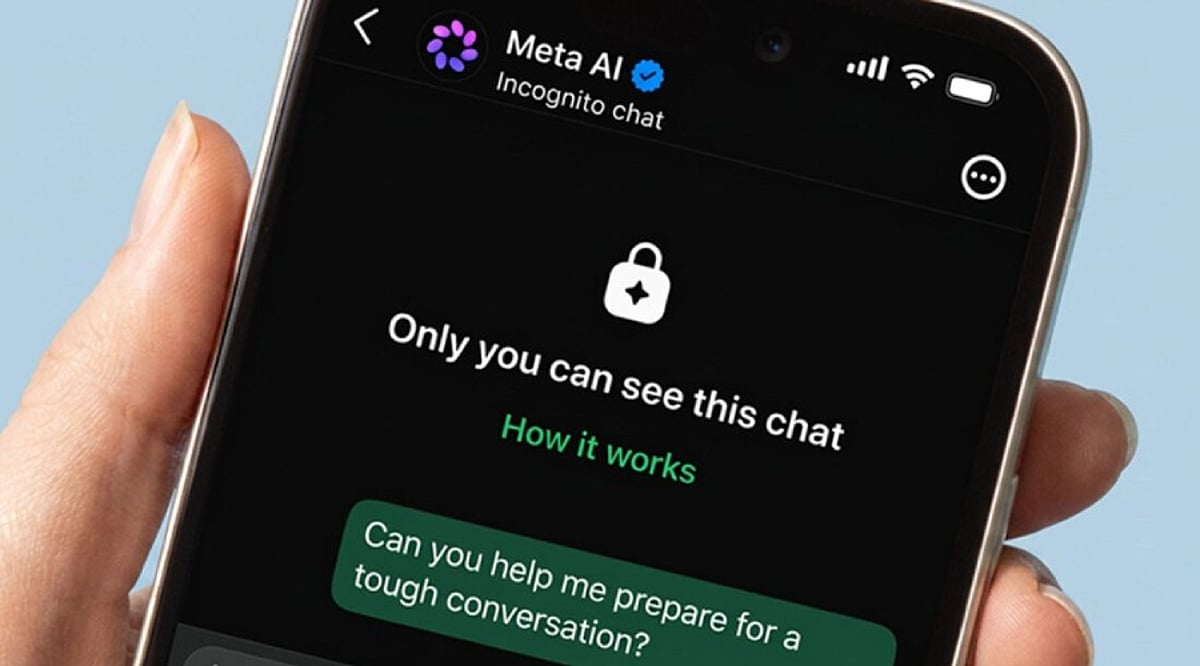
    The most notable AI update is Incognito Chat with Meta AI, introduced in May 2026. Built on WhatsApp’s Private Processing system, it offers a temporary chat environment that runs in a secure space Meta claims it cannot access. The conversation disappears once the session ends. This addresses a growing concern: people bring health questions, financial worries, and personal decisions to AI, yet most ‘private’ modes on other platforms still let companies see the queries.

    Meta has also planned Side Chat, a feature that would allow you to consult Meta AI quietly within an existing conversation without other participants noticing. Meanwhile, everyday AI tools have expanded: photo touch-ups and drafted reply suggestions arrived in March 2026, followed by Muse Image in July, which lets you generate and edit images directly in chats, rolling out initially in select countries.

    Messaging Management Improvements

    Not every update is about privacy or AI. Some address long-standing annoyances. Direct chat transfer between Android and iPhone is now available, solving a major headache for phone switchers. iPhone users can now run two WhatsApp accounts on one device—a feature Android already enjoyed. Storage management also got a boost: users can delete individual files from a chat without affecting others, a small but welcome fix for one of the app’s most common complaints.

    Final Thoughts

    WhatsApp’s 2026 direction is about separation—decoupling identity from phone numbers, privacy from encryption, and AI from data retention. These layers give users more control, but the real test is how Meta handles full-scale rollout. Will usernames and Incognito Chat maintain their privacy promises as adoption grows? And will the same restraint apply as AI features expand? For now, the updates signal a more thoughtful approach to messaging, one that prioritizes user agency over convenience.