
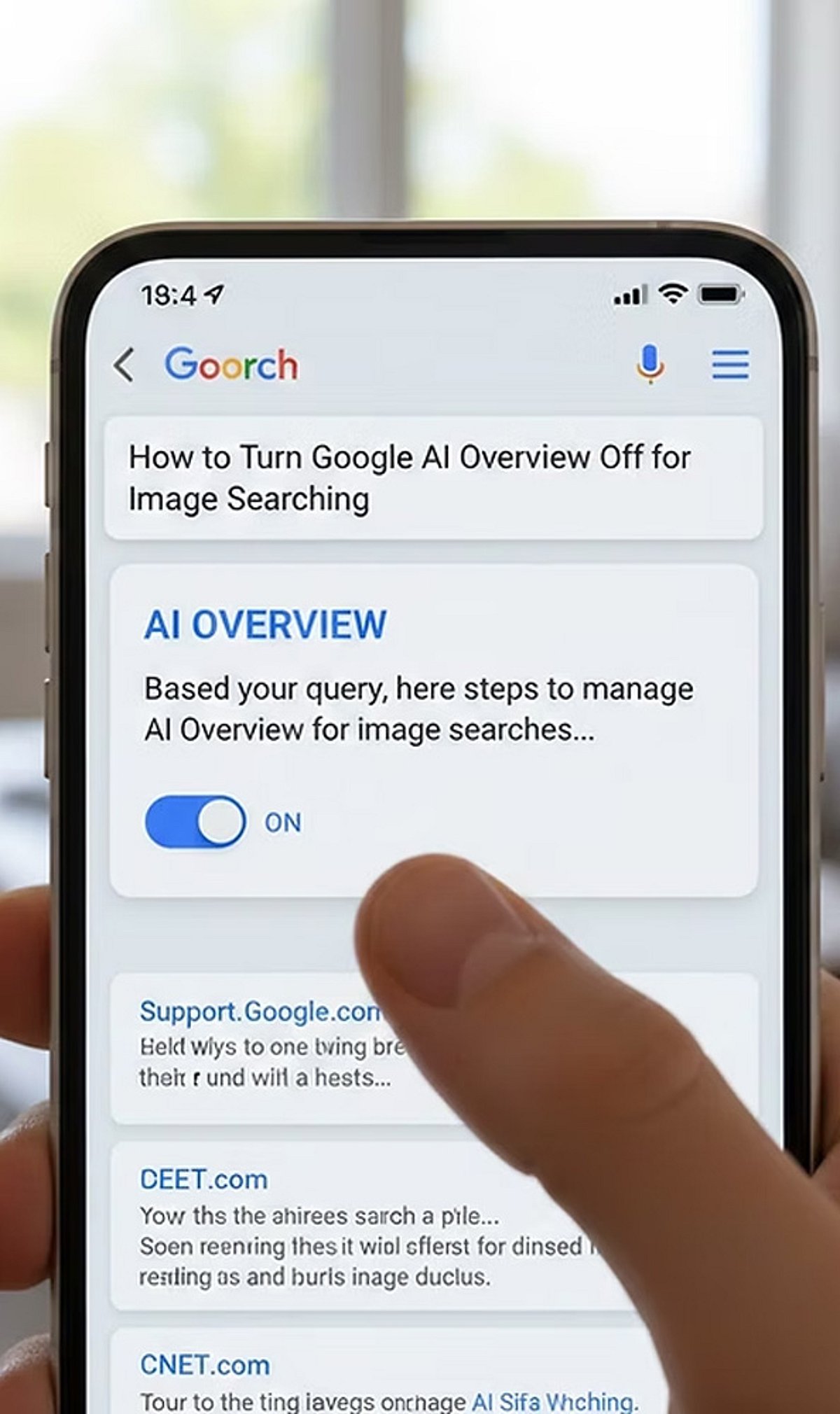
Google’s AI models can learn from your search uploads and interactions to improve their performance. While this enables personalized features, it also raises privacy concerns. If you prefer to limit how Google uses your data for AI training, follow these straightforward steps to disable sharing and manage your activity.
- Open Search Settings: Sign in to your Google account and navigate to Search settings. Here you can review privacy and AI-related data collection preferences.
- Find AI Controls: Locate the AI or Search personalization settings where data-sharing preferences for AI improvement are managed.
- Disable Upload Sharing: Turn off the setting that allows Google to use your Search uploads and interactions to improve its AI models.
- Review Activity Controls: Visit the Web & App Activity section to understand what Search data Google stores and how it may be used.
- Delete Existing Data: Remove previously saved Search uploads and activity if you do not want them retained in your Google account.
- Manage Auto-Save: Disable automatic saving of Search activity where available to reduce future data collection for personalization and AI development.
- Adjust Product Settings: Check settings for Google Photos, Gemini, Drive, and other services that may have separate AI data-sharing controls.
- Use Incognito Mode: Search in Incognito mode when appropriate to minimize the amount of browsing activity linked to your Google account.
- Review Settings Regularly: Google periodically updates privacy controls, so revisit your account settings to ensure your AI preferences remain unchanged.
By taking these steps, you can better control how your search data influences Google’s AI training while still enjoying the core search functionality.
Leave a Reply