
Category: Technology

  • Display Tech Showdown: How Quantum Dots, OLED, MicroLED, and RGB Mini-LED Compare for 2026

    Display Tech Showdown: How Quantum Dots, OLED, MicroLED, and RGB Mini-LED Compare for 2026

    The battle for the best TV display is no longer just about picture quality. Manufacturing scale, production costs, and commercial readiness are shaping the market as much as image performance. OLED and quantum dot LCD started this race, but RGB Mini-LED and MicroLED have since widened it into a genuine four-way contest. Here’s how each technology stacks up for 2026.

    The 2026 Brightness Reality

    Brightness has come a long way this year. Samsung’s flagship S95H hit 2,553 nits in standard mode, while the S99H crossed 2,700 nits. LG rates its 2026 Tandem WOLED panel at up to 4,500 nits, but independent testing of the 2025 LG G5 measured only 2,213 nits—a reminder that spec sheet promises often differ from real-world performance.

    TCL is pushing harder with its new RGB Mini-LED sets, claiming up to 10,000 nits peak brightness and as many as 20,000 local dimming zones. Real-world results won’t reach those numbers, but even scaled back, RGB Mini-LED runs brighter than any OLED TV on the market today.

    Burn-In: A Key Differentiator

    Leave a static image on an OLED or QD-OLED screen long enough, and it can leave a permanent mark, though pixel shifting has made this far less likely. QLED, RGB Mini-LED, and MicroLED use inorganic LEDs that don’t degrade like organic pixels, making them immune to burn-in—a clear advantage for static content like TV logos or desktop interfaces.

    Manufacturing Decides the Winner

    Picture quality alone never determines which technology wins—scalability does. Industry estimates suggest MicroLED mass-transfer yields need to approach 99.99% for cost-effective production, and current yields remain below that. Closing that gap takes serious time, money, and engineering.

    MicroLED’s current position is reflected in commercial products: the Garmin Fenix 8 Pro wearable and a Sony-Honda MicroLED display for EV exteriors. Notice what’s missing: a television. Analysts expect the next two years to settle whether MicroLED enters consumer TVs after 2027 or stays in wearables, cars, and signage.

    Meanwhile, RGB Mini-LED isn’t waiting. It’s cheaper to build, faster to scale, and delivers serious brightness—which is why Samsung, LG, Hisense, and TCL have all launched RGB Mini-LED sets this year. Reviewers now call it the go-to pick for bright rooms that QLED once owned.

    A Market Split Four Ways

    There isn’t one right answer anymore. OLED and QD-OLED still own dark-room movie nights. RGB Mini-LED has carved out bright-room viewing, sports, and everyday use. MicroLED chips away at manufacturing challenges while growing in wearables and commercial screens. Quantum dot LCD remains the value pick for solid performance without the premium price.

    Final Thoughts

    The next big leap in display tech won’t come from more nits—it will come from solving manufacturing problems. Solve the mass-transfer yield issue, and MicroLED has a real shot at consumer TVs after 2027. Until then, the best display isn’t the newest on paper. It’s the one that best matches the room, viewing habits, and budget.

    FAQs

    1. Which display technology will dominate in 2026? OLED and QD-OLED lead the premium consumer market for picture quality and availability, while MicroLED remains niche due to high costs.

    2. Is MicroLED better than OLED? MicroLED offers higher brightness, longer lifespan, and no burn-in, but OLED is more practical and affordable for most consumers.

    3. What is the difference between Quantum Dot and OLED displays? Quantum Dot uses LED backlighting enhanced with quantum dots for brightness and color; OLED uses self-emissive pixels for perfect blacks and infinite contrast.

    4. Does OLED still suffer from burn-in in 2026? Modern OLEDs include pixel shifting and screen refresh to reduce burn-in risk. It’s far less common during normal use.

    5. Which display technology is best for gaming and HDR? QD-OLED and OLED offer exceptional contrast and fast response times for gaming; QLED excels in bright rooms; MicroLED is premium but too expensive for most buyers.
  • Today’s Tech Roundup: OpenAI Legal Battle, Google Pixel 11, Honor AI Phone, and Slowing AI Adoption

    Today’s Tech Roundup: OpenAI Legal Battle, Google Pixel 11, Honor AI Phone, and Slowing AI Adoption

    From British Columbia’s legal action against OpenAI to Google’s Pixel 11 launch confirmation and Honor’s AI robot phone, here are today’s biggest tech headlines.

    OpenAI Faces Legal Heat

    OpenAI is under legal scrutiny as British Columbia initiates legal proceedings against the company. The details of the lawsuit remain emerging, but it adds to the growing regulatory pressure on AI firms worldwide.

    Google Pixel 11 Confirmed

    Google has officially confirmed the Pixel 11 lineup, signaling its continued commitment to the smartphone market. While specific features are yet to be unveiled, the confirmation sets expectations for another flagship device from the tech giant.

    Honor Robot Phone

    Honor has introduced a robot phone concept, blending AI with mobile hardware to create an autonomous assistant device. The move highlights the increasing integration of robotics and smartphones.

    Claude Fable 5

    Anthropic’s Claude model receives a new iteration, Claude Fable 5, aiming to improve reasoning and creativity in AI interactions. The update comes amid ongoing competition in the large language model space.

    AI Adoption Slows

    Despite rapid advancements, AI adoption rates are showing signs of deceleration. Factors include regulatory hurdles, implementation costs, and concerns over data privacy and ethics. Businesses are taking a more cautious approach to deploying AI at scale.

    Stay tuned for more updates on these stories as they develop.

  • 10 Innovative ChatGPT Uses in 2026 Beyond Simple Conversations

    10 Innovative ChatGPT Uses in 2026 Beyond Simple Conversations

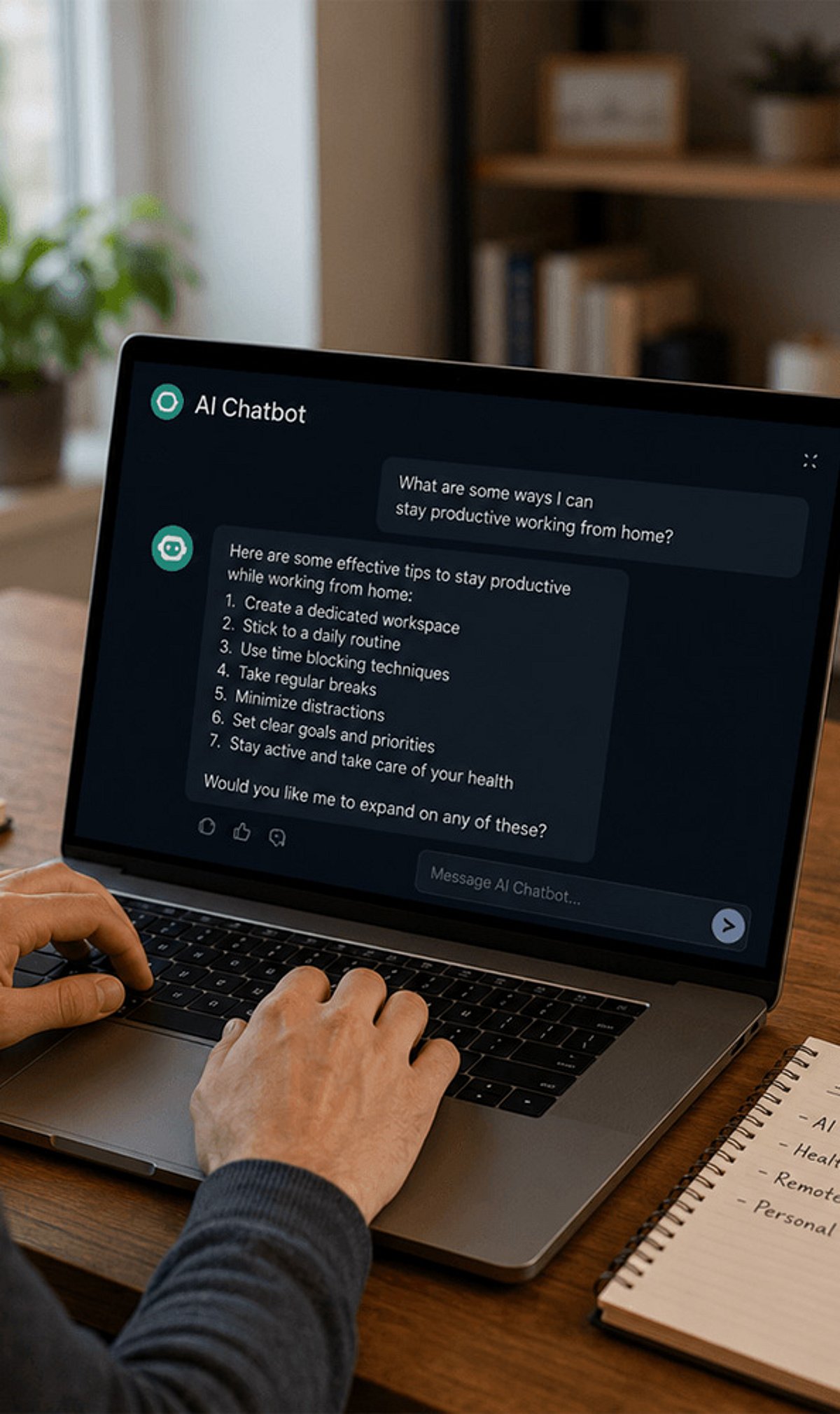
    ChatGPT has evolved into a powerful AI assistant in 2026, helping users with much more than answering questions. Here are ten amazing ways to leverage ChatGPT beyond its basic chatbot function.

    1. Summarize Long Documents: Turn lengthy reports, PDFs, and meeting notes into concise summaries within seconds to save valuable time.
    2. Brainstorm and Create Content: Use ChatGPT to brainstorm business ideas, create marketing content, and generate social media posts for different platforms.
    3. Personalized Learning: Students can use ChatGPT for personalized learning, exam preparation, language practice, and step-by-step explanations of complex topics.
    4. Assist in Software Development: Developers rely on ChatGPT to write code, debug programs, explain errors, and accelerate software development workflows.
    5. Plan Schedules and Itineraries: Create travel itineraries, meal plans, fitness routines, and personalized schedules tailored to your preferences and goals.
    6. Generate Images and Analyze Data: ChatGPT now supports advanced image generation, document analysis, voice interactions, and workflow automation for eligible users.
    7. Enhance Customer Support: Businesses are using AI assistants to improve customer support, automate repetitive tasks, and increase team productivity.
    8. Automate Workflows: Integrate ChatGPT to streamline repetitive processes and boost efficiency across teams.
    9. Verify Information Carefully: As AI becomes more capable, users should always verify important information and avoid sharing sensitive personal data.
    10. Stay Updated: Join our WhatsApp Channel to get the latest news, exclusives, and videos on WhatsApp.
  • Meta Unveils Muse Image: AI-Powered Photo Creation and Editing Comes to Facebook, Instagram, and WhatsApp

    Meta Unveils Muse Image: AI-Powered Photo Creation and Editing Comes to Facebook, Instagram, and WhatsApp

    Meta has officially launched Muse Image, the first image-generation model developed by its newly formed Meta Superintelligence Labs (MSL). The AI model is now integrated into Meta AI, allowing users to generate, edit, and transform images using natural language prompts, uploaded photos, sketches, and annotations directly within Meta’s suite of apps.

    What Makes Muse Image Different?

    Unlike traditional AI image generators that rely solely on text prompts, Muse Image understands complex instructions, interacts with user-uploaded images, and even allows modifications by drawing on images or adding annotations. This makes the creation and editing process more interactive and flexible—all without leaving apps like Facebook, Instagram, WhatsApp, and Messenger.

    Key Features of Meta Muse Image

    • Text-to-Image Generation: Describe almost any scene in natural language, and Muse Image will produce a corresponding image, handling intricate requests with multiple details.
    • Image Editing: Upload an existing photo and ask Meta AI to modify it—change backgrounds, lighting, clothing, or add new objects—without regenerating from scratch.
    • Sketch-Based Editing: Draw simple sketches or annotations over an image, and the AI will replace, remove, or enhance those specific areas.
    • Instagram Stories Effects: Over 30 new AI-powered effects, enabled by Muse Image, are rolling out to Instagram Stories for creative visual enhancements.
    • In-Chat Image Creation on WhatsApp: Users can generate images directly within WhatsApp conversations using Meta AI, initially rolling out in select countries before a global launch.

    How to Use Muse Image

    Using Muse Image is straightforward through Meta AI:

    1. Open Meta AI in a supported app (e.g., Instagram or WhatsApp).
    2. Type a text prompt describing the image you want to create.
    3. If modifying an existing image, upload a photo.
    4. Use sketches or annotations to highlight specific areas for change.
    5. Review the generated image and refine it further with additional prompts.

    Support for Facebook and Messenger will expand as Meta continues to roll out the feature.

    Meta’s Bigger AI Ambitions

    Alongside Muse Image, Meta teased its upcoming Muse Video AI model, which aims to generate video content from prompts. Although still in development, it signals Meta’s commitment to building not only advanced image generation but also AI-powered video creation. By embedding these capabilities into apps used by billions, Meta hopes to make AI-driven content creation accessible to everyone.

  • How AI and Self-Healing Systems Are Revolutionizing Retail Technology

    How AI and Self-Healing Systems Are Revolutionizing Retail Technology

    In an era where retail transactions exceed $1 billion in volume, senior software engineer and architect Arundhati Kumar shares insights from over 15 years of building high-performance distributed systems. Her journey, from modernizing Fannie Mae’s mortgage platforms to leading global retail technology, reveals how AI, cloud, and self-healing infrastructure are redefining the shopping experience.

    From Finance to Retail: A Leap in Scale

    Kumar’s transition from banking to retail meant moving from secure, precise transactions to a flood of real-time data from thousands of physical stores. Today, she leads cross-functional teams designing omnichannel point-of-sale applications for one of the world’s largest retailers. The key challenge: ensuring software runs fast and reliably across legacy registers and modern mobile apps, even with unpredictable network connections.

    Checkout Doctor: Bridging the Visibility Gap

    Inspired by register glitches that stalled checkout lines, Kumar created Checkout Doctor—an automated diagnostic assistant that analyzes local device logs in real time. When a scale or peripheral fails, it instantly alerts associates via mobile devices, shifting support from reactive to proactive. This self-healing approach keeps lines moving and reduces downtime.

    AI in Site Reliability Engineering

    Large language models (LLMs) are transforming incident management by providing plain-English summaries from error logs, cutting down time to diagnose outages. Kumar emphasizes that AI delivers the most measurable value in noise reduction and early triage—correlating telemetry spikes to pinpoint root causes before thresholds are breached.

    Cloud Migration Lessons

    Leading a migration from legacy SQL to Azure Cosmos DB, Kumar learned that you can’t copy-paste old database mindsets. Rethinking data organization around partition keys like store numbers and lanes, and accepting eventual consistency, reduced costs and improved availability during peak shopping seasons.

    Event-Driven Architecture and Loss Prevention

    Event-driven architecture replaces batch processing with instant event streams via websocket servers. This enables real-time visibility and automated decisions—such as pausing a checkout when a barcode mismatch is detected, and prompting associates to intervene. Such techniques help combat the multi-billion-dollar challenge of retail shrink.

    The Future: Autonomous Infrastructure

    Kumar is most excited about predictive workflow integrity, where machine learning models on edge devices autonomously fix anomalies—like routing around a slowing database—before humans even see an alert. Her advice to leaders: build systems that survive locally without cloud dependency, and treat AI as a co-pilot, not a replacement for human intuition.

  • How Data Analytics Reveals Hidden Infrastructure Risks: Paulson Geo Philip’s Approach

    How Data Analytics Reveals Hidden Infrastructure Risks: Paulson Geo Philip’s Approach

    An experienced project manager outlines three ways to identify risks before they impact critical infrastructure operations. As data volumes surge, organizations struggle to act on insights—65% of teams still make decisions without leveraging available data, according to the Sisense State of Analytics report. The question is: how can organizations turn information into a tool for risk management and operational reliability?

    Paulson Geo Philip, a Project & Maintenance Manager at UAE Television & Radio (Channel 4 Group), has tackled this challenge for over 14 years. He has applied analytics-driven approaches to infrastructure initiatives valued at more than AED 120 million, leading teams of over 800 professionals and improving project efficiency and cost performance by nearly one-third. Philip is also an author of multiple scientific publications, an invited evaluator at the AITEX Summit Winter 2026, and a Senior Member of the Institute of Electrical and Electronics Engineers.

    Philip believes that the most important project risks reveal themselves through patterns. “I have learned to look at information as a connected system,” he explains. “The most valuable insights rarely come from a single metric. They emerge when you understand how different parts of a project influence one another. Analytics helps create that perspective and allows leaders to make decisions with greater confidence.”

    At UAE Television & Radio, Philip oversaw infrastructure projects worth over AED 120 million, coordinating multidisciplinary teams of engineers, contractors, and technical specialists. His analytics-driven approach helped major infrastructure projects move faster and operate more efficiently, improving schedule performance and reducing costs by 20–30%.

    The role of the infrastructure project leader is evolving beyond managing schedules and budgets. Today’s leaders are expected to make sense of growing volumes of information and translate it into better operational decisions. Another key issue is the high cost of unplanned equipment and infrastructure failures. As infrastructure assets become more connected, maintenance is evolving into a data-driven discipline. Operational data can reveal how equipment performance changes over time, allowing organizations to improve asset utilization, extend service life, and make more informed maintenance decisions.

    Drawing on his experience, Philip has explored these questions through publications. In The American Journal of Engineering and Technology, he introduced concepts such as a Multi-Layer Cognitive Energy Twin and an Adaptive Predictive Resilience Index to forecast system conditions and evaluate infrastructure resilience. In his paper “Artificial Intelligence and Machine Learning Applications in Project Schedule Forecasting” (Earth Science Research Network, SSRN), Philip presented a predictive framework to identify schedule risks before they affect project outcomes.

    “Today, more and more organizations view operational data not as a record of past performance, but as a tool for forecasting future conditions,” notes Philip. “That shift from reactive management to predictive management is becoming one of the defining trends across infrastructure and operations.”

    Philip also served on the judging panel at the AITEX Summit Winter 2026, an international forum for artificial intelligence, digital technologies, innovation, and sustainable development. He holds Senior Member status in the IEEE. “I would encourage organizations to create more opportunities for collaboration between practitioners, researchers, and technology specialists,” he says. “Some of the best ideas I have come across were developed by people working in very different fields.”

    Looking ahead, Philip sees analytics becoming an increasingly important part of how organizations manage risk and reliability. His experience points to three priorities: recognizing patterns before problems escalate, using data to anticipate future conditions, and carefully evaluating the technologies that guide operational decisions. Together, these capabilities transform information from a byproduct of operations into a tool for managing reliability and performance.

  • Boost Your Browsing Speed: 7 Essential Google Chrome Tips for 2026

    Boost Your Browsing Speed: 7 Essential Google Chrome Tips for 2026

    Google Chrome remains the world’s most popular browser, but it can slow down over time as you accumulate tabs, extensions, and cached data. In 2026, Chrome offers several built-in tools and features to help you browse faster and more efficiently. Here are seven proven tips to supercharge your Chrome experience.

    1. Turn On Memory Saver

    Memory Saver automatically frees up RAM from inactive tabs, allowing active websites to load faster. To enable it, go to Settings > Performance and toggle on Memory Saver. This feature is especially useful when you have many tabs open, as it reduces overall memory usage and improves browser responsiveness.

    2. Enable Page Preloading

    Page Preloading predicts which pages you’re likely to visit next and loads them in the background before you click. Navigate to Settings > Performance and switch on Preload Pages. You can choose between Standard or Extended Preloading for a smoother, faster browsing experience on frequently visited sites.

    3. Clear Your Browsing Cache Regularly

    Old temporary files can slow down Chrome over time. Press Ctrl + Shift + Delete (Windows) or Cmd + Shift + Delete (Mac), select a time range (e.g., All Time), check Cookies and other site data and Cached images and files, then click Clear Data. Doing this periodically helps maintain peak performance.

    4. Remove or Disable Unused Extensions

    Extensions consume memory and can slow down your browser. Open Extensions > Manage Extensions (or visit chrome://extensions) and delete or disable add-ons you no longer need. Fewer background extensions mean quicker page loads and better overall speed.

    5. Keep Google Chrome Updated

    Google regularly releases updates that include speed improvements, bug fixes, and security patches. Go to Help > About Google Chrome to check for updates. If an update is available, let Chrome install it and click Relaunch. Restarting also clears memory buildup, giving you an immediate performance boost.

    6. Use Tab Groups to Organize Tabs

    Tab Groups help reduce clutter and improve workflow efficiency. Right-click a tab, select Add tab to new group, assign a name and color, then collapse groups when not in use. In 2026, Chrome also allows you to save tab groups for future sessions, making it easier to manage complex research or multitasking.

    7. Leverage Chrome’s Latest AI Features

    Chrome’s AI tools, including the Gemini Side Panel and Auto Browse, can speed up everyday tasks. Gemini summarizes information across tabs, while Auto Browse automates repetitive browsing steps. These features reduce tab switching and make research, shopping, or work more efficient.

    By implementing these seven tips, you’ll enjoy a faster, more responsive Chrome browser that keeps up with your needs in 2026 and beyond.

  • 7 Common Mistakes to Avoid When Buying Your First Gaming Laptop

    7 Common Mistakes to Avoid When Buying Your First Gaming Laptop

    Buying your first gaming laptop is an exciting step, but it’s easy to get sidetracked by flashy features or overlook critical components. To help you make a smart investment, we’ve identified seven common mistakes that first-time buyers often make—and how to avoid them.

    1. Prioritizing RGB Over Performance

    A flashy design, RGB lighting, and futuristic styling may look appealing, but they don’t improve gaming performance. Focus first on the graphics card, processor, RAM, and cooling system. A laptop with balanced hardware will deliver smoother gameplay and better longevity than one that simply looks impressive.

    2. Ignoring the GPU

    The graphics card is the most important component in a gaming laptop. Many first-time buyers focus only on the processor while overlooking GPU performance. Choose a laptop with a modern dedicated graphics card that matches the types of games you play and offers enough performance for future game releases.

    3. Buying Without Checking Cooling Performance

    Powerful hardware generates significant heat during gaming sessions. A laptop with poor thermal management may experience overheating, loud fan noise, and reduced performance due to thermal throttling. Before purchasing, check the cooling design, airflow, and long-term thermal performance to ensure consistent gaming and hardware reliability.

    4. Choosing Too Little RAM or Storage

    Modern games require more memory and storage than ever before. Buying a laptop with insufficient RAM or limited SSD capacity can affect performance and leave little room for new titles. Consider configurations with upgrade options so your laptop remains capable as game sizes and system requirements continue growing.

    5. Overlooking Display Quality

    A powerful GPU deserves a quality display. Many buyers ignore refresh rate, response time, brightness, and color accuracy, even though these directly affect the gaming experience. A higher refresh rate and smoother visuals can make competitive games feel more responsive while also improving everyday productivity and entertainment.

    6. Ignoring Battery and Port Selection

    Gaming laptops aren’t known for exceptional battery life, but connectivity still matters. Check for enough USB ports, HDMI, fast charging support, Wi-Fi standards, and other essential connections. A well-equipped laptop provides greater flexibility for gaming accessories, external displays, and everyday work without requiring multiple adapters.

    7. Not Considering Future Needs

    A gaming laptop is a long-term investment, so avoid buying only for today’s requirements. Consider upcoming game demands, software updates, and potential upgrades. Selecting hardware with extra performance headroom helps extend the laptop’s usable lifespan, providing better value and reducing the need for an early replacement.

  • Essential Windows Settings to Tweak on Every New PC for Better Performance and Privacy

    Essential Windows Settings to Tweak on Every New PC for Better Performance and Privacy

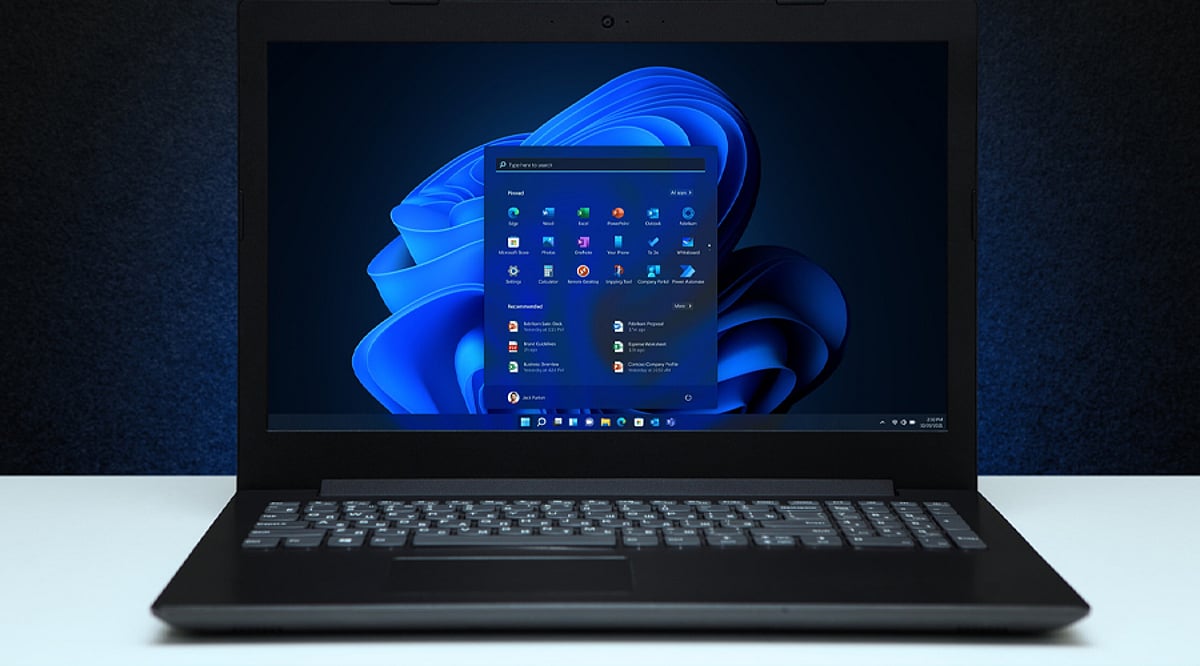
    A brand-new PC delivers excellent performance, but the default settings aren’t always optimized for speed, privacy, or convenience. Spending just a few minutes customizing key options can significantly improve your experience. These simple tweaks help your computer run more efficiently, stay secure, and feel personalized from the very first day.

    Remove Unnecessary Startup Apps

    Many apps automatically add themselves to the startup list, slowing down your PC every time it boots. Open the Startup Apps settings and disable programs you don’t need immediately after signing in. This reduces memory usage, speeds up startup times, and keeps your system responsive. You can always enable specific apps later if your workflow changes.

    Turn On Storage Sense

    Storage Sense is one of Windows’ most useful maintenance features, yet many users never enable it. It automatically deletes temporary files, empties the Recycle Bin, and clears unnecessary system data. This keeps your storage organized without requiring manual cleanup. It’s especially useful if you frequently download large files or install new applications.

    Adjust Privacy Permissions

    Windows gives apps access to features like your camera, microphone, location, and contacts by default in some cases. Reviewing these permissions helps you decide which apps truly need access to sensitive information. Limiting unnecessary permissions improves your privacy while reducing background activity. It’s a quick setting that can make your PC much more secure.

    Change Power and Battery Settings

    The default power mode may not suit how you actually use your computer. If you edit videos, play games, or run demanding software, switching to Best Performance can improve responsiveness. Laptop users can choose power-saving options to extend battery life while traveling. Adjusting these settings helps strike the right balance between speed and efficiency.

    Enable Automatic Backups

    Backing up your files should be one of the first things you do on a new PC. Windows Backup and cloud services can automatically save your documents, photos, and important settings. This protects your data against accidental deletion, hardware failure, or malware attacks. A reliable backup ensures you can quickly recover if something goes wrong.

    Customize Notifications

    Constant notifications can interrupt your work, gaming, or study sessions throughout the day. Open Notification settings and disable alerts from unimportant apps. Keeping only essential notifications helps you stay focused without missing critical updates. You can also schedule Do Not Disturb mode during meetings or bedtime for fewer distractions.

    Keep Windows Update Active

    Some users delay Windows updates, but doing so can leave their PCs vulnerable to security threats. Regular updates include important security patches, bug fixes, performance improvements, and compatibility enhancements. Keeping automatic updates enabled ensures your system remains protected and stable. It also helps your PC support the latest software and hardware features without issues.

  • Essential Windows Settings to Tweak on a Brand-New PC

    Essential Windows Settings to Tweak on a Brand-New PC

    A brand-new PC delivers excellent performance out of the box, but its default settings aren’t always optimized for speed, privacy, or convenience. Spending just a few minutes customizing key options can dramatically improve your experience. Below are the essential tweaks I always make to keep my computer running smoothly, securely, and personalized from day one.

    Remove Unnecessary Startup Apps

    Many apps automatically add themselves to the startup list, which slows down boot time. Open the Startup Apps settings and disable any program you don’t need immediately after signing in. This reduces memory usage, speeds up startup, and keeps your system responsive. You can always enable specific apps later if your workflow changes.

    Turn On Storage Sense

    Storage Sense is one of Windows’ most useful maintenance features, yet it’s often disabled by default. It automatically deletes temporary files, empties the Recycle Bin, and clears unnecessary system data. This keeps your storage organized without manual cleanup—especially helpful if you frequently download large files or install new applications.

    Adjust Privacy Permissions

    Windows often grants apps default access to your camera, microphone, location, and contacts. Review these permissions to decide which apps truly need sensitive information. Limiting unnecessary permissions improves privacy and reduces background activity, making your PC more secure with a quick setting change.

    Change Power and Battery Settings

    The default power mode may not suit how you actually use your computer. If you edit videos, play games, or run demanding software, switching to Best Performance can improve responsiveness. Laptop users can choose power-saving options to extend battery life while traveling. Adjusting these settings helps strike the right balance between speed and efficiency.

    Enable Automatic Backups

    Backing up your files should be one of the first things you do on a new PC. Windows Backup and cloud services can automatically save your documents, photos, and important settings. This protects your data against accidental deletion, hardware failure, or malware attacks. A reliable backup ensures you can quickly recover if something goes wrong.

    Customize Notifications

    Constant notifications can interrupt your work, gaming, or study sessions. Open Notification settings and disable alerts from unimportant apps. Keeping only essential notifications helps you stay focused without missing critical updates. You can also schedule Do Not Disturb mode during meetings or bedtime for fewer distractions.

    Keep Windows Update Active

    Some users delay Windows updates, but doing so can leave their PCs vulnerable to security threats. Regular updates include important security patches, bug fixes, performance improvements, and compatibility enhancements. Keeping automatic updates enabled ensures your system remains protected and stable, while also supporting the latest software and hardware features.