
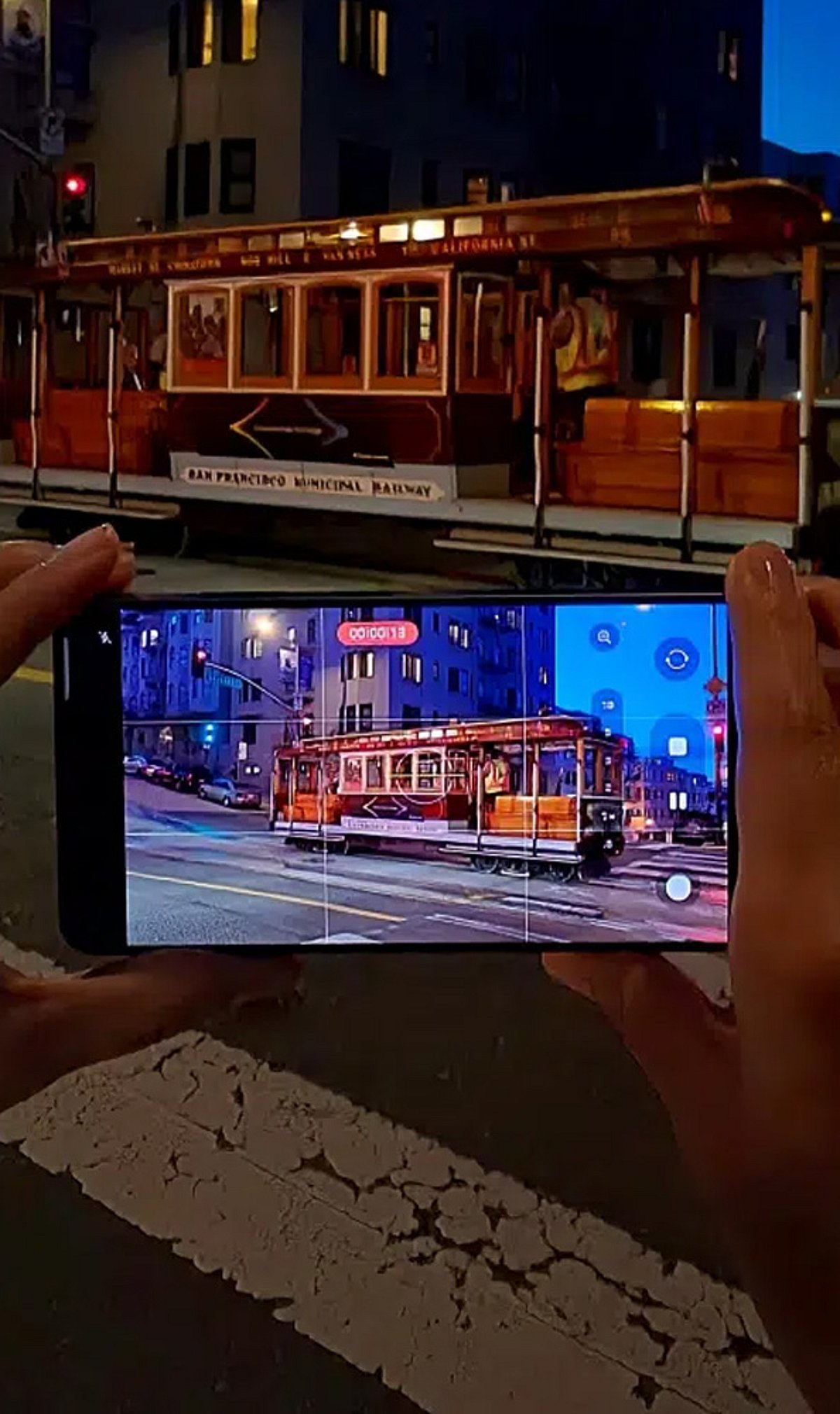
Capturing professional-quality video on the Samsung Galaxy S26 Ultra requires smooth transitions between its multiple lenses. If you’ve experienced lag or hesitation when switching between the ultra-wide, wide, and telephoto cameras, these practical tweaks will help you achieve fluid, cinematic results. Follow this guide to optimize your camera performance.
1. Enable Camera Assistant
Samsung’s Camera Assistant app gives you advanced controls to fine-tune lens switching behavior. Download it from the Galaxy Store, then enable options like “Auto Lens Switching” and adjust transition speed for a smoother experience.
2. Update to the Latest Software
Always install the newest One UI update. Samsung regularly releases camera optimizations that improve lens switching logic and reduce latency. Check for updates in Settings > Software Update.
3. Use Auto Lens Switching
Let the camera automatically select the best lens for each scene. This feature intelligently balances focal length and lighting conditions, reducing manual switching errors and making transitions seamless.
4. Disable Unnecessary Camera Features
Turn off features like Scene Optimizer, Super Steady, or HDR Auto when you don’t need them. These add processing overhead that can delay lens changes. Keep your camera app lean for faster performance.
5. Record in the Right Resolution
Choosing the appropriate video resolution helps the phone switch lenses more efficiently. For general use, 4K at 30fps offers a good balance of quality and smooth transitions. Avoid 8K unless necessary, as it can tax the processor.
6. Avoid Extreme Low Light
Lens switching performs best in well-lit environments. In low light, the camera may struggle to focus and switch quickly. Ensure adequate lighting for accurate focusing and smoother transitions.
7. Keep Camera Lenses Clean
Dust, smudges, or fingerprints on the lenses can slow autofocus and degrade image quality, making lens transitions feel sluggish. Wipe the lenses gently with a microfiber cloth before recording.
8. Restart the Camera App
If you experience temporary glitches, a quick restart of the camera app often resolves them. Close the app from the recent apps menu and relaunch it. If problems persist, restart your phone.
By following these steps, you can make your Galaxy S26 Ultra’s lens switching faster and more professional. Experiment with different settings to find what works best for your shooting style.
Leave a Reply