Tag: iPhone

  • How to Use Google Maps to Remember Where You Parked Your Car

    How to Use Google Maps to Remember Where You Parked Your Car

    Forgetting where you parked can be frustrating, especially in large parking lots or unfamiliar areas. Google Maps includes a parking feature that lets users save their location. Once the car is parked, users can mark the spot directly inside the app for easier access later.

    How To Save Your Parking Location

    After parking, open Google Maps and tap the blue dot representing your current location. From the available options, select “Save parking”. Google Maps then places a parking marker on the map, showing where the vehicle was left and allowing users to return to the location later.

    Add Notes To Your Parking Spot

    The saved parking location can include additional information. Google Maps lets users modify the location, share it with someone else, add notes, and set a timer. These options can be useful when parking in large complexes, airports, shopping centers, or other places where remembering the exact spot is difficult.

    Find Your Car Using Google Maps

    When it is time to return to the vehicle, open Google Maps and select the saved parking marker. The app displays the saved location on the map, helping users identify where they parked. The accuracy of the location can depend on the availability and reliability of location services.

    iPhone Can Save Parking Automatically

    Google Maps also supports automatic parking detection on iPhone and iPad. After connecting the device to a vehicle using USB, Bluetooth, or CarPlay, Maps can automatically save the parking location after the connection ends. The saved parking position can remain available for up to 48 hours.

    Enable Motion-Based Parking Detection

    iPhone users can enable a setting that allows Google Maps to use motion information for parking detection. Open Google Maps, tap the profile icon, select Settings, and then Navigation. Users can enable “Let Maps use your motion to save your parking” when the option is available.

    Remove The Parking Location Later

    Once you reach your vehicle, the saved parking location can be cleared from Google Maps. Select the parking marker and choose the option to clear it. Users can also modify or share the saved location, while timers can help track parking sessions where time limits apply.
  • iPhone Weather App Showdown: Apple Weather vs AccuWeather vs The Weather Channel vs Windy

    iPhone Weather App Showdown: Apple Weather vs AccuWeather vs The Weather Channel vs Windy

    When it comes to checking the weather on an iPhone, users have plenty of options. Apple’s built-in Weather app keeps things simple, but dedicated apps like AccuWeather, The Weather Channel, and Windy offer specialized features. Here’s how they compare.

    Apple Weather: Simplicity and Integration

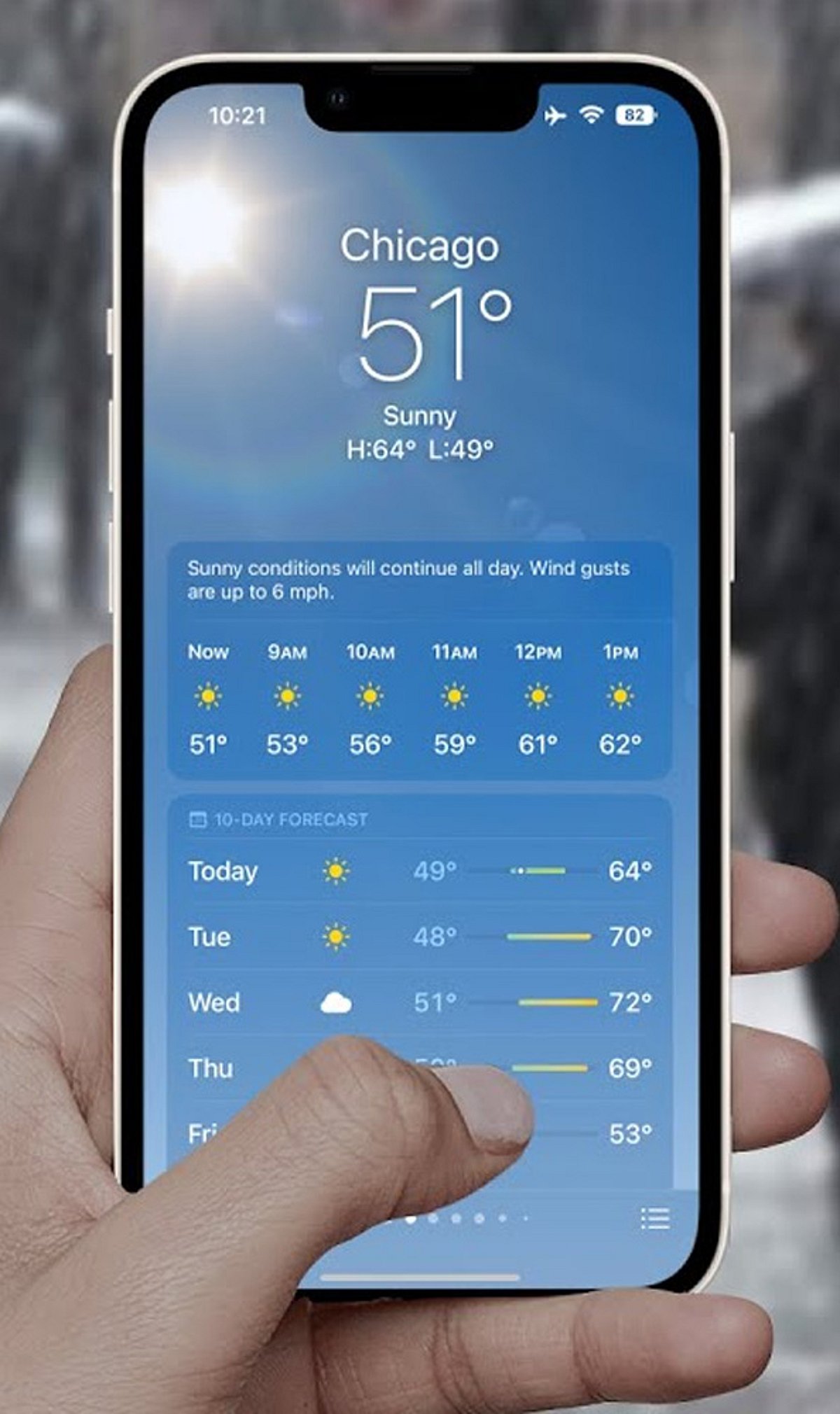
    Apple Weather offers a clean, native experience with hourly forecasts, a ten-day outlook, weather maps, severe alerts, and seamless integration across all Apple devices. It pulls data from multiple weather models and national services, so forecasts are not tied to a single provider.

    AccuWeather: Precision Rain Timing

    AccuWeather excels with detailed hourly forecasts, radar, alerts, and its signature MinuteCast feature—ideal when you need to know exactly when rain will start or stop for daily planning.

    The Weather Channel: Comprehensive Coverage

    The Weather Channel focuses on broad weather information, including forecasts, radar, storm tracking, alerts, air quality, and local pollen data. It’s a solid all-around choice for users who want depth beyond basic forecasts.

    Windy: For Weather Enthusiasts

    Windy stands out with animated maps, wind layers, satellite views, and multiple forecast models. It’s designed for users who want to dive deep into weather analysis and visualize conditions dynamically.

    Accuracy and Regional Considerations

    No single app is universally the most accurate—accuracy varies by location and forecast period. For iPhone users in India, Apple Weather includes severe-weather information, while air-quality data is powered by BreezoMeter in many supported regions.

    Which Weather App Should You Use?

    The right choice depends on what you value most: quick forecasts, precise rain timing, storm tracking, detailed maps, or simple iPhone integration. Apple Weather is best for simplicity and ecosystem integration; AccuWeather for rain timing; The Weather Channel for comprehensive data; and Windy for in-depth weather analysis.

  • Apple’s $250 Million Siri Settlement: iPhone Owners Could Claim Up to $95 – Eligibility & How to File

    Apple’s $250 Million Siri Settlement: iPhone Owners Could Claim Up to $95 – Eligibility & How to File

    Apple Launches Claims for $250 Million Siri Settlement

    Apple’s $250 million class-action settlement over Siri delays is now accepting claims. Eligible iPhone owners in the U.S. can file for payments estimated at $25 to $95 per device.

    Why the Settlement?

    The lawsuit alleged that Apple promoted advanced Siri features with Apple Intelligence but failed to deliver them as advertised.

    Which iPhone Models Qualify?

    The settlement covers specific iPhone models sold in the U.S. between June 10, 2024, and March 29, 2025:

    • iPhone 15 Pro
    • iPhone 15 Pro Max
    • iPhone 16e
    • iPhone 16 Plus
    • iPhone 16 Pro
    • iPhone 16 Pro Max

    Note: The purchase must meet settlement requirements, and only U.S. purchases qualify.

    How to File a Claim

    Eligible customers can submit claims via the official settlement website. You’ll need your device’s serial number (found in Settings > General > About) or alternative information like your Apple Account email and phone number. Some users may receive a claim ID and PIN by email, but it’s not required to start.

    Payment Amounts and Options

    The total settlement fund is $250 million. Expected payout is about $25 per device, but could increase to $95 if fewer claims are filed. Each eligible device requires a separate claim. Payment can be made via PayPal, Venmo, direct deposit, or paper check.

    Deadline

    Claims must be submitted by December 21, 2026. A final approval hearing is on February 24, 2027, so payments may be delayed if appealed.

  • Apple’s 2027 Anniversary iPhone to Feature Curved OLED Display Despite Delays in Advanced Screen Tech

    Apple’s 2027 Anniversary iPhone to Feature Curved OLED Display Despite Delays in Advanced Screen Tech

    Apple is reportedly scaling back some of the advanced display technologies originally planned for its 20th-anniversary iPhone in 2027, but the company is still moving forward with a significant visual redesign. According to industry reports, the upcoming model will feature a four-sided curved OLED display that creates a near-borderless appearance.

    Apple Delays Advanced Display Technologies

    Color Filter on Encapsulation (COE) and LTPO+ were among the technologies expected to debut in the 2027 iPhone. COE integrates the color filter into the display structure, reducing panel thickness and improving light efficiency. LTPO+ is designed to enhance power efficiency through improved transistor technology. However, Apple has reportedly postponed the introduction of both technologies, with no revised timeline confirmed.

    Industry sources suggest the delays may be due to technology maturity and rising production costs. Adding new display components could increase manufacturing expenses at a time when memory prices are already pressuring smartphone costs.

    Four-Sided Curved Display Remains

    Despite the delays, Apple is expected to pursue a four-sided curved OLED display. The panel will curve subtly around all four edges, giving the impression of a larger screen and significantly reducing the visual presence of the frame. Earlier reports described Apple’s approach as a ‘micro-curved’ design, which is less extreme than the waterfall-style displays used by some Android manufacturers. This shallow curvature helps reduce image distortion and makes edge gestures more comfortable.

    Apple may also use optical engineering alongside the physical curve to make the display appear almost bezel-free. Reports have also suggested an all-glass design as part of the company’s broader redesign plans.

  • iOS 27 Siri AI: Apple’s Context-Aware Assistant Makes Your iPhone More Personal

    iOS 27 Siri AI: Apple’s Context-Aware Assistant Makes Your iPhone More Personal

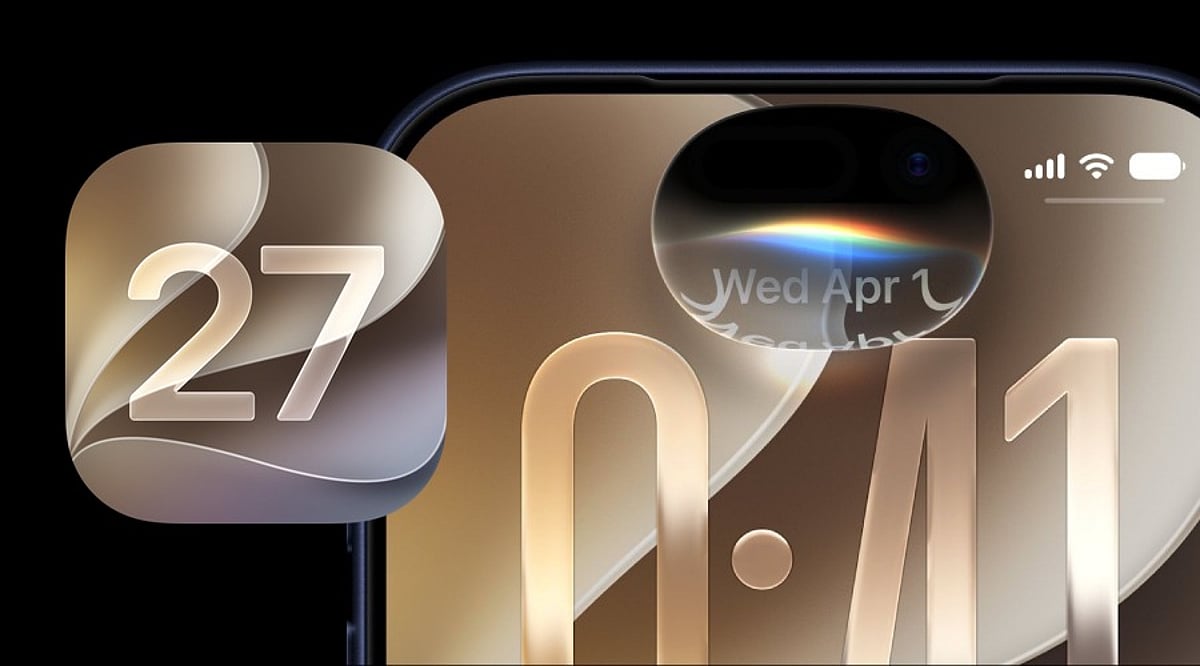
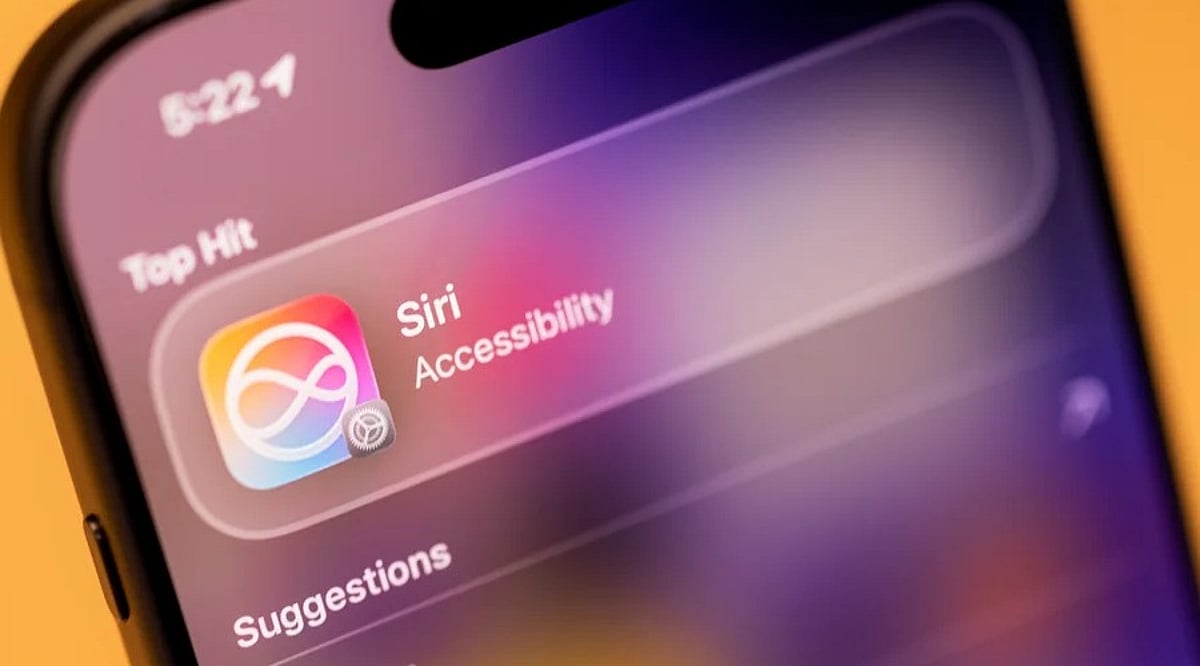
    With iOS 27, Apple is reimagining Siri as a context-aware AI assistant that goes far beyond simple voice commands. Instead of just setting alarms or checking the weather, Siri can now pull from your personal data, understand what’s on your screen, use the camera view, and draw on live web information to complete complex, multi-step tasks.

    Personal Context: Siri Works Across Your Apps and Data

    The biggest shift in iOS 27 is Siri’s access to personal context. On supported iPhones, Siri can search through Messages, Mail, Photos, Calendar, Notes, and other supported apps to find relevant information. Ask for photos from a Lisbon trip and Siri can retrieve them. If a family member shares a recipe in Messages and the ingredients arrive by email, Siri can pull those details into Reminders for you.

    Beyond finding information, Siri can also act on it. The assistant can draft emails, edit and share photos, add items to a grocery list, and interact with more third-party apps. Apple confirms support for WhatsApp and Audible, with additional actions for Outlook, Notability, and Tripsy arriving soon.

    Visual Intelligence: Siri Understands Your Screen and Camera

    Siri AI can see and interpret content displayed on your iPhone. Open a class note with a diagram and ask for an explanation—Siri will analyze the visible content and can take a related action. According to Apple Support, Siri AI works with images, PDFs, notes, and files through Visual Intelligence.

    The camera also becomes part of the assistant’s understanding. Siri mode in the Camera app can use the live view to answer questions, search for details, and initiate actions, such as splitting a bill and sending payments with Apple Cash or adding a custom pass to Wallet.

    World Knowledge and Conversational Continuity

    Siri AI taps into broad web knowledge to answer questions about sports scores, vacation planning, or nearby coffee shops. Responses can combine private device data with fresh public information.

    A new Siri app stores past conversations, and iCloud syncs that history across iPhone, iPad, Mac, Apple Watch, and Apple Vision Pro. You can also invoke Siri via the side button, Dynamic Island, Spotlight on iPad and Mac, and system context menus. The assistant maintains context across follow-up requests, so you can build on a task without starting over.

    Privacy and Device Requirements

    Apple says privacy remains a core part of the design. The system orchestrator uses the on-device Spotlight index and App Toolbox to keep personal data under user control. Some Apple Intelligence features rely on server-side models, which may come with daily usage limits that vary based on request complexity and system demand.

    As for compatibility, Siri AI requires an iPhone 15 Pro, iPhone 15 Pro Max, or iPhone 16 models or later. While iOS 27 installs on a wider range of iPhones, not every device gets the full Siri AI experience.

    Availability and Language Support

    Siri AI launches in English as a beta, with French, Japanese, Korean, Portuguese, and Spanish support planned for October. Apple will not initially offer Siri AI on iOS, iPadOS, and watchOS in the European Union, and the feature won’t be available in China while regulatory approvals are underway.

    FAQs

    What is new about Siri in iOS 27?

    Siri gains access to personal context, screen content, camera input, supported apps, and web knowledge, enabling more complex multi-step tasks.

    Can Siri search my personal information?

    Yes. On supported devices, Siri can find relevant information across areas such as Messages, Mail, Photos, Calendar, and Notes.

    Can Siri understand what’s on my iPhone screen?

    Yes. Siri can work with visible content such as images, PDFs, notes, files, and diagrams through Visual Intelligence.

    Which iPhones support Siri AI?

    Apple lists the iPhone 15 Pro, iPhone 15 Pro Max, and iPhone 16 models or later for the new Siri AI capabilities.

    Is Siri AI available everywhere?

    No. It launches in English beta, with additional languages planned for October. Apple says availability is initially restricted in the European Union and China.

  • 10 Hidden Smartphone Features That Will Transform Your Daily Use

    10 Hidden Smartphone Features That Will Transform Your Daily Use

    Your smartphone is capable of far more than making calls and running apps. Many powerful tools remain hidden in menus and settings, waiting to be discovered. Both Apple and Google have added practical features that can boost productivity, enhance privacy, extend battery life, and simplify everyday tasks. The best part? You may already own a phone with these features—you just need to know where to find them. Here are several hidden smartphone features worth trying.

    Circle to Search: Find Anything on Your Screen

    Android users can search for items directly from their screen using Google’s Circle to Search. Simply press and hold the navigation handle or Home button, then circle, highlight, or tap something displayed on your screen. Google will search the selected text, image, or object, and you can even translate content without leaving the current app. This is especially useful while shopping or browsing social media—identify products without manually typing their names. The feature is available on selected Android devices, including Pixel 6 models.

    Lock or Hide Private Apps

    Your phone may contain apps you’d rather keep private. iPhones offer built-in options to lock or hide supported apps. Press and hold an app icon on the Home Screen, then choose the option requiring Face ID, Touch ID, or your passcode. You can also hide eligible downloaded apps completely; they move into a dedicated Hidden folder within the App Library. This helps protect banking, messaging, or personal applications, even when someone temporarily uses your unlocked phone. Android phones also offer similar privacy tools—check your device’s security settings for available options.

    Turn Search into a Quick Action Tool

    Many people use smartphone search only for finding apps, but on iPhone, Spotlight can do much more. Swipe down from the middle of the Home Screen, then type the information or action you need. Search can find contacts, messages, emails, photos, settings, and applications. On supported software, it can also trigger certain actions directly—for example, search for a setting and change it, or search for a contact and quickly start a communication. This can save several taps throughout the day.

    Use Focus Modes for Different Parts of Life

    Notifications can quickly become a distraction. Modern smartphones provide more control than simply switching on silent mode. iPhone Focus lets you create profiles for different situations—work, sleep, driving, or personal time. Each Focus can control which people and apps can notify you, and you can automate Focus modes around specific schedules or locations. Android phones offer comparable tools through notification and digital wellbeing settings. A customized Focus setup can reduce unnecessary interruptions while keeping important notifications from getting lost.

    Turn Your Phone into a Smart Display

    An iPhone can become a useful bedside display while charging with Apple’s StandBy feature. When the phone is positioned horizontally, it can show clocks, widgets, photos, and other information. Widgets provide quick access to calendars and reminders, and you can customize the information shown according to your routine. This feature is especially handy beside a bed or workspace, giving an older charging habit a more useful purpose.

    Check Battery Insights Before Blaming the Battery

    Battery problems aren’t always caused by an aging battery—background activity can sometimes explain unusually high power consumption. Recent iPhones provide battery usage charts and activity information, showing which apps and system processes consume the most power. Apple also provides battery suggestions and Insights that can flag settings affecting battery life. Some newer iPhones support Adaptive Power, which adjusts settings when daily usage becomes unusually high. Android devices offer similar battery dashboards and adaptive battery features. Checking these reports can quickly reveal power-hungry apps.

    AI Features Are Becoming Smartphone Shortcuts

    AI is changing how people use smartphones. Newer devices can handle tasks that once required separate applications. On supported iPhones, Apple Intelligence works across several system experiences, including writing assistance, image editing, visual intelligence, and Siri AI. Android manufacturers are adding comparable AI tools to newer devices. Availability depends on the phone, software version, language, and region. Many smartphone features are already available without downloading another app. Spend a few minutes exploring your settings this month—you may discover tools that make your phone far more useful.

  • Apple iPhone Eye Tracking: How to Set Up and Use Hands-Free Navigation

    Apple iPhone Eye Tracking: How to Set Up and Use Hands-Free Navigation

    Apple has introduced a new Eye Tracking feature for iPhones, enabling users to control their devices using only their eyes. This accessibility-focused tool provides a hands-free alternative to traditional touchscreen controls, benefiting individuals with physical disabilities and anyone seeking a touch-free experience.

    How to Enable Eye Tracking on iPhone

    To activate Eye Tracking, go to Settings, select Accessibility, and toggle the Eye Tracking option on. Once enabled, you can customize sensitivity and assign specific actions to eye movements for a personalized experience.

    How Eye Tracking Works

    The feature relies on the iPhone’s front-facing camera to track and interpret eye movements. Apple has developed advanced algorithms that allow the device to follow your gaze and respond accordingly. This eliminates the need for physical contact with the screen, making navigation easier for users with limited mobility.

    Performance and Considerations

    Early user feedback highlights precise and responsive tracking. However, performance can be affected by lighting conditions and camera angles. For best results, position your face clearly in front of the camera and ensure consistent lighting.

    A New Hands-Free Control Option

    Eye Tracking offers a new way to interact with your iPhone without touch input. While it significantly improves accessibility for people with physical disabilities, it also serves as a convenient hands-free option for all users. Apple combines the front camera with facial recognition and movement detection to deliver this innovative control method.

  • WhatsApp for iPhone Gains New Search Shortcut to Find Older Messages Faster

    WhatsApp for iPhone Gains New Search Shortcut to Find Older Messages Faster

    WhatsApp is introducing a dedicated search button for iPhone users that simplifies locating older messages within conversations. The Meta-owned messaging platform began rolling out this feature in September 2026, following beta testing in August.

    The new search button appears automatically when users scroll upward through older messages in individual chats, group conversations, or Channels. Tapping the button opens the existing search tool directly, eliminating the need to navigate to the chat information screen first.

    According to WABetaInfo, the feature is compatible with WhatsApp for iOS version 26.36.74 and is being deployed gradually to select users. A broader rollout is expected in the coming weeks.

    In earlier beta builds, the search shortcut was positioned near the bottom-right corner of the conversation. The final version moves it to the top of the screen, just below the navigation bar. The button only appears while scrolling upward; returning to the latest messages hides it again, keeping the interface clean.

    WABetaInfo described the change simply: “The new search button appears at the top of the screen when users scroll up.” Tapping the button activates search mode directly within the conversation, with no changes to the underlying search functionality. Users can still enter keywords and browse matched messages as before.

    Previously, iPhone users had to open a chat, tap the contact or group name, and then select Search from the chat information screen. The update brings that entry point directly into the conversation, reducing the number of steps required to find older content.

    WhatsApp Channels also benefit from the same shortcut, allowing users to search through historical posts without opening the Channel information screen. This is especially useful for Channels with frequent updates and long histories.

    Because the feature is rolling out gradually, it may not appear immediately on all iPhones. Updating the app can help, but account-level activation determines availability. Users without the shortcut can still use the traditional search method through chat information.

    Overall, the update focuses on improving accessibility rather than introducing new search capabilities. For long conversations, active groups, and busy Channels, fewer navigation steps make it easier to locate older messages.

  • Apple’s iOS 27 Introduces Impersonation Risk Detection to Combat iPhone Scams

    Apple’s iOS 27 Introduces Impersonation Risk Detection to Combat iPhone Scams

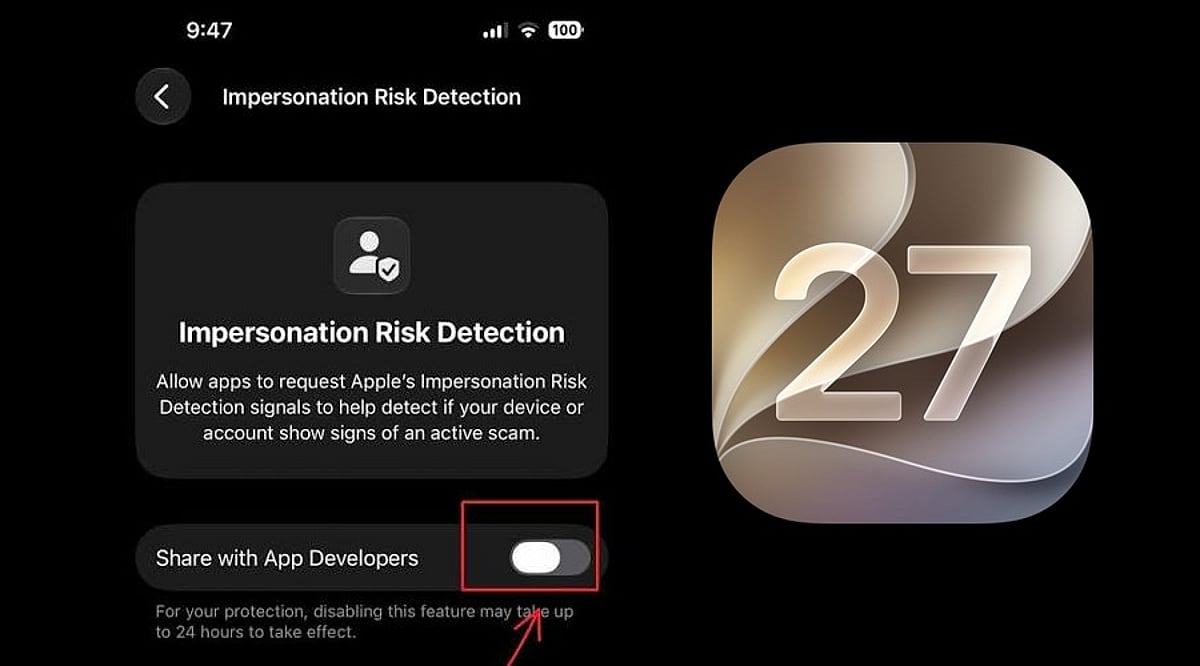
    Apple has unveiled a new security feature in iOS 27 designed to shield iPhone users from impersonation-based scams. Dubbed Impersonation Risk Detection, the tool identifies signs that a user may be caught in an active social engineering attack, particularly when they are about to make a payment or modify sensitive account information.

    Scams involving fake banks, government agencies, delivery services, and even impersonation of known contacts have become increasingly prevalent. Apple says the feature is engineered to detect suspicious activity and alert users before they complete potentially harmful actions.

    How Apple’s Impersonation Risk Detection Works

    According to Apple, the feature protects users from active social engineering scams where an attacker impersonates a trusted entity—such as a bank, government agency, or a familiar person—and pressures the victim into making a payment or altering account details.

    Impersonation Risk Detection analyzes information about the iPhone or iPad and the user’s Apple Account to identify signs of suspicious activity. When a supported app requests an assessment during a potentially risky action, the system generates a risk level that the app can use to determine subsequent steps.

    There are three risk levels: Unknown, Medium, and High. Unknown means no evidence of suspicious activity was detected, though Apple notes this does not confirm an action is safe. Medium indicates some signs of suspicious activity, while High means significant signs were detected.

    Importantly, the app does not receive the underlying information used to generate the assessment. It only receives the resulting risk level and can decide how to respond.

    How to Enable the Feature

    Users can turn on Impersonation Risk Detection by opening Settings, tapping Privacy & Security, scrolling down, and selecting Impersonation Risk Detection. They then need to toggle on Share with App Developers. Users may also need to sign in to the App Store with their Apple Account.

    The feature can be controlled on an app-by-app basis. However, Apple warns that it depends on supported apps and that its risk assessment does not guarantee an action is safe. The company emphasizes that this feature is not designed to replace other security measures or user caution.

  • iOS 27 Hands-On: Apple Intelligence Puts AI at the Core of the iPhone

    iOS 27 Hands-On: Apple Intelligence Puts AI at the Core of the iPhone

    Apple’s iOS 27 update signals a turning point for the iPhone: artificial intelligence is no longer a side feature but the backbone of the user experience. Powered by Apple Intelligence, the new OS enhances Siri, the Camera, Photos, and writing workflows — making the device more proactive, context-aware, and capable of handling complex tasks across apps.

    Siri AI Takes Center Stage

    With iOS 27, Siri becomes far more than a voice assistant. The upgraded Siri AI understands personal context, what’s on the screen, and natural language requests while executing actions across different apps. Users can ask it to find information buried in emails, photos, and notes, draft content, answer questions, and carry on continuous conversations through Siri’s dedicated app.

    Personal Context Gets Smarter

    Siri AI now draws on messages, emails, photos, and saved notes to deliver more relevant answers. Rather than interpreting isolated commands, it can locate specific details and connect information across apps, creating a more integrated assistant that works with data already stored on your iPhone.

    The Camera Becomes a Visual AI Assistant

    Visual Intelligence arrives in the iPhone Camera, letting users ask questions about objects, text, and situations visible in the viewfinder. Siri can then identify what it sees, offer relevant information, and trigger actions based on the scene. This moves AI beyond chat into everyday visual tasks.

    AI-Powered Photos and Creative Tools

    The Photos app receives new AI-driven editing tools that simplify adjustments. Apple is also expanding Image Playground with the ability to generate photorealistic imagery from natural-language prompts. Together, these features let users edit and create visual content without relying solely on traditional controls.

    Writing Assistance Gets an AI Upgrade

    Apple Intelligence brings writing support directly into iOS 27 workflows. Users can generate first drafts, get feedback, and fine-tune style or tone for different audiences. The goal is to make AI writing assistance feel native to the iPhone rather than an add-on chatbot experience.

    Hardware Limits Remain

    Not every iPhone can run the full Apple Intelligence suite. Siri AI requires an Apple Intelligence-enabled device, including iPhone 15 Pro models and iPhone 16 or later. That leaves a clear gap between supported models and older iPhones that continue to run iOS 27 without the advanced capabilities.

    AI Is Becoming the Interface

    iOS 27 shows Apple moving AI from an optional extra to a core layer of the iPhone experience. Siri, Camera, Photos, writing tools, and cross-app actions all depend on behind-the-scenes intelligence. The result is an iPhone where AI quietly powers how everyday tasks get done.