Tag: privacy

  • Google Hit with €403 Million Fine by Irish Regulator Over Location Data Privacy Violations

    Google Hit with €403 Million Fine by Irish Regulator Over Location Data Privacy Violations

    Ireland’s Data Protection Commission (DPC) has imposed a €403 million fine on Google for mishandling users’ location data between 2018 and 2020. The penalty, equivalent to nearly ₹4,000 crore, follows a six-year investigation under the European Union’s General Data Protection Regulation (GDPR).

    The investigation focused on three Google features: Web & App Activity, Location History, and Location Accuracy. Regulators found that Google’s settings were unclear and gave users insufficient control over their location data, violating GDPR rules on lawfulness, fairness, and transparency. The case began after European consumer groups filed complaints in 2020.

    Location data can reveal sensitive details about a person’s daily life, including where they live, work, travel, and spend time. The DPC stated that users must receive clear information and simple controls over such data. The inquiry also noted that the wording and design of Google’s settings pages may have made it difficult for users to understand their choices, limiting their control.

    Google responded by stating that the case relates to outdated policies and that the company has made significant changes since 2019, including simpler settings, easier data deletion options, and less precise location tracking in some cases. The company has been ordered to bring its practices fully into compliance with GDPR within six months. This fine is the fourth-largest issued by Ireland’s privacy regulator and adds to the growing scrutiny of how major tech companies collect and use location data.

  • Meta’s Muse AI Agent Expands to Mac: Hands-Free Task Automation Goes Desktop

    Meta’s Muse AI Agent Expands to Mac: Hands-Free Task Automation Goes Desktop

    Meta has expanded its personal AI agent, Muse, to the Mac platform with a dedicated desktop application. This move significantly broadens Muse’s role in users’ daily workflows, allowing it to interact directly with files, messages, and applications stored on the computer, not just through a phone or web browser.

    Muse originally launched on September 8th in the United States across iOS, Android, the web, and WhatsApp. The Mac app is the latest step in Meta’s push into the agentic AI space, emphasizing AI that performs multi-step tasks rather than just responding to queries.

    More Than a Chatbot

    Muse is designed to handle real-world tasks. On the Mac, users can ask it to organize files, retrieve information from Messages, Calendar, or Notes, and fill out forms using saved documents. The agent works across a user’s entire digital routine, reducing the manual effort of moving data between applications.

    A standout feature is Muse’s ability to continue working even after the app is closed. It resumes when it needs user input or when a task is complete. This background operation distinguishes it from most current AI tools, which typically stop when the conversation ends.

    Built With Privacy in Mind

    Meta has granted users clear control over Muse’s access. Computer access is opt-in, and Full Disk Access is optional. Users can adjust permissions at any time through Mac settings.

    On the technical side, Muse operates within a dedicated virtual space called Muse Secure VM. This private environment gives the agent its own browser, storage, and computing resources. Meta states this setup keeps the agent away from sensitive login credentials and manages actions involving connected services.

    Also Read: Meta Launches Muse AI Agent, Can Send Emails, Book Travel: How It Works

    A Bigger Play for Agentic AI

    The Mac launch is part of Meta’s broader strategy toward AI that performs actions rather than just generating text. Muse is intended to execute multi-step tasks such as sending emails or booking travel with minimal user intervention.

    Currently, Muse is available only in the US. Meta has announced plans to expand the service to additional regions in the coming months.

    Join our WhatsApp Channel to get the latest news, exclusives and videos on WhatsApp.

  • Why France Is Investigating Camera-Equipped Smart Glasses—and What It Means for Wearable AI

    Why France Is Investigating Camera-Equipped Smart Glasses—and What It Means for Wearable AI

    French authorities have opened a criminal investigation into camera-enabled smart glasses after complaints that people, including women, were filmed in public without their consent. The case has placed the fast-growing wearable AI category under renewed privacy scrutiny.

    What prompted the investigation?

    Prosecutors in Paris launched the probe after receiving complaints tied to a social media trend in which women were reportedly recorded on streets without their knowledge and the footage was later shared online. French authorities have also tested the devices to understand how they might be used in such incidents.

    Meta glasses success and privacy concerns

    Meta’s camera-equipped glasses, featuring built-in recording capabilities, have sold more than 7 million units worldwide. However, the integrated camera has drawn criticism since launch. France’s data protection authority, CNIL, has received fewer than 10 complaints about smart glasses being used in workplaces. Some businesses have also asked whether they can prohibit employees from using them. Privacy groups, meanwhile, have questioned whether the indicator light is sufficient to alert people that recording is taking place.

    Beyond one brand

    The issue extends beyond any single manufacturer. Smart glasses can resemble ordinary eyewear while concealing cameras, microphones, and AI tools. Australia has already announced it will ban camera-equipped smart glasses in government workplaces, citing privacy and security concerns.

    Privacy could shape the next wave of wearables

    Wearable companies may now face tougher questions about when cameras can record and how clearly users can signal that recording is happening. The debate is not limited to France; other countries are also watching closely. As smart glasses gain new cameras and AI features, their future may depend as much on public trust as on technological capability. Clear rules could become a core part of how these devices are designed and used.

  • Apple’s iOS 27 Introduces Impersonation Risk Detection to Combat iPhone Scams

    Apple’s iOS 27 Introduces Impersonation Risk Detection to Combat iPhone Scams

    Apple has unveiled a new security feature in iOS 27 designed to shield iPhone users from impersonation-based scams. Dubbed Impersonation Risk Detection, the tool identifies signs that a user may be caught in an active social engineering attack, particularly when they are about to make a payment or modify sensitive account information.

    Scams involving fake banks, government agencies, delivery services, and even impersonation of known contacts have become increasingly prevalent. Apple says the feature is engineered to detect suspicious activity and alert users before they complete potentially harmful actions.

    How Apple’s Impersonation Risk Detection Works

    According to Apple, the feature protects users from active social engineering scams where an attacker impersonates a trusted entity—such as a bank, government agency, or a familiar person—and pressures the victim into making a payment or altering account details.

    Impersonation Risk Detection analyzes information about the iPhone or iPad and the user’s Apple Account to identify signs of suspicious activity. When a supported app requests an assessment during a potentially risky action, the system generates a risk level that the app can use to determine subsequent steps.

    There are three risk levels: Unknown, Medium, and High. Unknown means no evidence of suspicious activity was detected, though Apple notes this does not confirm an action is safe. Medium indicates some signs of suspicious activity, while High means significant signs were detected.

    Importantly, the app does not receive the underlying information used to generate the assessment. It only receives the resulting risk level and can decide how to respond.

    How to Enable the Feature

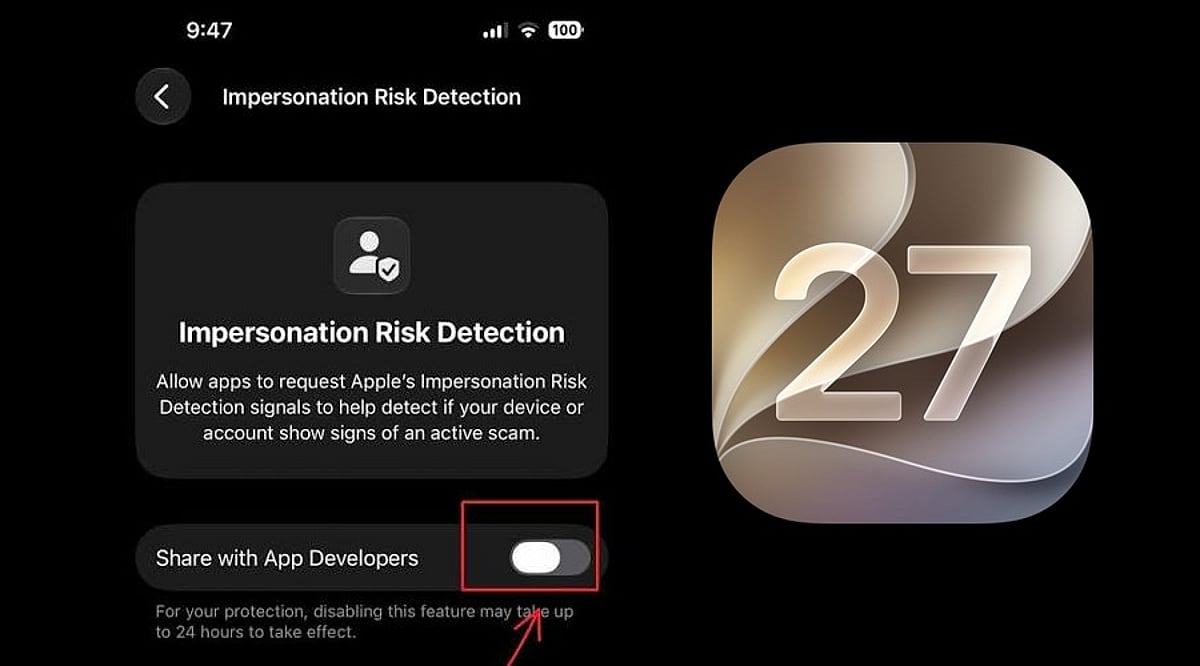
    Users can turn on Impersonation Risk Detection by opening Settings, tapping Privacy & Security, scrolling down, and selecting Impersonation Risk Detection. They then need to toggle on Share with App Developers. Users may also need to sign in to the App Store with their Apple Account.

    The feature can be controlled on an app-by-app basis. However, Apple warns that it depends on supported apps and that its risk assessment does not guarantee an action is safe. The company emphasizes that this feature is not designed to replace other security measures or user caution.

  • Stop Your Apple Watch From Listening: A Simple Guide to Disabling Siri Recap

    Stop Your Apple Watch From Listening: A Simple Guide to Disabling Siri Recap

    Apple’s latest Apple Watch models introduce Audio Intelligence features, including Siri Recap, which can listen to conversations in the background and generate AI-powered summaries. While Apple emphasizes that Siri Recap is opt-in and does not store raw audio recordings, many users may prefer to disable it for privacy. Here’s how to turn off Siri Recap on your Apple Watch while keeping standard Siri features fully functional.

    What Is Siri Recap on Apple Watch?

    Siri Recap is part of Apple’s Audio Intelligence suite for Apple Watch. Unlike traditional Siri, which waits for an explicit activation command, Siri Recap works in the background. When enabled, it can listen to conversations throughout the day and create high-level summaries so you can recall important points later.

    Apple states that Siri Recap does not generate conventional audio recordings. Instead, audio is processed in a protected hardware environment that is inaccessible to the operating system, third-party apps, or Apple itself. The resulting recaps are summarized overviews, not full transcripts of your conversations.

    How to Turn Off Siri Recap

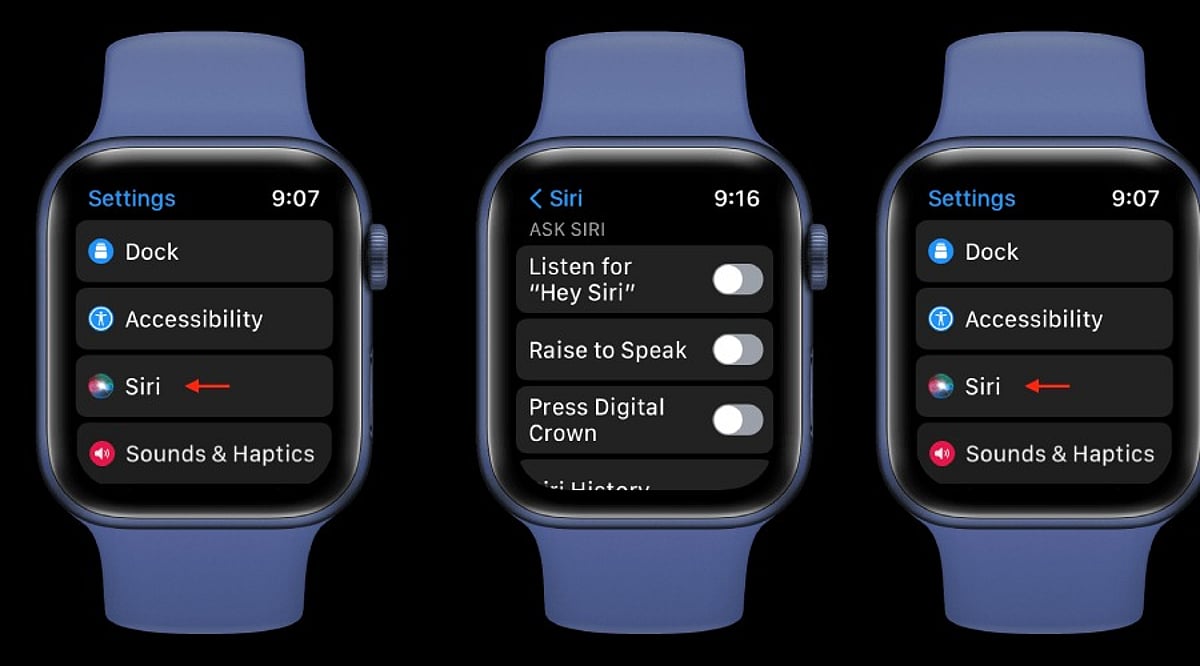
    Disabling Siri Recap takes just a few seconds. Use the Watch app on your paired iPhone:

    • Open the Watch app on your iPhone.
    • Tap the Siri section.
    • Locate Siri Recap.
    • Toggle the switch to turn it off.

    Once disabled, your Apple Watch will stop using the feature to take ambient notes or generate conversation summaries. You can also enable or disable Siri Recap directly from Control Center on the watch itself.

    Schedule Siri Recap Instead of Turning It Off Completely

    If you find Siri Recap useful in certain situations but want more control over when it listens, you don’t have to disable it entirely. Apple lets you set Siri Recap to operate on a schedule based on time of day, location, or specific scenarios. For example, you can keep it active during work hours and turn it off automatically at home or overnight.

    Siri Recap vs. Live Rewind

    It’s important not to confuse Siri Recap with Live Rewind, a separate feature. Live Rewind lets you retrieve a text snippet of what was said in the previous 15 seconds after double-pressing the Digital Crown. It does not continuously create a running transcript in the background like Siri Recap can.

    Both features come with the Apple Watch Series 12 and Apple Watch Ultra 4, subject to software and compatibility requirements.

    Disabling Siri Recap Doesn’t Disable Siri

    Turning off Siri Recap has no effect on regular Siri functionality. You can still use Siri for reminders, weather, timers, messages, smart-home controls, and other supported actions. This makes it easy to enjoy the convenience of Apple’s assistant without the concern of background listening.

    By following the steps above, you can take control of your Apple Watch’s privacy features and decide exactly when Audio Intelligence is allowed to listen.

  • ApexGuard VPN in 2026: 7 Key Features That Determine Its Real Value

    ApexGuard VPN in 2026: 7 Key Features That Determine Its Real Value

    A paid VPN earns its value through consistent protection, practical controls, usable performance, and coverage across the devices people actually use. ApexGuard combines encryption, privacy architecture, leak protection, Double VPN routing, RAM-only servers, and unlimited-device support in one service. The most useful evaluation looks beyond a feature count and asks whether each capability solves a relevant problem for the user.

    What a VPN Actually Does

    A VPN encrypts the connection between a device and a remote server, then routes supported traffic through that server. Websites see the server’s public IP address instead of the user’s home, workplace, or mobile network address. This basic tunnel matters on public Wi-Fi, during travel, and when moving between networks. However, a subscription’s value also depends on data handling, leak prevention, network capacity, and device coverage.

    1. Encryption and Protocols Still Set the Foundation

    Encryption protects traffic between device and VPN server by turning it into ciphertext. This prevents connected networks from reading the data, though it does not hide signed-in accounts or replace HTTPS. ApexGuard uses AES-256 encryption with IKEv2/IPsec.

    2. Privacy Depends on What Happens After Encryption

    Encryption protects traffic in transit, but privacy also depends on what the provider logs. A no-logs architecture limits routine activity records. ApexGuard uses a strict no-logs policy, avoiding retention of browsing history, DNS requests, or traffic content. Its RAM-only servers use volatile memory instead of persistent storage.

    3. A VPN Must Protect the Moments When It Fails

    VPN connections can drop during Wi-Fi changes or sleep mode. A kill switch blocks unprotected traffic during interruptions, and leak protection addresses DNS, IP, and WebRTC leaks. ApexGuard combines these controls as part of the connection.

    4. Network Infrastructure Determines Whether Security Feels Usable

    Network capacity and server distance affect latency and throughput. ApexGuard offers locations in over 125 countries with 3.2 Tbps of total capacity. Its privately owned infrastructure gives direct control over routing and operations.

    5. Device Coverage Changes the Economics of a Subscription

    A VPN that covers unlimited devices under one account shifts the value equation. ApexGuard supports unlimited devices with apps for Windows, macOS, Android, and iOS, plus browser extensions for Chrome, Firefox, and Edge. Split Tunneling lets users direct specific traffic outside the VPN when needed.

    6. Premium Features Need to Solve Real Problems

    Features like Double VPN routing (sending traffic through two servers), Dedicated IP (reduces CAPTCHAs), Threat Protection (blocks malware and trackers), and Smart Play (streaming access) only matter if they address actual needs. Each should be evaluated against personal usage.

    7. A Refund Period Is Part of Real-World Testing

    VPN performance varies by location, device, and time of day. ApexGuard offers a 30-day risk-free period to test connection stability, speed, device compatibility, kill switch, and leak protection under normal conditions.

    What Makes a Paid VPN Worth It in 2026?

    A paid VPN is worth it when its privacy architecture, failure protection, infrastructure, and device coverage match real-world needs. Compare beyond feature counts and headline prices. Value comes from handling data responsibly, limiting exposure, performing reliably, and solving actual problems. For readers comparing VPNs in 2026, that approach is more reliable than a simple yes or no.

  • Meta’s Luna Smart Glasses Reportedly Drop the Camera for a Voice-First AI Experience

    Meta’s Luna Smart Glasses Reportedly Drop the Camera for a Voice-First AI Experience

    Meta Bets on Voice-First Wearables

    Meta is reportedly preparing a new pair of smart glasses that will ship without a camera. The device, said to be codenamed Luna, could launch this fall, according to a report from The Information that was later picked up by Reuters. Reuters added that it could not independently verify the report.

    The rumored redesign comes as camera-equipped smart glasses face growing scrutiny over privacy and the risk of unauthorized recording. Meta’s current AI glasses rely on a camera for photos, video, and various AI features, with an LED meant to signal when recording is active. By removing the camera, Luna is expected to ease those privacy worries while preserving many of the AI and audio capabilities.

    What Luna Might Bring

    • Six microphones: The glasses reportedly include six built-in mics to support clear voice interaction.
    • Meta AI plus Muse: Users could talk to Meta AI and the company’s new consumer AI agent, Muse, using voice commands.
    • Built-in speakers: Luna is expected to feature speakers similar to those found on Meta’s existing smart glasses.
    • Side button shortcut: A physical button on the side may offer quick access to Meta AI, giving users an alternative to voice activation.

    Launch Timing and the Road Ahead

    Meta could unveil Luna at its Meta Connect developer conference, scheduled for September 23 and 24. Shipments are reportedly targeted for October, though Meta has not publicly confirmed the product, its release timing, or final specifications.

    If it reaches market, Luna would add another direction to Meta’s expanding wearable strategy. The company is also developing more advanced augmented-reality hardware, underscoring its view of smart glasses as a major platform for AI.

  • Master Android App Permissions: What to Allow and What to Deny for Better Privacy

    Master Android App Permissions: What to Allow and What to Deny for Better Privacy

    Every time you install a new app on your Android phone, it asks for permission to access your camera, contacts, location, microphone, or other sensitive data. Most people tap ‘Allow’ without thinking, but that small habit can quietly expose your personal life. Android permissions exist to give you control, and learning how to use them wisely makes a real difference to your daily privacy and security.

    This guide explains what each permission does, which ones are safe to grant, which deserve caution, and how to manage them on any Android device.

    Why Permissions Matter

    Smartphones today hold more personal information than most people realize: photos, messages, banking apps, health data, and location history. Every permission an app receives opens a small door into that information. A weather app asking for location makes sense; a flashlight app asking for contacts does not.

    Google explains that an app sends a notification asking for permission before it can use a feature such as the camera or contacts list, and you get to allow or deny each request. This system puts control back in your hands instead of leaving it entirely to the app developer. Understanding this mechanism helps you make smarter choices instead of clicking through prompts out of habit.

    Types of Permissions on Android

    Android sorts permissions into two main categories that matter most for everyday users:

    • Normal permissions: Cover simple actions such as connecting to the internet or using Bluetooth. The system grants these automatically without asking.
    • Dangerous permissions: Touch personal data directly, so the phone always asks for confirmation first. These include access to the camera, microphone, contacts, location, SMS, calendar, phone log, and storage.

    Once you grant one permission inside a group, the app often receives every related permission in that group without a fresh prompt. This detail matters — a single ‘Allow’ tap can open more access than you expect.

    Permissions That Are Usually Safe to Allow

    Some permissions carry low risk and support the core purpose of an app:

    • Location: For navigation apps
    • Camera and microphone: For video calling apps
    • Contacts: For messaging apps to help find friends
    • Notification access: For apps that need to send alerts
    • Storage access: For photo editors
    • Calendar access: For scheduling tools

    In these cases, the permission matches the job the app is meant to do, so granting it rarely causes harm — as long as the app comes from a trusted developer and a genuine app store listing.

    Permissions That Deserve a Careful Look

    Trouble usually starts when a permission request does not match the app’s purpose. A simple game asking for microphone access, a flashlight app requesting contacts, or a photo editor wanting to read SMS messages should raise immediate questions. These mismatches often point toward data harvesting or, in worse cases, malware designed to read passwords sent through text messages.

    The table below sums up common permissions and how to treat them:

    Permission Safe to Allow? When to Be Cautious
    Location Yes for navigation, maps, weather If a game, calculator, or wallpaper app requests it
    Camera Yes for photo/video apps, video calls If a music player or document reader requests it
    Microphone Yes for voice recorders, calling apps If a simple game or flashlight app requests it
    Contacts Yes for messaging, social media If a game or utility app requests it
    SMS Only for messaging apps that send texts If any app that does not handle SMS requests it
    Calendar Yes for scheduling, productivity apps If a game or entertainment app requests it
    Storage Yes for file managers, photo editors If a simple game or wallpaper app requests it

    The Cybersecurity and Infrastructure Security Agency advises users to review app permissions regularly and remove access that is not supported. Old permissions often sit unused and forgotten on a phone for years.

    How to Check and Change Permissions

    Android gives you a straightforward path to review and adjust these settings whenever you choose. The steps stay almost the same across most modern Android phones:

    1. Open Settings and tap Apps.
    2. Select the app in question, then tap Permissions.
    3. Choose Allow, Allow only while using the app, Ask every time, or Don’t allow, depending on what options the permission offers.
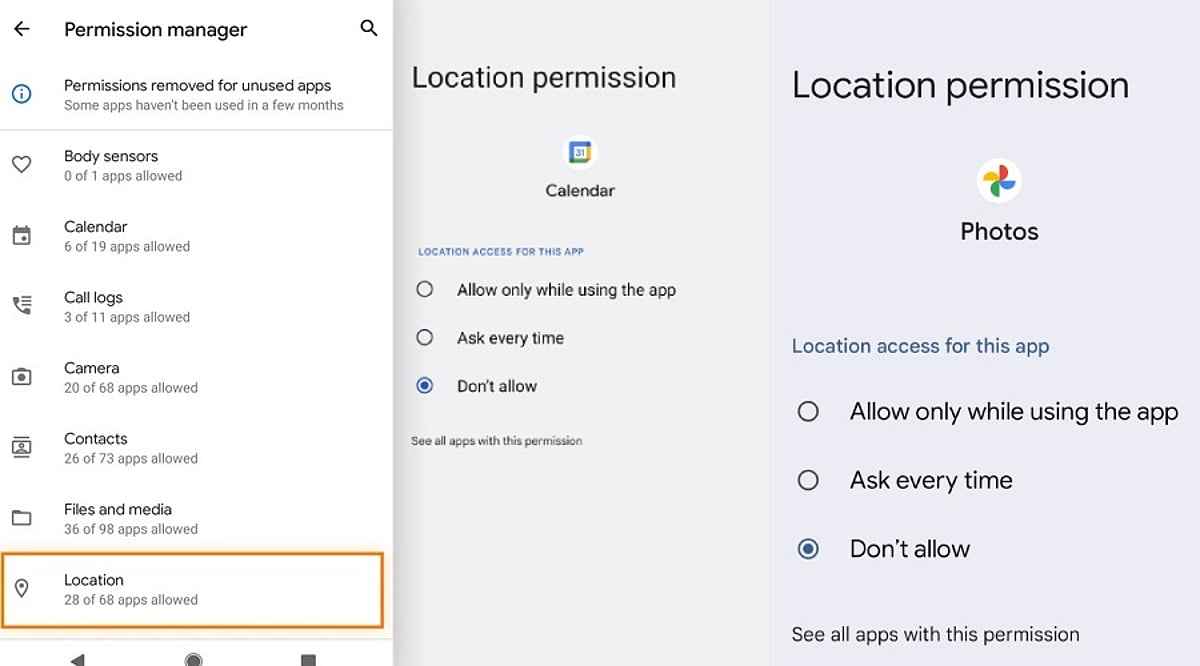
    4. Visit Settings > Security & Privacy > Permission Manager to see every app that holds a specific permission, such as location or camera.
    5. Turn on Pause app activity if unused for apps that sit idle for long stretches, so their permissions get removed automatically.

    This last feature works quietly in the background and trims away access from apps you may have forgotten about, closing gaps before they turn into a problem.

    Signs an App Is Asking for Too Much

    A few warning signs can help you spot a risky request before tapping Allow:

    • A brand-new app with very few reviews asking for administrator-level access
    • An app that repeatedly shows the same permission pop-up after you have denied it (a known trick used by malicious software)
    • A basic mismatch: compare what the app does against what it asks for

    Reading reviews, checking the developer name, and searching the app name alongside the word ‘permissions’ often reveals whether other users have flagged similar concerns.

    Final Thoughts

    Android permissions work as a simple gate between your personal data and outside access. Every tap on Allow or Deny decides how much of that gate stays open. A little patience during setup, a quick permission audit every few months, and a habit of questioning mismatched requests go a long way toward protecting your personal information. Technology moves fast, and apps will keep asking for more access as new features arrive. Staying alert, reading each prompt carefully, and denying anything that does not fit an app’s purpose keeps your phone safer without demanding much extra effort.

    FAQ

    Which Android app permissions should you normally allow?

    Allow permissions that directly support an app’s main function, such as location for navigation, camera and microphone for video calls, or contacts for messaging. Review each request individually rather than granting access automatically during installation.

    Which Android permissions should users be most careful about?

    Location, contacts, SMS, microphone, camera, and accessibility access deserve closer attention since they can expose sensitive information or device capabilities. Check whether the requested permission is genuinely necessary for the application’s stated purpose.

    How can you check app permissions on Android?

    Open Settings, select Apps, choose the relevant application and tap Permissions. Modern Android devices also provide Permission Manager under Security & Privacy, allowing you to review which applications can access specific categories.

    Can Android automatically remove permissions from unused apps?

    Yes. Android includes an option that can pause activity for unused applications and remove permissions they previously received. This feature is useful for limiting forgotten access from apps that have not been opened for extended periods.

    What should you do when an app repeatedly requests denied permissions?

    If an app keeps requesting access after you have denied it, first consider whether that permission is essential. Check the developer, reviews, and app purpose, then keep the permission denied if the request appears unnecessary or suspicious.


  • How AI Assistants Are Redefining Mobile App Interactions: From Menus to Intent

    How AI Assistants Are Redefining Mobile App Interactions: From Menus to Intent

    AI assistants are fundamentally changing how users interact with mobile apps, shifting the paradigm from manual navigation to intent-driven execution. Instead of hunting through menus to complete a task, users can now simply state their desired outcome, and the software handles the steps. This transformation moves the interaction model from User → App → Feature → Action to User → Intent → Assistant → App Capability → Action. While visual interfaces remain essential for tasks like date selection or product comparison, AI reduces the need for users to understand an app’s internal structure. Voice-first apps further push this shift by enabling hands-free intent expression.

    The Shift From Menus to Intent

    This does not mean conversation replaces every screen. Picking a date on a calendar or comparing products side by side often stays faster with a visual layout. What changes is narrower and more useful: AI reduces how often a user has to understand an app’s internal structure just to use it. A shopping app can still show a product grid while a request typed in plain language filters it instantly, with no menu required. Voice-first apps push this shift further, letting people express intent without touching the screen at all. Visual interfaces still hold their ground for tasks that need comparison or precision, so the two approaches now sit side by side rather than compete.

    Why On-Device AI Matters

    Mobile chipsets are adding more hardware built for running AI models directly on the device. This cuts delay and keeps sensitive data local. But most apps are not choosing between on-device and cloud processing; they are building hybrid systems where quick or private tasks run locally and heavier reasoning still travels to the cloud. The real shift is not that AI moved to the phone, but that developers now decide, task by task, where computation should happen, weighing speed, privacy, and cost. This same awareness of context lets an app adjust to a person’s habits over time instead of treating every session as new. A fitness app that remembers a user’s usual workout time can suggest a plan without being asked, quietly folding personalization into the background rather than presenting it as a separate feature.

    From AI Features to Agentic Apps

    A chatbot answers. A copilot helps. An assistant performs a single action. An agent coordinates several actions to reach a goal, such as finding a hotel near a meeting, checking its cancellation policy, and preparing the booking. That progression changes the app’s role. An application is not just presenting functions to a human anymore; its functions also need to be understandable and reachable by an AI system acting on someone’s behalf. This is a structural demand, not a cosmetic one. It reshapes what ‘building an app’ actually involves.

    The New Developer Challenge

    Much of the visible change happens in the interface, but the larger transformation sits underneath it. Developers now need structured app data, clear APIs, permission systems, context that persists across sessions, and reliable ways for an assistant to call the right function at the right time. Testing an app used to mean checking if buttons work. Now it also means checking if an assistant handles a vague or oddly worded request without making the wrong call. Mobile development is quietly becoming AI development, and the teams that treat it that way are the ones setting the pace.

    Trust and Competition Are Shifting Together

    Giving an assistant permission to act, rather than just respond, creates a new kind of trust problem. Users may not always know how an AI reached a decision or whether it stayed within the limits they intended. Some apps address this with a short explanation line after a task completes, showing what happened and why. This same shift could reshape how apps compete. Features that once helped one app stand out become easier to reach through an assistant that pulls from several apps at once. If a person can ask for a result without knowing which app supplied it, the interface itself matters less. App companies may end up competing more on the quality of their data, the reliability of their services, and how well their functions can be coordinated by AI, rather than on how their screens look.

    Final Thought

    The next generation of mobile apps will not be defined only by what users can do inside them. They will be defined by what AI can safely do with them. That puts more weight on the foundations underneath the interface: reliable data, accessible actions, clear permissions, strong security, and systems that know when to act and when to ask first.

    Frequently Asked Questions

    1. How are AI assistants changing mobile apps? AI assistants are shifting mobile apps from menu-based navigation toward intent-based interactions, allowing users to describe what they want and receive help with completing tasks.
    2. What are agentic apps? Agentic apps use AI systems that can coordinate multiple actions to achieve a user-defined goal rather than simply answering questions or completing one isolated task.
    3. Why is on-device AI important for mobile apps? On-device AI can reduce response time and keep certain data on the phone, making it useful for applications where privacy, speed, and offline functionality matter.
    4. How does AI affect mobile app development? AI requires developers to build stronger data structures, APIs, permission systems, context management, and safeguards so assistants can interact with app functions reliably.
    5. Will AI assistants replace traditional mobile app interfaces? No. AI assistants are more likely to work alongside traditional interfaces. Screens remain useful for tasks involving visual comparison, navigation, selection, and precise controls, while AI handles intent-driven tasks.