Tag: Productivity

  • Google AI Pro Setup Guide: Getting Started in 2026

    Google AI Pro Setup Guide: Getting Started in 2026

    Google AI Pro delivers a powerful suite of advanced artificial intelligence tools through a single subscription. Designed for writing, research, coding, image creation, file analysis, and more, it helps students, professionals, business owners, creators, and developers save time and achieve better results. Integration with Google Workspace—including Gmail, Google Docs, Google Drive, and Google Meet—makes everyday tasks significantly easier.

    The setup process is quick. A Google account, a supported device, and an internet connection are all you need. Once activated, all features become accessible through a simple dashboard. Understanding the initial steps ensures a smooth experience without confusion.

    What Google AI Pro Includes

    Google AI Pro brings several AI capabilities together. Gemini, the core of the experience, handles conversations, research, summaries, creative tasks, and technical work. The plan also supports document review, spreadsheet analysis, presentation ideas, image generation, and coding assistance.

    Many features connect directly with Workspace services. Gmail helps with email drafts and replies, Google Docs aids content creation and editing, Google Sheets handles data analysis and formulas, and Google Drive provides quick file access for AI-powered review. This tight integration creates a seamless workflow across applications.

    Account Requirements

    A valid Google account is essential. Users without one need to create it before subscribing. Enable two-factor authentication for added security. A stable internet connection improves response speed, and modern browsers like Chrome, Firefox, Edge, or Safari provide the best experience. Keep your browser updated for optimal performance.

    How to Subscribe

    Go to the Google AI website or the Gemini platform. Sign in to your Google account and review the available plans. Monthly and yearly payment options are typically offered. Choose the one that fits your budget—feature access remains active during the subscription period. Complete payment with a credit or debit card or another supported method. Access to Google AI Pro features activates immediately in most cases.

    Using the Gemini Dashboard

    After subscription, the Gemini dashboard becomes your main workspace. Its clean interface is easy to navigate. Use the text box to ask questions, make requests, or describe tasks. Previous conversations are saved for later reference, helping with ongoing projects. Spend a few minutes adjusting settings like language preferences, privacy controls, and connected Google services for a more comfortable experience.

    Connecting Google Workspace

    For the best results, connect Google AI Pro to your Workspace apps. Gmail support helps with email drafts and organization. Google Docs improves content and grammar. Google Sheets suggests formulas and reviews data. Google Drive gives Gemini access to selected files for summaries and quick answers. Google Meet can also generate meeting notes and conversation summaries in supported regions. These connections reduce manual work across tasks.

    Writing Effective Prompts

    Prompt quality directly affects the output. Clear instructions produce more accurate answers. Provide details such as topic, style, length, audience, and purpose. Vague requests often yield broad responses; detailed requests lead to stronger, more structured results. Small wording changes can improve outcomes without extra effort.

    Exploring Advanced Features

    Google AI Pro offers capabilities beyond simple conversations. Upload files for detailed document analysis and summaries. Review spreadsheets to quickly understand complex data. Describe images for generation. Developers can get coding help—explanations, debugging, sample code, and project ideas. Research tasks become easier with organized summaries. Creative writers can use the tool for stories, scripts, product descriptions, and marketing content.

    Keeping Data Secure

    Privacy matters. Avoid sharing sensitive personal details, financial records, passwords, or confidential business information in conversations unless necessary. Regularly review your account: update passwords, perform security checks, and monitor activity. Use trusted devices and secure networks to strengthen protection.

    Staying Updated

    Google regularly expands AI Pro with new tools, performance improvements, interface updates, and additional integrations. Feature availability may vary by country and account type. Visit the update section often to discover fresh capabilities soon after release.

    Final Thoughts

    Google AI Pro provides a practical collection of AI tools for work, study, creativity, and daily tasks. Simple setup, smooth Workspace integration, and an intuitive Gemini dashboard give new subscribers a strong start. Clear prompts, secure practices, and regular exploration help you get the most value from the subscription. With these first steps, Google AI Pro becomes a reliable digital assistant for personal and professional activities.

  • 5 Underrated Apple Watch Features That Save You Time Daily

    5 Underrated Apple Watch Features That Save You Time Daily

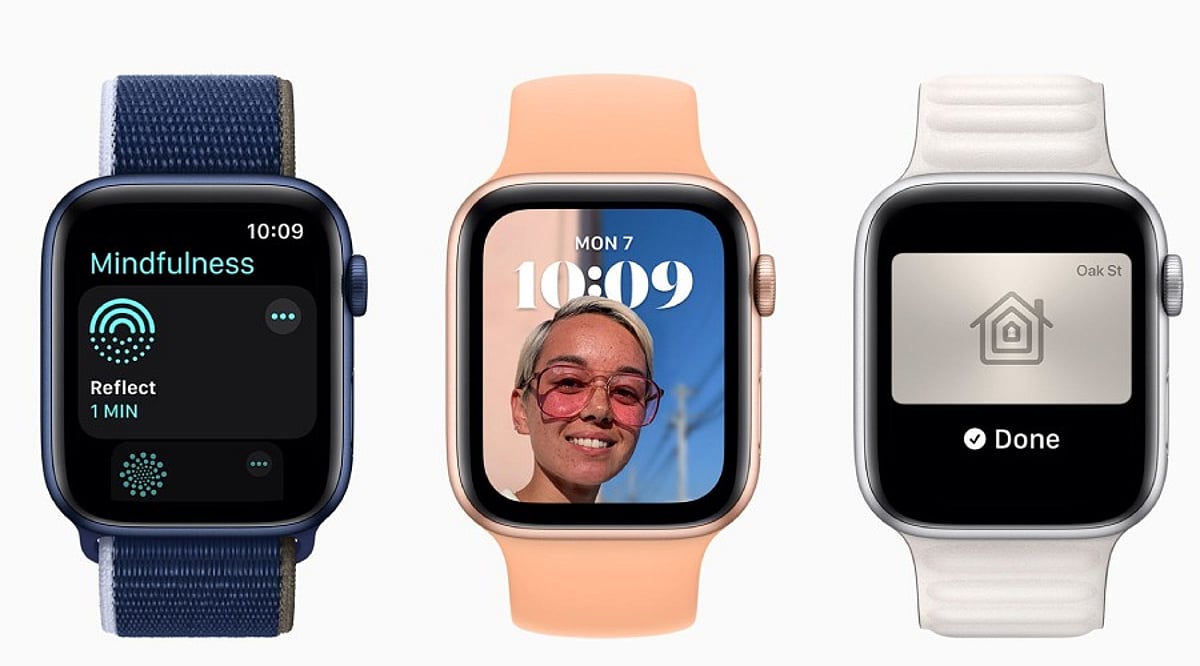
    The Apple Watch is widely known for fitness tracking and notifications, but many users overlook several built-in features that can streamline everyday tasks. These hidden tools are already available on most supported models—you just need to enable them in Settings.

    Walkie-Talkie App

    Few users realize the Apple Watch includes a Walkie-Talkie app, which allows instant voice communication with other Apple Watch users. It’s perfect for quick check-ins without pulling out your phone.

    Cover to Mute

    When an incoming call or alert arrives, simply place your palm over the watch face to instantly silence it. This gesture is faster than tapping buttons and ideal for meetings or quiet environments.

    Wrist Flick to Clear Notifications

    With a quick flick of your wrist, you can dismiss notifications without using the touchscreen. This feature is especially useful when your hands are full or you’re on the move.

    Camera Remote and Double Tap

    The Camera Remote app lets you preview your iPhone camera viewfinder directly on the watch. Use the Double Tap gesture to trigger the shutter without touching your phone—great for group photos or selfies.

    Shazam Integration and Display Flashlight

    Shazam is built into watchOS, so you can identify songs instantly. The Apple Watch also offers a display-based flashlight with three modes: bright white for visibility, flashing white to attract attention, and a red light that preserves night vision.

    These features may not get much attention, but they can save time every day, especially for people who attend meetings, travel frequently, or listen to music and podcasts. Instead of reaching for your phone for every small task, the Apple Watch handles many with just a tap or gesture. Exploring these hidden capabilities helps you get more from your device without installing anything extra.

  • Samsung Galaxy Tab S11 Series Unveils Galaxy AI for Enhanced Productivity and Creativity

    Samsung Galaxy Tab S11 Series Unveils Galaxy AI for Enhanced Productivity and Creativity

    The Samsung Galaxy Tab S11 series marks a significant leap forward in tablet technology, combining premium hardware with advanced Galaxy AI features. These new flagship tablets are designed to boost productivity, creativity, entertainment, and multitasking for everyday users.

    Galaxy AI Features

    Galaxy AI brings intelligent assistance to writing, image editing, note summarization, and translation. These tools simplify work, learning, communication, and creative projects, making complex tasks more accessible.

    Performance and Display

    Powered by advanced flagship processors, the Tab S11 delivers faster app launches, smoother multitasking, efficient gaming, and improved power management. The large high-resolution AMOLED displays offer vibrant colors, sharp visuals, and smooth refresh rates for an immersive viewing experience in movies, gaming, and productivity.

    Battery and S Pen Support

    A long-lasting battery supports extended work sessions, streaming, video calls, and entertainment. Fast charging minimizes downtime. The included S Pen enhances note-taking, sketching, editing, document annotation, and creative workflows with precise, responsive input.

    Multitasking and Connectivity

    Multitasking tools like split-screen mode, floating windows, and Samsung DeX transform the tablet into a versatile productivity device for professionals and students. Fast Wi-Fi, optional 5G, seamless Galaxy ecosystem integration, and quick file sharing enhance convenience across multiple Samsung devices.

    Target Users

    The Galaxy Tab S11 series is designed for professionals, students, creators, and entertainment enthusiasts seeking premium performance, intelligent AI features, and versatile tablet functionality.

  • 9 Clever Google Maps Features That Save You Time

    9 Clever Google Maps Features That Save You Time

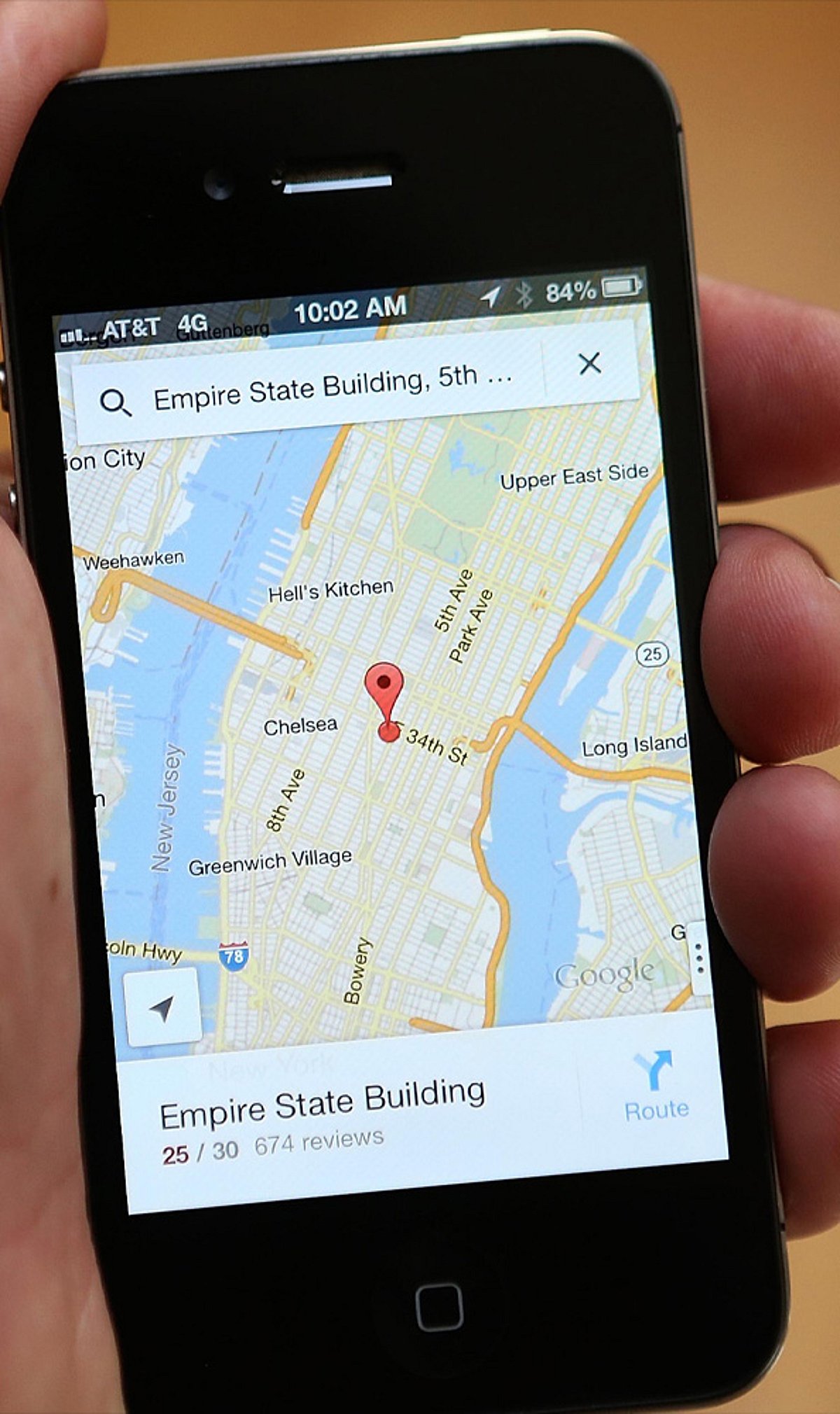
    Google Maps is more than just a navigation tool—it’s packed with features that can streamline your daily commute, road trips, and errands. Here are nine time-saving tricks you may not be using.

    1. Save Home & Work for One-Tap Directions

    Add your home and work addresses to Google Maps for instant directions and live ETA updates. No more typing the same locations every day—just tap and go.

    2. Beat Traffic with Smart Navigation

    Enable live traffic updates to compare travel times and avoid congestion. Set your departure or arrival time to plan the fastest route before you even start driving.

    3. Download Offline Maps Before You Travel

    Save maps for cities or regions in advance. This lets you navigate even without mobile data or in areas with weak network coverage—perfect for travel abroad or remote areas.

    4. Plan Better with Multiple Stops & Parking Saver

    Add up to nine stops on a single route for errands or road trips. After parking, save your location to quickly find your car later—no more wandering around.

    5. Find What You Need Along the Way

    Search your route for petrol pumps, cafés, restaurants, ATMs, or EV chargers without ending navigation. You can also avoid tolls, highways, or ferries to suit your preference.

    6. Use Hidden Features for Faster Travel

    Share your live location with friends, use one-finger zoom to quickly scan the map, explore indoor maps for large buildings, and check popular times at businesses to avoid crowds. These small tricks add up to big time savings.

    Start using these tips today to make your travel smoother and more efficient. For more productivity tips, stay tuned.

  • Meta AI Upgrades to Muse Spark 1.1: Now Handles Tasks, Presentations, and Multi-Step Workflows

    Meta AI Upgrades to Muse Spark 1.1: Now Handles Tasks, Presentations, and Multi-Step Workflows

    Meta has upgraded its AI assistant with the latest Muse Spark 1.1 model, transforming it into a powerful productivity tool that can plan tasks, create presentations, integrate with apps, and automate multi-step workflows. This update positions Meta AI as a stronger competitor to ChatGPT, Gemini, and Claude, moving beyond simple Q&A to become a true personal superintelligence.

    The enhanced assistant now connects with email and calendar services to organize schedules, prepare daily briefings, and track ongoing tasks. Users can ask Meta AI to plan meetings, manage reminders, generate weekly plans, or coordinate projects without repeatedly entering instructions. The company says the assistant understands context better than before, allowing it to follow through on requests instead of responding to one prompt at a time. It can also automate recurring activities such as meal planning, shopping reminders, or scheduled updates.

    The update introduces deeper research capabilities. Meta AI can collect information from across the web, organize findings into structured reports, and generate presentation slides directly from its research. Users can edit outputs in real time by changing the tone, adding new instructions, or removing sections. All generated content—including reports, slide decks, and plans—is stored in one place for future access and sharing.

    These features run on Muse Spark 1.1, Meta’s latest multimodal reasoning model designed for agentic AI tasks. Earlier this month, Meta introduced the model with improvements in reasoning, coding, tool use, and computer interaction. The company says these capabilities allow the assistant to perform longer, more complex workflows with less human intervention.

    The latest upgrade reflects Meta’s growing focus on productivity as it competes with OpenAI’s ChatGPT, Google’s Gemini, and Anthropic’s Claude. While Meta AI initially focused on social experiences and conversational assistance, it is increasingly positioning itself as an AI assistant capable of handling day-to-day work and personal tasks. The new capabilities are rolling out in select markets through the Meta AI app and the web version, with wider availability across Meta platforms, including WhatsApp, expected in the coming weeks.

  • Supercharge Your Mornings: 8 Science-Backed Routines for Peak Productivity

    Supercharge Your Mornings: 8 Science-Backed Routines for Peak Productivity

    Starting your day with intention can dramatically improve your productivity and well-being. Backed by scientific research, these eight morning habits help you harness your energy, focus, and motivation from the moment you wake up. Incorporate them into your daily routine to set the stage for a successful day.

    1. Hydrate Immediately

    Drinking water first thing in the morning replenishes fluids lost overnight, boosts alertness, supports metabolism, and prepares your body for an energetic, productive day. Aim for a glass or two as soon as you get out of bed.

    2. Get Morning Sunlight

    Natural sunlight regulates your body clock, improves mood, enhances concentration, and promotes healthier sleep. Step outside for a few minutes or sit by a window to soak in the early rays—your circadian rhythm will thank you.

    3. Exercise Briefly

    Just twenty minutes of movement increases blood circulation, sharpens cognitive performance, reduces stress, and raises energy levels before work begins. A quick walk, stretch, or bodyweight circuit can make a big difference.

    4. Practice Mindfulness

    Meditation or deep breathing lowers stress hormones, improves emotional control, strengthens focus, and prepares your mind for important daily tasks. Even five minutes of quiet reflection can center your thoughts.

    5. Eat a Protein-Rich Breakfast

    A balanced breakfast stabilizes blood sugar, reduces hunger, enhances mental clarity, and provides steady energy without mid-morning crashes. Include protein sources like eggs, yogurt, or nuts for lasting fuel.

    6. Plan Your Priorities

    Writing down three essential tasks eliminates decision fatigue, improves organization, and increases the likelihood of completing meaningful work efficiently. Use a notebook or digital tool to map out your top goals.

    7. Avoid Early Social Media

    Delaying social media reduces distractions, protects your attention span, and helps you maintain focus on personal priorities instead of notifications. Give yourself at least 30 minutes before checking any feeds.

    8. Review Long-Term Goals

    Spending a few minutes revisiting your goals strengthens motivation, aligns daily actions with bigger ambitions, and improves consistent productivity over time. Keep a list where you can see it each morning.

    Adopting even a few of these science-backed habits can transform your mornings and set a positive tone for the rest of your day. Start small, stay consistent, and watch your productivity soar.

  • Boost Team Productivity: Top Project Management Software Solutions for 2025

    Boost Team Productivity: Top Project Management Software Solutions for 2025

    Choosing the right project management software can transform how your team collaborates, tracks progress, and meets deadlines. Below is a curated list of leading platforms that boost productivity across different workflows and team sizes.

    Asana: Streamlined Task Management

    Asana helps teams organize projects, assign tasks, track deadlines, and manage workflows through intuitive dashboards and collaborative project views.

    Trello: Simple Visual Workflows

    Trello uses flexible boards, lists, and cards to help teams organize tasks, monitor progress, and manage projects efficiently.

    Monday.com: Customizable Team Workflows

    Monday.com offers visual project tracking, automation, dashboards, and custom workflows that support teams across multiple business functions.

    ClickUp: All-In-One Productivity Platform

    ClickUp combines task management, documents, goals, chat, time tracking, and dashboards within a unified productivity platform for teams.

    Microsoft Planner: Microsoft 365 Integration

    Microsoft Planner integrates with Microsoft 365 tools, helping businesses manage tasks, collaborate, track progress, and streamline workplace productivity.

    Jira: Agile Software Development

    Jira supports software teams with sprint planning, issue tracking, product roadmaps, and agile workflows designed for complex development projects.

    Notion: Flexible Workspace Collaboration

    Notion combines project management, documentation, databases, and team collaboration, enabling teams to centralize knowledge and daily workflows.

    Wrike: Enterprise Project Visibility

    Wrike provides advanced project planning, resource management, reporting, and workflow automation for growing teams and enterprise organizations.

    Smartsheet: Spreadsheet-Style Project Planning

    Smartsheet blends familiar spreadsheet functionality with project tracking, automation, reporting, and collaboration for structured business workflows.

  • Top Wireless Keyboards of 2026 – Expert Buying Guide

    Top Wireless Keyboards of 2026 – Expert Buying Guide

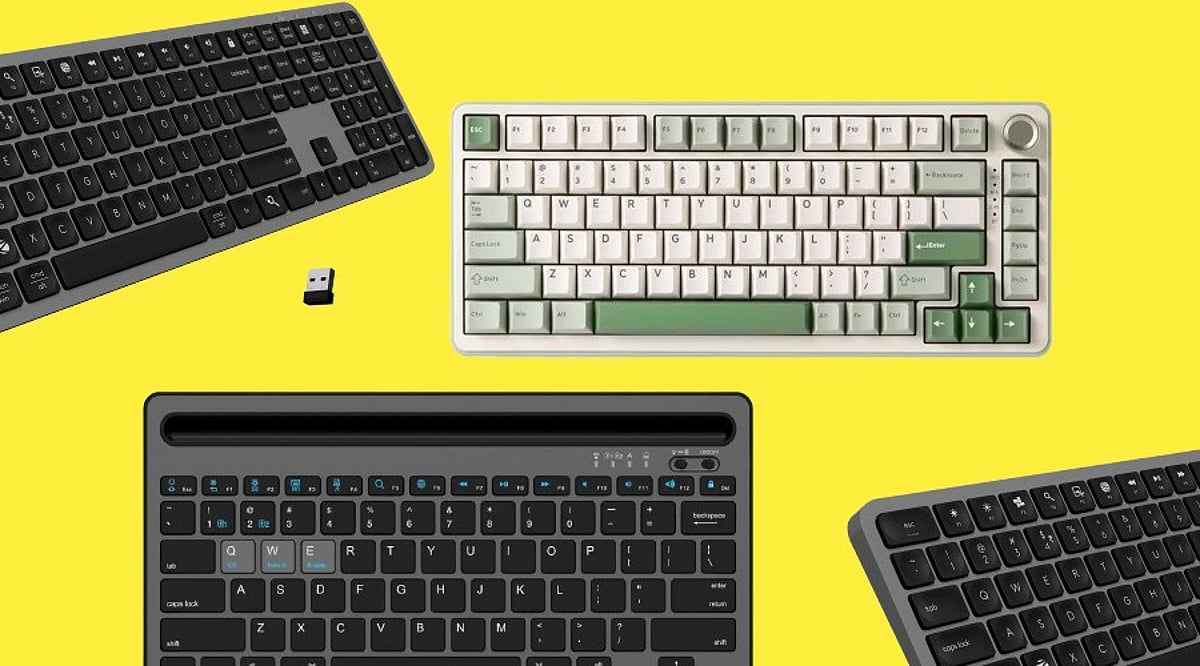
    Selecting a wireless keyboard becomes easier once buyers focus on actual usage rather than marketing terms printed on packaging. This guide outlines the strongest wireless keyboard options available today, along with practical advice on narrowing down your choices.

    Wireless Keyboard Buying Guide

    A wireless keyboard should match a person’s work, rather than how it looks on a retail listing. Connectivity range, battery backup, and key spacing all shape daily comfort.

    Logitech K380

    Logitech offers a compact keyboard that pairs with three devices via Bluetooth and readily switches between them. Its rounded keys reduce finger strain during long hours of usage. Battery life stretches close to two years on two AAA cells, making replacements rare.

    Price: Rs. 2,495 to Rs. 3,223
    Buy Now

    Dell KM3322W

    Dell’s wireless combo pairs a keyboard with a matching mouse through a single 2.4GHz USB receiver. The keyboard includes spill-resistant keys and a numeric pad, suited to office environments with heavy typing loads. Battery backup extends over twelve months comfortably.

    Price: Rs. 1,899
    Buy Now

    Lenovo Wireless Combo 4000

    Lenovo offers a straightforward keyboard and mouse set built for everyday office tasks. Its keys use a low-profile design that feels closer to a laptop keyboard. Connectivity relies on a single USB nano receiver, avoiding pairing delays common with Bluetooth.

    Price: Rs. 8,145
    Buy Now

    Logitech K480

    Built for desktop use, the Logitech K480 includes a cradle that holds a tablet or phone while typing. It connects to three devices through Bluetooth and switches between them using a dial. The keyboard suits users who regularly work across a laptop and a mobile device simultaneously.

    Price: Rs. 1,999 to Rs. 2,995
    Buy Now

    RAPOO E9700M

    RAPOO’s ultra-slim keyboard uses scissor-switch keys for a shallow, quiet typing feel. It supports both 2.4GHz and Bluetooth connections, giving buyers flexibility across devices. The aluminum body adds durability without increasing overall weight.

    Price: Rs. 2,599 to Rs. 2,999
    Buy Now

    How to Choose the Best Wireless Keyboard

    Buyers should weigh these factors before purchasing:

    • Connectivity Type: 2.4GHz receivers generally offer steadier performance than Bluetooth for daily typing tasks.
    • Battery Backup: Keyboards using replaceable AA or AAA batteries often last longer than rechargeable units.
    • Build Quality: Spill-resistant designs protect against accidental office desk mishaps.

    Which is the Best Wireless Keyboard in 2026?

    No single keyboard can suit every buyer, since work habits and budgets vary considerably across users. Professionals managing multiple devices gain the most from the Logitech K380. Office teams handling heavy data entry benefit from the Dell KM3322W, given its numeric pad and spill resistance. Budget-focused buyers find dependable performance in the Portronics Toad 23.

    Final Words

    Choosing a wireless keyboard comes down to daily habits rather than brand reputation alone. A professional switching between a laptop and tablet gains more from Bluetooth multi-pairing, while an office worker handling spreadsheets benefits from a numeric keypad and steady 2.4GHz connectivity. Prices across this segment range from under Rs. 900 to nearly Rs. 2,500, giving most buyers a suitable option without overspending. Matching the keyboard to genuine work patterns, rather than chasing the most popular listing, remains the surest path to long-term satisfaction.

    Note: Price can vary based on availability and region.

    FAQs

    Which is the best wireless keyboard for multi-device use?

    The Logitech K380 supports pairing across three devices through Bluetooth. Users switching between a laptop, tablet, and phone benefit from its quick device-switching dial and long battery backup.

    Is 2.4GHz connectivity better than Bluetooth for keyboards?

    2.4GHz receivers typically offer steadier connections with less input delay. Bluetooth allows pairing with more device types, though it may show occasional lag during heavy multitasking sessions.

    How long does a wireless keyboard battery last?

    Battery life varies significantly by model. Some Bluetooth keyboards last close to two years on standard batteries, while 2.4GHz receiver models often need replacement after ten to fourteen months.

    Are spill-resistant wireless keyboards worth buying?

    Spill-resistant designs protect internal circuitry from accidental liquid exposure. Office environments with shared desks or frequent beverage use benefit noticeably from this added protection over standard keyboard models.

  • How Tera AI Agent Workspace Streamlines Search, Creation, Learning, and Productivity

    How Tera AI Agent Workspace Streamlines Search, Creation, Learning, and Productivity

    It is late afternoon, and a single task has spiraled into a dozen open tabs. You are checking facts in a search engine, drafting marketing copy from scattered notes, and digging through cloud storage for a specific asset. This fragmented workflow is a daily reality for freelancers, students, and small teams. Constantly switching between separate platforms drains time and mental energy. This is why AI Agent Workspaces are becoming essential. Tera AI, built directly into TeraBox, is a prime example of this approach, reducing the need to move between separate platforms at every stage.

    The Hidden Cost of Working Across Too Many Tools

    Most people don’t notice how much time tool-switching drains until they look closely at their daily output. Minimizing one app to check another breaks your focus, resulting in heavy cumulative losses over a workday:

    • The Fragmented Mindset: A sharp phrase or creative angle gets forgotten in the two seconds it takes to switch windows.
    • The File Version Chaos: Research notes sit in one app, early drafts in another, and the “final” version is usually scattered wherever you happened to stop typing.
    • The Manual Copy-Paste Burden: When tools cannot communicate with one another, you have to spend extra time copying, pasting, downloading, and uploading files just to move a task forward.

    For freelancers managing multiple clients or students juggling complex assignments, this digital clutter easily turns a two-hour task into a four-hour drag. The issue isn’t the individual tools; it’s that they were never built to work as a unified system.

    Beyond Chatbots: What Is an AI Agent Workspace?

    An AI agent is more than an advanced chatbot. A chatbot typically answers what is typed into it, but the response remains in an isolated chat window, disconnected from the user’s files and ongoing tasks. An AI Agent Workspace operates differently. Instead of just talking, it acts. It works directly inside your existing files and carries context from one step to the next. By remembering what you worked on a moment earlier and building upon it, it transforms from a tool that talks back into a workspace that works alongside you.

    How Tera AI Turns an Agent Workspace into a Dynamic Workflow

    TeraBox has evolved from a cloud storage platform into an AI productivity ecosystem. By layering Tera AI directly on top of your storage, it connects search, creation, learning, and productivity into a single, continuous workflow.

    Search

    Rather than requiring a search engine, a separate tab, and several rounds of narrowing down results, Tera AI can return what is being asked for directly. A simple request, such as locating a specific movie, brings back a direct link rather than a list of options to sort through manually. This extends to files already sitting inside TeraBox as well. Users can search for a video, document, or other file based on its content, even when they cannot remember the exact file name or folder.

    Creation

    Staring at a blank screen is often one of the hardest parts of starting a project. Tera AI helps reduce that friction by creating a first draft you can review, edit, and build on. For example, a request for a marketing email can produce more than a basic outline. The same approach can be used for articles, social media plans, resumes, and presentation decks. It also works in reverse, refining your existing material. You can rewrite rough drafts or edit images saved in TeraBox without leaving the platform. Users with access can even generate entirely new AI images directly within the same workspace.

    Learning

    For research, Tera AI goes beyond short summaries to deliver detailed, organized reports on a given topic. The same capability applies to files that already exist. A PDF, a Word document, or a spreadsheet can be uploaded and summarized directly, with the key points pulled out. Students can use this to explain complex concepts, rewrite essay sections, or generate practice exam questions.

    Productivity

    True productivity happens when these features stop working as individual tools and start working as a chain reaction. Because search, creation, and learning sit inside the same conversation, you can execute complex multi-step workflows in one continuous session. For example, user can upload a raw dataset, ask the agent to extract a summary report, turn that report into a presentation outline, and draft a follow-up client email about the results all within a single, unbroken session. Reducing these small, repetitive steps is what ends up saving a noticeable amount of time over a busy work week.

    It is worth being clear that an AI Agent Workspace is not a replacement for specialized, heavy-duty software. For the everyday middle ground of search, writing, and research, however, agentic AI tools like Tera AI clearly hold their own.

    Conclusion

    The value of an AI Agent Workspace is rarely found in one standout feature. It is in how little distance there is between asking for something and actually getting it, without leaving the workspace to go find it elsewhere. For anyone whose day involves research in one place, drafting in another, and searching somewhere else entirely, it may be worth spending a few minutes inside Tera AI on TeraBox to see how much of that back-and-forth it can genuinely remove.

  • How Desktop Messaging Workflows Drive Efficiency in Remote Operations

    How Desktop Messaging Workflows Drive Efficiency in Remote Operations

    Remote work doesn’t mean every conversation should happen on a smartphone. While mobile messaging works for quick replies and urgent alerts, most sustained business activity still occurs on a computer. Employees draft documents, review spreadsheets, attend online meetings, manage browser tabs, and organize project files from a desktop environment.

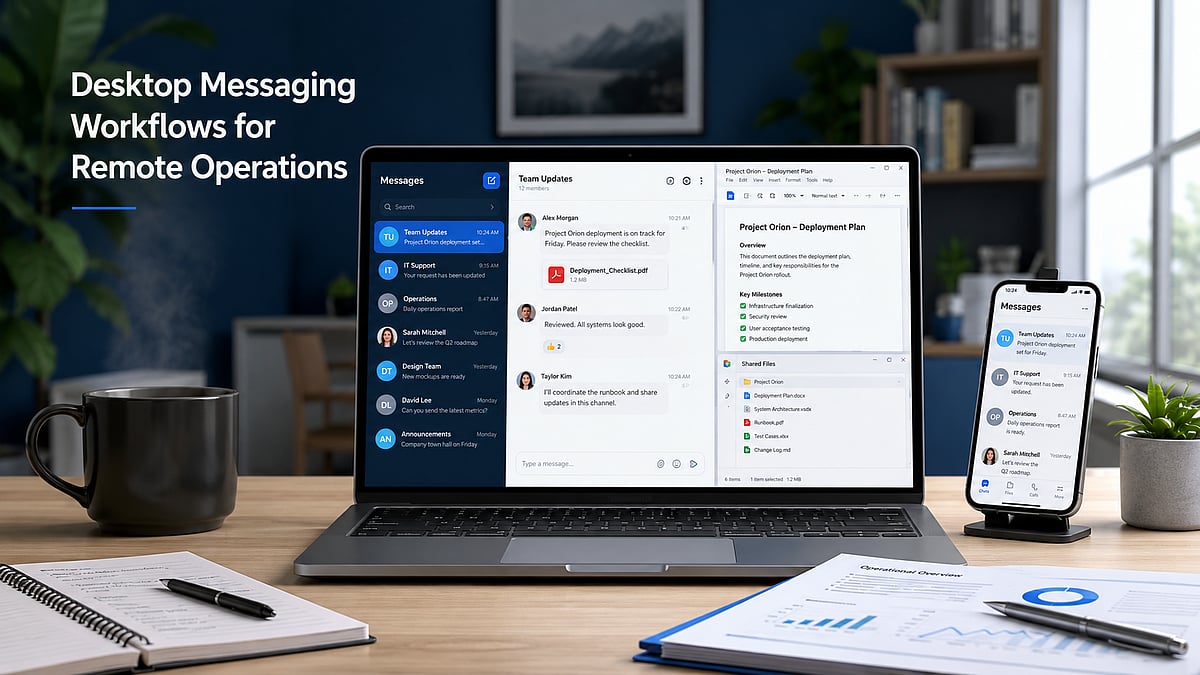
    Desktop messaging applications have become an integral part of the modern digital workspace. They keep communication visible alongside documents, browsers, shared folders, and productivity tools. A team member can receive an update, open the related file, compare information, and respond without switching devices repeatedly.

    However, desktop access alone doesn’t create an efficient workflow. Without clear notification rules, organized download locations, secure installation practices, and session management, messaging apps can cause distraction and file confusion. Remote teams need to treat desktop messaging as an operational system rather than just another communication channel.

    The Return of Desktop-Centered Communication

    The growth of mobile communication hasn’t eliminated desktop work. For many professionals, the computer remains the primary environment for focused tasks, long-form writing, analysis, project management, design, and document review. Desktop messaging supports this environment by allowing users to work across multiple windows. A team member can keep a project discussion open beside a spreadsheet, copy information from a browser into a conversation, or review a shared document while participating in a group chat.

    This is difficult to reproduce efficiently on a phone. Mobile screens are optimized for short interactions, but extended file handling, detailed responses, and multitasking are easier with a keyboard, larger display, and direct access to organized folders. The most effective remote operations don’t choose between desktop and mobile communication—they assign each device a practical role. The computer becomes the primary work environment, while the phone acts as a supplementary device for urgent updates, travel, and short approvals.

    Why Remote Teams Need Persistent Desktop Access

    Persistent desktop access helps remote employees stay connected without interrupting their primary work. Notifications can be reviewed as part of the normal desktop environment instead of requiring repeated checks of a separate phone. This is particularly useful when conversations contain long instructions, technical details, links, or several attachments. Copying a detailed message into a document, responding with formatted content, or comparing multiple files is faster on a computer.

    Teams also benefit when employees can participate in a meeting and follow the related chat simultaneously. One window may contain the video conference, another the project discussion, and another the document being reviewed. Desktop access brings these activities into one coordinated workspace. For users evaluating a solution such as Telegram desktop, the main consideration should be how well the desktop experience supports persistent team access, long-form communication, file handling, and integration with everyday work tools. The value comes from the usage environment, not simply from having a larger version of a mobile app.

    Persistent access should still be managed carefully. Employees should not feel required to respond to every message immediately. Desktop availability is most productive when teams also define reasonable expectations around response time and urgency.

    Managing Notifications Without Losing Productivity

    Messaging applications can improve coordination, but uncontrolled notifications can reduce concentration. When every channel, group, and direct message generates a desktop alert, employees may spend more time reacting than working. Teams should distinguish between urgent and non-urgent communication spaces. Operational alerts, active project incidents, and time-sensitive approvals may justify immediate notifications. General announcements, social discussions, and low-priority updates can often be reviewed at scheduled times.

    Employees should be encouraged to mute low-value groups and disable unnecessary sound or banner alerts. This doesn’t mean ignoring communication—it means choosing a notification system that reflects the importance of each channel. Focus periods are also valuable. A team member working on analysis, writing, or design may reserve specific blocks of time without message interruptions. Colleagues can use a defined urgent channel or another agreed method when immediate attention is genuinely required. A well-managed notification policy protects both productivity and communication quality.

    Organizing Files and Download Locations

    Desktop messaging often becomes an informal file distribution system. Teams exchange reports, images, presentations, contracts, and spreadsheets inside conversations. Without a storage policy, these files can accumulate in a default downloads folder and become difficult to locate later. Organizations should define a standard location for work-related messaging attachments. Files may be moved into project folders, client directories, or approved shared storage after download. Important documents should not remain permanently mixed with personal downloads or temporary installation files.

    Duplicate attachments are another common problem. The same document may be downloaded several times after being shared in different conversations. Employees should regularly remove redundant copies and confirm which version is authoritative before editing. Consistent file naming reduces confusion. Names should identify the project, document type, date, status, and version where relevant. A structured name such as “ClientA_Review_2026-07_v03” is easier to manage than “latest-final-new.” Messaging platforms are effective for delivering files, but they should not automatically become the permanent archive. Final and approved documents should move into a controlled storage location with clear ownership and access rules.

    Verifying Desktop Software Before Installation

    Desktop software should be verified before installation, especially when users discover it through search results, shared links, forums, or third-party download pages. A familiar logo or application name doesn’t by itself confirm that a page is official or trustworthy. Users should inspect the domain carefully and confirm that the site uses HTTPS. Similar-looking domains, added words, unusual subdomains, or unfamiliar redirects should be treated cautiously. Search advertisements may appear prominently, but visibility doesn’t guarantee authenticity.

    The selected download should also match the user’s operating system and device architecture. Employees should confirm that they are choosing the correct Windows version and review the installer’s file name before opening it. Where supported, users can review a file’s digital signature and publisher details through the operating system. Security scanning tools may provide an additional check, although no single scan should be treated as an absolute guarantee. Unexpected permission requests, unclear publisher information, or unusual installation behavior should be reported rather than ignored.

    Managing Multiple Devices and Active Sessions

    Remote employees often access messaging accounts from several devices. A typical setup may include a work computer, personal phone, tablet, and occasionally a temporary or replacement device. This flexibility is useful, but it increases the number of active sessions that must be managed. Users should periodically review connected devices and remove sessions that are no longer required. Old computers deserve particular attention—replaced laptops, repaired devices, and machines transferred to another employee should not remain connected to business messaging accounts.

    Public or shared computers should generally be avoided for business communication. When temporary use is unavoidable, users should not save credentials, should sign out fully, and should verify afterward that the session is no longer active. If a device is lost or stolen, the employee should notify the appropriate administrator, terminate the relevant session where possible, change affected credentials, and review recent account activity.

    Separating Personal and Business Communication

    Remote work can blur the boundary between personal and professional messaging. Employees may use the same device for both, but communication spaces, files, and permissions should remain clearly separated. Business teams can organize projects into dedicated channels, groups, or folders. Sensitive documents should not be forwarded into personal conversations or unrelated community groups. Employees should verify the recipient and destination before sharing confidential material.

    Access should follow job responsibilities. Not every team member needs visibility into every project, client, or internal discussion. Smaller and more relevant communication spaces reduce both information overload and accidental exposure. Offboarding is equally important—when an employee, contractor, or partner leaves, administrators should remove access to work groups, shared files, administrative roles, and related systems promptly. A clear separation policy helps teams preserve professional records while reducing the chance that business information becomes scattered across personal accounts and informal conversations.

    Creating a Secure Cross-Device Workflow

    A secure desktop messaging workflow can be built around a small number of repeatable practices. First, applications should be obtained from trusted and verifiable sources. Employees should avoid unknown download pages, repackaged installers, and unsolicited links. Second, teams should standardize notification rules—urgent communication should be distinguishable from general discussion, and employees should have protected focus time. Third, downloaded files should follow a defined storage and naming process. Important attachments should move from temporary download locations into controlled project folders or shared storage. Fourth, active devices and permissions should be reviewed on a regular schedule. A monthly review can identify old sessions, unnecessary group access, and outdated member permissions. Finally, desktop and mobile applications should be kept updated through approved channels. Updates may address compatibility, stability, and security issues.

    Remote Messaging Workflow: Message → File → Review → Archive

    Desktop messaging tools deliver the most value when they are integrated into the wider office workflow. Their purpose is not simply to reproduce mobile conversations on a larger screen—they support persistent communication, multitasking, detailed responses, file handling, and coordination across documents, meetings, and browser-based tools. Remote teams must manage this convenience carefully. Notification overload can reduce productivity, unorganized downloads can create version confusion, and unmanaged sessions can increase security risk. A reliable desktop messaging workflow combines trusted software sources, clear notification expectations, structured file storage, device oversight, and appropriate access controls. When these elements work together, messaging becomes part of an efficient remote operations system rather than a constant source of interruption.