Tag: Productivity

  • 10 Must-Have CEO Productivity Tools for 2026

    10 Must-Have CEO Productivity Tools for 2026

    In 2026, business leaders are leveraging cutting-edge software to streamline operations, enhance decision-making, and boost overall efficiency. Here are ten essential CEO tools that can transform how you work.

    1. Notion

    Organize projects, notes, and company knowledge in one unified workspace. Notion helps CEOs keep everything from strategic plans to team wikis accessible and structured.

    2. Slack

    Keep communication fast and teams connected. Slack reduces email overload and enables real-time collaboration across departments.

    3. ChatGPT

    Generate ideas, summarize reports, and improve daily productivity. ChatGPT acts as an on-demand assistant for drafting emails, analyzing data, and brainstorming.

    4. Microsoft Copilot

    Automate Office tasks and create presentations faster. Copilot integrates with Word, Excel, and PowerPoint to handle routine work, freeing up time for strategic thinking.

    5. Zoom

    Run meetings efficiently from anywhere. With features like AI transcription and breakout rooms, Zoom remains a staple for remote and hybrid leadership.

    6. Asana

    Track projects, deadlines, and team performance. Asana provides a clear overview of progress and helps CEOs align teams around priorities.

    7. Calendly

    Simplify scheduling without endless emails. Calendly automates meeting bookings, reducing administrative friction.

    8. Power BI

    Turn company data into business insights. Power BI visualizes key metrics, enabling data-driven decisions at a glance.

    These tools empower CEOs to lead more effectively, save time, and focus on high-impact initiatives. For more updates, join our WhatsApp Channel for the latest news, exclusives, and videos.

  • 7 Simple Steps to Find and Delete All Unread Emails in 2026

    7 Simple Steps to Find and Delete All Unread Emails in 2026

    Managing an overflowing inbox can be overwhelming, but clearing all unread emails doesn’t have to be complicated. Whether you use Gmail, Outlook, or another email service, these simple tips will help you locate and remove unread messages quickly in 2026.

    Use the Unread Filter

    Most email services include a built-in unread filter that instantly shows every unread message in your inbox. Open Gmail, Outlook, or another email app, select the unread filter, and review only messages you have not opened. This is the quickest way to locate unread emails without scrolling through thousands of messages.

    Search for Unread Emails

    If you cannot find the unread filter, use the search bar instead. In Gmail, type is:unread to display all unread emails. Outlook also supports similar search options for unread messages. Search tools help you locate unread emails across folders, making inbox management faster and much more accurate.

    Sort Emails by Status

    Many email apps let you sort messages by unread status. This groups unread emails together, making them easy to spot. You can then read, delete, archive, or move them in batches. Sorting is especially useful for people who receive hundreds of emails every week from different senders.

    Select and Mark Emails in Bulk

    After finding unread emails, you can select multiple messages at once. Use the select-all option or choose specific emails before marking them as read. This saves time compared to opening every message individually. Bulk actions are available in Gmail, Outlook, Yahoo Mail, and many other email services.

    Delete or Archive Unwanted Messages

    Not every unread email needs your attention. Remove promotional emails, newsletters, and spam that no longer matter. Archive important emails that you may need later without keeping them in your main inbox. Regular cleanup keeps your mailbox organized and reduces unnecessary clutter over time.

    Create Rules and Filters

    Set up automatic filters to keep future emails under control. Move newsletters into separate folders, label work emails, or send promotional messages directly to archives. Smart filters reduce inbox clutter, making it much easier to find important unread emails whenever they arrive in your mailbox.

    Keep Your Inbox Clean Regularly

    Inbox cleanup should become a regular habit instead of a one-time task. Spend a few minutes each week checking unread emails, deleting junk, and organizing important messages. A clean inbox saves time, improves productivity, and helps you avoid missing important emails from work, family, or financial services.

    Join our WhatsApp Channel to get the latest news, exclusives and videos on WhatsApp.

  • How to Seamlessly Transfer Your ChatGPT Data to Claude AI

    How to Seamlessly Transfer Your ChatGPT Data to Claude AI

    Switching between AI assistants becomes effortless when your past conversations move with you. Transferring ChatGPT data to Claude helps preserve context, project details, writing drafts, research notes, and ongoing discussions. This reduces repetition and allows Claude to deliver more relevant responses based on your previous interactions with ChatGPT.

    Export Your ChatGPT Data

    Log in to ChatGPT and open Settings. Navigate to Data Controls and choose Export Data. OpenAI will prepare an archive containing your chat history and send a download link to your registered email address. Download and extract the ZIP file before moving to the next step.

    Open Claude and Start Import

    Sign in to your Claude account through the web interface. Start a new chat or use the available import option if your version supports chat uploads. Claude can process exported conversation files, allowing it to understand previous discussions and continue projects with minimal manual effort.

    Upload the Exported Files

    Locate the extracted ChatGPT export folder and upload the relevant conversation files to Claude. Depending on the supported format, Claude will analyze the content and use it as context. For large archives, consider importing only the conversations that are most important for your work.

    Organize and Verify Your Data

    After the upload, review the imported conversations to ensure everything appears correctly. Rename chats, group related projects, and check that important prompts, notes, and documents have been transferred. A quick review helps avoid missing information before continuing your work in Claude.

    Protect Your Privacy

    Before transferring any AI conversations, remove passwords, financial records, personal identification details, or confidential business information. Exported chat files may contain sensitive content, so review them carefully before uploading. Following basic privacy practices helps keep your information secure across different AI platforms.

    Continue Working Seamlessly

    Once your chats are available in Claude, you can continue writing, coding, brainstorming, or researching without starting from scratch. Keeping previous conversations accessible saves time, improves workflow, and makes switching between AI assistants much smoother for both personal and professional projects.

  • Master Visual Paradigm AI Chatbot for AI-Powered Diagram Creation in 2026

    Master Visual Paradigm AI Chatbot for AI-Powered Diagram Creation in 2026

    Visual Paradigm’s built-in AI chatbot revolutionizes the way you create diagrams. By simply describing your ideas in natural language, you can generate professional flowcharts, UML diagrams, ER diagrams, mind maps, and more—saving hours of manual work. This guide walks you through the key features and best practices for leveraging this AI assistant in 2026.

    Getting Started with the AI Chatbot

    Launch the integrated AI assistant from Visual Paradigm to start generating diagrams, answering design queries, and automating documentation. The chatbot understands plain English descriptions, so you can focus on your process rather than the tool.

    Writing Effective Prompts

    To get accurate diagrams, describe your software, workflow, or business process clearly. The better your prompt, the more precise the output. For example, instead of “show a login flow,” say “create a flowchart for user login with steps: enter email, validate credentials, redirect to dashboard, and error handling.”

    Flowcharts

    Create professional flowcharts instantly by explaining the process steps. This reduces manual drawing while improving consistency and collaboration across teams. The AI interprets your narrative and lays out the flowchart automatically.

    UML Diagrams

    Generate use case, class, sequence, activity, and component diagrams with AI assistance. Ideal for software planning and system documentation, the chatbot can turn verbal descriptions into standard UML notation.

    ER Diagrams

    Build database entity relationship diagrams by describing tables, relationships, and attributes. This helps developers quickly design structured database models without drawing every box manually.

    Mind Maps

    Convert brainstorming ideas into organized mind maps. The AI suggests branches and sub-topics based on your initial input, simplifying planning, project discussions, and knowledge visualization.

    Editing Tools

    Refine AI-generated diagrams with drag-and-drop editing, formatting controls, and reusable templates. You can polish the output for professional presentations and documentation without starting from scratch.

    Collaboration

    Share AI-created diagrams with teammates, collect feedback, track revisions, and collaborate in real time across distributed project environments. This keeps everyone aligned on design and process.

    Export Options

    Save your diagrams as PDF, PNG, SVG, or editable project files for use in presentations, documentation, client meetings, and software development workflows. The flexibility ensures your diagrams fit any context.

    By integrating Visual Paradigm’s AI chatbot into your workflow, you can accelerate diagram creation, improve accuracy, and free up time for higher-level design thinking.

  • Top Android Widgets Recommended by Users for Enhanced Productivity and Convenience

    Top Android Widgets Recommended by Users for Enhanced Productivity and Convenience

    Make your Android home screen smarter! These widgets boost productivity, improve convenience, and keep essential information just a glance away.

    • Google Keep: Quickly capture notes, checklists, and reminders directly from your home screen without opening the app.
    • Google Calendar: Stay on top of meetings, events, and reminders with a clean, customizable calendar widget.
    • Weather & Clock Widget: Get real-time weather updates, forecasts, and the current time in one convenient widget.
    • Spotify: Control your music, podcasts, and playlists instantly without unlocking your phone.
    • Battery Widget Reborn: Monitor battery percentage, charging speed, and device health with detailed insights.
    • Google Maps: Access navigation, saved places, and commute information with a single tap.
    • Todoist: Track tasks, deadlines, and daily goals using an easy-to-read productivity widget.
    • Google Photos Memories: Relive your favorite moments as the widget automatically showcases recent memories.

    Read more stories and join our WhatsApp Channel to get the latest news, exclusives, and videos on WhatsApp.

  • 10 Smart Amazon Gadgets That Simplify Your Daily Routine

    10 Smart Amazon Gadgets That Simplify Your Daily Routine

    Amazon offers a wide range of clever gadgets designed to make everyday tasks easier and more enjoyable. Here are ten standout products that can save time, reduce clutter, and add convenience to your home.

    Morning Made Easy

    The GreenLife 3-in-1 Breakfast Maker lets you toast bread, fry eggs, and cook bacon simultaneously, saving precious minutes for busy households. For dessert lovers, the Ninja CREAMi Scoop & Swirl transforms frozen ingredients into creamy ice cream, sorbet, milkshakes, and soft serve with multiple preset functions.

    Cleaning and Kitchen Helpers

    A paper towel holder with a hidden spray bottle and an automatic sensor trash can make cleaning effortless. The holder allows one-handed tearing, while the can opens with a simple wave. The multi-size jar opener loosens stubborn lids with minimal effort, ideal for seniors or anyone with weak grip strength. A double-layer egg drawer stores up to 32 eggs neatly, and a double-sided pot organizer keeps cookware stacked without cabinet clutter.

    Comfort and Organization

    Keep your coffee hot with a smart mug warmer, organize messy wires using cable management raceways, and create cozy lighting with a rechargeable wireless bottle lamp. A waterproof shower phone holder protects your smartphone while you shower, and a motion-sensing toothbrush holder keeps brushes dry and clean.

    Fun and Photography

    Capture group photos with the CamKix Bluetooth remote, enjoy retro photography with the Kodak Charmera Mini Camera, or brighten your workspace with a Hamster Bluetooth Mouse.

    Smart Shopping Tips

    Before buying, compare durability, available space, compatibility, and value for money. The best Amazon gadgets solve real problems instead of becoming unused purchases.

  • Supercharge Your YouTube Channel with ChatGPT: A Step-by-Step Guide

    Supercharge Your YouTube Channel with ChatGPT: A Step-by-Step Guide

    Want to grow your YouTube channel faster without burning out on content creation? ChatGPT can handle the heavy lifting from brainstorming to publishing. Here’s how to use this AI tool to streamline every stage of your video workflow.

    1. Generate Video Ideas

    Ask ChatGPT to brainstorm trending topics tailored to your niche and audience interests. Simply describe your channel’s focus, and it will produce a list of fresh, relevant ideas that resonate with viewers.

    2. Create Catchy Titles

    SEO-friendly titles are crucial for discoverability. Provide ChatGPT with your video topic, and it will generate click-worthy headlines that balance search optimization with the curiosity gap.

    3. Write Video Scripts

    Use ChatGPT to craft structured, engaging scripts with smooth transitions. You can specify tone, length, and key points to get a draft that’s easy to personalize and record.

    4. Craft Better Hooks

    The first few seconds determine whether viewers stay. Ask ChatGPT for compelling opening lines that immediately capture attention and set the stage for your content.

    5. Optimize Descriptions

    A keyword-rich description boosts your video’s ranking in YouTube search. ChatGPT can generate detailed descriptions that include relevant terms, timestamps, and calls to action.

    6. Create Shorts Content

    Repurpose your long-form videos into engaging YouTube Shorts. ChatGPT can suggest bite-sized clips, captions, and hooks tailored to the short-form format.

    7. Generate Thumbnail Text

    Thumbnails drive click-through rates. Use ChatGPT to come up with short, attention-grabbing text overlays that complement your visuals and entice clicks.

    8. Plan a Content Calendar

    Stay consistent with an AI-generated content calendar. Provide your upload frequency and themes, and ChatGPT will organize weekly or monthly publishing schedules that keep your audience engaged.

    By integrating ChatGPT into your workflow, you can save hours of planning and writing time—freeing you to focus on filming, editing, and connecting with your community.

  • Top 10 AI Tools Entrepreneurs Need to Scale Their Business in 2026

    Top 10 AI Tools Entrepreneurs Need to Scale Their Business in 2026

    Running a business in 2026 means juggling countless tasks—from customer replies and social media posts to sales reports and team meetings. For entrepreneurs with small teams, the workload can quickly become overwhelming. That’s why many are turning to artificial intelligence to handle routine work, freeing up time for strategic thinking, product improvement, and customer relationships. The best part? You don’t need a massive budget to get started. Many AI tools offer free or affordable plans and are designed for beginners.

    Below, we’ve split the top tools into two categories: those that make everyday tasks smoother and those that help your business grow faster.

    AI Tools for Everyday Business Tasks

    ChatGPT

    ChatGPT has become a morning staple for countless business owners. It helps draft emails, social media posts, product descriptions, and blog articles in minutes. Beyond writing, it’s great for brainstorming ideas, summarizing reports, and answering quick questions. If you produce content daily, this tool is a lifesaver.

    Canva AI

    You don’t need to be a professional designer to create stunning visuals. Canva AI lets you generate posters, presentations, social media graphics, logos, and marketing materials with just a few clicks. It suggests layouts, edits images, and speeds up the entire design process, so even beginners can produce polished results.

    Notion AI

    As your business grows, keeping track of notes, tasks, and projects becomes chaotic. Notion AI organizes everything in one place—meeting summaries, project plans, daily workflows—and helps you write better and create quick summaries. It’s ideal for teams managing multiple projects simultaneously.

    Jasper AI

    Jasper AI is tailored for companies that publish content regularly. It excels at writing blog posts, website copy, advertisements, product descriptions, and email campaigns. You can adjust the tone to match your brand voice, saving time without sacrificing quality.

    Fireflies.ai

    Ever missed key points during an online meeting? Fireflies.ai automatically records, transcribes, and summarizes meetings. Afterward, you can review main points and action items without scribbling notes. It’s a simple way to stay organized.

    AI Tools to Accelerate Business Growth

    Zapier AI

    Zapier AI connects your business apps and automates repetitive tasks. It can send emails, update spreadsheets, move customer data, and handle many routine jobs without manual effort. This reduces errors and frees up your team for higher-value work.

    Tidio

    Customers expect quick answers, even after hours. Tidio combines AI chatbots with live chat to instantly answer common questions, recommend products, and collect customer information. When needed, it hands off to a human agent. This lets you deliver excellent service without a large support team.

    HubSpot AI

    HubSpot AI unifies marketing and customer management. It helps write emails, organize leads, and understand customer behavior through easy-to-digest insights. Business owners can track marketing efforts and build stronger relationships over time.

    Salesforce

    A long-time favorite for enterprises, Salesforce’s AI capabilities empower sales teams to understand customer needs, track opportunities, and make smarter decisions. It centralizes all customer information, eliminating the need to switch between multiple tools throughout the day.

    Synthesia

    Video content is increasingly important, but production can be expensive. Synthesia simplifies video creation: just enter a script, and the platform generates a professional video with an AI presenter. It’s perfect for training videos, product demos, and internal updates.

    Which AI Tool Should You Try First?

    The best starting point depends on your biggest challenge. If writing consumes your time, begin with ChatGPT or Jasper AI. If marketing and social media are priorities, Canva AI is a solid choice. For customer support, look at Tidio. If you’re constantly moving data between apps, Zapier AI can automate those workflows. As your needs evolve, you can add Notion AI, Fireflies.ai, HubSpot AI, Salesforce, and Synthesia.

    Final Thoughts

    There’s no one-size-fits-all AI tool. What works for one entrepreneur may not suit another. The good news is that most platforms offer free trials, so you can experiment without long-term commitment. Start with one tool that addresses your biggest pain point, then gradually add others as you grow comfortable. Remember, the goal isn’t to let AI run your business—it’s to spend less time on routine tasks and more time building your brand, serving customers, and uncovering new opportunities.

    Frequently Asked Questions

    Which AI tool is best for entrepreneurs?

    ChatGPT is a versatile all-rounder, helping with writing, planning, research, and many everyday tasks.

    Can AI tools help small businesses?

    Absolutely. They save time, improve customer service, automate routine work, and keep you organized.

    Which AI tool is best for marketing?

    Canva AI, Jasper AI, and HubSpot AI are excellent for creating marketing content and managing campaigns.

    Do I need technical knowledge to use these tools?

    No. Most are designed for beginners with simple, intuitive interfaces.

    Should I use more than one AI tool?

    Yes, if your business needs it. Many entrepreneurs combine tools for writing, design, customer support, and automation.


  • 5 Hidden Android Apps Beyond Google Play That Boost Privacy and Productivity

    5 Hidden Android Apps Beyond Google Play That Boost Privacy and Productivity

    The Google Play Store hosts millions of Android apps, but it isn’t the only source of high-quality software. Many developers publish their apps on platforms other than Play Store to bypass limitations, offer open-source versions, or provide features not allowed in Google’s policies.

    Sideloading apps can provide more flexibility, but security must be the top priority. Always download APKs from trusted sources and check developer signatures. Open-source repositories like F-Droid rebuild many apps from source code, adding transparency and verification.

    Best Hidden Android Apps Worth Installing

    Obtainium

    Obtainium has become a favorite among Android enthusiasts. Instead of acting as a traditional app store, it installs and updates applications directly from developers’ official release pages on GitHub, GitLab, F-Droid, and other trusted sources. This saves you from visiting multiple sites for updates.

    F-Droid

    F-Droid is the top free and open-source Android app repository. It emphasizes privacy-focused apps without proprietary trackers and features a curated library of productivity, security, and utility software. Its reproducible-build feature is a key security advantage for open-source distribution.

    Aurora Store

    Aurora Store provides an alternative way to access publicly available Google Play applications while offering additional privacy controls. It’s the preferred tool for users who want to minimize their interactions with Google.

    PipePipe

    PipePipe is a lightweight multimedia app that enables viewing online video and audio content with background playback, downloading, and a clean interface. It has become popular among users seeking more flexibility than standard streaming apps.

    Kvaesitso Launcher

    Kvaesitso is a search-first home screen that emphasizes speed, minimalism, and productivity over the traditional Android home screen. It’s especially helpful for users who prefer keyboard navigation over a dense icon grid.

    Why These Apps Are Growing in Popularity

    Rising concerns about user control, privacy, and open-source software have driven the shift toward non-Play Store Android choices. Community recommendations often include using F-Droid or Obtainium for easier, secure app management.

    Install Responsibly

    While sideloading offers great customization, it also presents security risks when apps are downloaded from untrustworthy websites. Always check the publisher, review requested permissions, use Google Play Protect, and update apps from trusted sources like Obtainium or F-Droid.

    Conclusion

    Not all the best Android apps are on Google Play. Apps like Obtainium, F-Droid, Aurora Store, PipePipe, and Kvaesitso offer advanced features, better privacy protection, and more flexibility. When installed from trusted sources, these hidden Android applications can enhance your Android experience and give you more control over your device.

  • Google Launches Always-On Gemini Spark AI Agent in India for 24/7 Task Automation

    Google Launches Always-On Gemini Spark AI Agent in India for 24/7 Task Automation

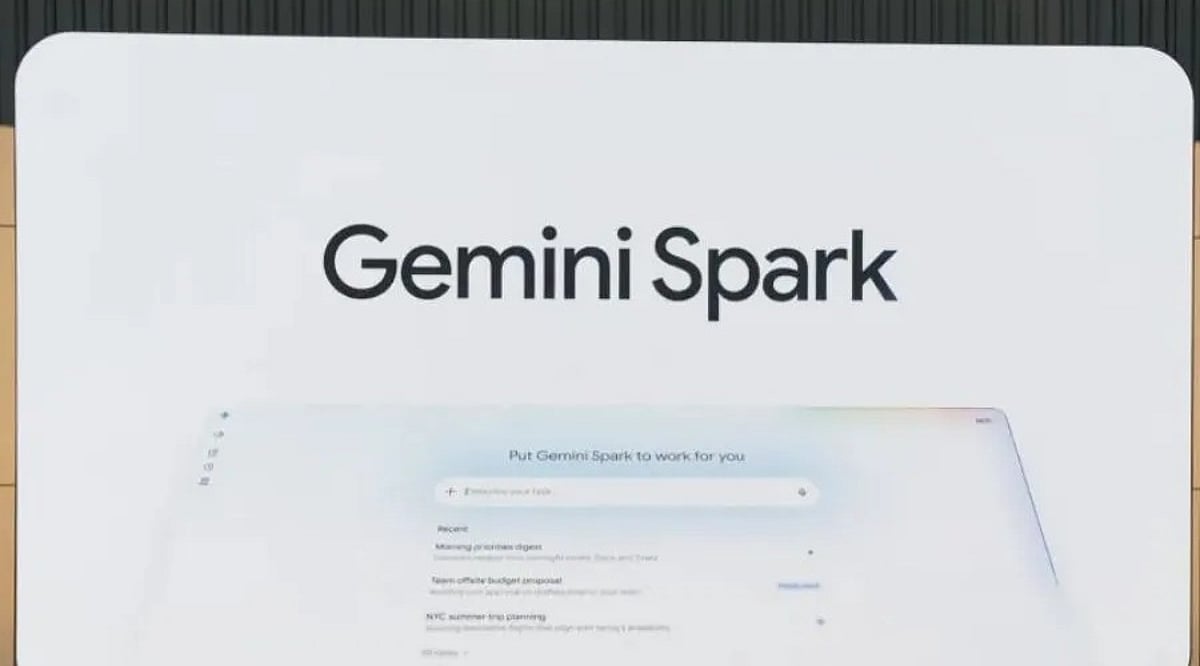
    Google has officially launched Gemini Spark in India, a cloud-based AI agent that operates continuously in the background — even when your phone is locked or your laptop is closed. Initially previewed at Google I/O 2026, the rollout begins for Google AI Ultra subscribers, with Google AI Pro subscribers gaining access in the coming weeks.

    An Agent That Works While You Sleep

    Unlike traditional AI assistants that respond to individual prompts, Gemini Spark is designed to autonomously complete multi-step tasks over time. It runs on Google’s cloud infrastructure and requires no active user involvement once a task is set. Built on the upgraded Gemini 3.6 Flash model, the agent integrates natively with Google Workspace apps including Gmail, Google Docs, Google Sheets, and Calendar — with no manual setup required.

    Tasks range from organizing emails in a personalized style and summarizing wedding RSVPs to planning travel itineraries across multiple services and managing recurring subscriptions.

    How Tasks, Schedules, and Skills Work

    Gemini Spark operates using three core components:

    • Task – The outcome the user wants the AI to achieve, from simple inbox clearing to complex multi-step workflows like coordinating a business trip.
    • Schedule – Recurring automations, such as a weekly summary of unread emails every Monday morning.
    • Skill – Specific capabilities Spark can apply, which will expand over time through updates. The agent can also interact with websites on the user’s behalf via a browser-based environment.

    Google has not yet confirmed which web capabilities will be available immediately in India. The launch comes shortly after OpenAI released ChatGPT Work, targeting a similar productivity and enterprise niche.

    User Control and High-Stakes Approval

    Users maintain full control over what Gemini Spark can access and do. They can limit connected apps or disable the agent entirely. For high-stakes, irreversible actions — such as sending an email without prior review, making a purchase, or any difficult-to-reverse action — Spark is designed to ask for explicit approval before proceeding.

    Google describes this human-in-the-loop design as a deliberate safeguard, positioning Spark as an agent that operates under user supervision. The India launch marks the company’s clearest step yet toward agentic AI that handles repetitive digital work autonomously.