Tag: Productivity

  • The Hidden Inflationary Risks of Central Bank AI Spending

    The Hidden Inflationary Risks of Central Bank AI Spending

    Massive investments in artificial intelligence are reshaping global economies, but they also carry hidden risks for central banks. As governments and corporations pour billions into AI infrastructure—chips, data centers, energy, and skilled labor—these spending surges are creating powerful demand pressures that could stoke inflation before any productivity benefits materialize.

    Central banks face a difficult policy dilemma. They must balance the promise of AI-driven growth against the risk of overheating economies. Prematurely restricting investments could stifle future productivity gains, but ignoring inflationary signals could destabilize prices. The challenge is compounded because AI’s productivity improvements may take years to emerge, while the costs are immediate.

    Financial markets are increasingly tied to AI optimism. Stock valuations and investor sentiment now hinge on AI companies’ performance, raising systemic risks if returns fall short. Meanwhile, corporate debt levels are climbing as firms borrow heavily to fund AI infrastructure. If demand slows or investments underperform, this debt could trigger financial stress.

    Energy demand is another concern. AI data centers require enormous electricity supplies, potentially driving up energy prices and adding to inflationary pressures. This creates a feedback loop where AI spending itself becomes a source of cost increases.

    Traditional economic models may prove unreliable in this new landscape. Rapid technological change is disrupting historical relationships between productivity, employment, inflation, and growth. Policymakers can no longer rely on conventional indicators alone. They must now monitor AI investment levels, market concentration, infrastructure spending, and corporate debt alongside standard metrics.

    Central banks need to develop new tools to track these hidden systemic risks. The era of AI-driven economies demands a broader, more dynamic approach to monetary policy—one that accounts for the unique pressures of technological transformation.

  • How Entrepreneur Ankur Warikoo Leverages ChatGPT to Enhance Daily Productivity and Deep Work

    How Entrepreneur Ankur Warikoo Leverages ChatGPT to Enhance Daily Productivity and Deep Work

    Entrepreneur and author Ankur Warikoo has openly shared how he integrates ChatGPT into his daily workflow to boost productivity, sharpen his thinking, and accelerate learning. Rather than using AI as a crutch to complete tasks for him, Warikoo treats it as a collaborative partner that helps him brainstorm ideas, simplify complex topics, and structure his thoughts before taking action. His approach offers a practical blueprint for professionals who want to harness AI without sacrificing critical thinking or creativity.

    Why This Matters

    As artificial intelligence becomes more embedded in professional environments, the conversation has shifted from whether to adopt AI to how to use it effectively. Warikoo’s methodology demonstrates that AI tools can enhance productivity while preserving human judgment and independent decision-making.

    Overcoming the Blank-Page Challenge

    Starting a new task—whether it’s a presentation, newsletter, or business plan—is often the hardest part. Many professionals spend more time figuring out how to begin than actually completing the work. Warikoo uses ChatGPT to break through this initial barrier. He starts with a simple request, explores different angles, and lets the AI inspire him rather than copying its output verbatim. This approach cuts down the time spent staring at a blank page while keeping creative decisions firmly in human hands.

    Simplifying Complex Information

    In fast-moving fields like finance and business, staying informed is essential—but the challenge is often organizing information, not accessing it. Warikoo uses ChatGPT to clarify complicated concepts, make comparisons, and generate concise summaries. This helps him grasp new topics quickly before diving into deeper research, a strategy that is especially valuable for busy professionals juggling multiple responsibilities.

    Building Better Daily Habits

    Warikoo also applies ChatGPT beyond work tasks. For instance, he asked the chatbot which habits could help someone become more successful than most people. The response emphasized practical, everyday routines such as maintaining a steady schedule, exercising regularly, carving out time for deep work, continuous learning, eating well, saving money, reducing distractions, and nurturing personal relationships. While none of these points are revolutionary, turning them into a structured checklist makes them easier to follow. This exercise highlights how AI can organize proven principles into a manageable daily routine.

    The Importance of Deep Work

    One of Warikoo’s key takeaways from using ChatGPT is the emphasis on uninterrupted, focused work. He recommends dedicating two to four hours each day to deep work—free from notifications, meetings, or social media distractions. This aligns with the growing productivity trend that prioritizes concentrated effort over multitasking. For Warikoo, AI serves as a habit reminder for well-known productivity techniques rather than a source of novel methods.

    Accelerated Learning Without Cutting Corners

    Warikoo also leverages ChatGPT for faster learning. Instead of spending hours searching for articles, videos, and reports, he asks the chatbot for a general overview of an unfamiliar topic. Once he has the basics, he continues with in-depth research—but in a more efficient order. This approach saves time while maintaining research quality.

    AI as a Thought Partner, Not a Replacement

    Perhaps the most important aspect of Warikoo’s strategy is viewing AI as a thinking partner rather than a substitute for expertise. ChatGPT can help structure information, generate ideas, and automate repetitive tasks, but judgment, creativity, and decision-making remain human responsibilities. The quality of the output depends heavily on the quality of the questions asked. Warikoo’s core takeaway is that AI delivers the most value when it augments human thought rather than replacing it.

    Frequently Asked Questions

    1. How does Ankur Warikoo use ChatGPT every day? He uses it to brainstorm ideas, simplify complex topics, plan tasks, accelerate learning, and organize his daily workflow.
    2. Does Ankur use ChatGPT to write all his content? No. He uses it for idea generation and structure, but relies on his own knowledge and judgment for final content.
    3. What productivity habit does Ankur highlight the most? He emphasizes deep work, recommending two to four hours of uninterrupted focus daily for high-impact tasks.
    4. Can ChatGPT help professionals improve productivity? Yes, by organizing information, generating ideas, summarizing topics, and reducing repetitive work, it allows professionals to focus on important decisions.
    5. What is Ankur’s biggest takeaway about using AI? He believes AI works best as a thinking partner that supports human creativity and decision-making, not as a replacement for them.
  • Morning Routines That Drive Success: Habits of India’s Top CEOs

    Morning Routines That Drive Success: Habits of India’s Top CEOs

    Wake Up Early

    Many successful CEOs begin their day before sunrise, creating uninterrupted time for planning, learning, and personal development activities.

    Exercise Regularly

    Morning workouts improve energy, mental clarity, and resilience, helping leaders handle demanding schedules and high-pressure business decisions confidently.

    Practice Mindfulness

    Meditation, breathing exercises, or quiet reflection help reduce stress, improve focus, and prepare CEOs for challenging meetings ahead.

    Read Daily

    Top executives dedicate time to books, industry news, and global trends, staying informed before making important business decisions.

    Plan Priorities

    Successful leaders identify key tasks every morning, ensuring critical work receives attention before distractions begin throughout the busy day.

    Eat a Healthy Breakfast

    A balanced morning meal fuels concentration, sustained energy, and better decision-making during long hours of meetings and strategy sessions.

    Avoid Digital Distractions

    Many CEOs delay checking emails or social media, protecting valuable morning hours for focused thinking and planning instead.

    Review Long-Term Goals

    Daily reflection on personal and business objectives keeps leaders aligned with strategic priorities and long-term organizational vision consistently.

    Learn Something New

    Whether listening to podcasts or exploring emerging technologies, continuous learning keeps CEOs adaptable in rapidly changing business environments.

  • Android Productivity Boost: Essential Apps and Hidden Feature Guide

    Android Productivity Boost: Essential Apps and Hidden Feature Guide

    Introduction

    Hidden apps on Android are not always malicious. Many users hide apps for privacy, while manufacturers offer features like Secure Folder or Private Space. However, hidden apps can also indicate unwanted software. Knowing how to locate them helps improve device security, manage storage, and ensure you have complete control over everything installed on your smartphone.

    Search the App Drawer

    Start by opening your phone’s app drawer. Use the search bar to look for the app by name. Then check the menu or Home Screen Settings for options like “Hidden Apps” or “Hide Apps.” Many Android launchers, including Samsung, OnePlus, and Xiaomi, provide built-in tools to hide or reveal applications.

    Check Installed Apps

    Visit Settings > Apps > See All Apps to view every installed application. This list usually includes apps hidden from the launcher. Review unfamiliar apps, recently installed software, and disabled applications. Sorting by installation date or usage can help identify suspicious or forgotten apps occupying storage and system resources.

    Explore Private Spaces

    Modern Android devices offer secure storage for apps. Samsung includes Secure Folder, Google Pixel offers Private Space, while brands like OnePlus and Xiaomi provide Hidden Space or Second Space. These features require authentication, allowing users to keep sensitive apps separate from the main app drawer for enhanced privacy.

    Use Google Play Store

    Open the Google Play Store, tap your profile, and select Manage Apps & Device. Under the Installed section, you’ll find all apps currently linked to your device. This method helps verify whether an app is installed even if it doesn’t appear on the home screen or app drawer.

    Look for Suspicious Apps

    Watch for apps with generic names, blank icons, excessive permissions, or unusually high battery and data usage. Also, review Device Administrator apps in your security settings. These indicators may reveal hidden spyware or unwanted software that deserves further investigation or removal to protect your privacy.

    Final Tips

    Regularly review installed apps, update Android, and uninstall software you no longer need. If you suspect malware, restart in Safe Mode or scan your device with a trusted security app. By routinely checking hidden and installed apps, you can maintain better security, performance, and privacy on your Android smartphone.

  • Top 6 Telegram Hacks to Boost Privacy and Productivity

    Top 6 Telegram Hacks to Boost Privacy and Productivity

    Boost Your Telegram Experience with These Simple Hacks

    Telegram is one of the most popular messaging apps, but many users don’t tap into its full potential. Here are six easy hacks every Telegram user should know, from organizing chats to protecting your privacy.

    1. Use Saved Messages as Your Personal Notebook

    Treat the Saved Messages chat as your digital filing cabinet. Store important documents, links, photos, voice notes, and reminders—all synced across devices. This eliminates the need for third-party note apps or cloud storage for quick access.

    2. Organize with Chat Folders

    Reduce clutter by creating custom Chat Folders for work, family, friends, and channels. This keeps conversations separate, improves productivity, and helps you instantly find what matters most—especially if you manage many groups or business conversations daily.

    3. Automate Cleanup with Auto-Delete Messages

    Enable Auto-Delete for specific chats to remove messages after a set period. It boosts privacy, clears history, and saves storage. Perfect for sensitive discussions or temporary chats that don’t need to stay forever.

    4. Hide Your Phone Number

    Enhance privacy by limiting who can see your phone number. Choose from Everyone, My Contacts, or Nobody. Communicate through your Telegram username to stay connected without sharing personal contact info.

    5. Pin Important Chats

    Keep priority conversations at the top of your list by pinning them. Whether family, work, or frequently used groups, pinned chats ensure you never miss critical messages and can respond faster.

    6. Manage Storage

    Go to Telegram’s Storage settings to clear cached media, set auto-cache limits, and handle downloads. Regular cleanups free up space without deleting chats, keeping the app running smoothly.

  • Streamline Your Workflow: AI Tools That Eliminate Repetitive Office Work

    Streamline Your Workflow: AI Tools That Eliminate Repetitive Office Work

    Repetitive office tasks—like drafting emails, scheduling meetings, entering data, and summarizing documents—consume valuable time that could be spent on higher-level strategic work. Fortunately, a wave of artificial intelligence tools now automates these mundane activities, freeing teams to focus on creativity and decision-making. Below is a curated list of the most effective AI solutions for eliminating repetitive office tasks, each with a specific use case.

    ChatGPT

    OpenAI’s ChatGPT automates writing, summarizing, brainstorming, email drafting, meeting notes, and document creation. It reduces repetitive communication tasks across teams efficiently by generating coherent text based on simple prompts, making it a versatile assistant for any office environment.

    Microsoft Copilot

    Deeply integrated into Microsoft 365, Copilot automates spreadsheet formulas, presentation design, email replies, meeting summaries, and document editing. It leverages data from your organization to provide contextually relevant suggestions, boosting everyday office productivity without requiring manual formatting.

    Google Gemini

    Google’s Gemini assists with Gmail, Docs, Sheets, and other Workspace tasks. It generates content, organizes information, summarizes long files, and answers workplace queries. Its seamless integration with Google’s ecosystem makes it ideal for teams already using Google Workspace.

    Zapier

    Zapier connects thousands of apps to automate repetitive workflows, data transfers, notifications, approvals, and administrative processes—all without coding. By setting up “Zaps,” users can trigger actions across platforms, eliminating manual handoffs and reducing errors.

    Notion AI

    Notion AI speeds up note-taking, document drafting, meeting summaries, project updates, and knowledge management. It keeps workplace information organized automatically, surfacing relevant content and generating action items from meeting notes, which saves hours of manual documentation.

    Grammarly

    Grammarly improves workplace communication by correcting grammar, refining tone, rewriting sentences, and ensuring professional writing across emails, reports, and documents. Its AI-powered suggestions help maintain consistency and clarity, reducing the need for back-and-forth edits.

    Otter.ai

    Otter.ai automatically records meetings, transcribes conversations, creates searchable notes, and highlights action items. It saves employees from manual note-taking and ensures that no important detail is lost, making post-meeting documentation effortless.

    Trello with Butler Automation

    Trello’s built-in Butler feature automates task assignments, due date reminders, workflow rules, card movements, and repetitive project management activities. It allows teams to set up automation without any coding, keeping boards updated and deadlines tracked automatically.

    UiPath

    UiPath uses robotic process automation (RPA) to handle repetitive data entry, invoice processing, report generation, and enterprise workflows with minimal human involvement. It is ideal for large organizations that need to automate complex, rule-based processes across multiple systems.

    By integrating these AI tools into daily operations, businesses can significantly reduce the time spent on repetitive tasks, increase accuracy, and allow employees to focus on innovation and growth. Whether you’re a solo entrepreneur or part of a large enterprise, there is an AI solution ready to streamline your workflow.

  • Top 10 Kanban Software Solutions to Supercharge Your Project Workflow in 2026

    Top 10 Kanban Software Solutions to Supercharge Your Project Workflow in 2026

    Kanban boards have become a cornerstone of effective project management, helping teams visualize workflows, limit work in progress, and deliver results faster. Whether you are a solo entrepreneur or part of a large enterprise, the right Kanban tool can transform how you organize tasks and collaborate. Here are the 10 best Kanban software options for accelerating project delivery in 2026.

    Jira Software

    The industry standard for Agile teams, Jira offers highly customizable Kanban boards, powerful automation rules, and advanced reporting capabilities to keep development projects on track.

    Trello

    Known for its intuitive drag-and-drop interface, Trello is ideal for individuals, startups, and small teams looking for a simple yet effective way to manage tasks visually.

    ClickUp

    ClickUp combines Kanban boards with docs, goals, and AI-powered project management, making it a versatile all-in-one productivity platform for teams of any size.

    Monday.com

    With visual workflows, robust automations, and customizable dashboards, Monday.com helps teams streamline processes and deliver projects faster.

    Asana

    Asana excels at cross-functional project management, offering timeline views alongside Kanban workflows to keep multiple projects organized and aligned.

    Notion

    Notion’s flexible databases and Kanban board views make it a favorite among content creators and product teams who need a blend of documentation and task management.

    Azure DevOps Boards

    Built for software development teams, Azure DevOps Boards provides enterprise-grade Agile planning, tracking, and Kanban capabilities integrated with the Microsoft ecosystem.

    Zoho Projects

    Zoho Projects offers an affordable solution with Kanban boards, issue tracking, and team collaboration features, making it suitable for small to mid-sized businesses.

    Each of these tools brings unique strengths to the table. The best choice depends on your team size, workflow complexity, and budget. Evaluate the features that matter most to your process and start accelerating your project delivery today.

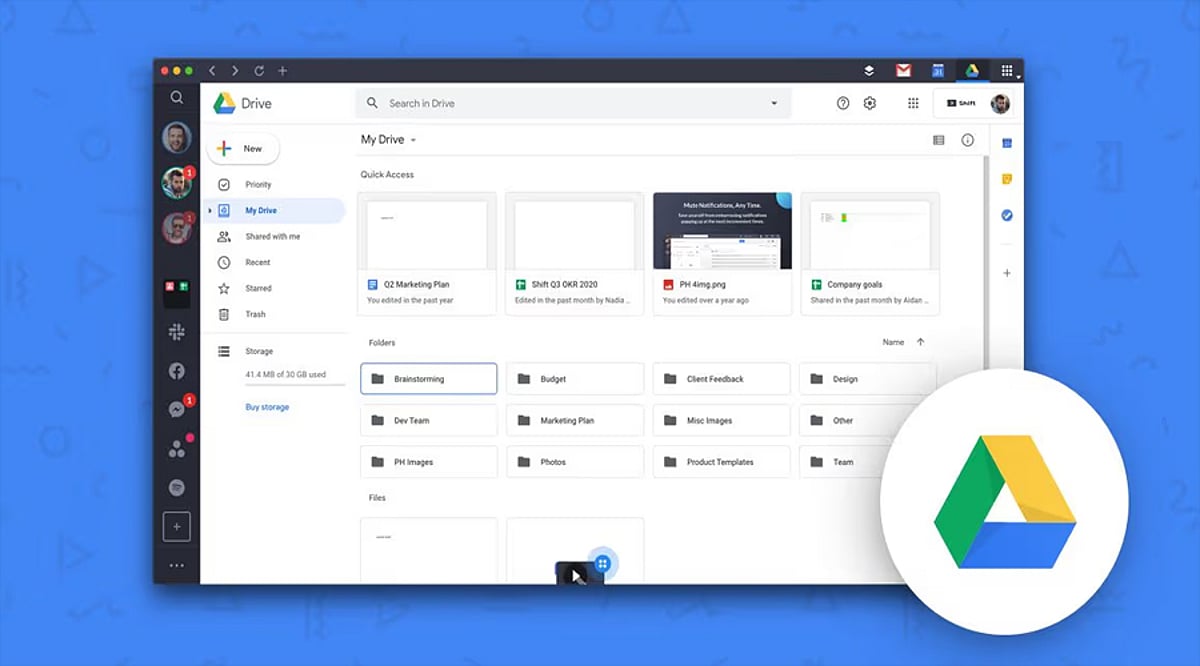
  • 10 Smart Google Drive Hacks to Organize Your Files Like a Pro

    10 Smart Google Drive Hacks to Organize Your Files Like a Pro

    Google Drive is a powerful cloud storage tool, but without a solid organization system, files can quickly become a mess. Here are proven hacks to keep your Drive tidy, boost productivity, and find any document in seconds.

    1. Create a Clear Folder Structure

    Start by building main folders for work, personal, school, or specific projects. Add subfolders only when necessary to avoid clutter. Use consistent, descriptive names so every file has a logical home. A simple hierarchy speeds up file retrieval and helps maintain order from day one.

    2. Use Color-Coded Folders

    Google Drive allows you to assign colors to folders for instant visual recognition. Give distinct colors to work, personal, finance, or shared folders. This makes important folders stand out and reduces time spent scanning long lists. A splash of color transforms navigation.

    3. Star Frequently Used Files

    Use the Star feature for files you access daily. Starred items appear in a dedicated section for one-click access. Perfect for ongoing projects, key reports, or essential spreadsheets. No more digging through folders—just star and go.

    4. Search Like a Pro

    Google Drive’s search is more powerful than most users realize. Filter by file type, owner, keywords, or last modified date. Combine multiple filters to zero in on any file, even in massive storage libraries. Smart searching beats manual browsing every time.

    5. Clean Up Shared Access

    Regularly review who has access to your shared files and folders. Remove people who no longer need permissions. Update access levels to keep sensitive data secure. This prevents accidental edits and ensures collaboration stays safe and organized.

    6. Delete Unused Files Regularly

    Set aside a few minutes each month to purge duplicates, outdated documents, and unnecessary files. Check for large files consuming storage. Empty the Trash after confirming deletion. Routine cleanup keeps Drive lean, fast, and easy to manage.

    By implementing these hacks, you’ll transform Google Drive from a chaotic storage dump into a streamlined productivity hub. Start today and enjoy a clutter-free digital workspace.

  • Workflow Tools in 2026: What Teams Need for Seamless AI Integration and Reduced Context Switching

    Workflow Tools in 2026: What Teams Need for Seamless AI Integration and Reduced Context Switching

    The way knowledge workers manage their work has not changed as much as the technology around them suggests it should. A Harvard Business Review study tracking teams at three Fortune 500 companies found that knowledge workers toggle between applications roughly 1,200 times a day, losing close to four hours a week just reorienting themselves after each switch — not by choice, but because the information they need is spread across systems that were never designed to connect properly. Tasks live in a project tracker. Specifications live in a separate wiki. Status updates circulate through a messaging tool that nobody checks consistently. The AI layer, if there is one, sits in a chat panel with no access to any of it. The platforms closing this gap in 2026 are the ones redesigning their data architecture so AI has access to the same operational context people do — not bolting a chat window onto a task board.

    Workflow management software was supposed to solve this coordination problem. For basic task organization, it has. But in 2026, the category is undergoing a more significant shift — driven by AI capabilities that have matured beyond novelty, by organizations accumulating years of integration debt, and by teams that have grown tired of spending more time managing the tools than doing the work itself.

    Why Existing Workflow Tools Are Falling Short

    The standard criticism of workflow software is that it does not do enough. The more precise problem is that it does too many separate things without any of them properly connecting. A typical team in 2026 still operates across a project manager for tracking tasks, a knowledge base for documentation, a messaging platform for coordination, and increasingly a standalone AI tool for summarizing or drafting content. Each of these works in isolation. None of them knows what the others contain.

    When an engineer wants to understand the reasoning behind a task, they leave the task board to search for a specification in the wiki — which may or may not be the current version. When a manager needs to report on project status, they assemble information from multiple dashboards that were each built to answer a slightly different question. When a new hire joins, their onboarding consists of being sent a dozen links across different tools and being asked to piece together how everything fits. This coordination overhead does not appear on any single metric. It accumulates across every sprint review, every handoff, and every status meeting that exists because the tools do not surface information automatically. The cost is real — it just does not show up on a software invoice.

    What AI-Ready Workflow Management Software Actually Looks Like

    The platforms gaining ground in 2026 are the ones that treat the AI layer not as a feature to be added, but as a reason to redesign how the underlying data is organized. For AI to be genuinely useful inside a team, it needs access to actual work context — not just a text prompt. That means tasks, documents, comments, decision history, and team structure all need to live in the same operational record. An AI assistant that can only read a chat thread can answer general questions. One that reads the full workspace can summarize sprint progress, flag blockers before they escalate, draft a product requirements document from existing tasks, or surface a decision that was made three months ago and is relevant to a problem being discussed today. This is the architectural difference that separates modern workflow management software from tools that have simply added a chat interface on top of a task board.

    Vaiz is one platform built around this model: a workflow management tool that combines tasks, documents, and an AI assistant inside a single workspace. Its AI assistant has access to tasks, documents, comments, and change history across the entire workspace — which means it can help generate content, summarise projects, or identify bottlenecks without anyone manually feeding it context. The platform covers the core workflow stack — Kanban boards, Gantt charts, real-time document collaboration, and built-in automation — with tasks, docs, and comments stored in the same record so the AI layer has a complete picture of what the team is doing and why. It holds a 4.8 out of 5 rating across G2, Trustpilot, and Crozdesk, and its free plan supports up to 10 users with all core features included.

    The Capabilities That Matter Most When Evaluating Tools

    • Native documentation. Documentation that lives inside the same workspace as tasks eliminates the version-control problem that plagues teams using separate wikis. When a specification updates, the tasks connected to it can reflect that change. When a developer asks why a task exists, the answer is one click away — not three tools away.
    • AI with real context. The most important question to ask about any AI feature in workflow software is not what model it uses — it is what data the model can access. An AI assistant with full-workspace context will generally outperform one that operates in isolation, even when the underlying model is comparable.
    • Automation built into the core. Routing new requests into tasks automatically, triggering assignments when work moves between stages, generating summaries without manual input — these automations are most reliable when they run within a single unified system. Cross-tool automation via third-party connectors works until one side of the integration changes, which is a question of when, not if.
    • Free evaluation on real projects. The practical difference between workflow tools becomes clear within the first two weeks of genuine use. A free plan that allows a team to run a complete project — not a restricted sandbox — is worth more than a feature-rich trial that expires before any meaningful evaluation has happened.

    Where the Category Is Heading

    The next phase of workflow management is less about adding more features and more about reducing the distance between information and the work that depends on it. The tools that will define the category in the next two to three years are the ones where the entire operational context — objectives, tasks, documentation, decisions, history — lives in one place, and the AI layer can act on all of it. For organizations still running on fragmented stacks of loosely connected tools, the switching cost feels significant. But the ongoing cost of coordination overhead — status meetings, duplicate work, lost context, slow onboarding, manual reporting — compounds in ways that rarely get measured directly. The question for most teams in 2026 is not whether consolidation is worth it. It is whether the platform they choose is built around a coherent operational model, or whether it is a collection of features assembled around a task board that was not designed to be the center of anything.