
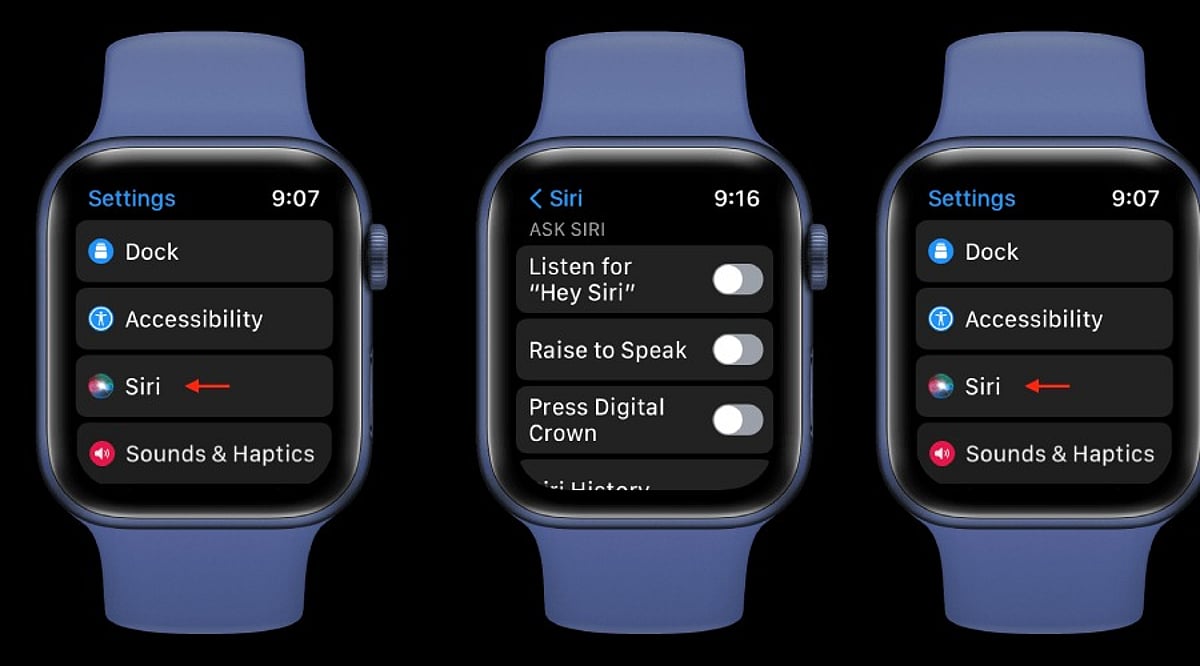
Apple’s latest Apple Watch models introduce Audio Intelligence features, including Siri Recap, which can listen to conversations in the background and generate AI-powered summaries. While Apple emphasizes that Siri Recap is opt-in and does not store raw audio recordings, many users may prefer to disable it for privacy. Here’s how to turn off Siri Recap on your Apple Watch while keeping standard Siri features fully functional.
What Is Siri Recap on Apple Watch?
Siri Recap is part of Apple’s Audio Intelligence suite for Apple Watch. Unlike traditional Siri, which waits for an explicit activation command, Siri Recap works in the background. When enabled, it can listen to conversations throughout the day and create high-level summaries so you can recall important points later.
Apple states that Siri Recap does not generate conventional audio recordings. Instead, audio is processed in a protected hardware environment that is inaccessible to the operating system, third-party apps, or Apple itself. The resulting recaps are summarized overviews, not full transcripts of your conversations.
How to Turn Off Siri Recap
Disabling Siri Recap takes just a few seconds. Use the Watch app on your paired iPhone:
- Open the Watch app on your iPhone.
- Tap the Siri section.
- Locate Siri Recap.
- Toggle the switch to turn it off.
Once disabled, your Apple Watch will stop using the feature to take ambient notes or generate conversation summaries. You can also enable or disable Siri Recap directly from Control Center on the watch itself.
Schedule Siri Recap Instead of Turning It Off Completely
If you find Siri Recap useful in certain situations but want more control over when it listens, you don’t have to disable it entirely. Apple lets you set Siri Recap to operate on a schedule based on time of day, location, or specific scenarios. For example, you can keep it active during work hours and turn it off automatically at home or overnight.
Siri Recap vs. Live Rewind
It’s important not to confuse Siri Recap with Live Rewind, a separate feature. Live Rewind lets you retrieve a text snippet of what was said in the previous 15 seconds after double-pressing the Digital Crown. It does not continuously create a running transcript in the background like Siri Recap can.
Both features come with the Apple Watch Series 12 and Apple Watch Ultra 4, subject to software and compatibility requirements.
Disabling Siri Recap Doesn’t Disable Siri
Turning off Siri Recap has no effect on regular Siri functionality. You can still use Siri for reminders, weather, timers, messages, smart-home controls, and other supported actions. This makes it easy to enjoy the convenience of Apple’s assistant without the concern of background listening.
By following the steps above, you can take control of your Apple Watch’s privacy features and decide exactly when Audio Intelligence is allowed to listen.
Leave a Reply